
HubSpot Theme
HubSpot Modules
- Startup Growth Metrics
- Smart FAQ Accordion
- Premium Full Screen Banner
- Latest Insights Blog
- Two Column Testimonial
- Dynamic CTA Banner
- Latest Blog Highlights
- Dynamic Overlap Cards
- Case Study
- Modern Video Showcase
- Content Grid Pro
- Modern Hero Banner
- Feature Cards
- Use Case Tabs
- Feature Accordion Pro
- Info Cards
- Hero Banner Pro
- Pricing Plans Premium
- Job Search and Category Premium
- Infinity Logos Slider
- Stats Number Counter
- Step Process Or Services
- Motion Cards
- FAQ Premium
- Tab with Content
- Service Animation Cards
- About Me
- Infinity Testimonial Slider
- Events List Premium
- Download eBook Now
- Tabbed Info Display
- Banner Pro
- Two Column Steps
- Image Gallery With Animation
- Parallax
- What We Offer
- Horizontal Slides Panel
- Banner
- Sliding Animation Cards
- CTA Back To Top
- Location With Map
- Testimonial Single
- Work Steps Process
- Sticky Social Icon
- Brand Logo Slider
- Animated Cards
- Multistyle Hero Banner
- Pricing Plans Card
- Hover Box Animation
- About Us Content
- Upcoming Events
- Unique CTA
- Team Members Detail
- E-Book Download
- Countdown Coming soon
- Our Services Cards Documentation Page
- 404 Section
- Main Hero Banner
- Client Logos Section
- Counter Cards Documentation Page
- Timeline Module Documentation Page
- Knowlegebase: Hubspot FAQ Module

Provider:

Code Accelerator Pvt. Ltd.
thecodeaccelerator.comEffortlessly showcase your Latest Blog Highlights with a clean, modern layout designed to boost engagement and visibility. The Latest Blog Highlights module automatically pulls your most recent articles and gives you full control over layout, spacing, and display settings—no coding required. Customize titles, images, meta details, and call-to-action elements to match your brand style. Ideal for highlighting fresh content, driving traffic, and keeping any HubSpot page up to date.
Key Features of a Latest Blog Highlights Module :
✅ Automatic Latest Post Fetching – Dynamically displays the most recent blog posts without manual updates.
✅ Fully Mobile Responsive – Seamlessly adapts to all screen sizes for the best viewing experience.
✅ Modern & Clean Design – Sleek, contemporary styling fits perfectly into any modern website.
✅ Easy to Edit – Quickly customize content, styles, and settings without hassle.
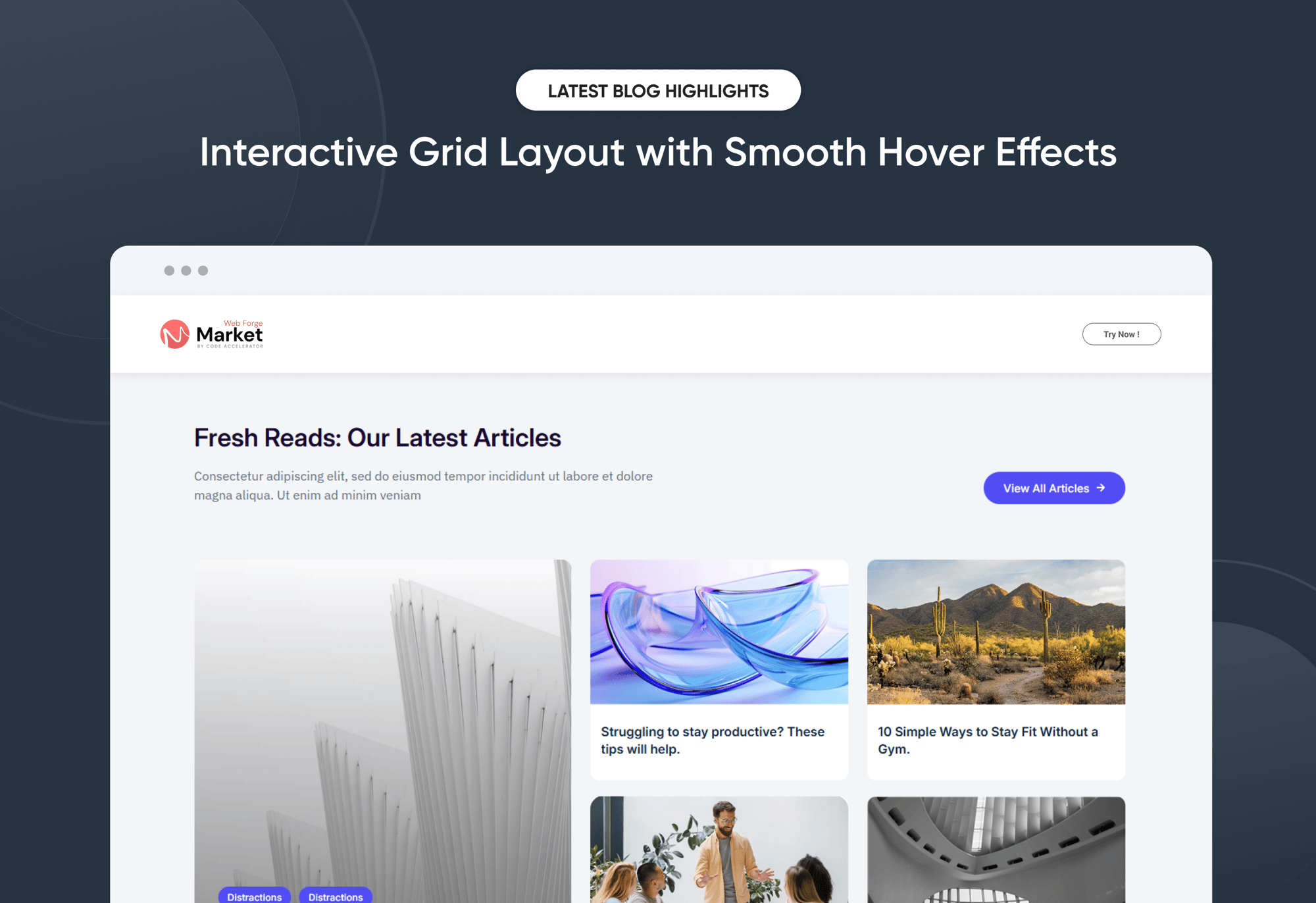
✅ Hover & Animation Effects – Engage users with smooth hover states, transitions, and subtle animations.
✅ Optimized for Performance – Lightweight and fast for smooth transitions and loading.
✅ Call to Action (CTA) – A friendly nudge like “Contact me” or “Book a Consultation” with a button.
How to Set Up the Latest Blog Highlights in HubSpot :
In the main dashboard, go to the ‘Content’ tab and select either ‘Website’ or ‘Landing Pages,’ depending on where you want to add the section. This lets you choose the right location for managing or updating your content.
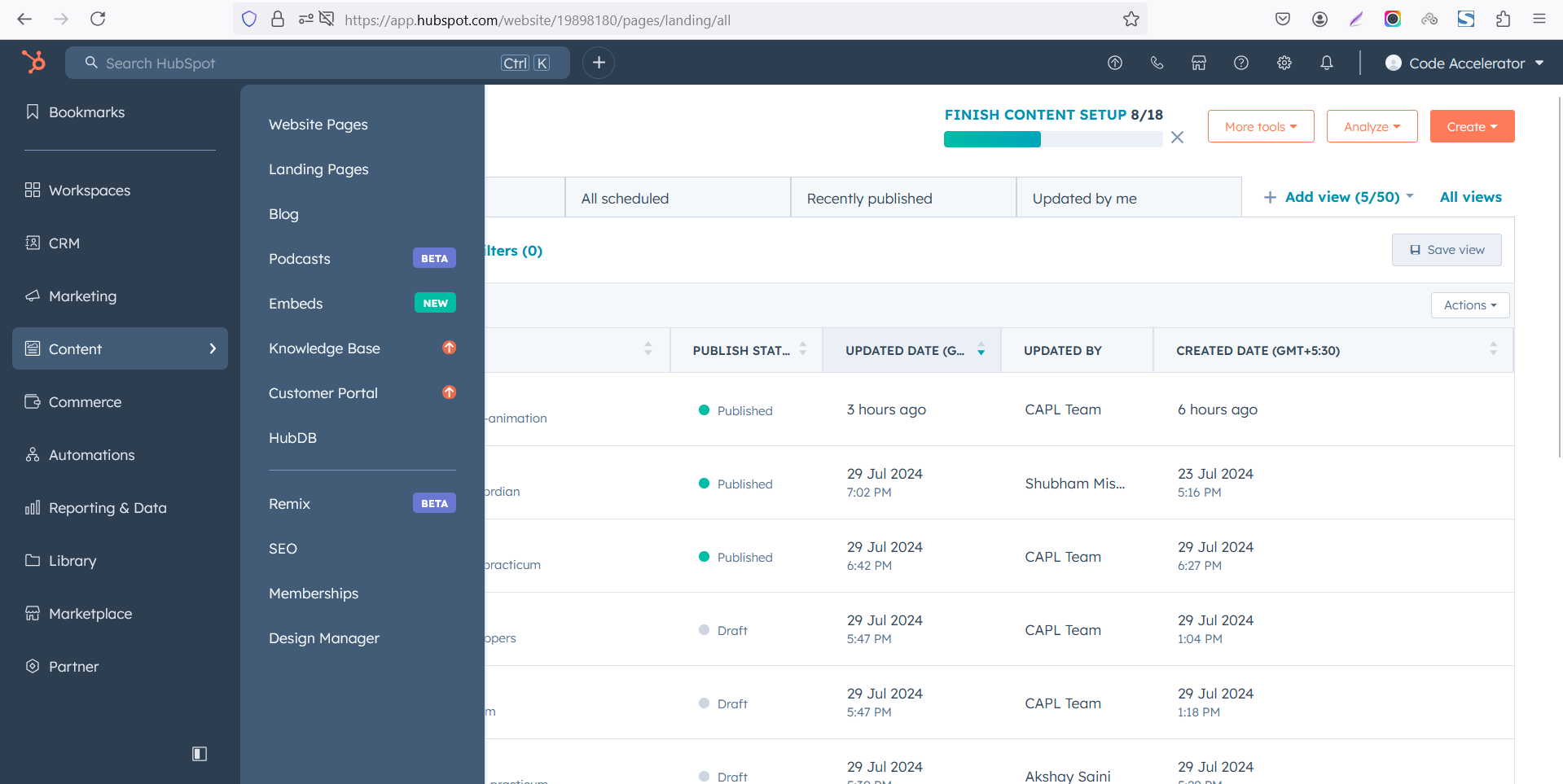 Select the page where you want to apply the module.
.png)
Search for "Latest Blog Highlights" and drag and drop the module into the desired location on your page.
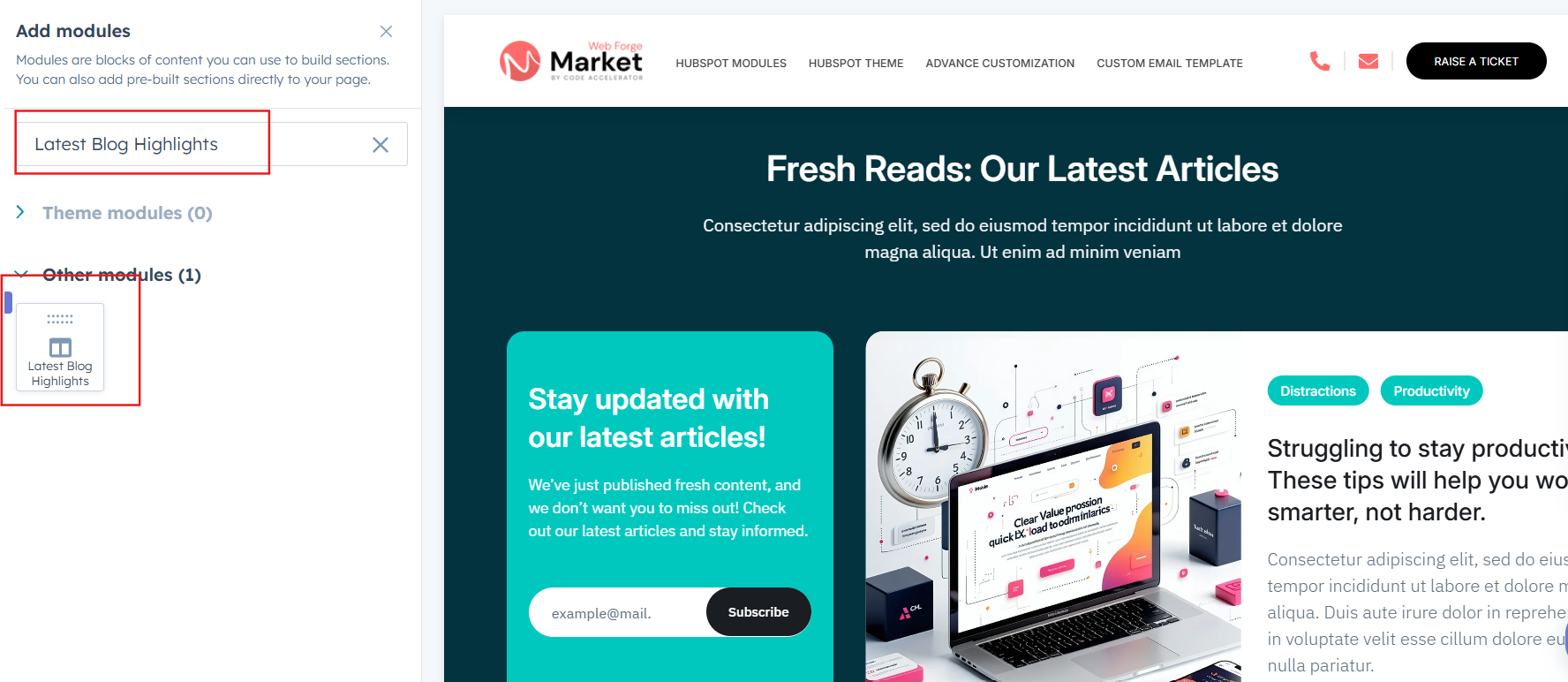
Module Defaults Options:
Layout ID :
To enable smooth scrolling for a CTA, assign an ID to the target element, reference that ID in the anchor link's href, and clicking the CTA will smoothly scroll the page to the section.
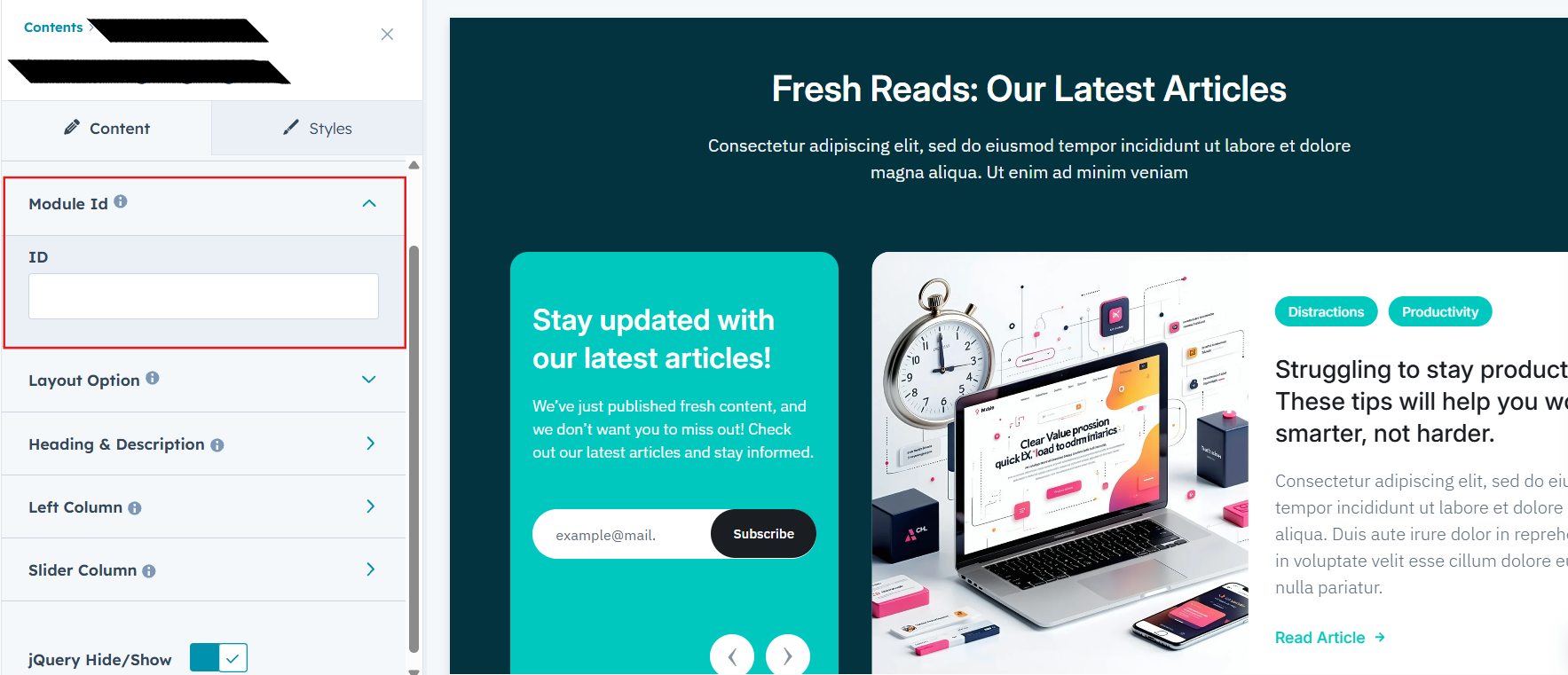
Layout Options :
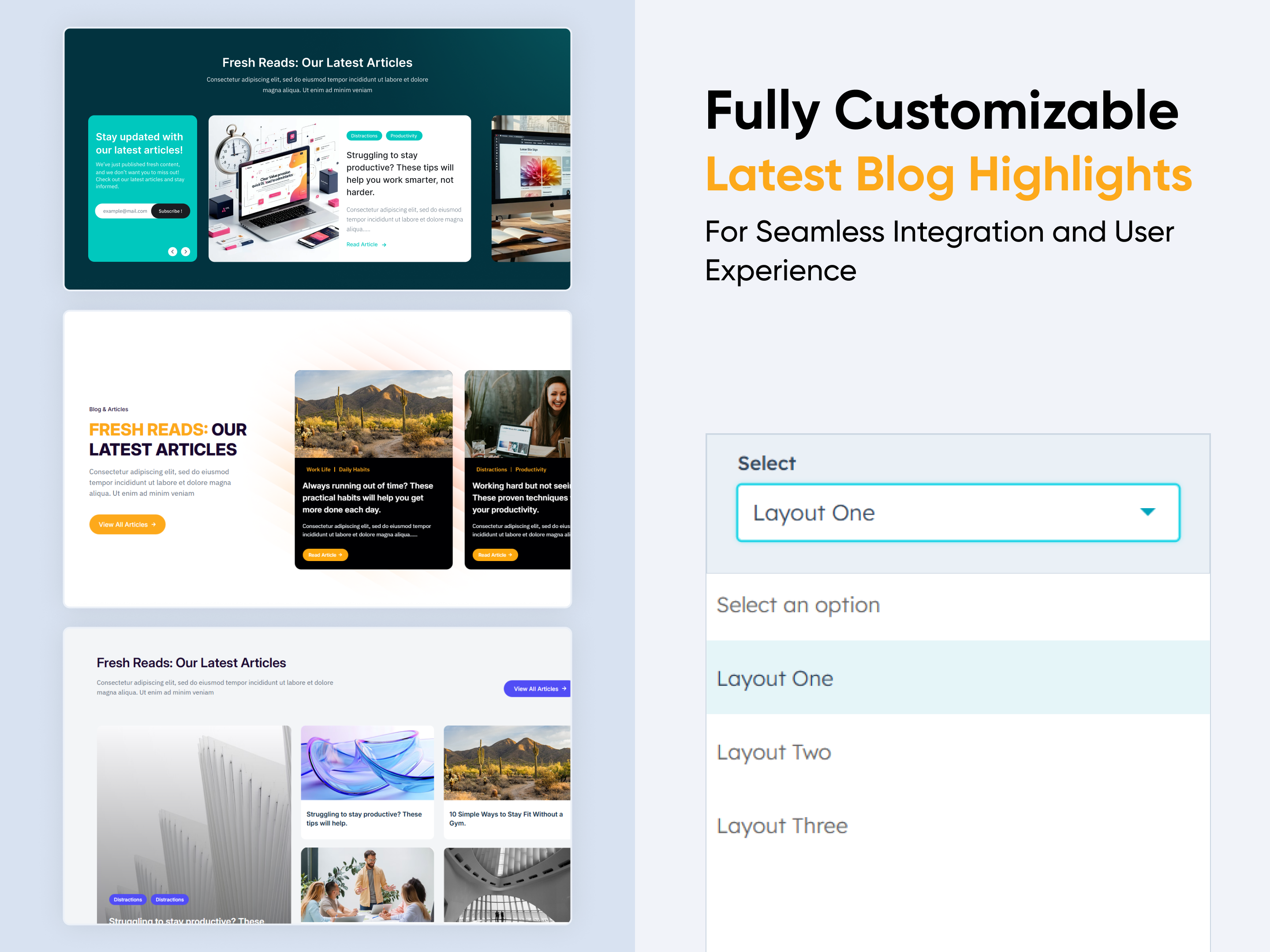
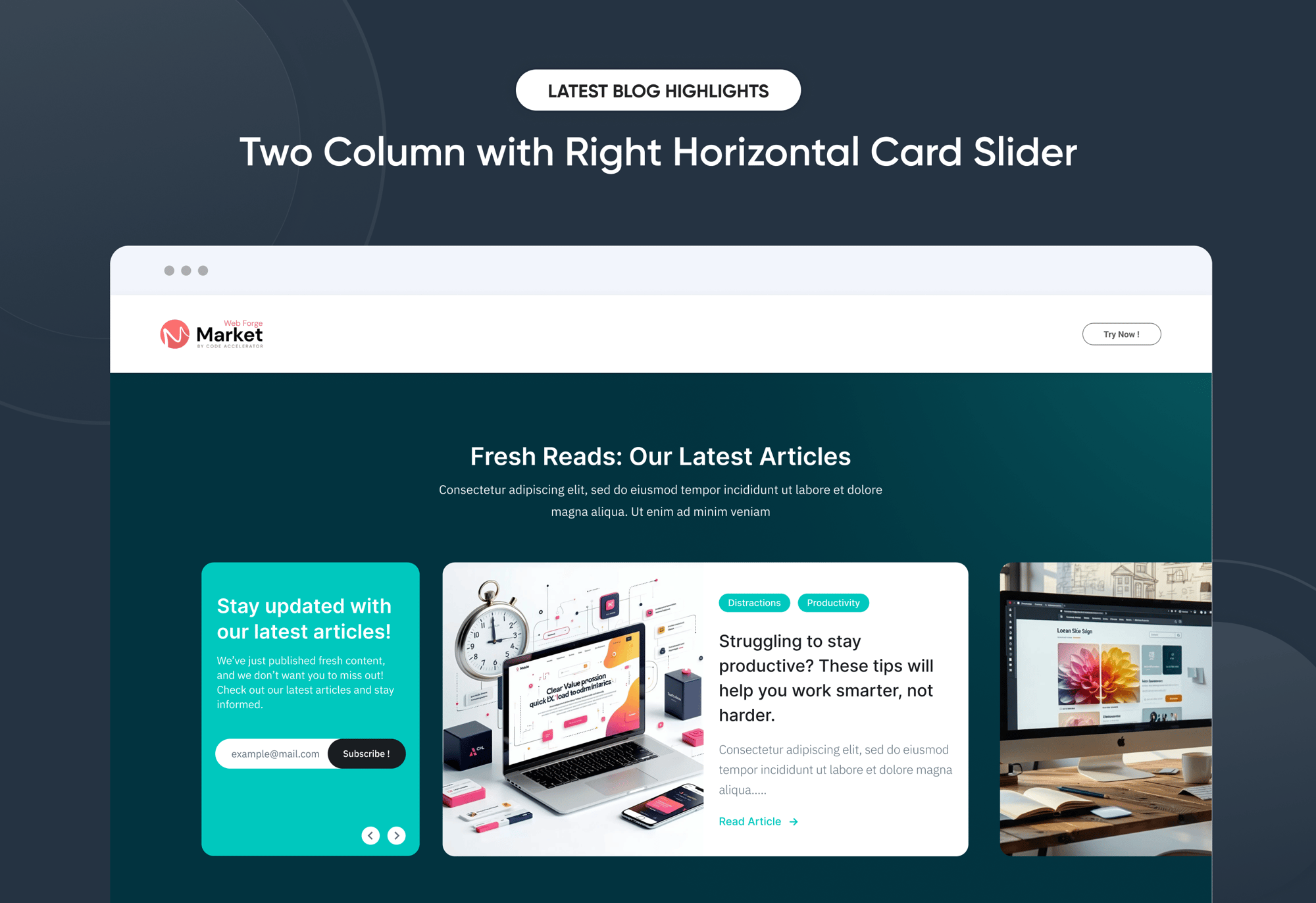
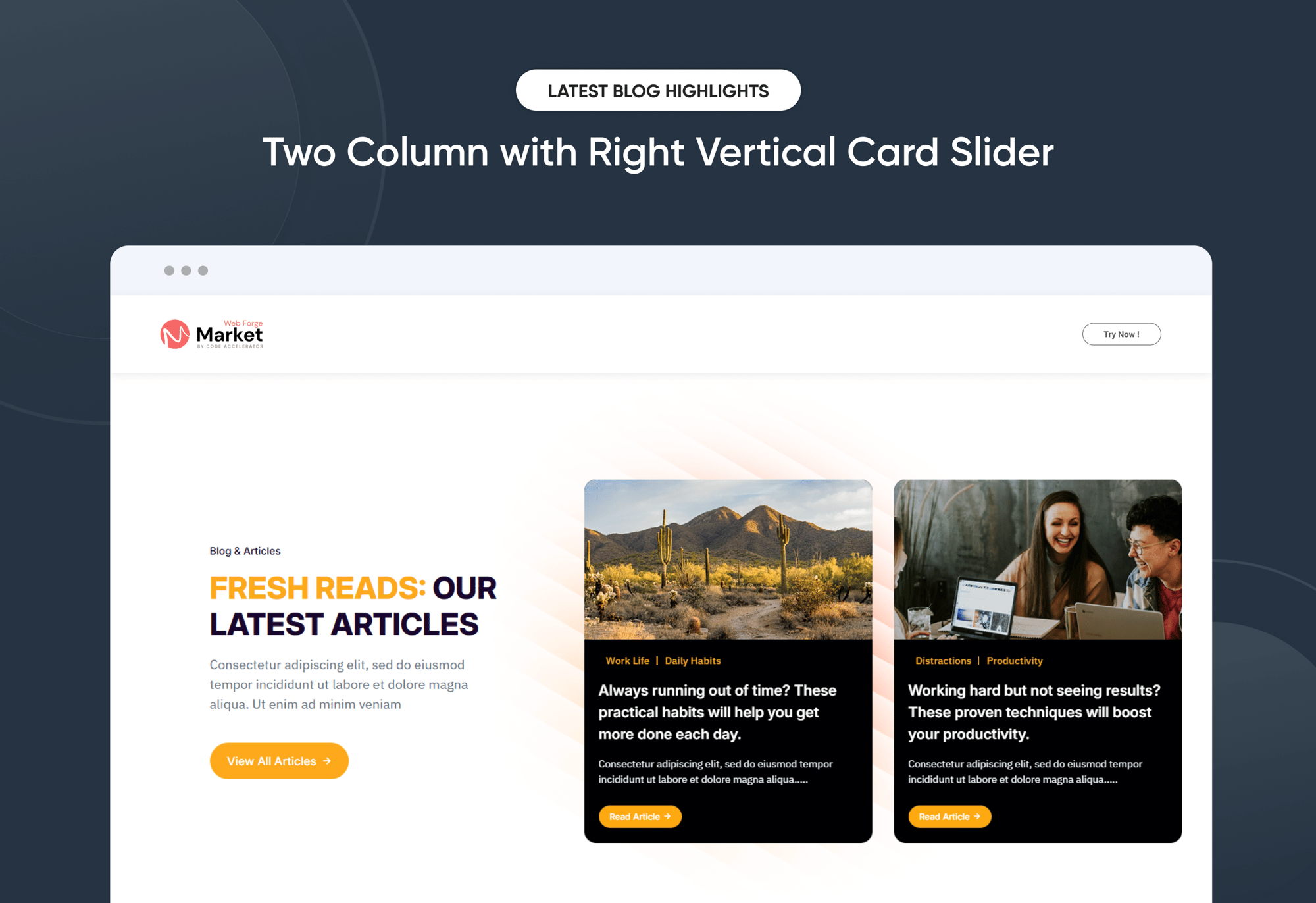
Choose your ideal layout (Layout 1, 2, or 3) and effortlessly arrange your cards to create the perfect visual flow. With Latest Blog Highlights, you can reorder content with ease, ensuring a smooth, well-structured, and engaging user experience every time.
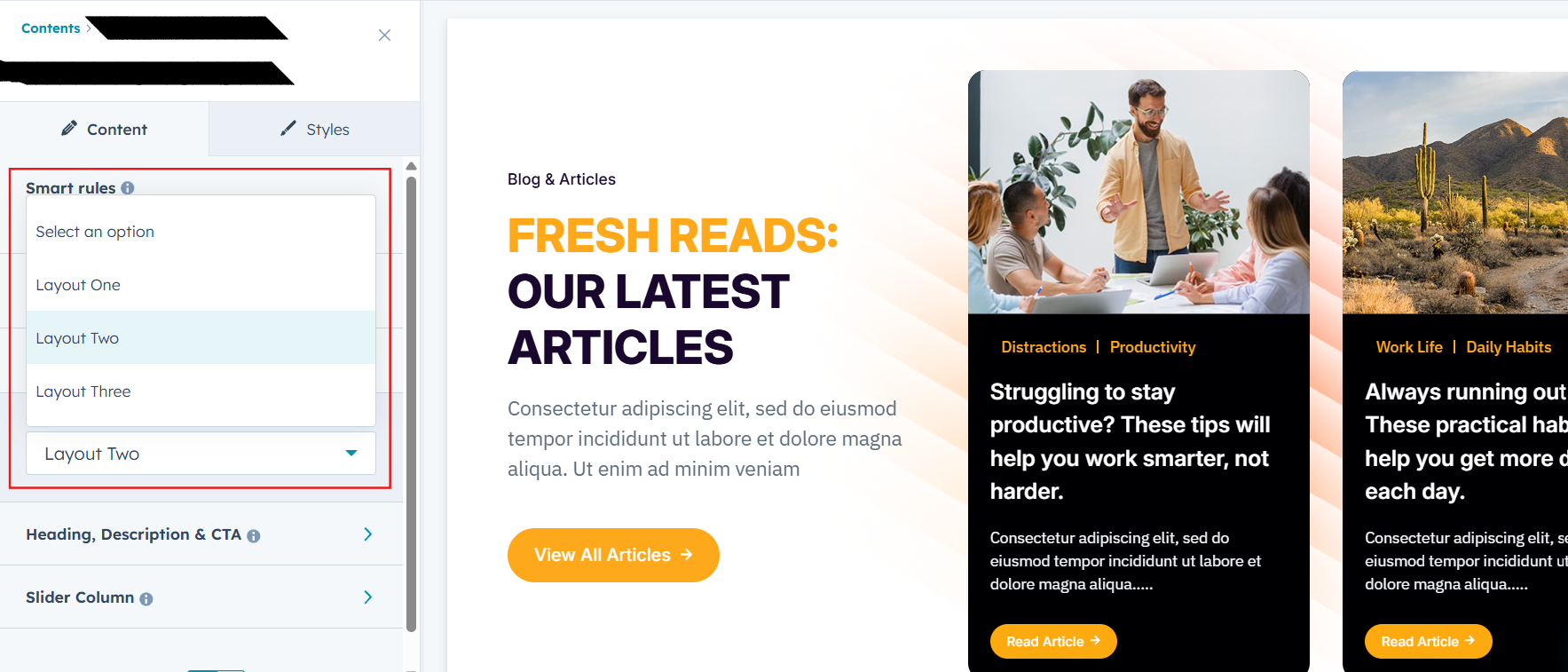
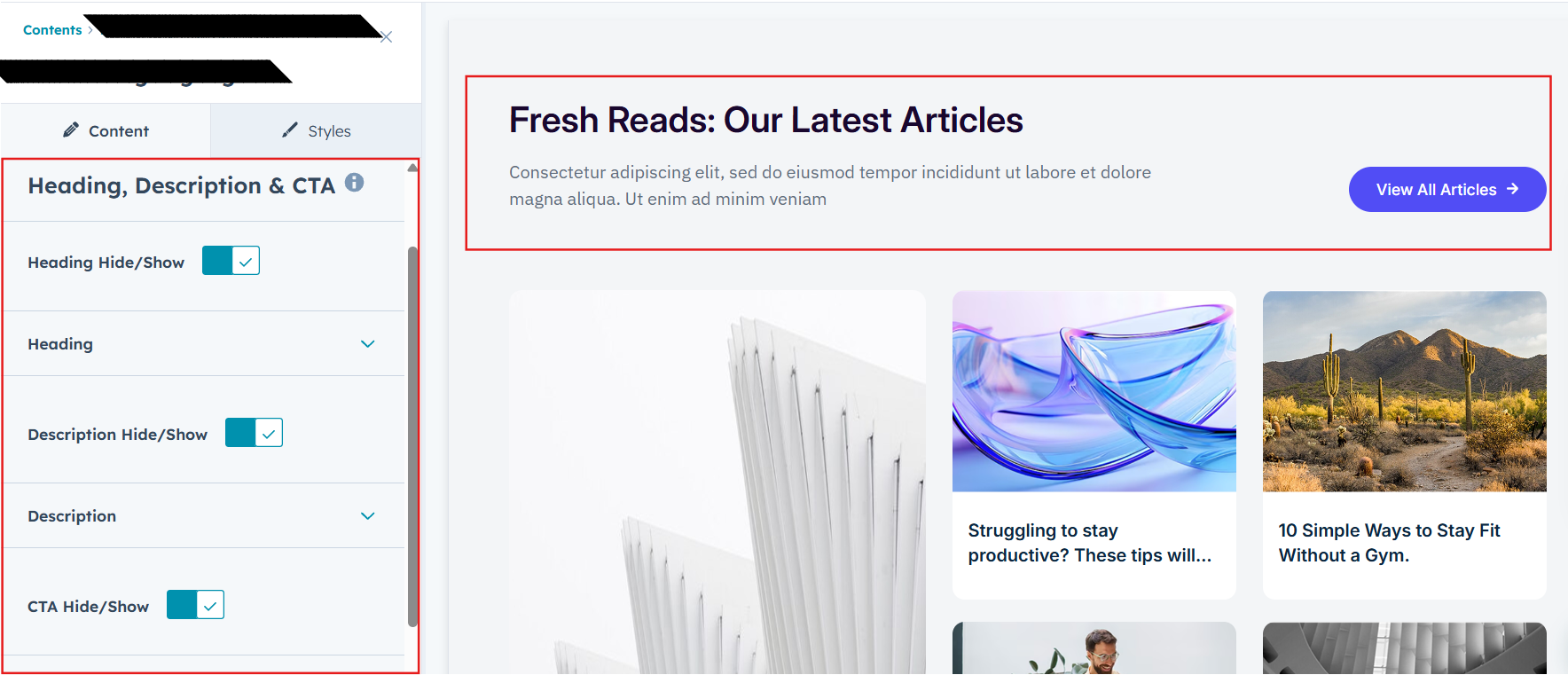
- Fully Customizable heading, description & CTA
- Show/Hide Toggle Option
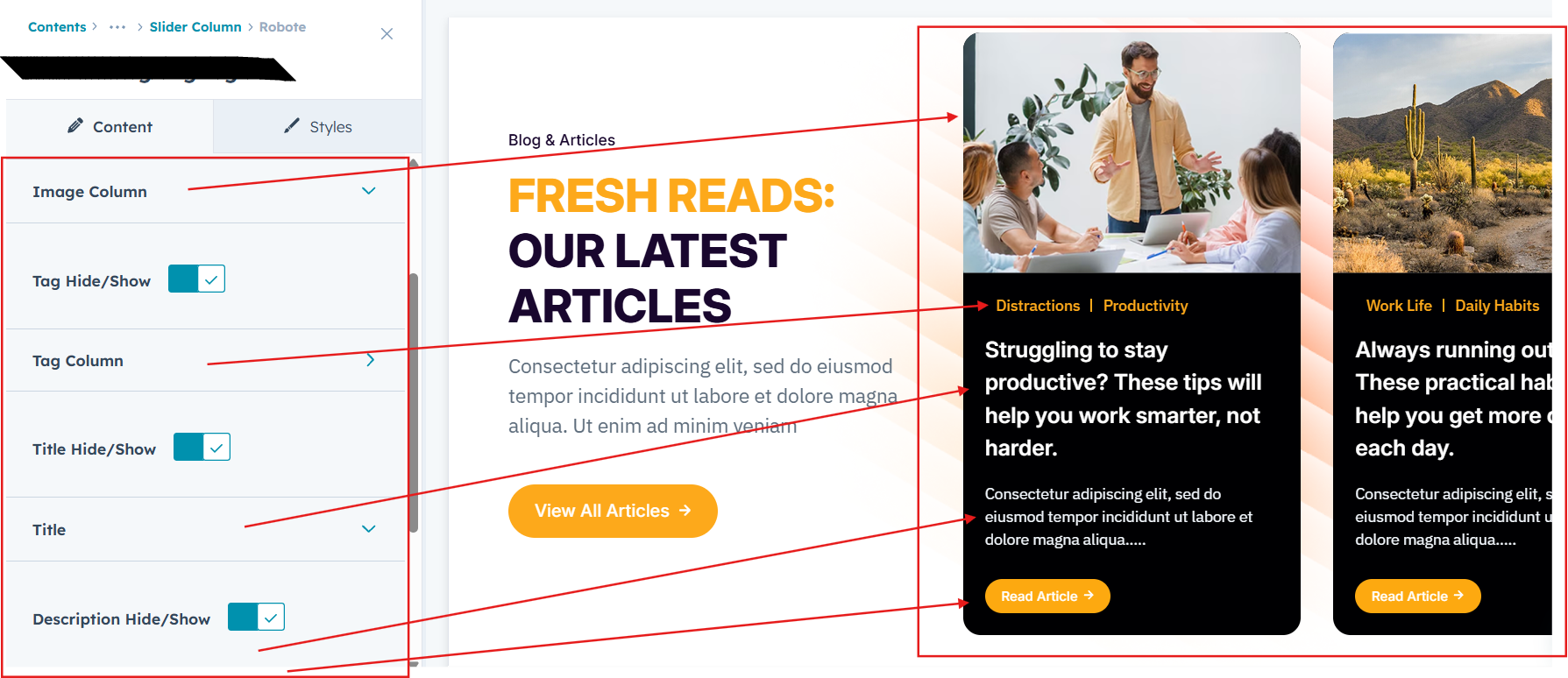
Post Column Content Image, Tag, Title, Description and CTA :
You can change the Image, Tag, Title, Description and CTA with the option to show or hide it, allowing for a flexible and customizable user experience.
- Update the Image, Tag, Title, Description and CTA
- Easily manage and organize how content is shown based on user interaction
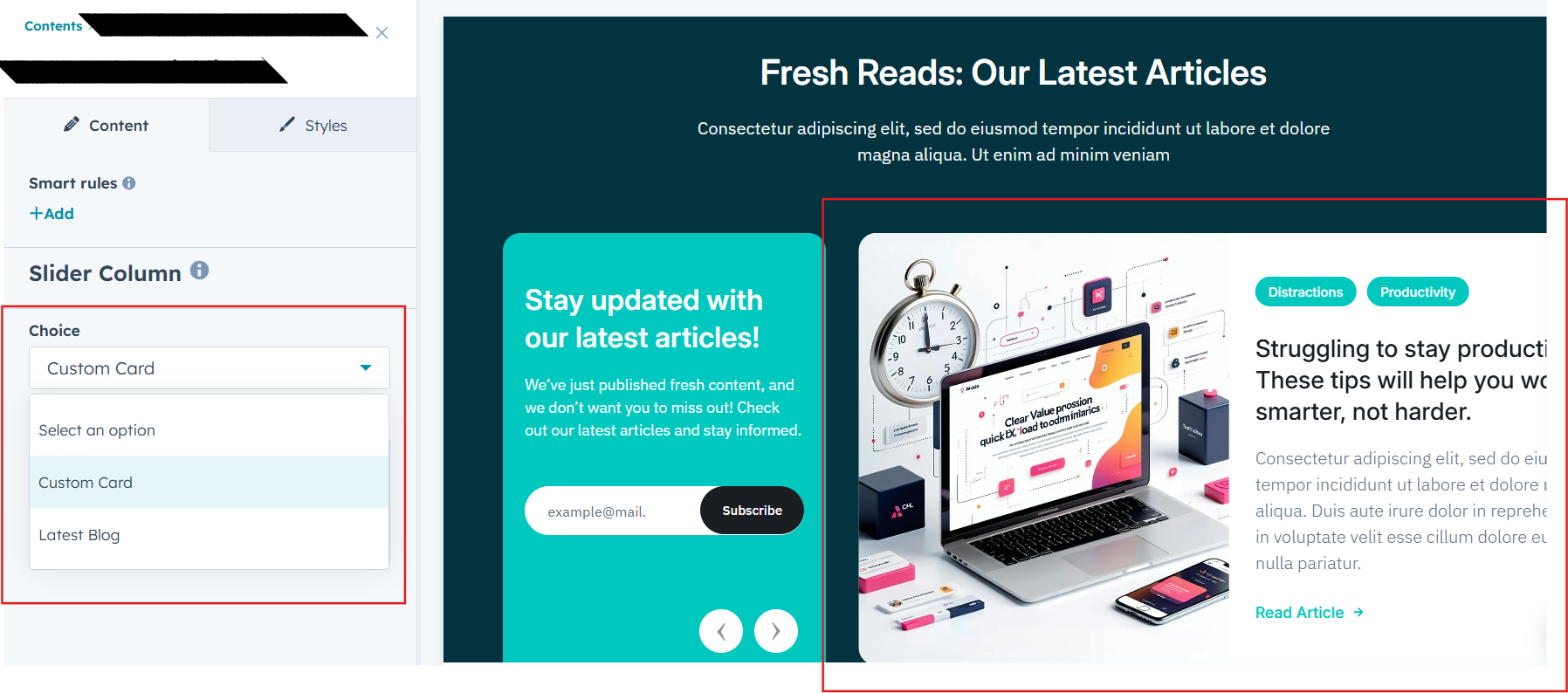
The Latest Blog Highlights offers two flexible display options to match your content needs. Use the Custom Card option to manually create curated blog cards with full control over images, titles, descriptions, and links—ideal for featured or evergreen content. Choose the Latest Blog Post option to automatically display your most recent blog articles, keeping your pages fresh without manual updates. Both options are fully customizable, responsive, and easy to manage within the HubSpot editor, making this module perfect for showcasing blog content across website pages, landing pages, and blog templates.
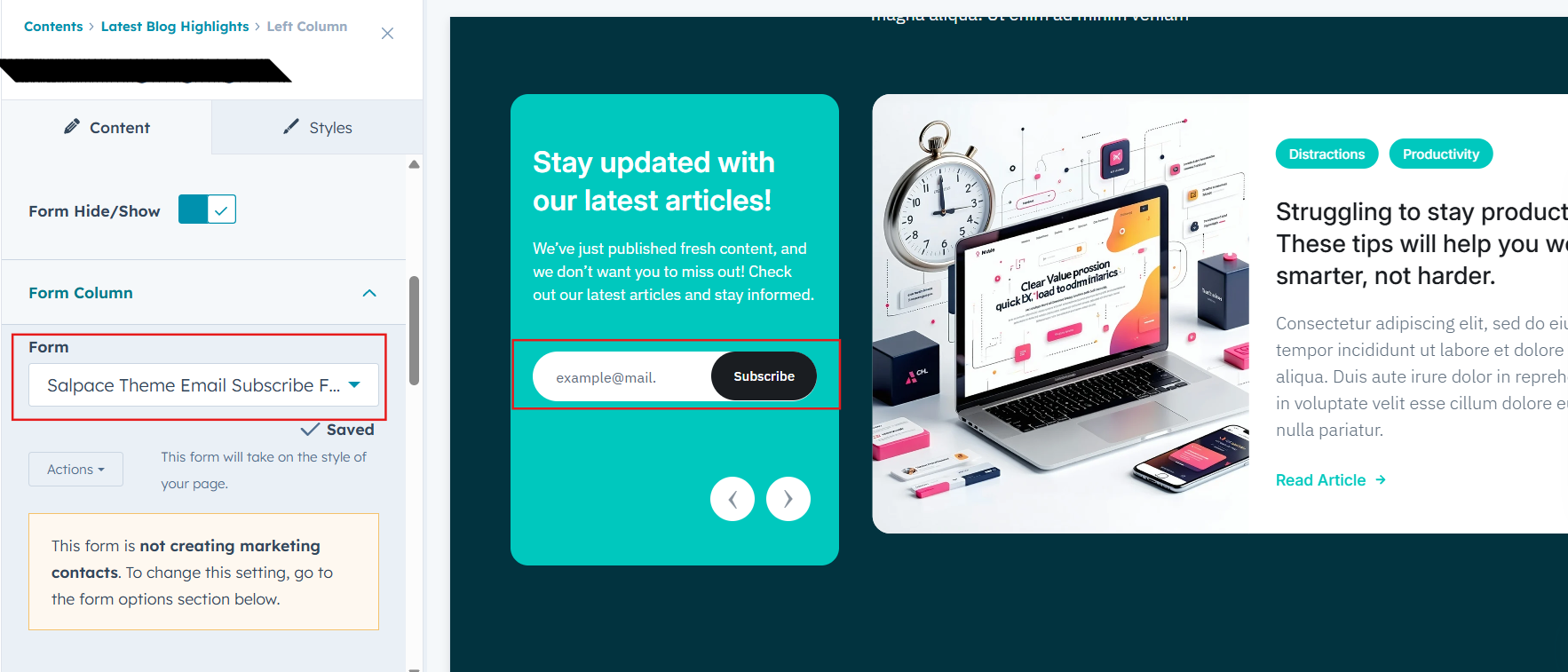
In Form filed select your subscribe form
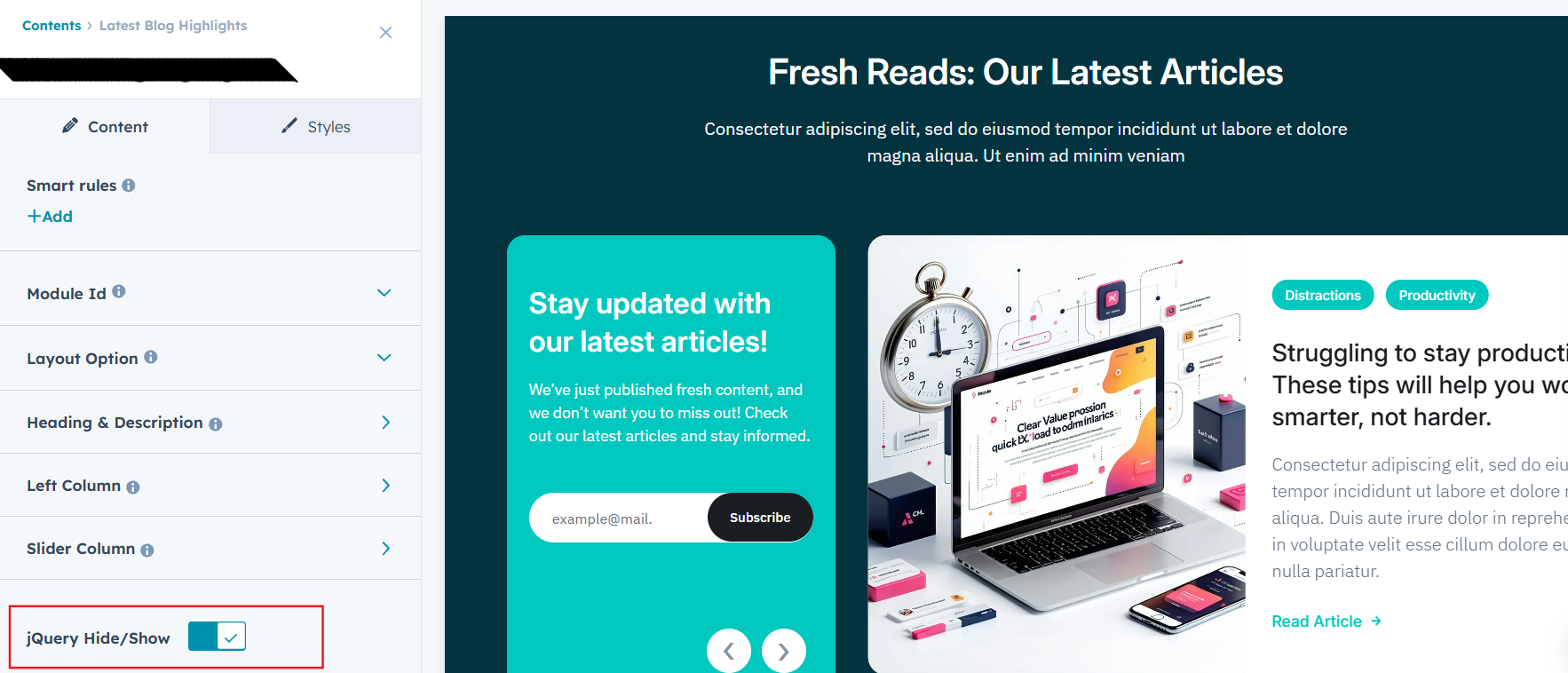
jQuery Add/Remove :
Users can add or remove jQuery JavaScript as needed, providing flexibility to enhance functionality or optimize performance based on their requirements.
Module Style Options:
Module Setting :
Adjust the margin, padding, container width and background colors to achieve your desired look and feel for the module. This flexibility lets you fine-tune the layout and aesthetics, ensuring your design is both visually appealing and user-friendly.

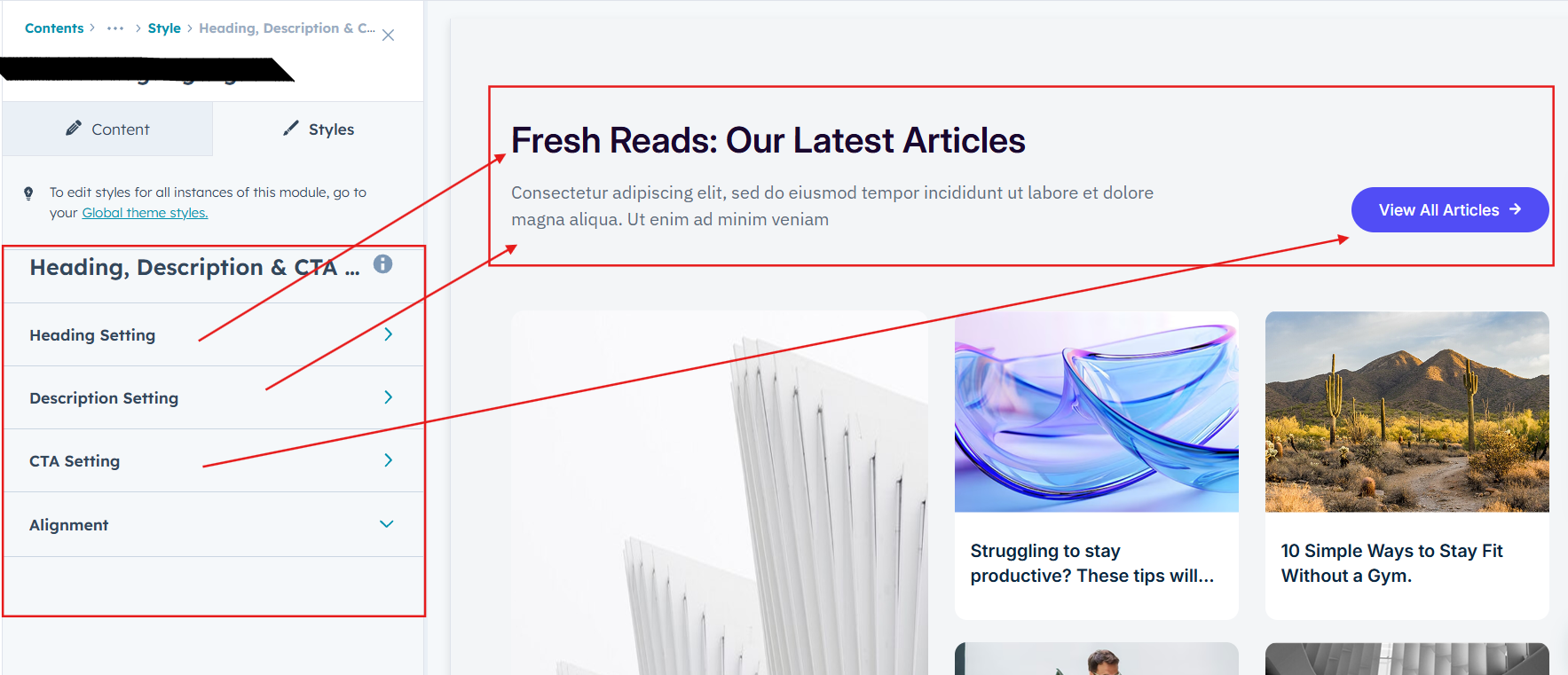
Heading, Description and CTA Style Settings :
Easily control the look and feel of your section’s text and call-to-action elements. Adjust font size, weight, and color for headings, fine-tune paragraph styles for descriptions, and customize CTA buttons with your preferred text, link, style, and hover effects. These options ensure your content and CTAs align with your brand while remaining clear, engaging, and professional across all devices.
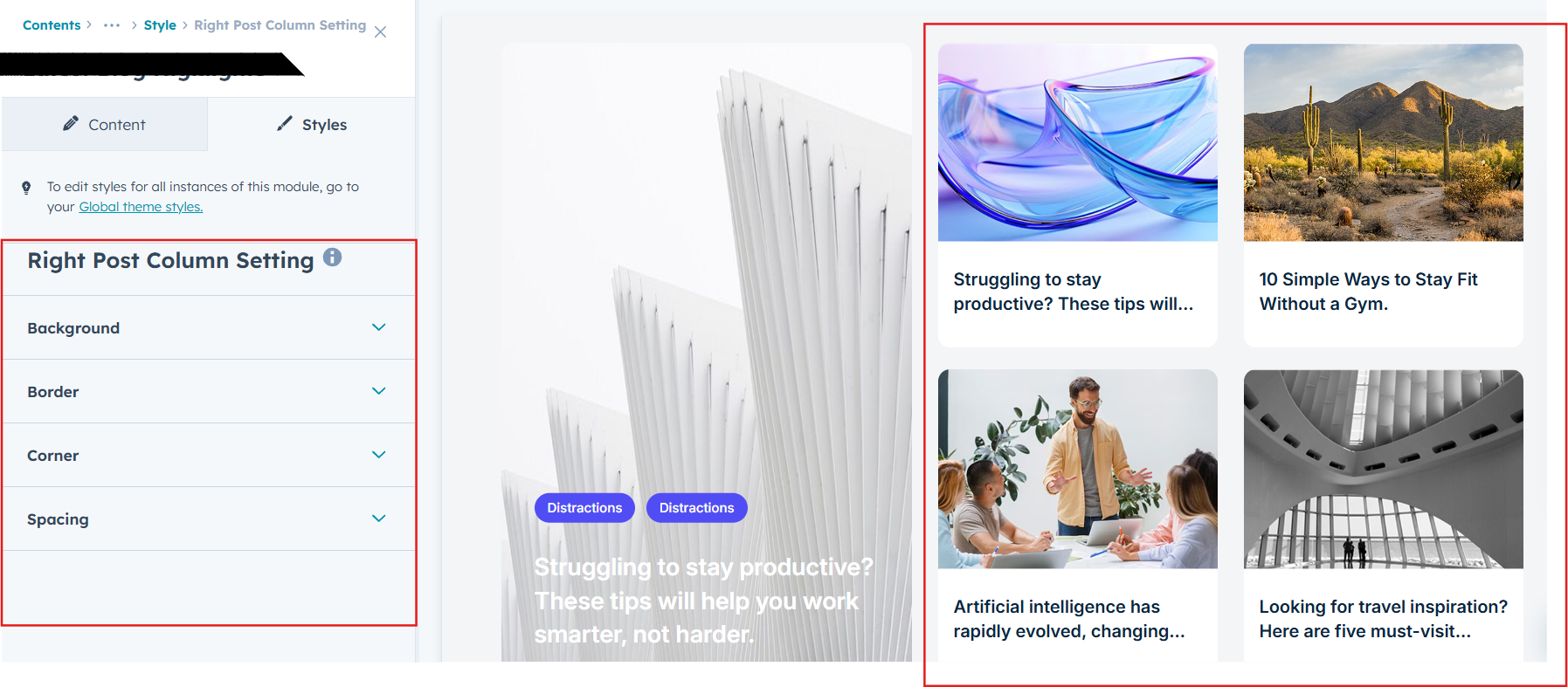
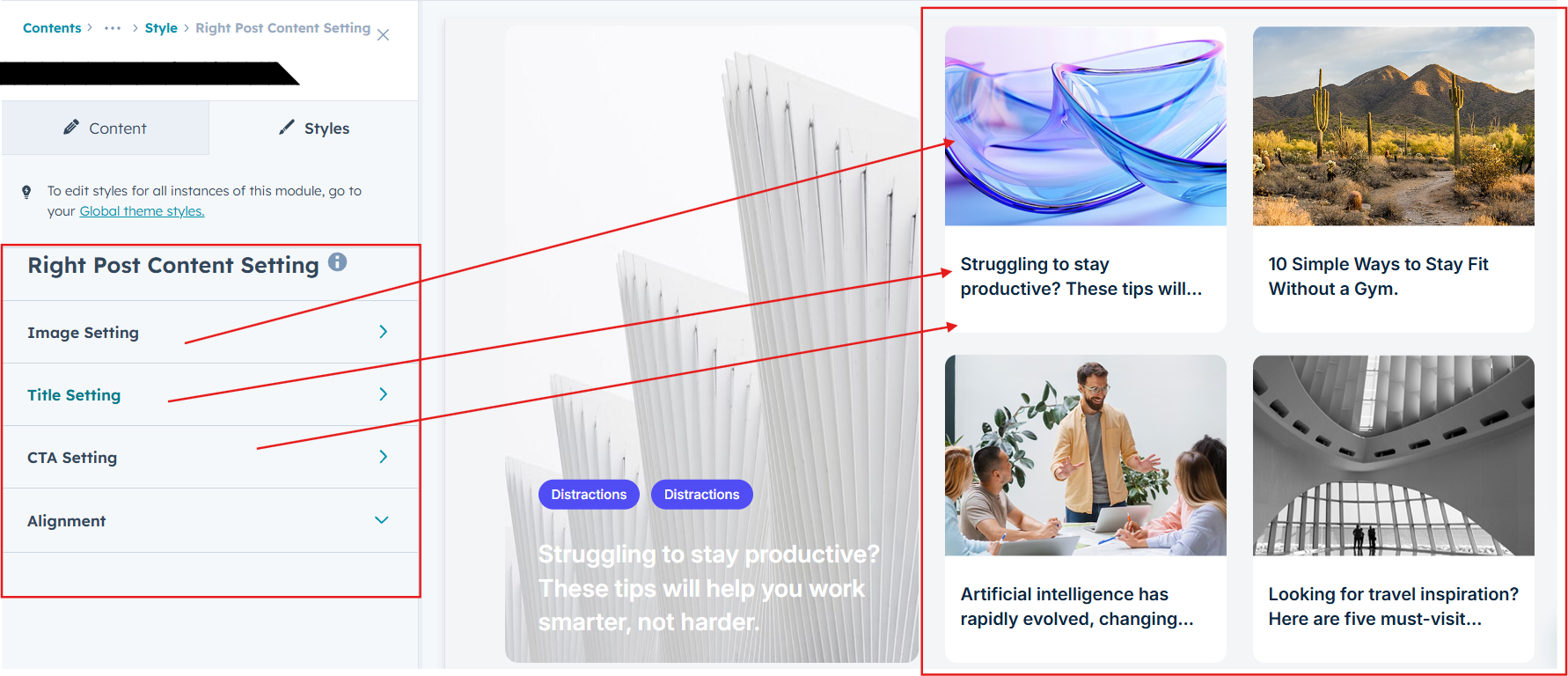
Blog Post Setting :
You have full control over customizing the Post column box to align with your design preferences. Adjust the background, spacing, border and corners to create the perfect look for your layout. Tailor these elements to ensure your content stands out and blends seamlessly with the rest of your design.
- Background Customization
Choose a solid color for your blog post. - Spacing Control
Adjust the padding and margin to create the ideal distance between elements and prevent overcrowding. - Border Style
Choose from various styles like solid, dashed, or dotted. - Corner Radius
Round the corners to create smooth, modern edges for a softer design.
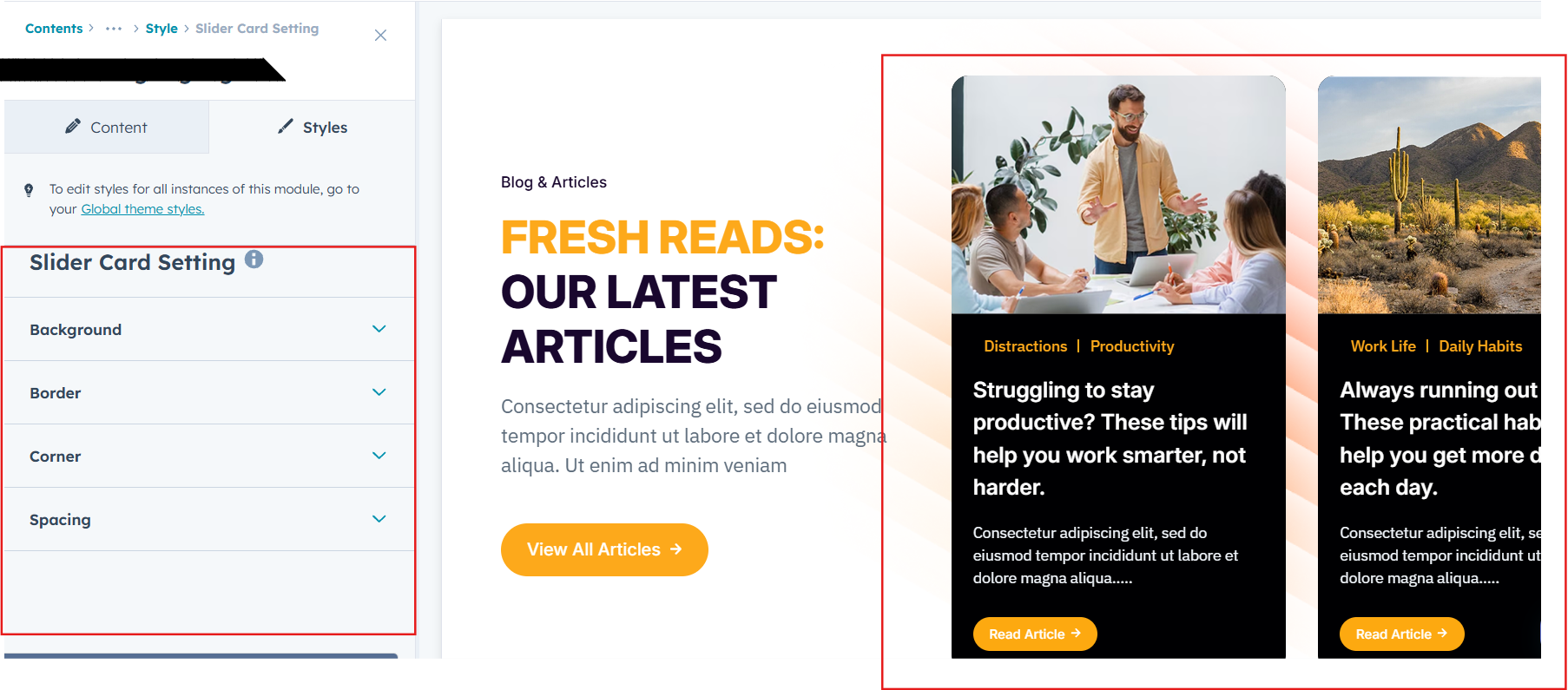
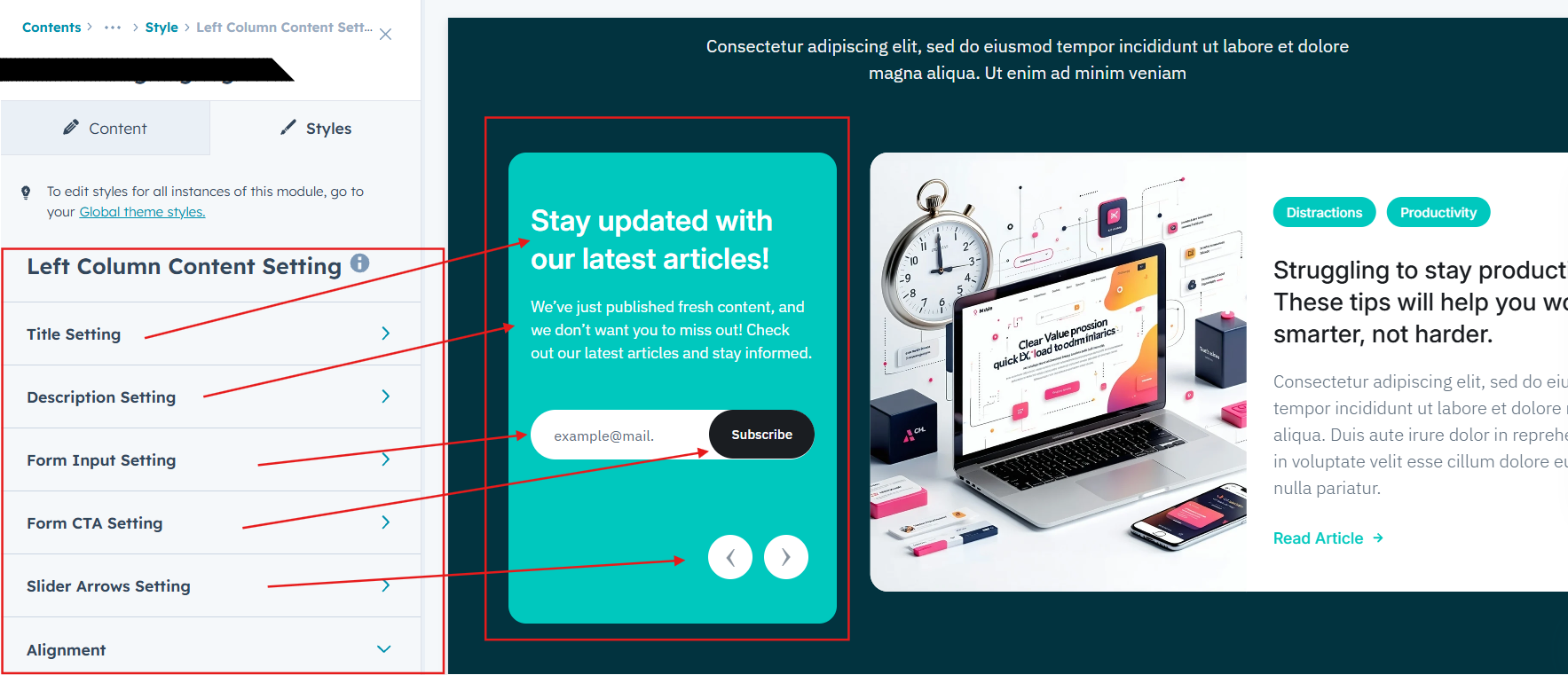
Left Content Setting :
Take full control over your left column content by customizing the typography, spacing, and alignment to match your brand's design style. You can adjust text transform options, Arrow color to make them stand out. Whether you’re updating typography, or configuring borders every detail can be tailored for a cohesive and visually appealing look.
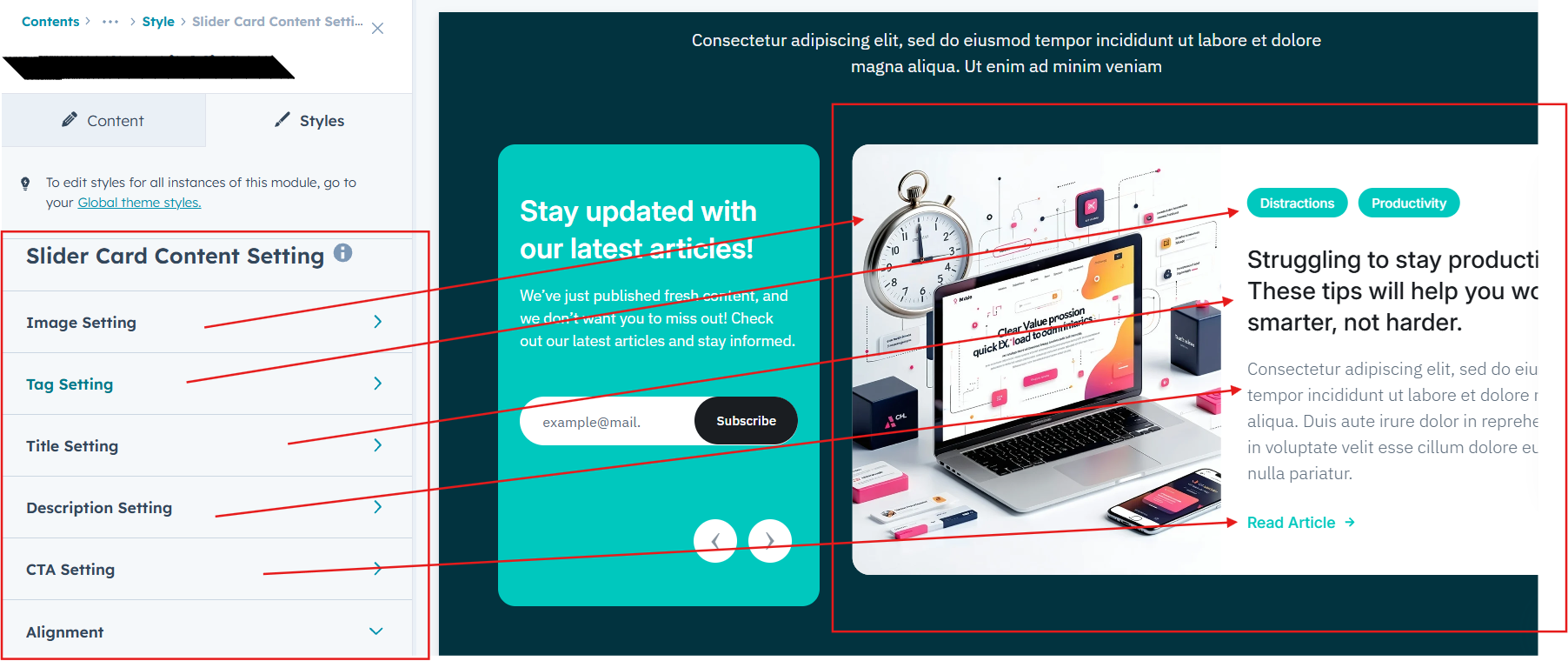
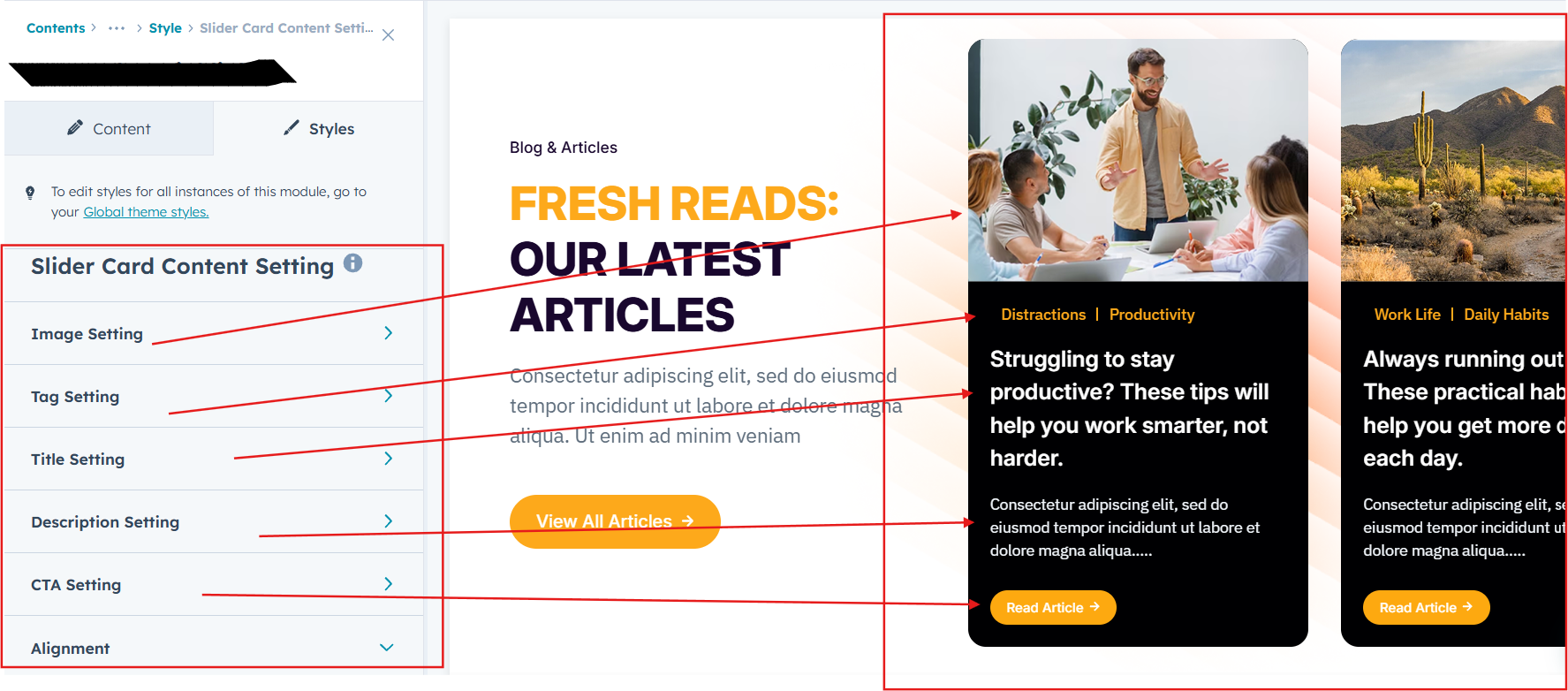
Post Content Setting :
Take full control over your column content by customizing the typography, spacing, and alignment to match your brand's design style. You can adjust text transform options, icon size to make them stand out. Whether you’re updating typography, or configuring borders every detail can be tailored for a cohesive and visually appealing look.
- Typography Customization
Adjust font size, style, and color for subheading, headings, descriptions, listing content and other text elements to create a consistent visual identity. - Spacing & Alignment
Control padding, margin, and text alignment to ensure optimal content positioning and balance. - Text Transform
Modify text case and style (uppercase, lowercase, capitalize) for better readability and emphasis. - Icon
Customize the icon size and color to match your brand’s color palette and enhance the overall design. - CTA
Customize the CTA Button line background color, text color, spacing, box shadow, corner and typography.
We hope you enjoy using our latest blog highlights module to create a seamless experience for both your users and your marketing team. At Code Accelerator, we're committed to ensuring your HubSpot experience is exceptional. If you need a custom HubSpot module or require a tailored HubSpot CMS or CRM setup, please don’t hesitate to Contact Us.
Need Help? We’ve Got You Covered!
Our expert support team is here to guide you. Whether it’s troubleshooting, setup, or customization, we’ll help you get the most out of your modules with ease.