By Price :
Smart FAQ Accordion
Smart FAQ Accordion
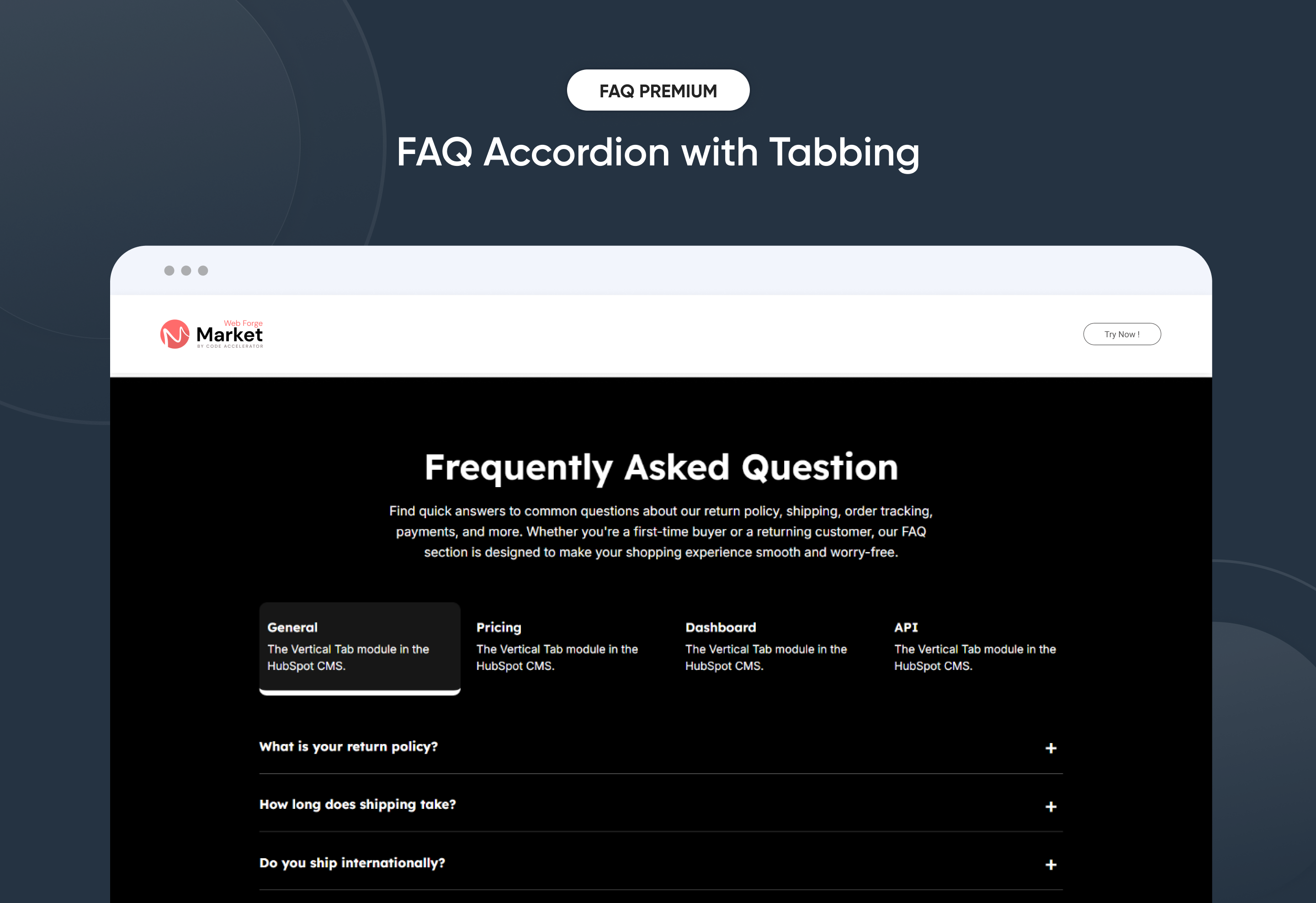
FAQ | Tab Columns | Content | Image
Smart FAQ Accordion
Price: $29
Customizable Layout Options-2
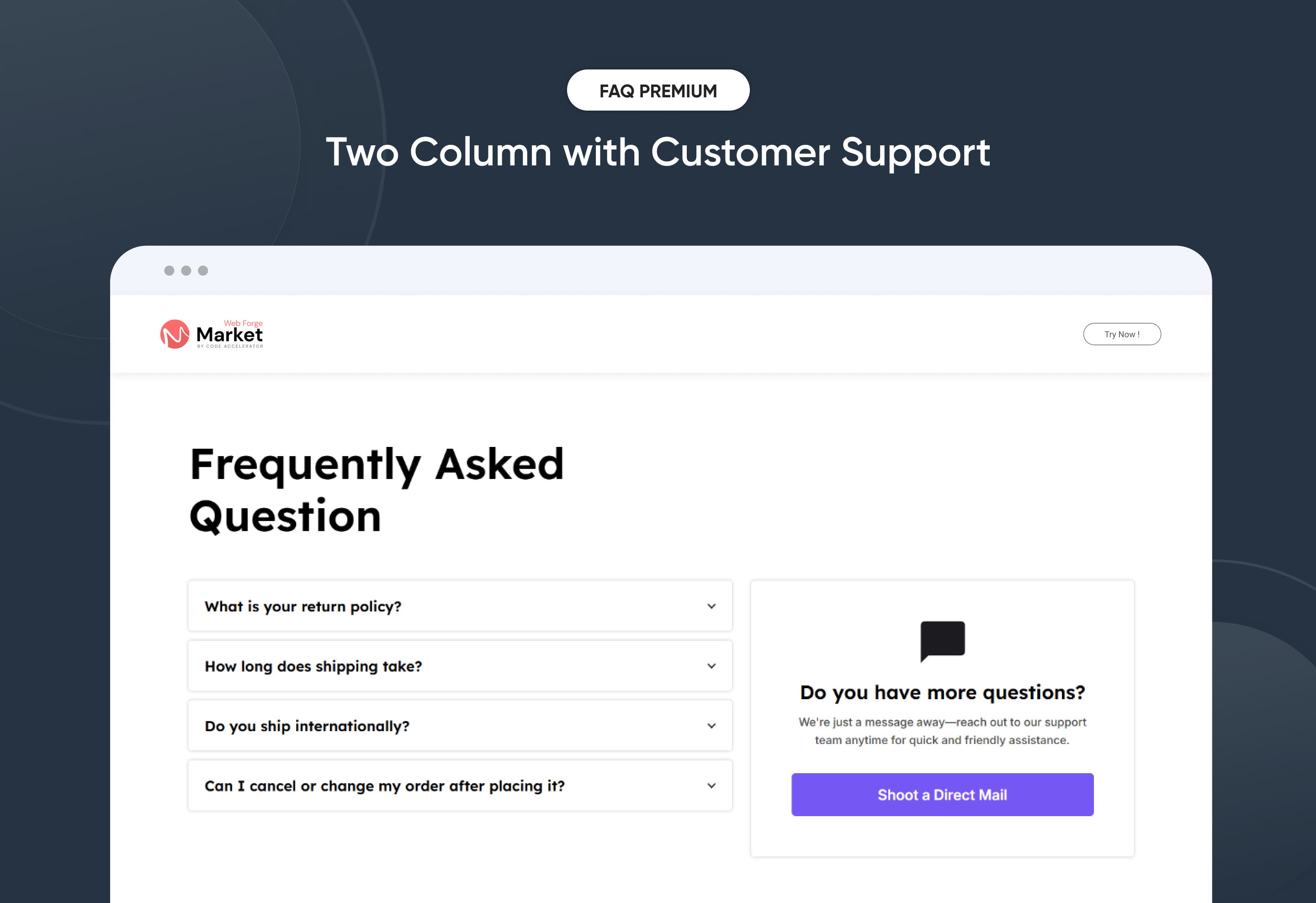
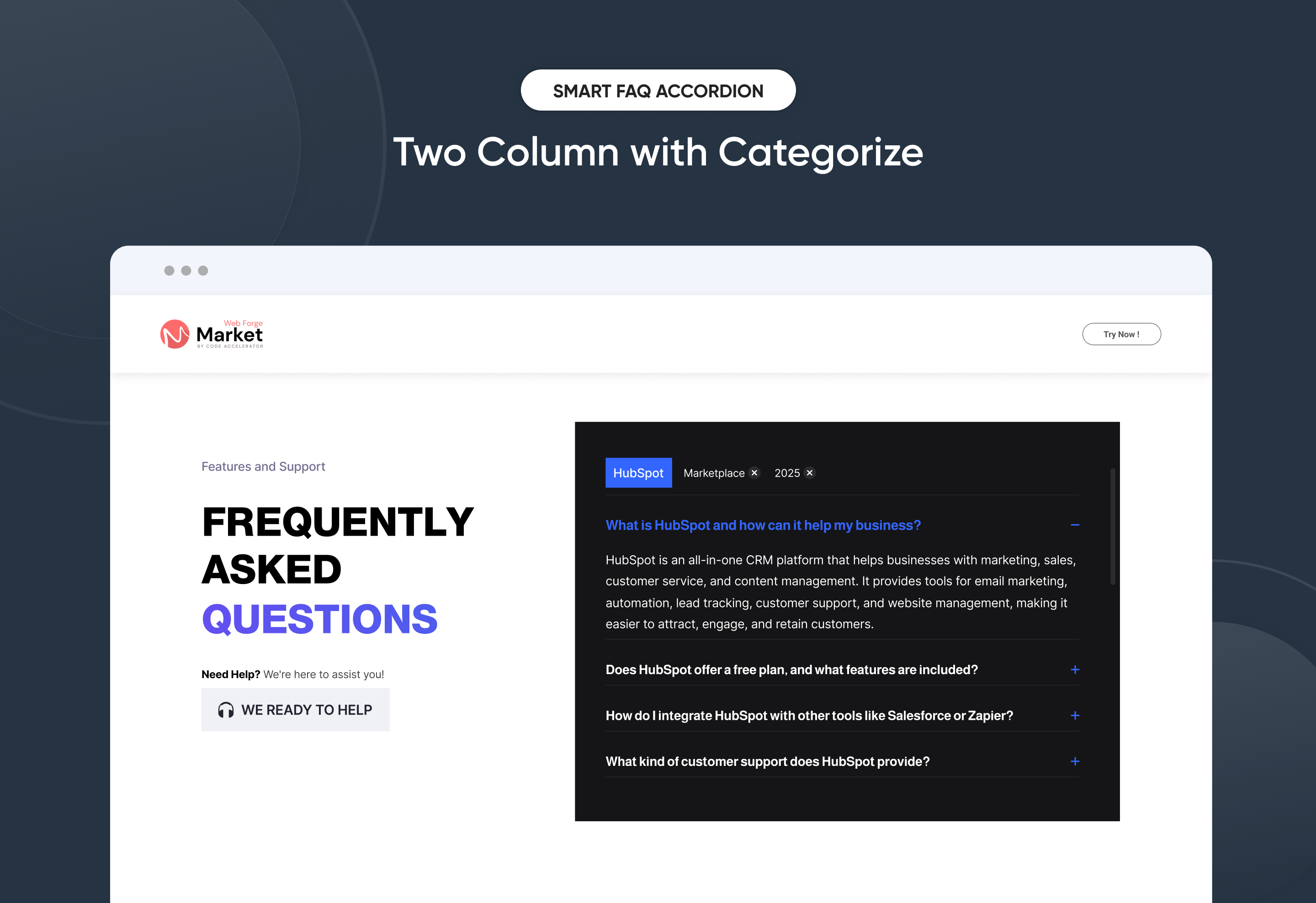
Two Column with Categorize
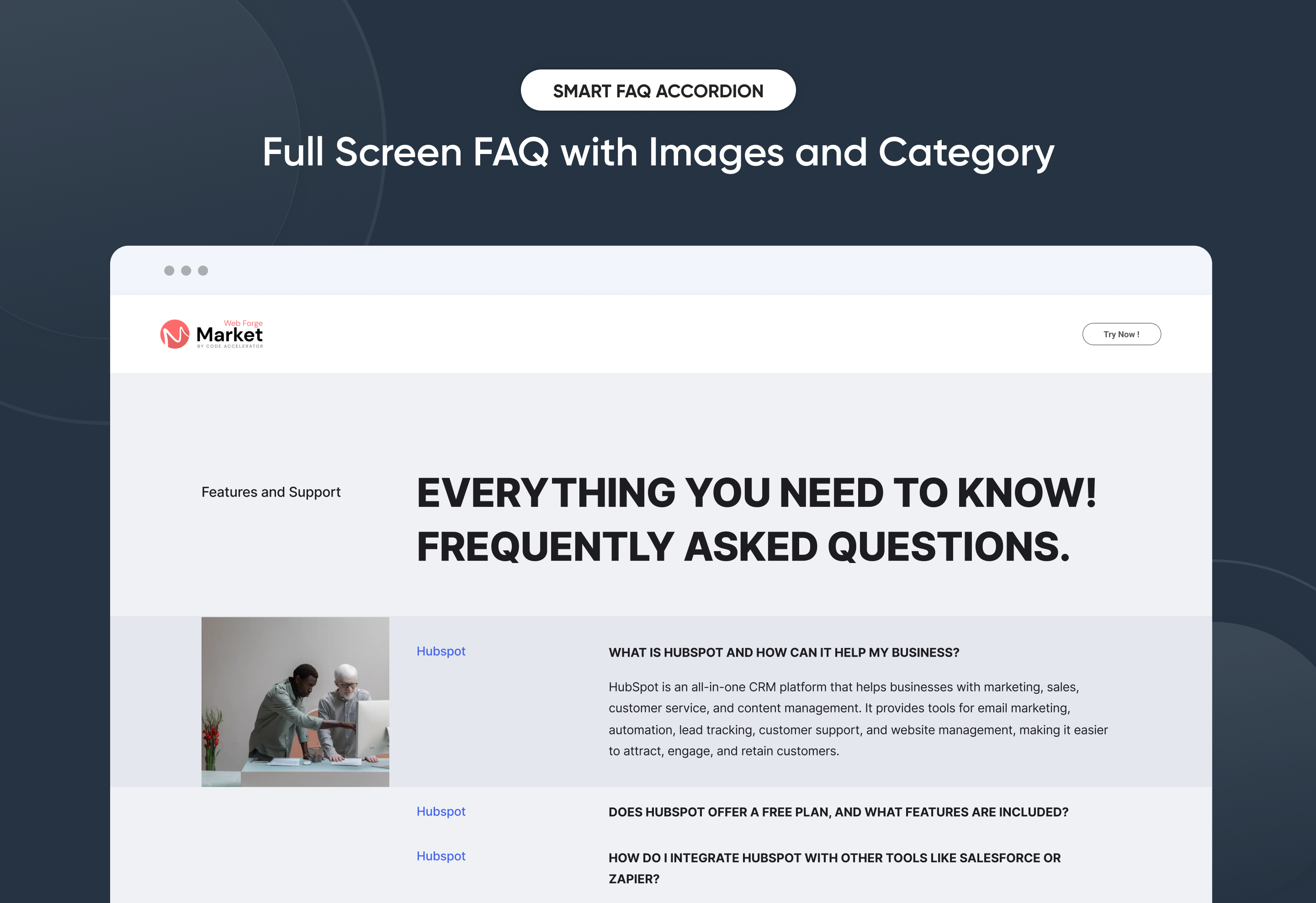
Full Screen FAQ with Images and Category
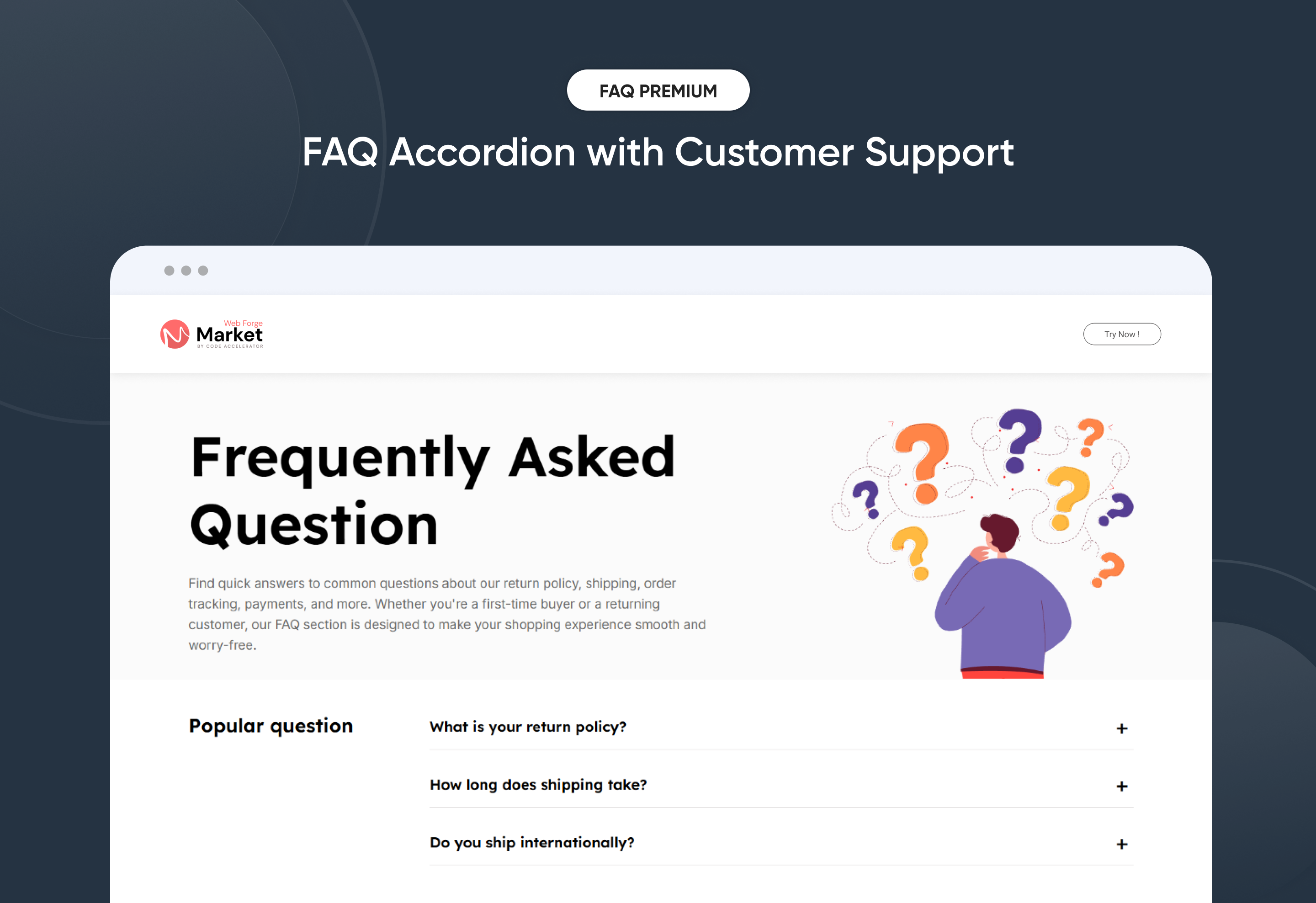
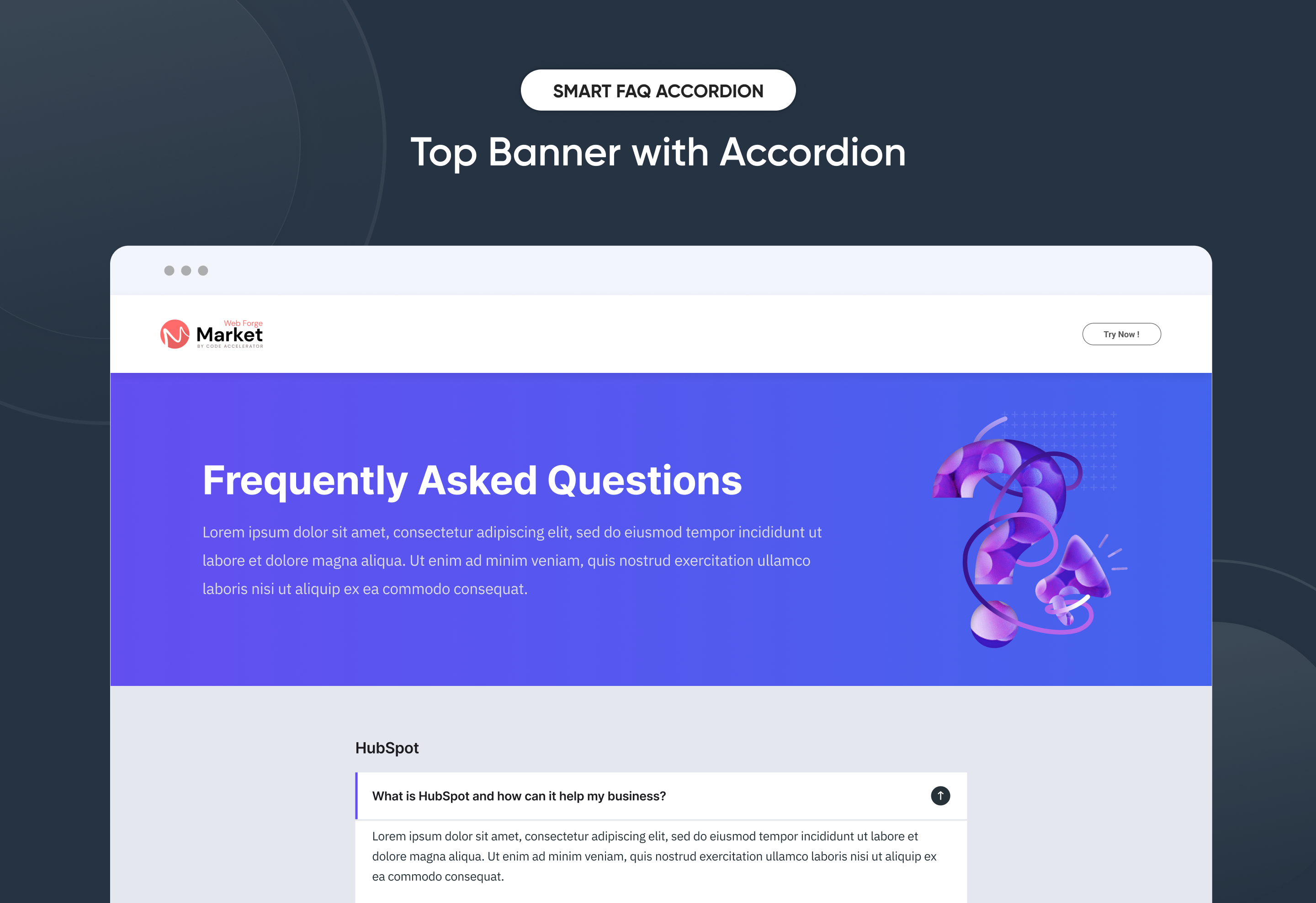
Top Banner with Accordion

Boost user experience and support with the Smart FAQ Accordion Module for HubSpot. Featuring smooth accordion toggles, tabbed categories, SEO-friendly structure, and fully responsive design. Easily customizable with no coding required—perfect for creating clean, modern, and user-friendly FAQ sections on any website.


Key Features of a Smart FAQ Accordion Module :

Custom Tab Titles – Easily add and label multiple tabs.

Accordion Functionality – Expands or collapses answers on click, keeping the layout clean and user-friendly. Only one     section opens at a time to reduce clutter.

Smooth Accordion Animation – Modern toggle animation for a clean and interactive user experience.

Fully Responsive Design – Optimized for all devices (desktop, tablet, mobile).

Extensive Style Customization – Tab background (solid or gradient), Border styles, Padding/margins, Active/inactive states

Easy to Use with Drag & Drop – Built for HubSpot’s drag-and-drop page editor. No coding required to configure or style tabs

Reusable and Scalable – Add multiple tab sections to a page or reuse across templates.


How to Set Up the Smart FAQ Accordion in HubSpot :

In the main dashboard, go to the ‘Content’ tab and select either ‘Website’ or ‘Landing Pages,’ depending on where you want to add the section. This lets you choose the right location for managing or updating your content.

Select the page where you want to apply the module.

Screenshot (20)

Search for "Smart FAQ Accordion" and drag and drop the module intothe desired location on your page.

ss580-1

Module Defaults Options: 

Layout ID :

Easily enhance navigation by adding an ID to the target section and using the same ID in an anchor link. This enables a smooth scrolling effect when users click a Call-to-Action (CTA) button, improving the overall user experience.

ss581-1

Layout Options :  

Easily organize your content with the "Smart FAQ Accordion" module — ideal for showcasing services, FAQs, or product details. This user-friendly layout allows visitors to switch between tabs without page reloads, improving engagement and readability. Clean design ensures information is structured and accessible. Perfect for enhancing UX on any HubSpot landing or website page.

Options : 

  • Layout 1 : Horizontal Tabs with Accordion and Support Options - Supports various formats like general queries, product-specific, or policy-based FAQs—tailored to meet different customer intents.
  • Layout 2 : Heading and  Accordion - A clean and simple FAQ layout with a customizable section heading and structured accordion list. Ideal for standard FAQ pages, landing pages, and service sections where clarity and readability are the priority. Perfect for presenting general questions in a distraction-free format.
  • Layout 3 : Categorize base Accordion - Organize FAQs by categories for better navigation and user experience. This layout groups related questions under defined sections, making it easier for visitors to find relevant answers quickly. Best suited for large knowledge bases, product documentation, or multi-service websites.

ss582-1

 
Sub Heading, Heading & Description :
  • All Layout are ideal for building a clean and organized knowledge base. Both layouts allow you to customize sub heading, headings and descriptions, helping you clearly label articles, topics, or help sections.
  • You can also enable a show/hide feature, giving users the option to expand or collapse content as needed—keeping the interface neat and user-friendly.

    ss583-1
    ss584-1

Tabbing & Accordion Customizable : 

Customize your Tabs and Accordions with full control over visibility and labels. Easily manage show/hide settings, update text, and add more sections as needed.


  • Edit Tab & Accordion Text – Change titles and question labels instantly to match your messaging.
  • Add More Tabs & Accordions – Easily expand your FAQ by adding new tabs and questions based on your content needs.

ss585-1

ss586-1

Module Style Options: 

Module Setting :

Adjust the margin, padding, container width and background colors to achieve your desired look and feel for the module. This flexibility lets you fine-tune the layout and aesthetics, ensuring your design is both visually appealing and user-friendly.

ss587-1

Tabbing & Accordion Column Setting :

You have full control over customizing the tabbing & content box to align with your design preferences. Adjust the background, spacing, border, corners and to create the perfect look for your layout. Tailor these elements to ensure your content stands out and blends seamlessly with the rest of your design.

  • Background Customization
    Choose a solid color & gradient for your column box.
  • Spacing Control
    Adjust the padding and margin to create the ideal distance between elements and prevent overcrowding.
  • Corner Radius
    Round the corners to create smooth, modern edges for a softer design.

ss590-1

Tabbing, Accordion & All Content Setting :

Take full control over your column content by customizing the typography, spacing, and alignment to match your brand's design style. You can adjust text transform options, Whether you’re updating typography, or configuring borders every detail can be tailored for a cohesive and visually appealing look.

  • Typography Customization
    Adjust font size, style, and color for headings, descriptions, tabbing, listing content and other text elements to create a consistent visual identity.
  • Spacing & Alignment
    Control padding, margin, and text alignment to ensure optimal content positioning and balance.
  • Text Transform
    Modify text case and style (uppercase, lowercase, capitalize) for better readability and emphasis.
  • Tabbing 
    Customize the Tabbing background, corner, border, active effect, hover and typography.
  • Image & Icon
    Customize the image size and corner to match your brand’s color palette and enhance the overall design.
  • CTA
    Customize the CTA background color, text color, spacing, border, corner, alignment and typography.

ss591-1

ss588-1

ss589-1

We hope you enjoy using our Smart FAQ Accordion module to create a seamless experience for both your users and your marketing team. At Code Accelerator, we're committed to ensuring your HubSpot experience is exceptional. If you need a custom HubSpot module or require a tailored HubSpot CMS or CRM setup, please don’t hesitate to Contact Us.

Module Tags: FAQ | Tab Columns | Content | Image
Discover More in the Knowledge Base

Explore detailed documentation, setup instructions, feature explanations, and best practices to help you get the most out of this module quickly and efficiently.
Premium Full Screen Banner
Banner | Hero Banner | CTA | Image | Content |
Premium Full Screen Banner
Price: $29
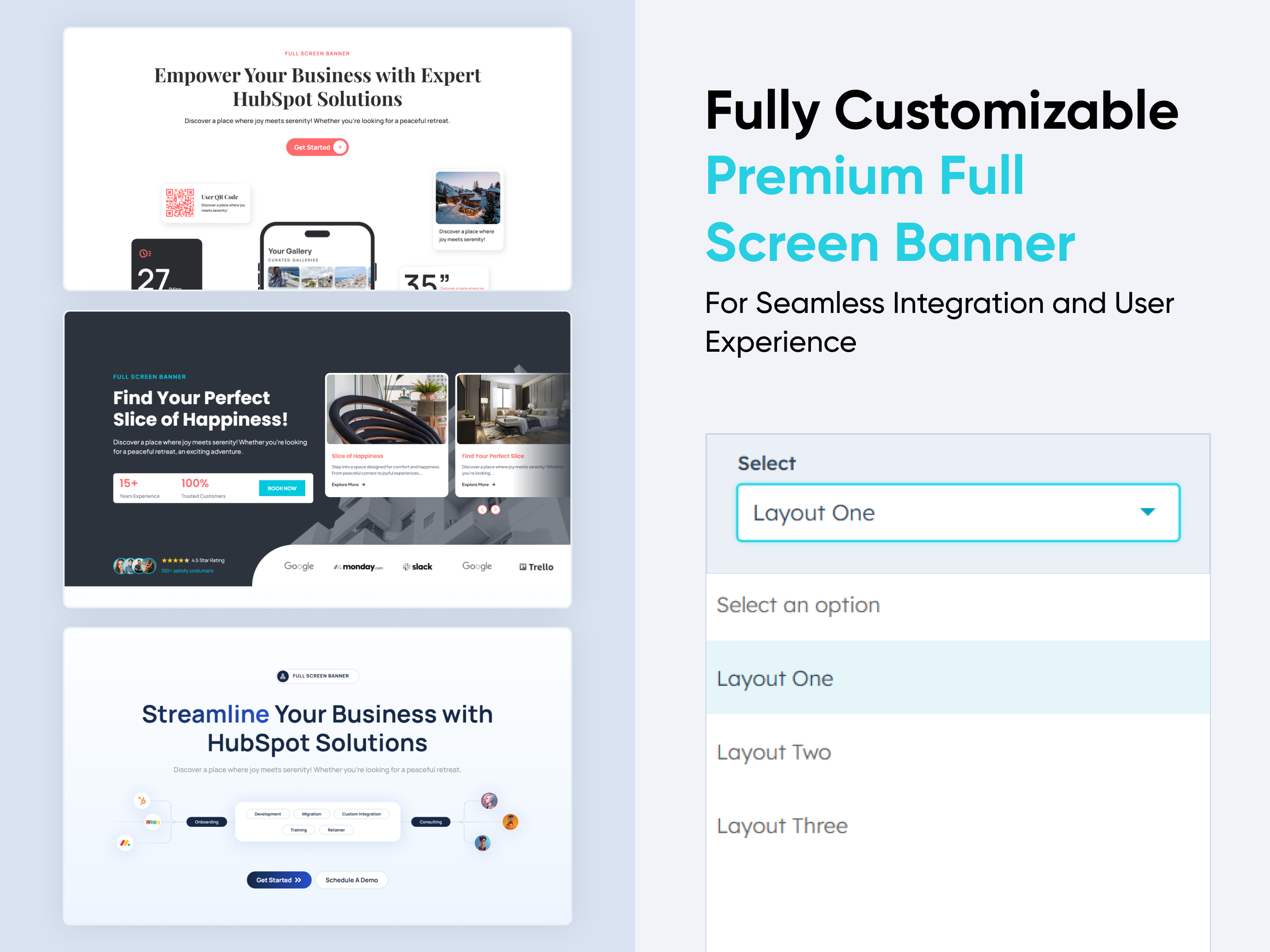
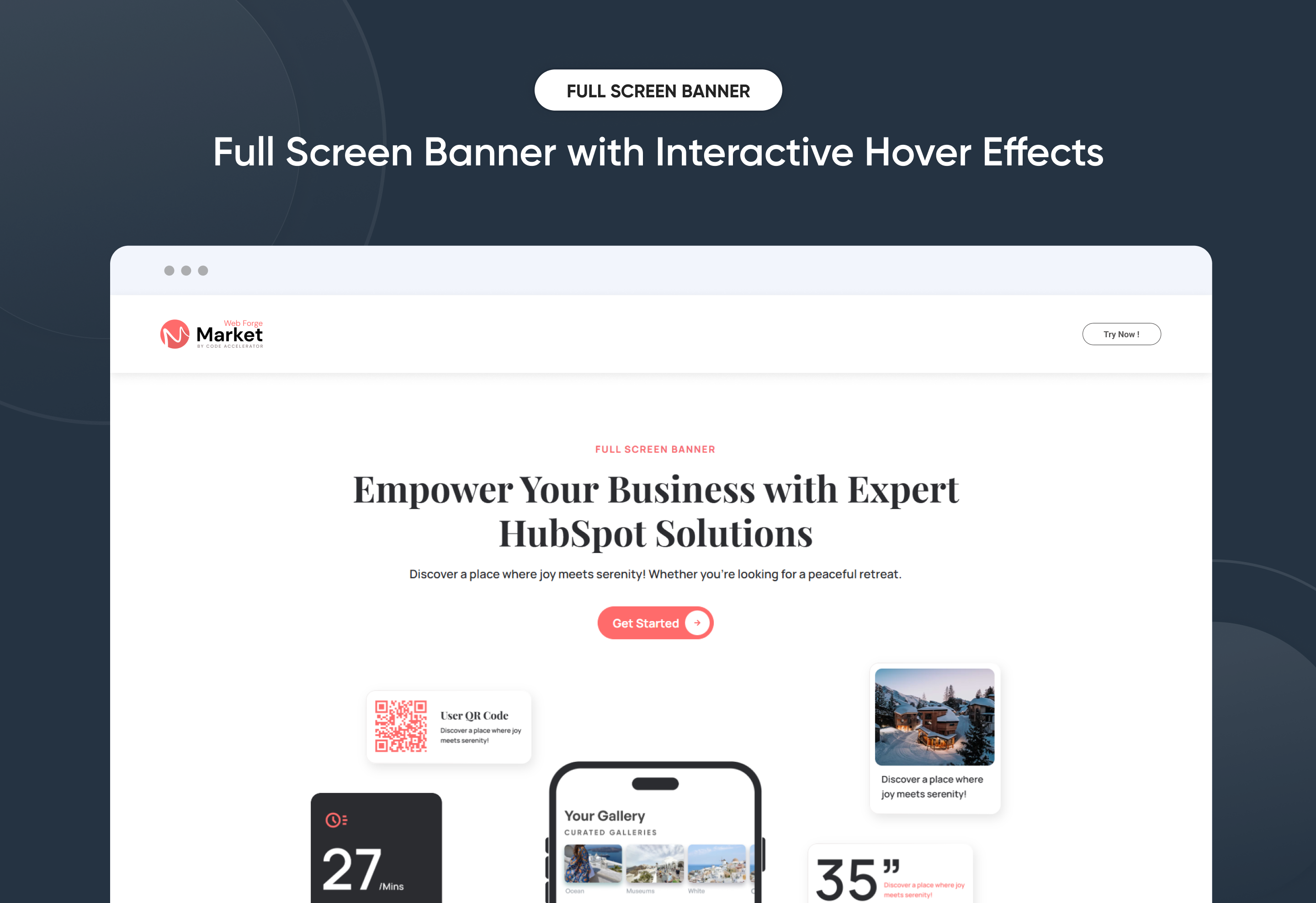
Full Screen Banner with Interactive Hover Effects
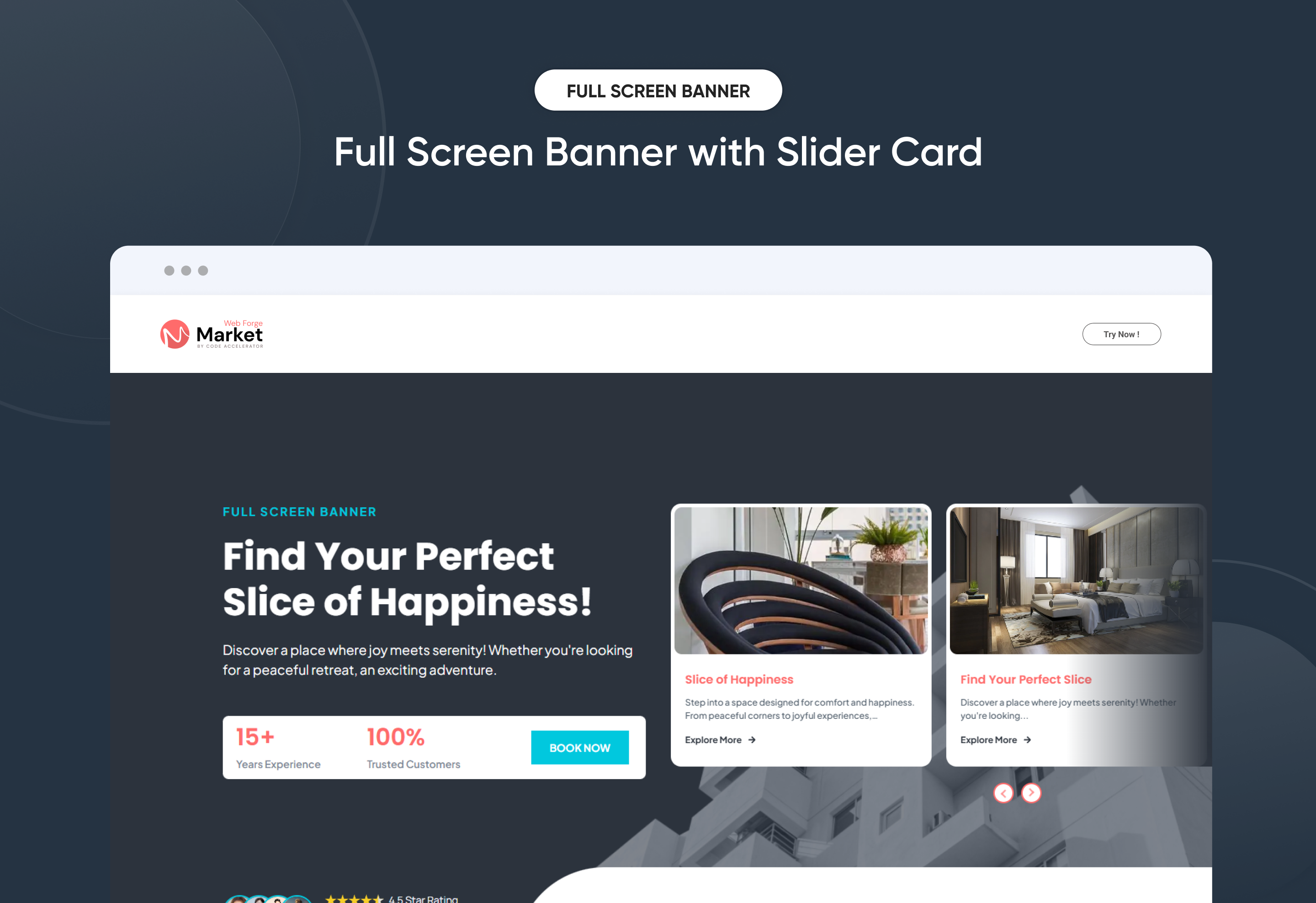
Full Screen Banner with Slider Card
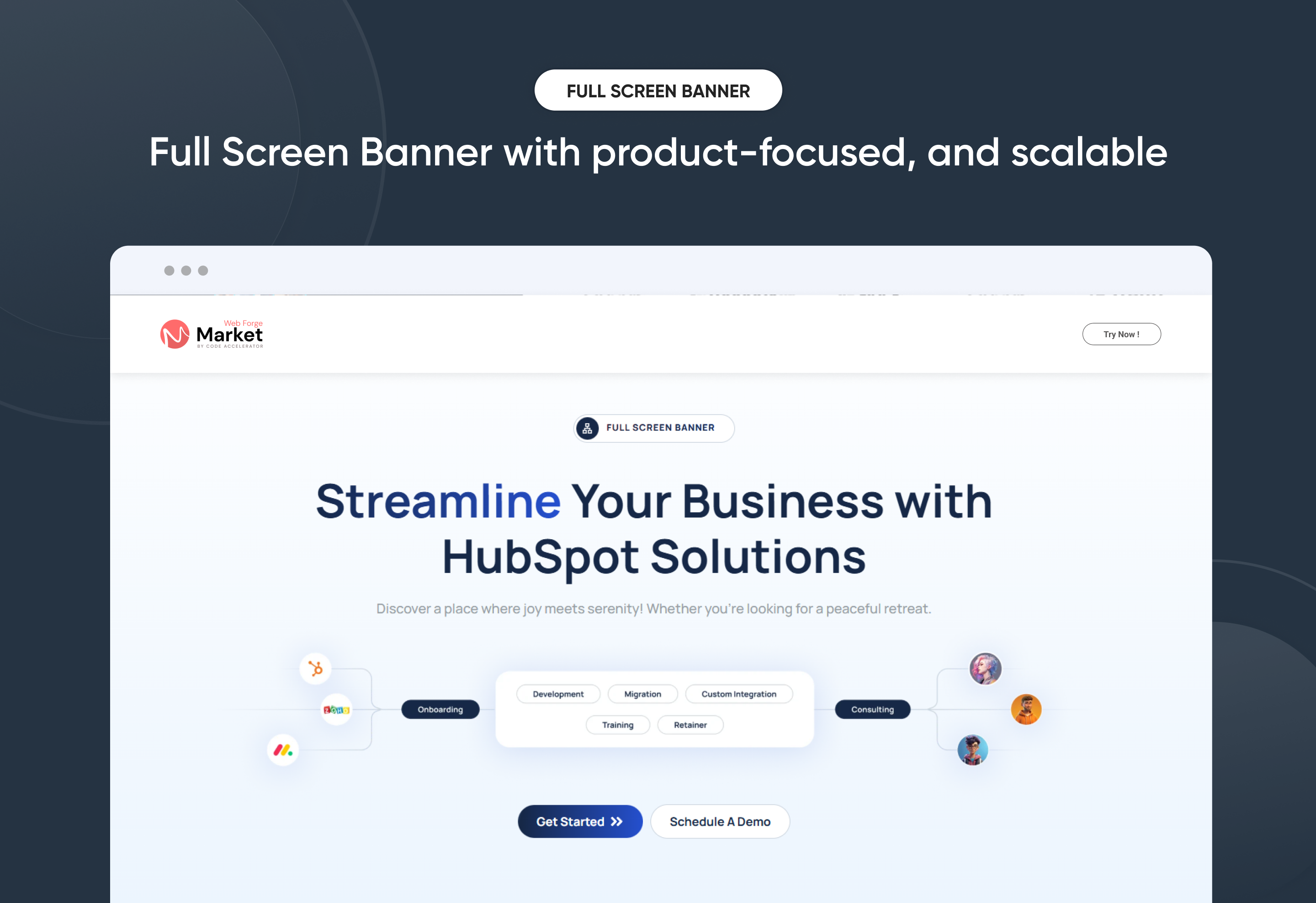
Full Screen Banner with product-focused, and scalable
Customizable Layout Options-1

The Premium Full Screen Banner Module helps you create bold, immersive hero sections that instantly capture attention and elevate your brand experience. Designed for visual impact, it features full-screen layouts, smooth slider transitions, and engaging hover effects—giving you complete control over how your key messages are presented.

Easily manage banner headlines, supporting content, background media, and CTA buttons directly within HubSpot—no coding required. With mobile-first responsiveness, flexible content positioning, adjustable spacing, and advanced style controls, this module ensures your full-screen banners look stunning and perform flawlessly across all devices.

Whether you’re launching a campaign, highlighting a core service, or creating a powerful first impression, the Premium Full Screen Banner delivers a polished, high-impact experience that boosts engagement and drives meaningful user action.


Key Features of a Premium Full Screen Banner Module :

  • Multiple Layouts – Choose from 3 distinct hero banner styles.

  • Responsive Design – Optimized for all screen sizes, ensuring a flawless experience on desktop, tablet, and mobile.

  • Flexible Content Options – Easily update headings, descriptions, and CTAs directly within HubSpot.

  • Customizable Visuals – Add images, graphics, or mockups to match your brand identity and campaign goals.

  • Engaging Call-to-Actions – Drive conversions with customizable CTA buttons tailored to your business objectives.

  • Design Flexibility – Adjust spacing, alignment, and background colors for a unique, on-brand look.

  • User-Friendly Editing – No coding required—built for marketers to launch modern hero sections quickly.

  • Optimized Performance – Lightweight and SEO-friendly to ensure speed and visibility.

  • Versatile Use Cases – Perfect for homepages, landing pages, service showcases, or campaign launches.

How to Set Up the Use Premium Full Screen Banner in HubSpot :

In the main dashboard, go to the ‘Content’ tab and select either ‘Website’ or ‘Landing Pages,’ depending on where you want to add the section. This lets you choose the right location for managing or updating your content.

Select the page where you want to apply the module.

Screenshot (20)

Search for "Premium Full Screen Banner" and drag and drop the module into the desired location on your page.

ss570-1

Module Defaults Options: 

Layout ID :

Easily enhance navigation by adding an ID to the target section and using the same ID in an anchor link. This enables a smooth scrolling effect when users click a Call-to-Action (CTA) button, improving the overall user experience.

ss580

Layout Options :  

Effortlessly capture attention and showcase your brand with the “Premium Full Screen Banner” module — perfect for homepages, landing pages, or campaign launches. Designed to make a powerful first impression, this hero section combines bold layouts, customizable content, and engaging calls-to-action that inspire visitors to take the next step. With responsive design and flexible styling, it ensures your hero banner looks sleek, professional, and high-converting across all devices.

Options:

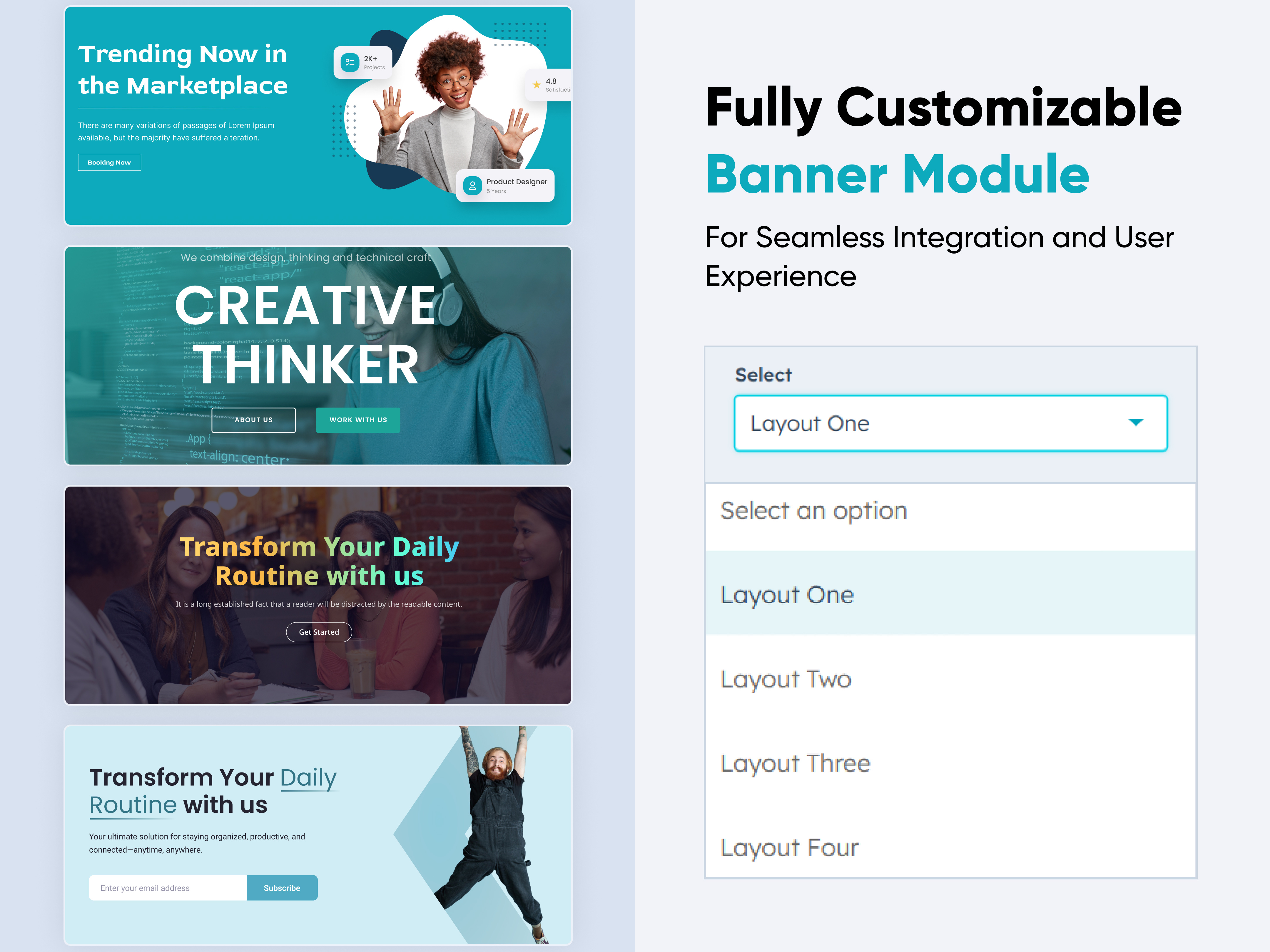
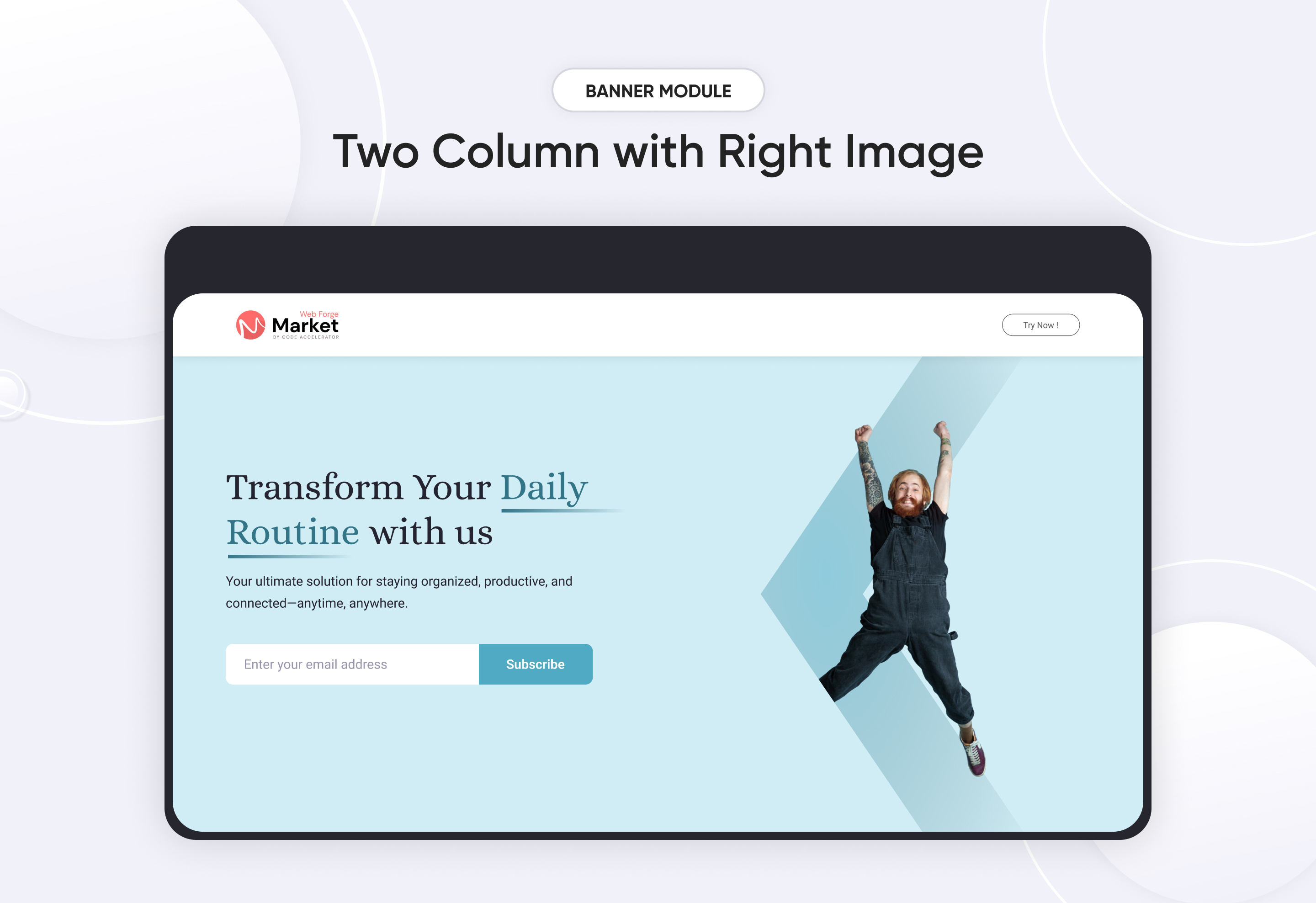
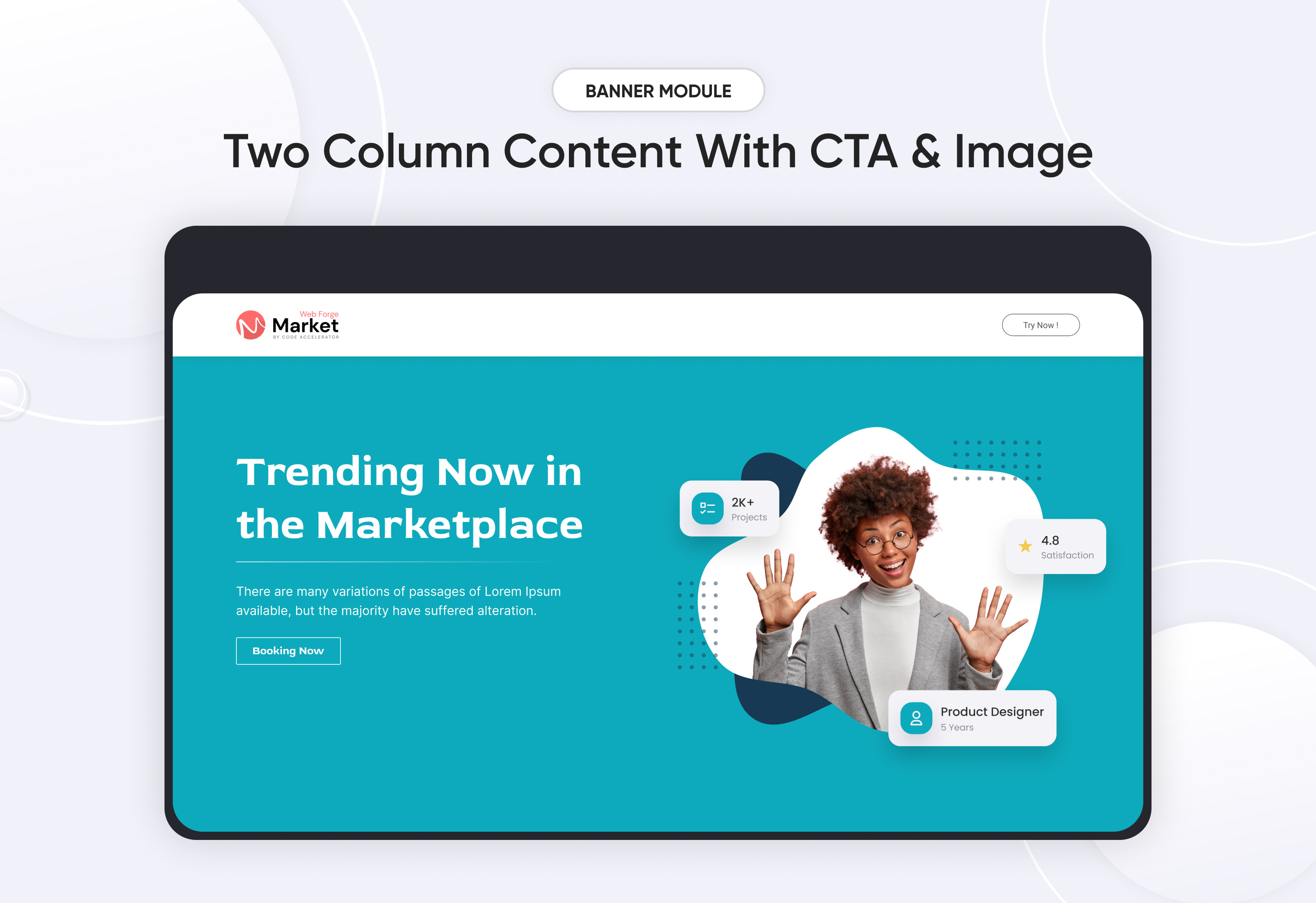
  • Layout 1 – A design featuring strong subtext, headlines, CTA and images .

  • Layout 2 – A layout that subtext, highlights customer stories, slider card and logo slider.

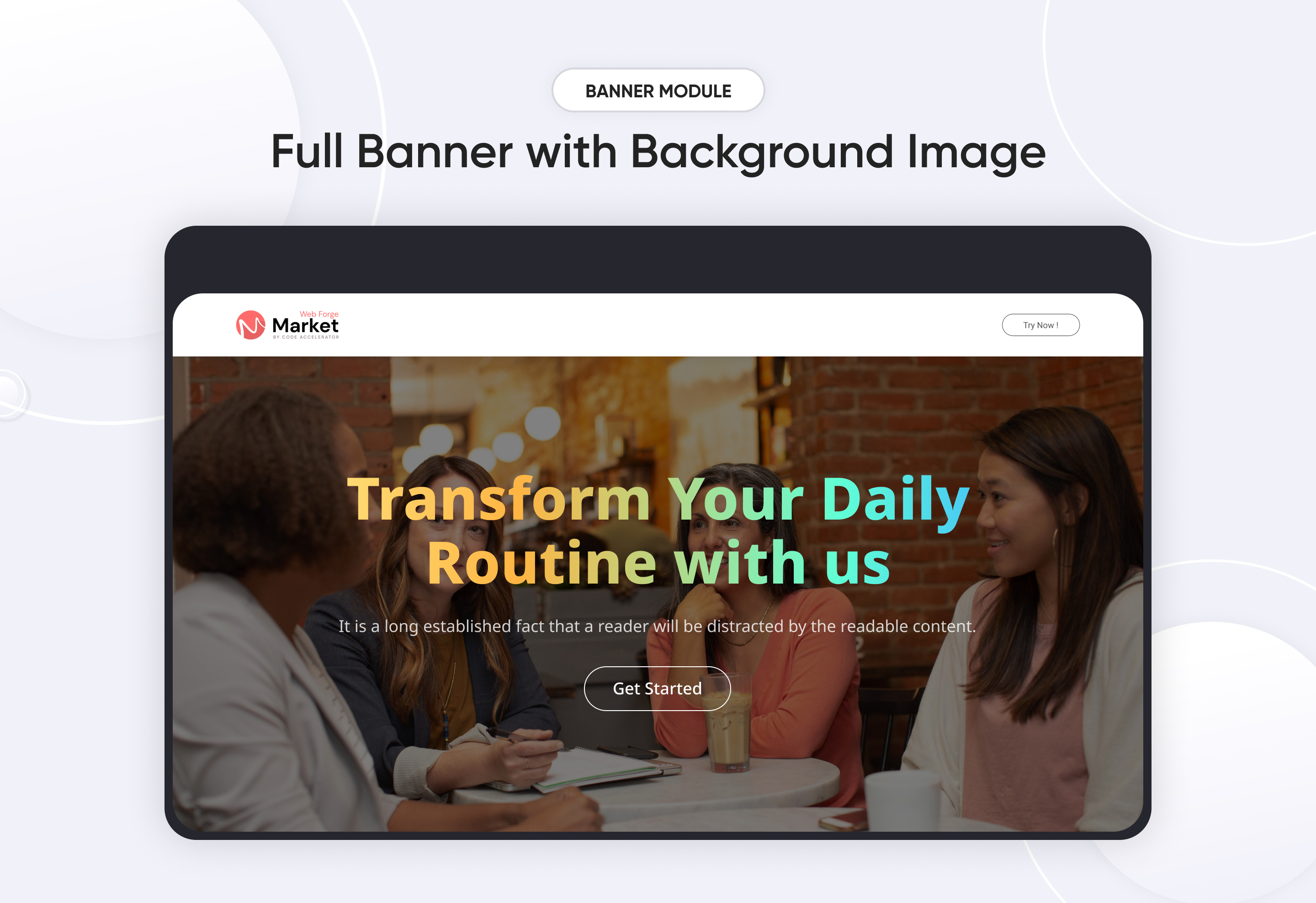
  • Layout 3 – A layout that subtext, highlights, image and modern CTA's.

layone

laytwo

laythree

 
Banner Content : 
  • Subtext Enable
    Toggle the main subtext on or off. Perfect when you want a clean hero layout without a large title.

  • Subtext Heading
    Add and customize the main subtext  text. Use this space to deliver a strong, eye-catching message.

  • Heading Enable
    Toggle the main heading on or off. Perfect when you want a clean hero layout without a large title.

  • Enter Heading
    Add and customize the main heading text. Use this space to deliver a strong, eye-catching message.

  • Description Enable
    Show or hide the supporting description under your heading. Ideal if you prefer a minimalist design.

  • Enter Description
    Add descriptive text below the heading. Great for explaining your value or offering in 1–2 concise lines.

  • CTA Show/Hide
    Easily enable or disable the call-to-action button. Useful if you want a hero section that’s informational only.

  • CTA
    Customize the CTA text, link, and style. A powerful way to drive visitors toward conversions.

ss581

ss582

ss583

Company and Slider Content :

ss584

ss585

jQuery Add/Remove :

Users can add or remove jQuery JavaScript as needed, providing flexibility to enhance functionality or optimize performance based on their requirements.

ss586


Module Style Options: 

Module Setting :

Adjust the margin, padding, container width and background colors to achieve your desired look and feel for the module. This flexibility lets you fine-tune the layout and aesthetics, ensuring your design is both visually appealing and user-friendly.

ss587

Subtext, Heading, Description and CTA Setting :

The Subtext, Heading & Description Settings in Premium Full Screen Banner allow you to fully customize the look and feel of your text by adjusting desktop and mobile typography (font family, size, weight, line height, and color), managing spacing (margins and padding for precise layout control), and applying text transform options such as uppercase, lowercase, or capitalize, ensuring your headings and descriptions remain visually consistent, responsive, and aligned with your brand style across all devices.

  • Desktop Typography
    Customize font style, size, weight, and color for the CTA on desktop. Ensures your button text is bold, readable, and aligned with your brand style.
  • Mobile Typography
    Individually set typography for mobile devices. Keeps the CTA optimized and user-friendly across all screen sizes.
  • Spacing
    Adjust padding and margin around the CTA button. Helps maintain balanced layout and proper visual hierarchy.
  • Background
    Choose and style the background color or gradient of the CTA. Makes the button stand out and match your brand’s look.
  • Border
    Add or customize borders for the CTA button. Ideal for minimal designs or creating outlined button styles.
  • Border Radius
    Control the corner roundness of the CTA. Switch between sharp edges, soft curves, or pill-shaped buttons.
  • Text Transform
    Format your CTA text as uppercase, lowercase, or capitalized. Great for enforcing consistent design language.
  • Box Shadow Enable
    Add or remove shadows around the CTA. Enhances depth and draws more attention to the button.
  • Alignment
    Position the CTA left, center, or right within the hero section. Provides flexibility depending on layout style.

    ss588

Image Setting (Layout 1-3)

Image Styling Settings allow you to easily control image corner and background to match your layout needs. And visual appearance to ensure images blend seamlessly with your brand design.

ss589

ss590

Company Details and Slider Content Setting (Layout 2) :

  • Desktop Typography
    Customize font style, size, weight, and color for the CTA on desktop. Ensures your button text is bold, readable, and aligned with your brand style.
  • Mobile Typography
    Individually set typography for mobile devices. Keeps the CTA optimized and user-friendly across all screen sizes.
  • Spacing
    Adjust padding and margin around the CTA button. Helps maintain balanced layout and proper visual hierarchy.
  • Background
    Choose and style the background color or gradient of the CTA. Makes the button stand out and match your brand’s look.
  • Border
    Add or customize borders for the CTA button. Ideal for minimal designs or creating outlined button styles.
  • Border Radius
    Control the corner roundness of the CTA. Switch between sharp edges, soft curves, or pill-shaped buttons.
  • Text Transform
    Format your CTA text as uppercase, lowercase, or capitalized. Great for enforcing consistent design language.
  • Box Shadow Enable
    Add or remove shadows around the CTA. Enhances depth and draws more attention to the button.
  • Alignment
    Position the CTA left, center, or right within the hero section. Provides flexibility depending on layout style.

ss591

ss592

Slider Arrows Setting :

ss593

Bottom Content Setting (Layout 2) :

  • Desktop Typography
    Customize font style, size, weight, and color on desktop. Ensures your button text is bold, readable, and aligned with your brand style.
  • Mobile Typography
    Individually set typography for mobile devices. Keeps optimized and user-friendly across all screen sizes.
  • Spacing
    Adjust padding and margin around the CTA button. Helps maintain balanced layout and proper visual hierarchy.
  • Background
    Choose and style the background color or gradient of the CTA. Makes the button stand out and match your brand’s look.
  • Border
    Add or customize borders for the CTA button. Ideal for minimal designs or creating outlined button styles.
  • Border Radius
    Control the corner roundness of the CTA. Switch between sharp edges, soft curves, or pill-shaped buttons.
  • Text Transform
    Format your CTA text as uppercase, lowercase, or capitalized. Great for enforcing consistent design language.
  • Alignment
    Position the CTA left, center, or right within the hero section. Provides flexibility depending on layout style.

ss594

We hope you enjoy using our premium full screen banner to create a seamless experience for both your users and your marketing team. At Code Accelerator, we're committed to ensuring your HubSpot experience is exceptional. If you need a custom HubSpot module or require a tailored HubSpot CMS or CRM setup, please don’t hesitate to Contact Us.

Module Tags: Banner | Hero Banner | CTA | Image | Content |
Discover More in the Knowledge Base

Explore detailed documentation, setup instructions, feature explanations, and best practices to help you get the most out of this module quickly and efficiently.
Salpace
Salpace
FAQ | Tab
Two Column with Categorize
Full Screen FAQ with Images and Category

Boost user experience and support with the Smart FAQ Accordion Module for HubSpot. Featuring smooth accordion toggles, tabbed categories, SEO-friendly structure, and fully responsive design. Easily customizable with no coding required—perfect for creating clean, modern, and user-friendly FAQ sections on any website.


Key Features of a Smart FAQ Accordion Module :

Custom Tab Titles – Easily add and label multiple tabs.

Accordion Functionality – Expands or collapses answers on click, keeping the layout clean and user-friendly. Only one section opens at a time to reduce clutter.

Smooth Accordion Animation – Modern toggle animation for a clean and interactive user experience.

Fully Responsive Design – Optimized for all devices (desktop, tablet, mobile).

Extensive Style Customization – Tab background (solid or gradient), Border styles, Padding/margins, Active/inactive states

Easy to Use with Drag & Drop – Built for HubSpot’s drag-and-drop page editor. No coding required to configure or style tabs

Reusable and Scalable – Add multiple tab sections to a page or reuse across templates.

Module Tags: FAQ | Tab
Discover More in the Knowledge Base

Explore detailed documentation, setup instructions, feature explanations, and best practices to help you get the most out of this module quickly and efficiently.
Latest Insights Blog
Columns | Image | Blog Listing | CTA | Slider Content
Latest Insights Blog
Price: $29
Customizable Layout Options
Two Column with Left Client Image-1
Three Column with Newsletter
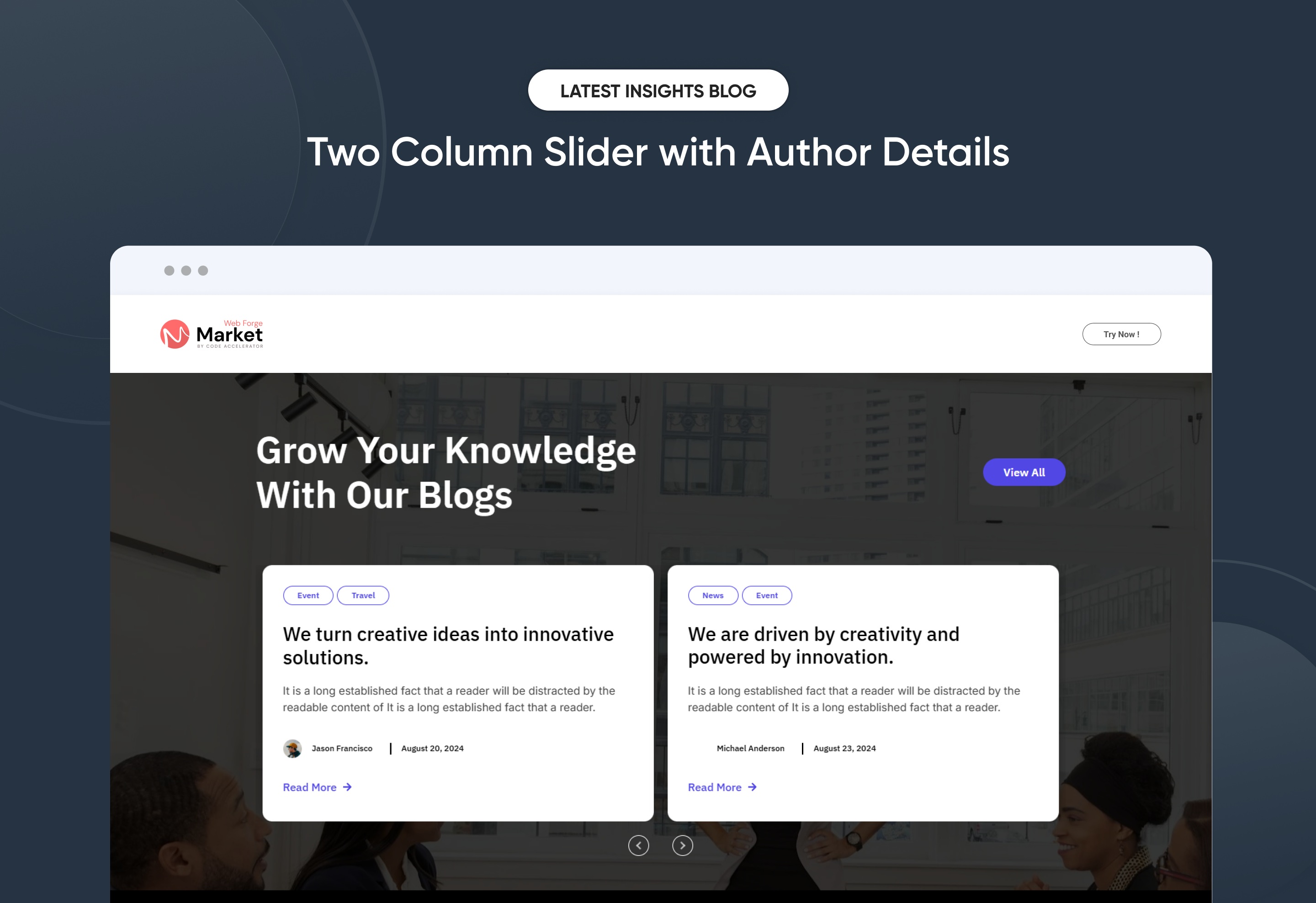
Two Column Slider with Author Details

Effortlessly showcase your Latest Insights Blog with a clean, modern layout designed to increase engagement and content visibility. The Latest Insights Blog module automatically displays your most recent articles, giving you full control over layout, spacing, and display settings—no coding required. Easily customize blog titles, featured images, author details, publish dates, and call-to-action elements to align with your brand identity. Perfect for highlighting fresh insights, driving traffic to your blog, and keeping any HubSpot page consistently updated with valuable content.


Key Features of a Latest Insights Blog Module :

Automatic Latest Post Fetching – Dynamically displays the most recent blog posts without manual updates.

Fully Mobile Responsive – Seamlessly adapts to all screen sizes for the best viewing experience.

Modern & Clean Design – Sleek, contemporary styling fits perfectly into any modern website.

Easy to Edit – Quickly customize content, styles, and settings without hassle.

Hover & Animation Effects – Engage users with smooth hover states, transitions, and subtle animations.

Optimized for Performance – Lightweight and fast for smooth transitions and loading.

Call to Action (CTA) – A friendly nudge like “Contact me” or “Book a Consultation” with a button.


How to Set Up the Latest Insights Blog in HubSpot :

In the main dashboard, go to the ‘Content’ tab and select either ‘Website’ or ‘Landing Pages,’ depending on where you want to add the section. This lets you choose the right location for managing or updating your content.

Select the page where you want to apply the module.

Screenshot (20)

Search for "Latest Insights Blog" and drag and drop the module into the desired location on your page.

ss555

Module Defaults Options: 

Layout ID :

To enable smooth scrolling for a CTA, assign an ID to the target element, reference that ID in the anchor link's href, and clicking the CTA will smoothly scroll the page to the section.

ss556

Layout Options :  

Choose your ideal layout (Layout 1, 2, or 3) and effortlessly arrange your cards to create the perfect visual flow. With Latest Insights Blog, you can reorder content with ease, ensuring a smooth, well-structured, and engaging user experience every time.


ss557


Heading, Description CTA:
  • Fully Customizable heading, description & CTA
  • Show/Hide Toggle Option

ss558

ss559

Post Column Content Image, Tag, Title, Description and  CTA : 

You can change the Image, Tag, Title, Description and CTA with the option to show or hide it, allowing for a flexible and customizable user experience.

  • Update the Image, Tag, Title, Description and CTA
  • Easily manage and organize how content is shown based on user interaction

ss560

The Latest Insights Blog module provides two versatile display modes to suit different content strategies. With the Custom Card layout, you can hand-pick and design blog cards, customizing images, headings, summaries, and links—perfect for promoting featured or evergreen posts. The Latest Blog Post layout automatically pulls in your newest articles, ensuring your content stays current with zero manual effort. Both display options are fully responsive, highly customizable, and simple to configure within the HubSpot editor, making this module an excellent choice for highlighting blog content on websites, landing pages, and blog templates.

ss561

In Form filed select your subscribe form 

ss562

jQuery Add/Remove :

Users can add or remove jQuery JavaScript as needed, providing flexibility to enhance functionality or optimize performance based on their requirements.

ss563


Module Style Options: 

Module Setting :

Adjust the margin, padding, container width and background colors to achieve your desired look and feel for the module. This flexibility lets you fine-tune the layout and aesthetics, ensuring your design is both visually appealing and user-friendly.

ss564

Heading, Description and CTA Style Settings :

Easily control the look and feel of your section’s text and call-to-action elements. Adjust font size, weight, and color for headings, fine-tune paragraph styles for descriptions, and customize CTA buttons with your preferred text, link, style, and hover effects. These options ensure your content and CTAs align with your brand while remaining clear, engaging, and professional across all devices.

ss565

ss566

Blog Post Card Setting :

You have full control over customizing the Post column box to align with your design preferences. Adjust the background, spacing, border and corners to create the perfect look for your layout. Tailor these elements to ensure your content stands out and blends seamlessly with the rest of your design.

  • Background Customization
    Choose a solid color for your blog post.
  • Spacing Control
    Adjust the padding and margin to create the ideal distance between elements and prevent overcrowding.
  • Border Style
     Choose from various styles like solid, dashed, or dotted.
  • Corner Radius
    Round the corners to create smooth, modern edges for a softer design.

ss567

ss568

Post Content Setting :

Take full control over your column content by customizing the typography, spacing, and alignment to match your brand's design style. You can adjust text transform options, icon size to make them stand out. Whether you’re updating typography, or configuring borders every detail can be tailored for a cohesive and visually appealing look.

  • Typography Customization
    Adjust font size, style, and color for subheading, headings, descriptions, listing content and other text elements to create a consistent visual identity.
  • Spacing & Alignment
    Control padding, margin, and text alignment to ensure optimal content positioning and balance.
  • Text Transform
    Modify text case and style (uppercase, lowercase, capitalize) for better readability and emphasis.
  • Icon
    Customize the icon size and color to match your brand’s color palette and enhance the overall design.
  • Author Name & Publish Date Display
    Customize author names and blog publish dates with flexible styling options to enhance credibility and content transparency.
  • CTA
    Customize the CTA Button line background color, text color, spacing, box shadow, corner and typography.

ss570

ss571

ss572

Form Setting (Layout 2)

ss575

Slider Arrows and Dot's (Layout 1, 3)

Customize slider arrow and dot size, color, background, border and corner effects to match your brand design and improve navigation usability.

ss573

ss574

We hope you enjoy using our latest insights blog module to create a seamless experience for both your users and your marketing team. At Code Accelerator, we're committed to ensuring your HubSpot experience is exceptional. If you need a custom HubSpot module or require a tailored HubSpot CMS or CRM setup, please don’t hesitate to Contact Us.

Module Tags: Columns | Image | Blog Listing | CTA | Slider Content
Discover More in the Knowledge Base

Explore detailed documentation, setup instructions, feature explanations, and best practices to help you get the most out of this module quickly and efficiently.
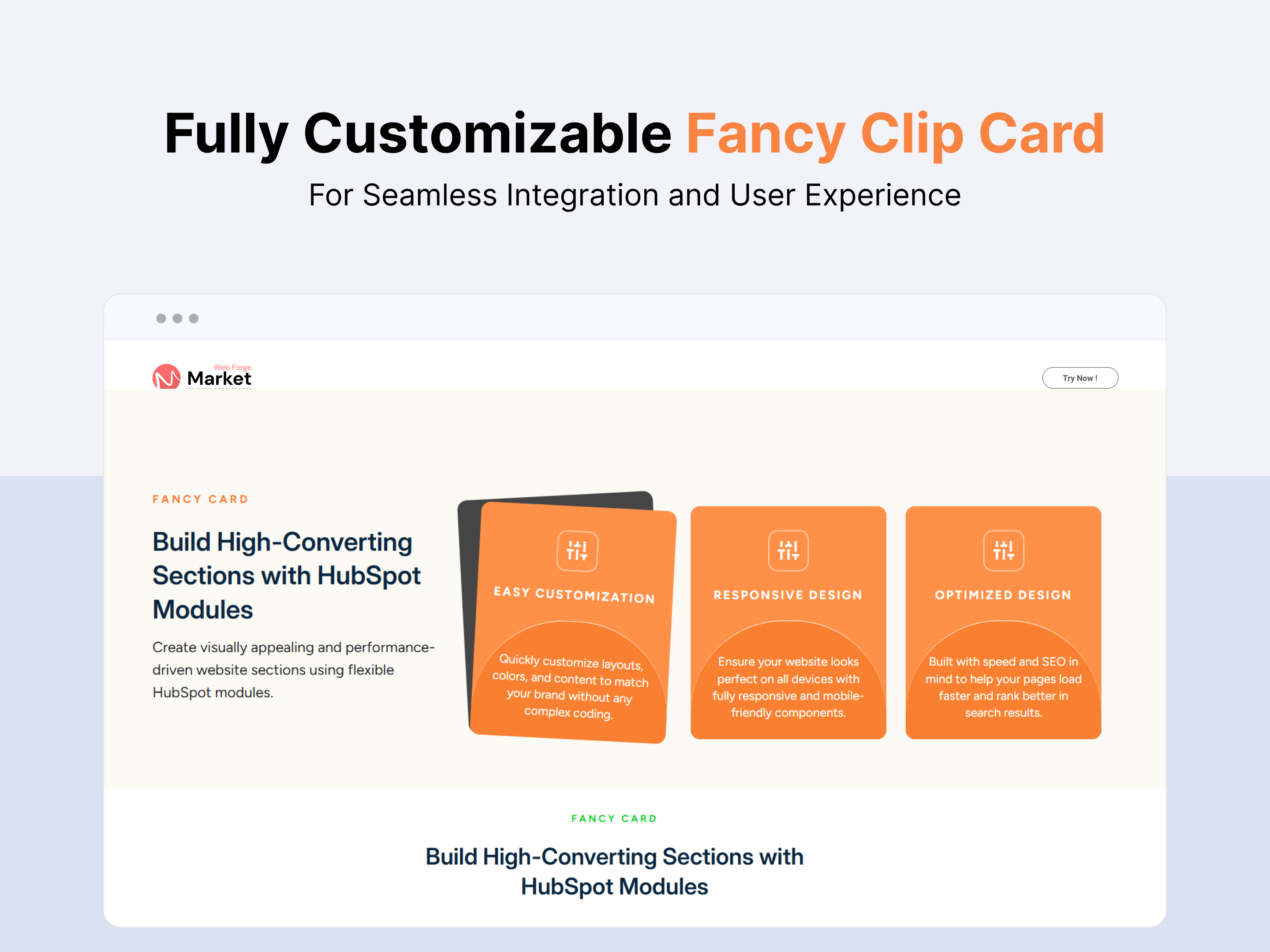
Two Column Testimonial
Content | CTA Image | Testimonial |
Two Column Testimonial
Price: $29
Thambnail
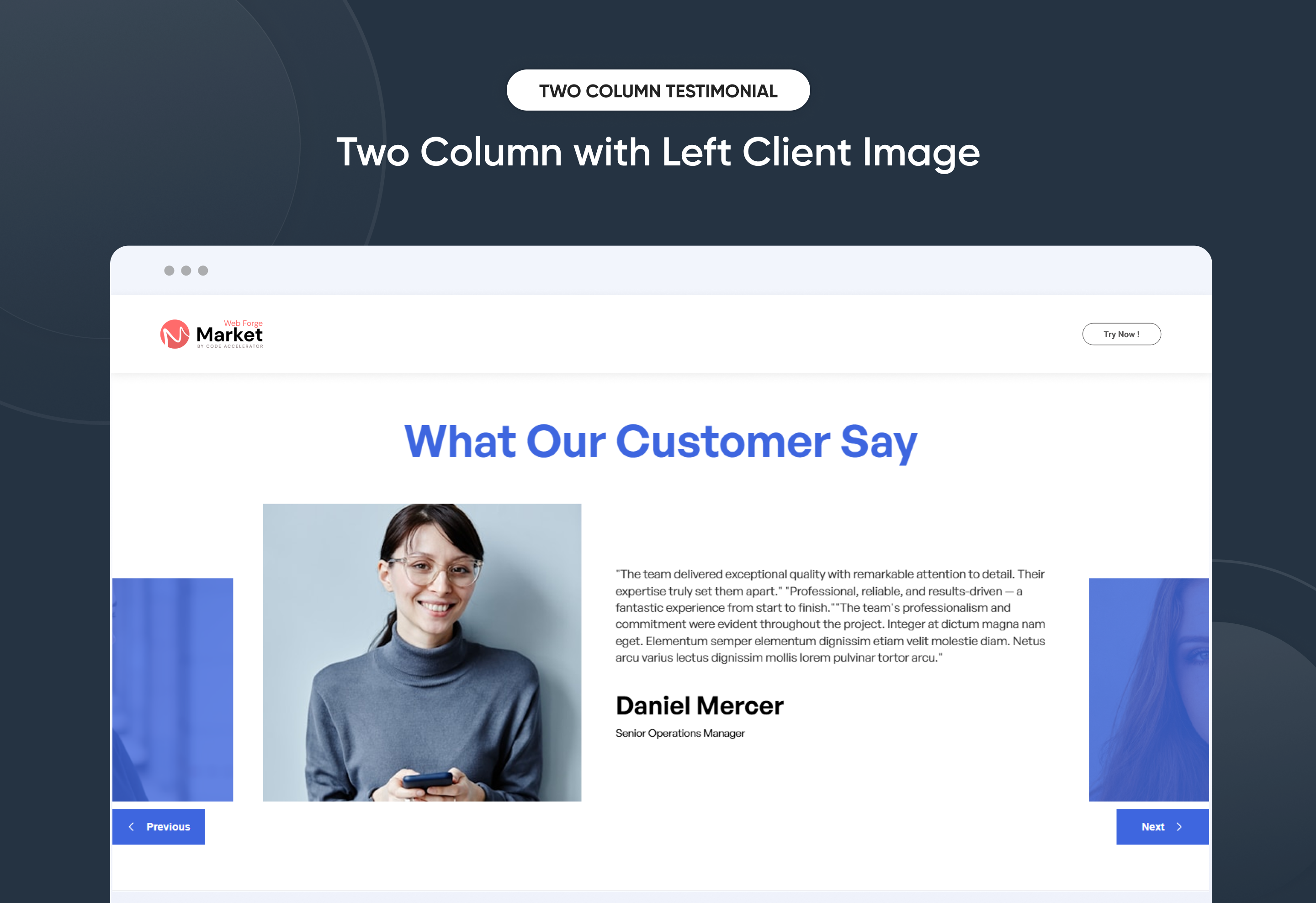
Two Column with Left Client Image
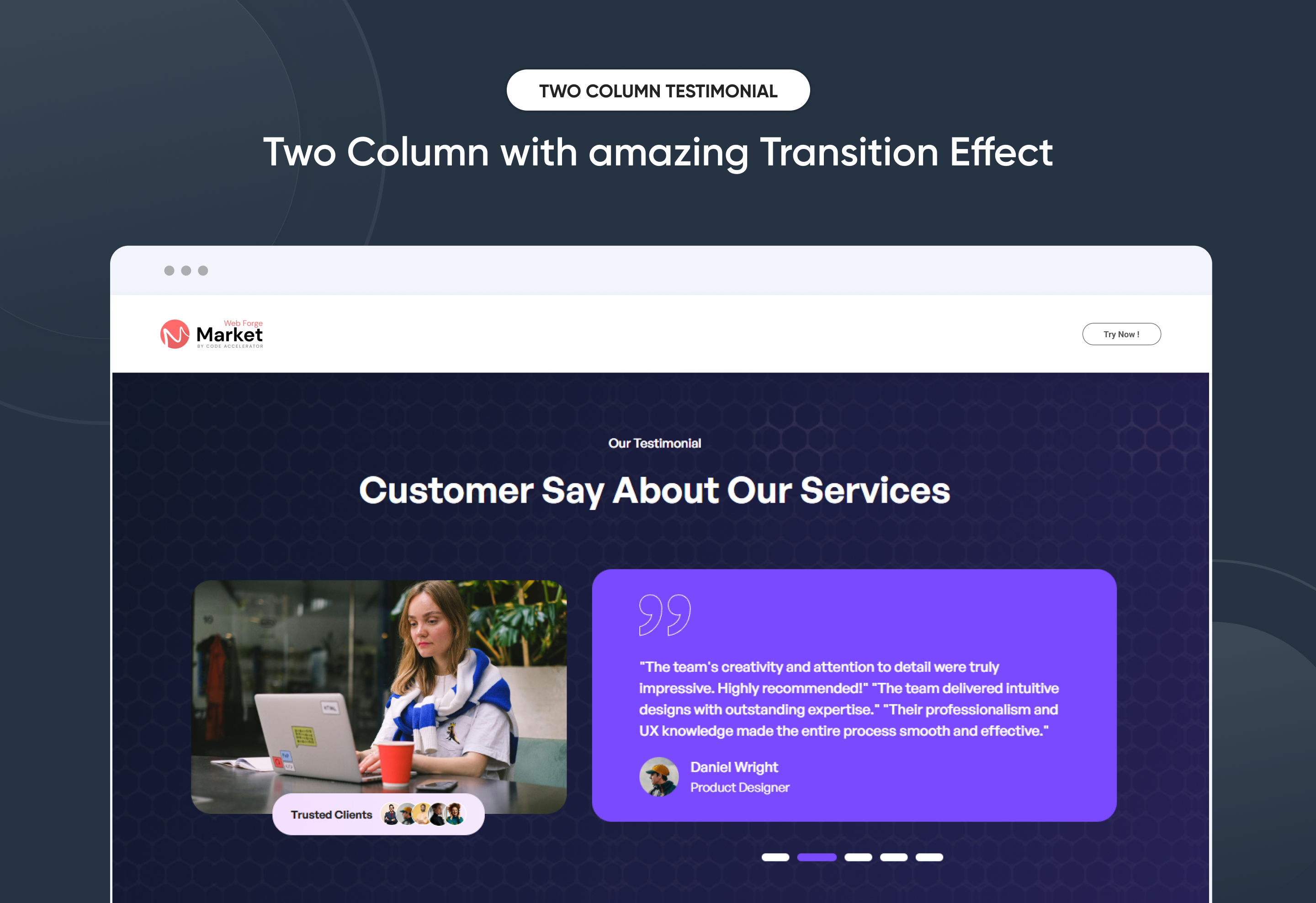
Two Column with amazing Transition Effect
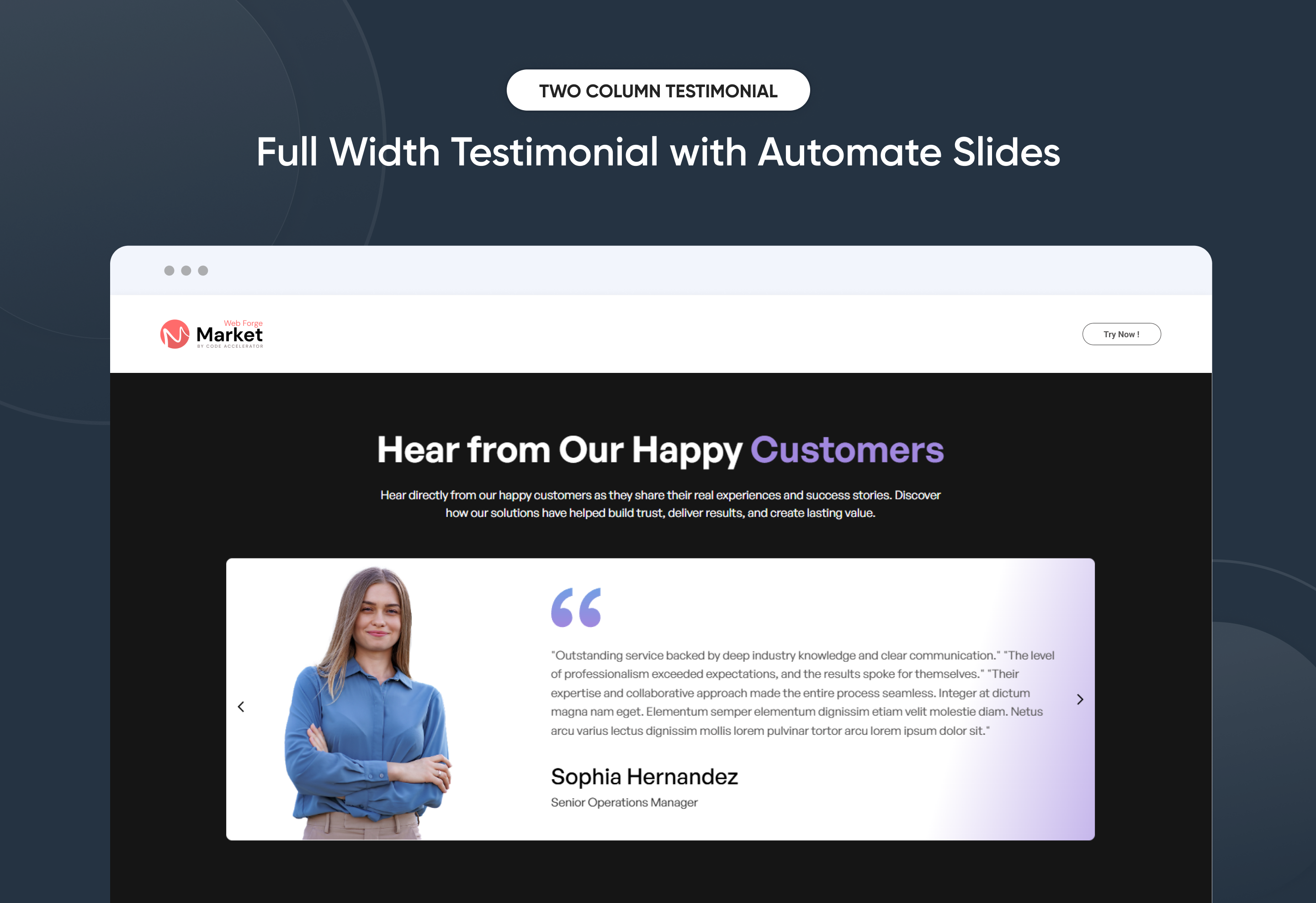
Full Width Testimonial with Automate Slides

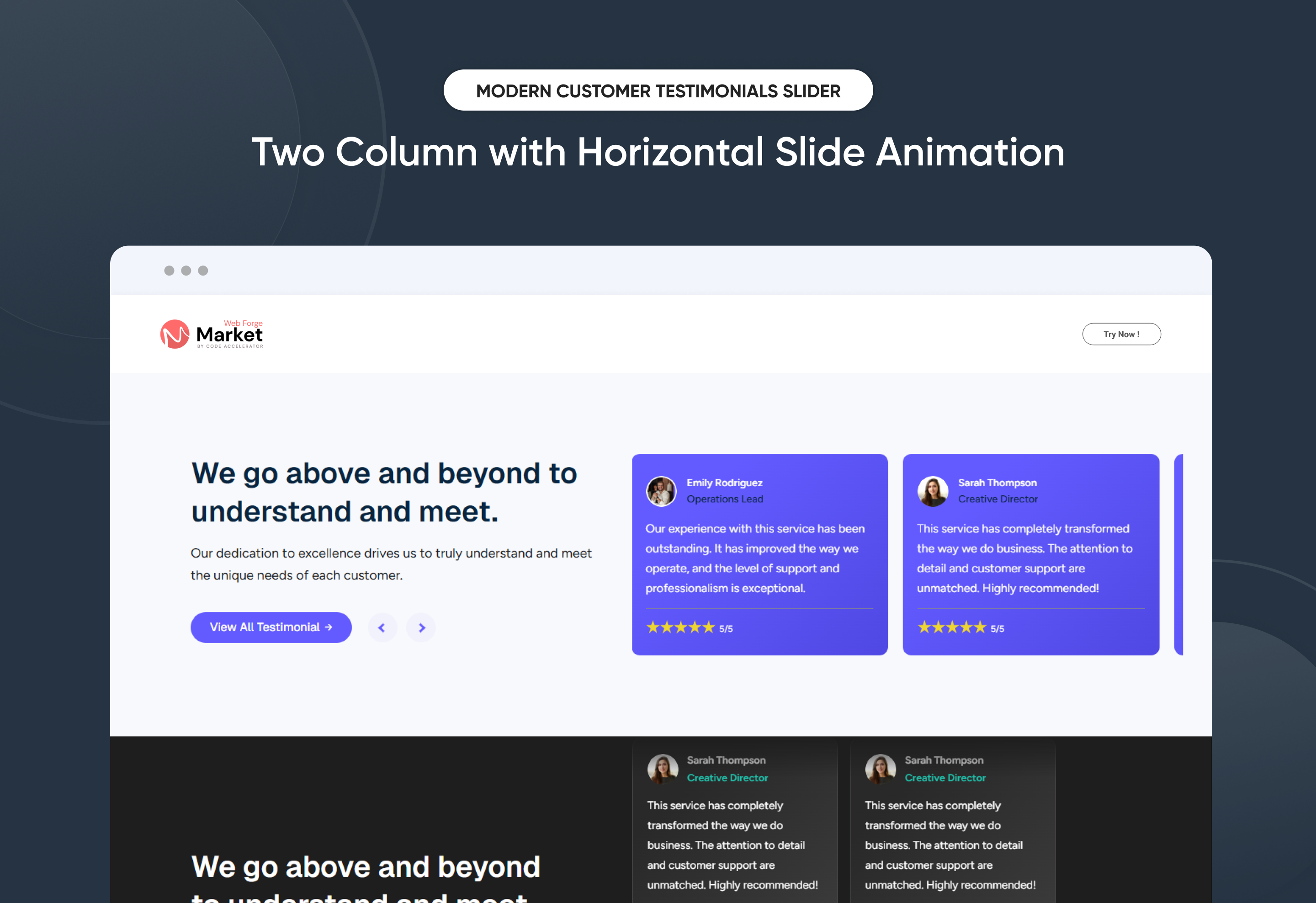
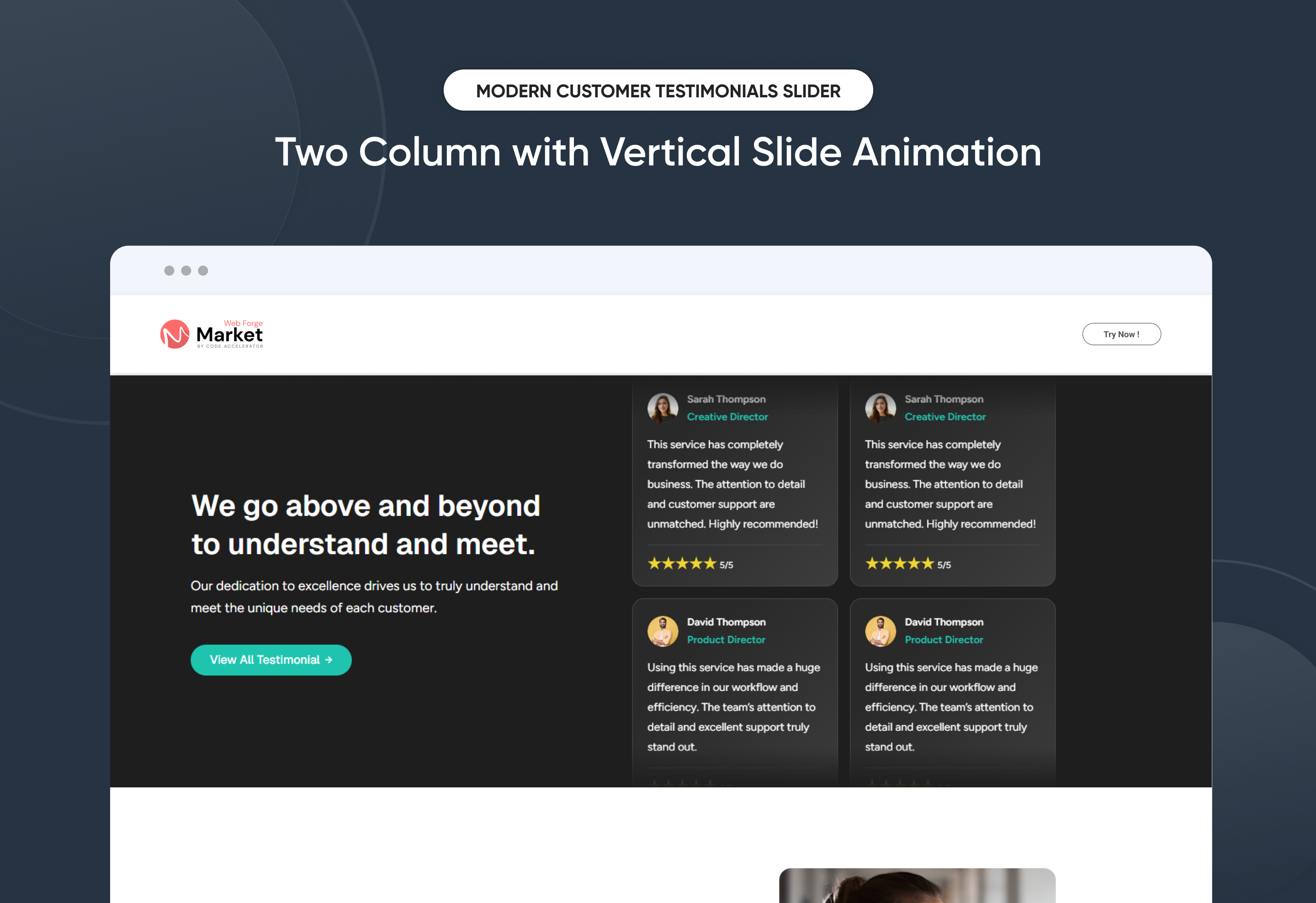
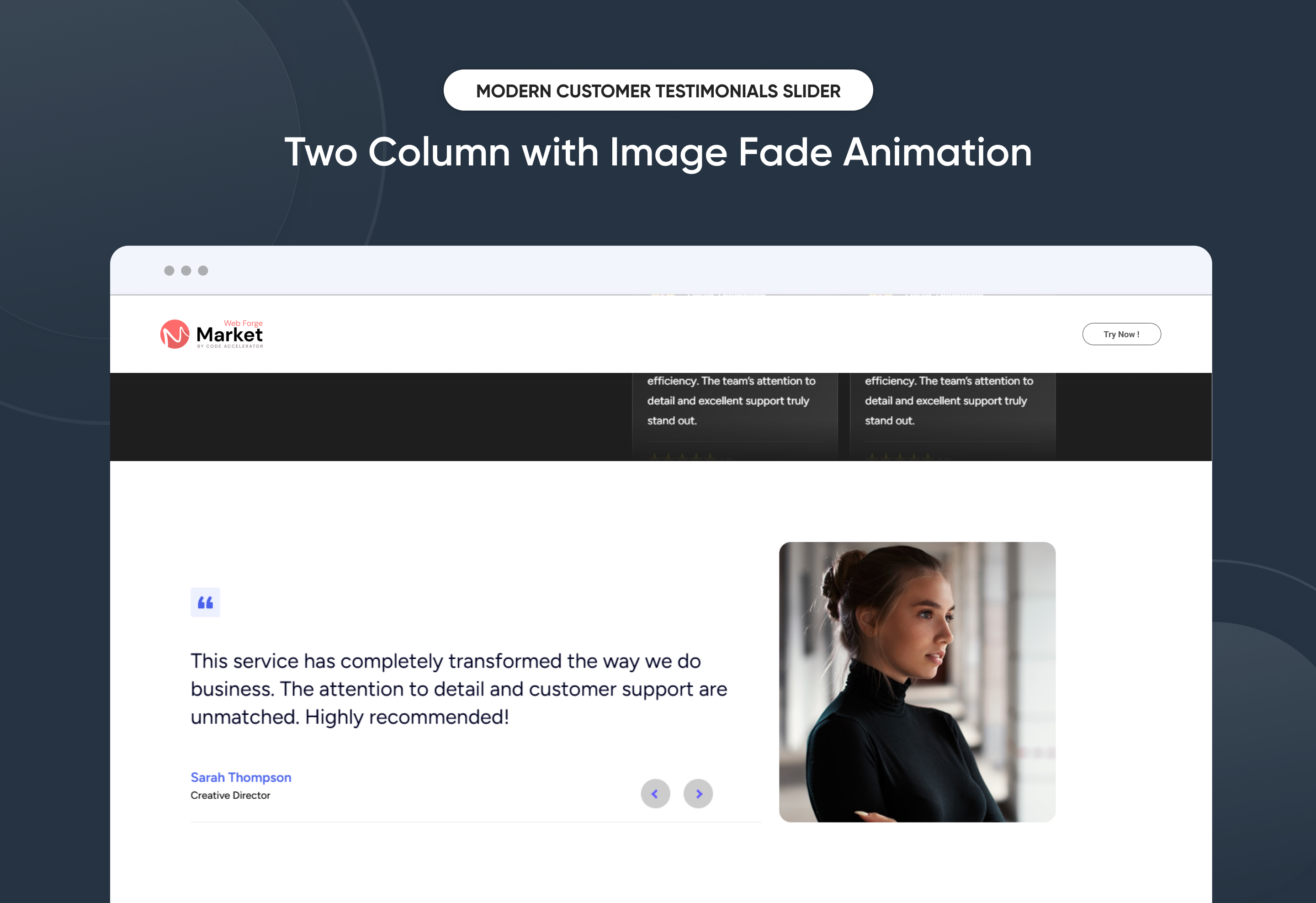
Showcase client feedback with impact using the Two Column Testimonial module. This layout beautifully balances testimonial content and visuals side by side for clear, engaging storytelling. Designed to highlight customer experiences, it helps build trust and strengthen brand credibility. With smooth transitions and a clean, modern structure, testimonials feel more authentic and readable. Fully responsive and customizable, it fits seamlessly into any page design across all devices.

Key Features of a Two Column Testimonial Module :

Two-Column Layout Design - Displays testimonial content and images side by side for a clean, professional presentation.

3 Unique Layout Options – Choose from three beautifully crafted slider layouts to match any design style.

Fully Mobile Responsive – Seamlessly adapts to all screen sizes for the best viewing experience.

Infinite Auto Slide – Testimonials slide automatically in a smooth, endless loop.

Slide Dots Option – Optional navigation dots enhance usability.

Modern & Clean Design – Sleek, contemporary styling fits perfectly into any modern website.

Easy to Edit – Quickly customize content, styles, and settings without hassle.

Easy to Integrate – Simple setup and integration into any page or theme.

Optimized for Performance – Lightweight and fast for smooth transitions and loading.

Smooth Animation Effects - Built-in fade or slide animations enhance visual engagement without affecting performance.


How to Set Up the Two Column Testimonial in HubSpot :

In the main dashboard, go to the ‘Content’ tab and select either ‘Website’ or ‘Landing Pages,’ depending on where you want to add the section. This lets you choose the right location for managing or updating your content.

Select the page where you want to apply the module.

Screenshot (20)

Search for "Two Column Testimonial" and drag and drop the module into the desired location on your page.

ss500

Module Defaults Options: 

Layout ID :

Easily enhance navigation by adding an ID to the target section and using the same ID in an anchor link. This enables a smooth scrolling effect when users click a Call-to-Action (CTA) button, improving the overall user experience.

ss501

Layout Options :  

For the Two Column Testimonial module, choose from multiple professionally designed layouts to present customer feedback in a visually engaging way. Each layout offers flexibility in content placement and visual hierarchy, helping you create trust-driven testimonial sections that fit your brand perfectly.

Options : 

  • Layout 1 : Features a section heading controls and a two-column structure where the client image appears on one side and testimonial content on the other, ideal for a clean and focused testimonial highlight.
  • Layout 2 : Includes a heading and subheading with a modern two-column card design, combining client visuals and testimonial text with subtle background styling for enhanced emphasis.
  • Layout 3 : Displays a centered heading and description followed by a wide two-column testimonial card, perfect for showcasing detailed customer feedback in a bold, attention-grabbing format.

ss502

Sub Heading/Heading & Description: 

You can change the sub heading, heading and description text with show/hide also in All Layouts with the option to show or hide it, allowing for a flexible and customizable user experience.

  • Update the sub heading, heading and description
  • Easily manage and organize how content is shown based on user interaction

ss503

ss504

ss505

Slider Content : 

  • Image
    Easily personalize client images to match your brand and layout style. Upload custom photos, avatars, or logos directly from the HubSpot editor with full control over sizing and alignment.
  • Enter Client Comment
    Add the client’s feedback or review text. Use this space to highlight authentic experiences and build trust.

  • Enter Client Name
    Add the client’s full name to personalize the testimonial and improve credibility.

  • Enter Client Position
    Add the client’s designation, role, or company name to provide context and strengthen authenticity.

ss506

ss507

ss508

Left Content In Layout Two :

ss509

jQuery Add/Remove :

Users can add or remove jQuery JavaScript as needed, providing flexibility to enhance functionality or optimize performance based on their requirements.

ss517

Module Style Options: 

Module Setting :

Adjust the margins, padding and background colors to achieve your desired look and feel for the module. This flexibility lets you fine-tune the layout and aesthetics, ensuring your design is both visually appealing and user-friendly.

ss510

Heading & Description Setting :

In this module, you have full flexibility to customize the heading and description to perfectly align with your design vision. You can easily adjust the spacing around the text, apply text transformations such as uppercase or lowercase, and set the alignment (left, center, or right) to create the ideal layout. These options ensure your content remains visually balanced and responsive across all devices.

  • Text Styling Options
    Set font size, color, spacing, and apply text transforms like uppercase or capitalize.
  • Responsive Alignment
    Align your content (left, center, or right) for both desktop and mobile devices.
  • Spacing Adjustments
    Add padding or margins around your content to create visual balance.

ss511

Slider Card Setting :

You have full control over customizing the column box to align with your design preferences. Adjust the background, spacing, border and corners to create the perfect look for your layout. Tailor these elements to ensure your content stands out and blends seamlessly with the rest of your design.

  • Background Customization
    Choose a solid color, gradient, or even an image background for your column box.
  • Spacing Control
    Adjust the padding and margin to create the ideal distance between elements and prevent overcrowding.
  • Border Styling
    Set borders with customizable width, color, and style to frame your content attractively.
  • Corner Radius
    Round the corners to create smooth, modern edges for a softer design.

ss512

Slider Content Setting :

Take full control over your column content by customizing the typography, spacing, and alignment to match your brand's design style. You can adjust text transform options, icon size to make them stand out. Whether you’re updating typography, or configuring borders every detail can be tailored for a cohesive and visually appealing look.

  • Typography Customization
    Adjust font size, style, and color for headings, descriptions, and other text elements to create a consistent visual identity.
  • Spacing & Alignment
    Control padding, margin, and text alignment to ensure optimal content positioning and balance.
  • Text Transform
    Modify text case and style (uppercase, lowercase, capitalize) for better readability and emphasis.
  • Clients Info
    Customize the profile image, name and position.

ss513

Slider Arrows & Dots Settings :

Gain full control over slider navigation elements by customizing arrows and dots to match your brand’s visual style. Adjust size, color and spacing to ensure smooth interaction and a polished user experience. Whether you’re refining navigation visibility or styling active states, every detail can be tailored for consistency and clarity.

ss514

ss515

ss516

We hope you enjoy using our two column testimonial module to create a seamless experience for both your users and your marketing team. At Code Accelerator, we're committed to ensuring your HubSpot experience is exceptional. If you need a custom HubSpot module or require a tailored HubSpot CMS or CRM setup, please don’t hesitate to Contact Us.

Module Tags: Content | CTA Image | Testimonial |
Discover More in the Knowledge Base

Explore detailed documentation, setup instructions, feature explanations, and best practices to help you get the most out of this module quickly and efficiently.
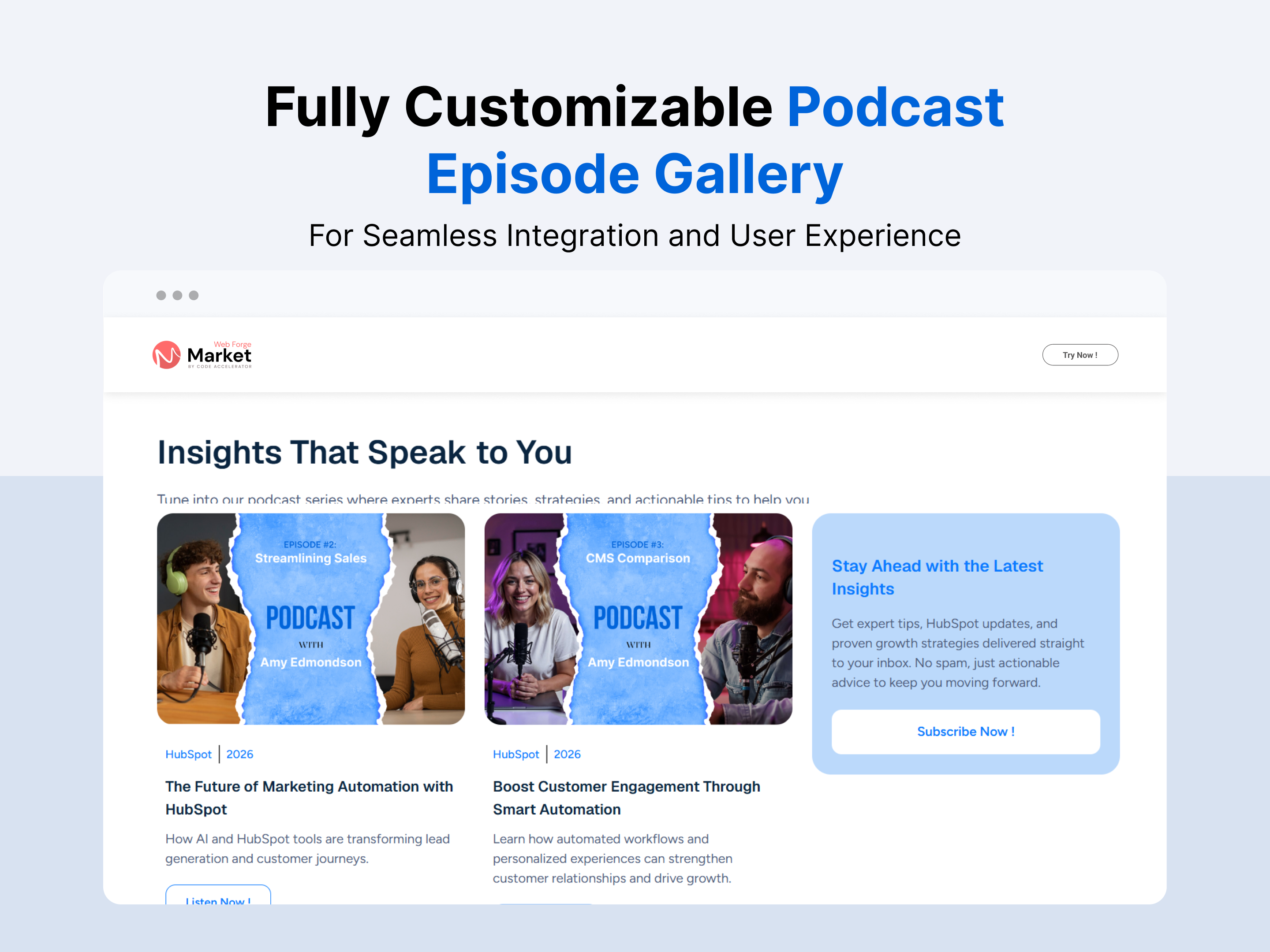
Dynamic CTA Banner
Dynamic CTA Banner
Banner | Content | CTA | Image | Hero Banner |
Dynamic CTA Banner
Price: $29
Content Grid Pro-2
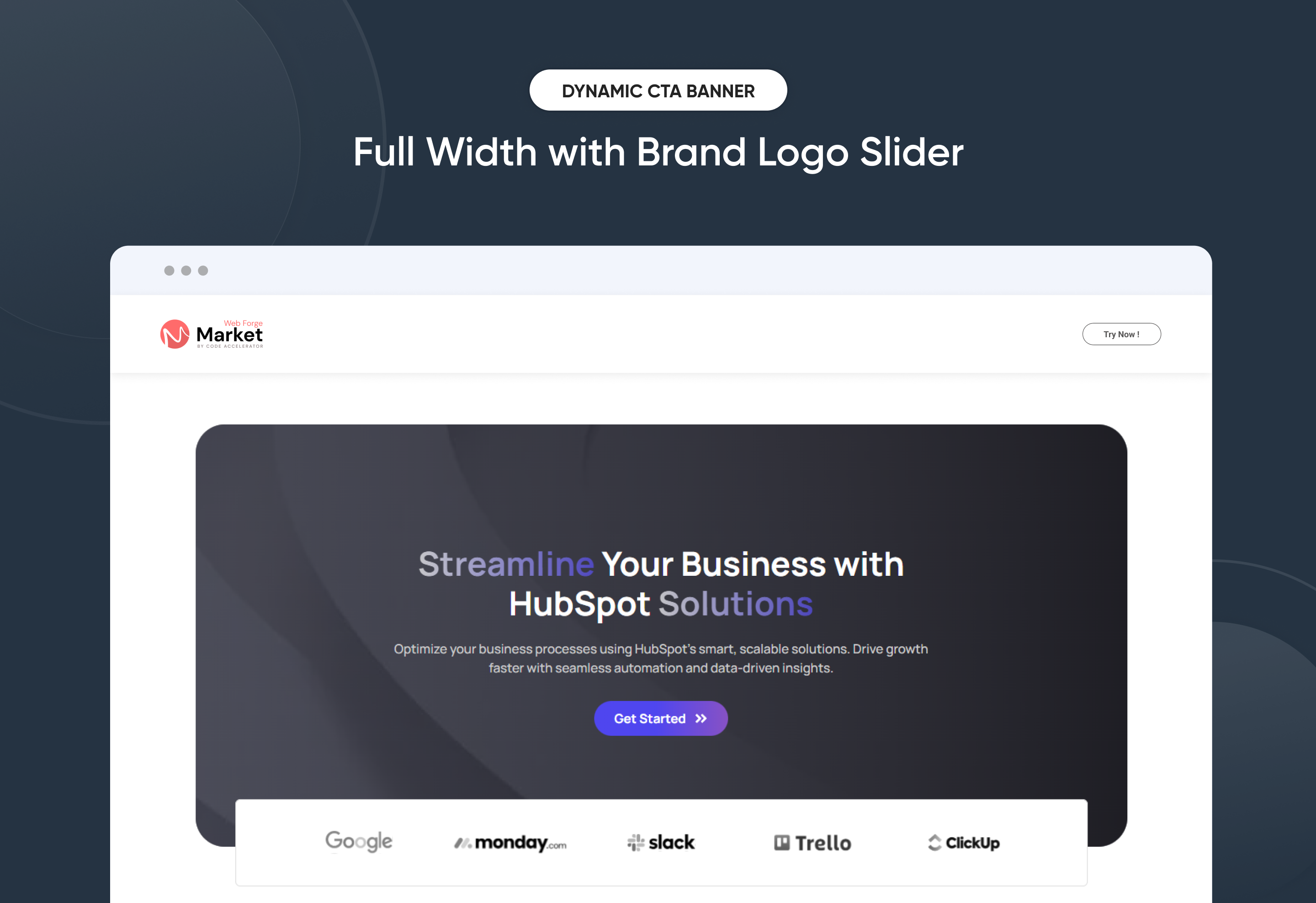
Full Width with Brand Logo Slider
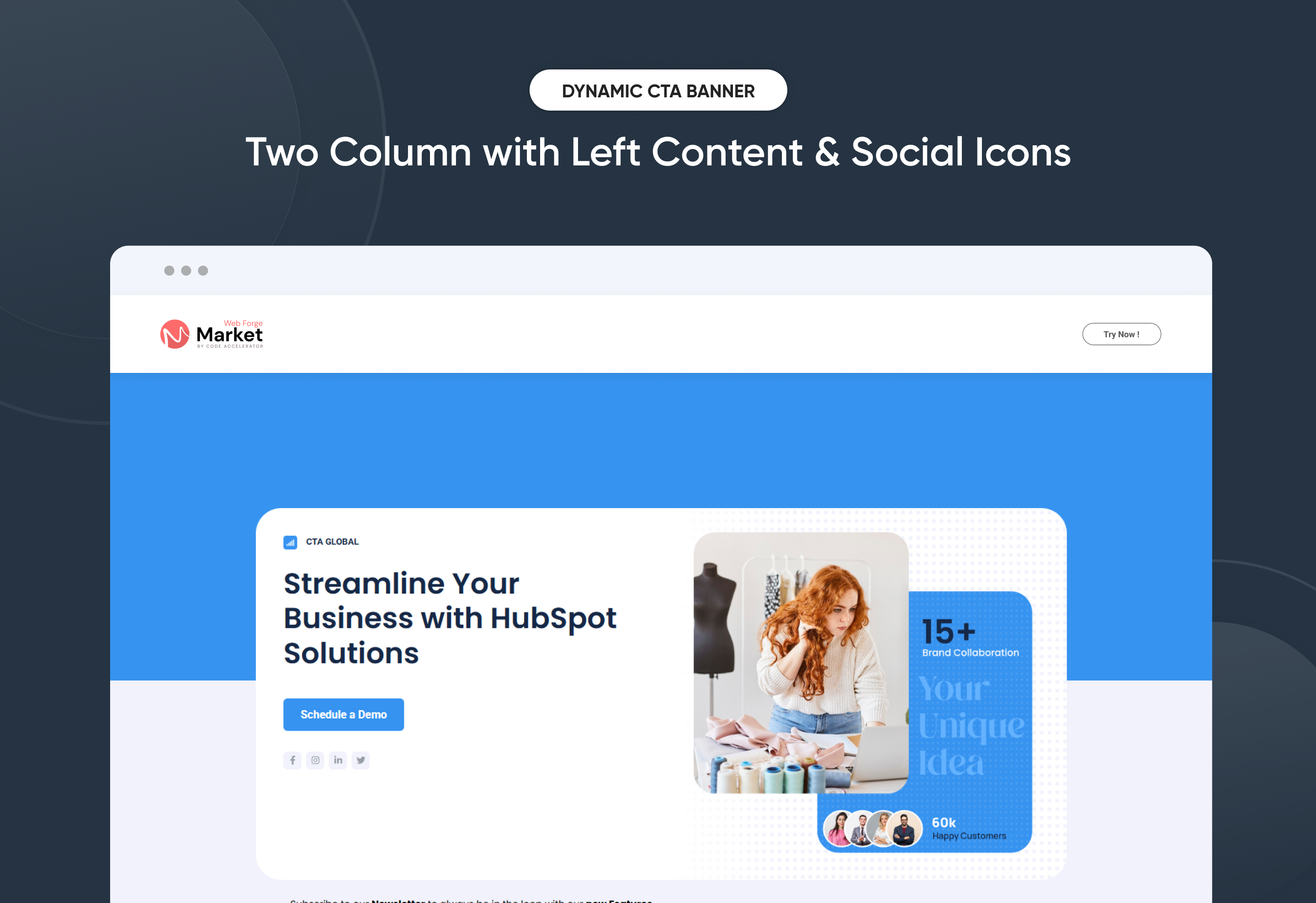
Two Column with Left Content & Social Icons
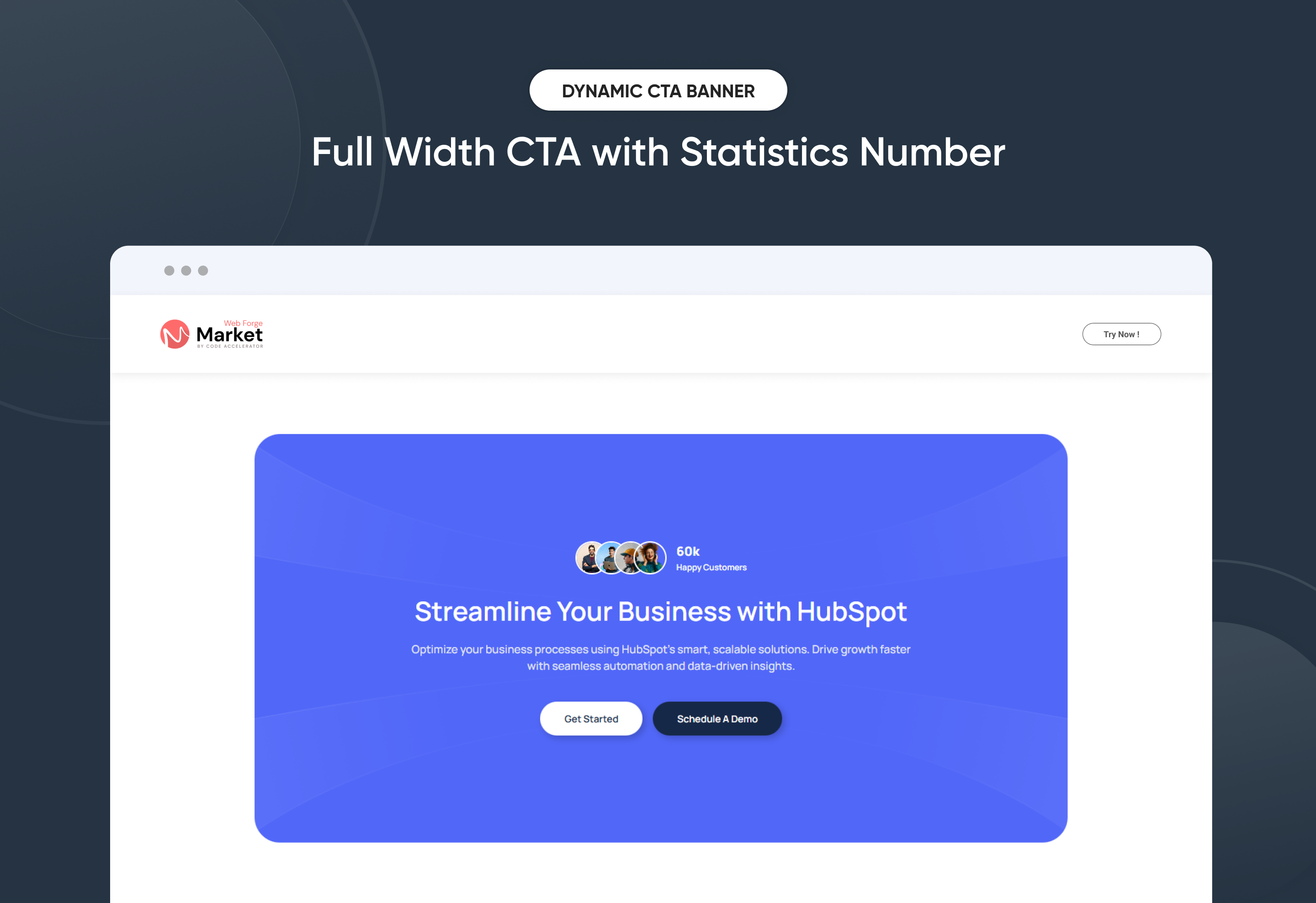
Full Width CTA with Statistics Number

The Dynamic CTA Banner Module helps you capture attention and drive action with smart, responsive, and highly customizable call-to-action banners. Built for flexibility, it includes multiple layout options and dynamic display controls, giving you the freedom to promote offers, announcements, and key messages exactly when and where they matter most.

Easily update banner text, supporting copy, CTA buttons, and links directly inside HubSpot—no coding required. With mobile-optimized design, flexible positioning, adjustable spacing, and full style controls, this module ensures your CTA banner looks consistent and performs flawlessly across all screen sizes.

Whether you’re promoting a limited-time offer, launching a campaign, or guiding users toward conversions, the Dynamic CTA Banner delivers a clean, high-impact experience that increases engagement and drives measurable results.


Key Features of a Dynamic CTA Banner Module :

  • Multiple Layouts – Choose from 3 distinct hero banner styles.

  • Responsive Design – Optimized for all screen sizes, ensuring a flawless experience on desktop, tablet, and mobile.

  • Flexible Content Options – Easily update headings, descriptions, and CTAs directly within HubSpot.

  • Customizable Visuals – Add images, graphics, or mockups to match your brand identity and campaign goals.

  • Engaging Call-to-Actions – Drive conversions with customizable CTA buttons tailored to your business objectives.

  • Design Flexibility – Adjust spacing, alignment, and background colors for a unique, on-brand look.

  • User-Friendly Editing – No coding required—built for marketers to launch modern hero sections quickly.

  • Optimized Performance – Lightweight and SEO-friendly to ensure speed and visibility.

  • Versatile Use Cases – Perfect for homepages, landing pages, service showcases, or campaign launches.

How to Set Up the Use Dynamic CTA Banner in HubSpot :

In the main dashboard, go to the ‘Content’ tab and select either ‘Website’ or ‘Landing Pages,’ depending on where you want to add the section. This lets you choose the right location for managing or updating your content.

Select the page where you want to apply the module.

Screenshot (20)

Search for "Dynamic CTA Banner" and drag and drop the module into the desired location on your page.

ss400

Module Defaults Options: 

Layout ID :

Easily enhance navigation by adding an ID to the target section and using the same ID in an anchor link. This enables a smooth scrolling effect when users click a Call-to-Action (CTA) button, improving the overall user experience.

ss400-1

Layout Options :  

Effortlessly capture attention and showcase your brand with the “Dynamic CTA Banner” module — perfect for homepages, landing pages, or campaign launches. Designed to make a powerful first impression, this hero section combines bold layouts, customizable content, and engaging calls-to-action that inspire visitors to take the next step. With responsive design and flexible styling, it ensures your hero banner looks sleek, professional, and high-converting across all devices.

Options:

  • Layout 1 – A design featuring strong headlines, supporting visuals, conversion-ready CTAs and logo slider.

  • Layout 2 – A layout that highlights customer stories, social icon, and subscribe form.

  • Layout 3 – A layout customer success story, services, or modern CTA's.

ss401

ss402

ss403

 
Banner Content : 
  • Heading Enable
    Toggle the main heading on or off. Perfect when you want a clean hero layout without a large title.

  • Enter Heading
    Add and customize the main heading text. Use this space to deliver a strong, eye-catching message.

  • Description Enable
    Show or hide the supporting description under your heading. Ideal if you prefer a minimalist design.

  • Enter Description
    Add descriptive text below the heading. Great for explaining your value or offering in 1–2 concise lines.

  • CTA Show/Hide
    Easily enable or disable the call-to-action button. Useful if you want a hero section that’s informational only.

  • CTA
    Customize the CTA text, link, and style. A powerful way to drive visitors toward conversions.

ss401-1

402

ss403-1

In Form filed select your subscribe form

ss404

jQuery Add/Remove :

Users can add or remove jQuery JavaScript as needed, providing flexibility to enhance functionality or optimize performance based on their requirements.

ss405


Module Style Options: 

Module Setting :

Adjust the margin, padding, container width and background colors to achieve your desired look and feel for the module. This flexibility lets you fine-tune the layout and aesthetics, ensuring your design is both visually appealing and user-friendly.

ss406

Heading, Description and CTA Setting :

The Heading & Description Settings in Dynamic CTA Banner allow you to fully customize the look and feel of your text by adjusting desktop and mobile typography (font family, size, weight, line height, and color), managing spacing (margins and padding for precise layout control), and applying text transform options such as uppercase, lowercase, or capitalize, ensuring your headings and descriptions remain visually consistent, responsive, and aligned with your brand style across all devices.

  • Desktop Typography
    Customize font style, size, weight, and color for the CTA on desktop. Ensures your button text is bold, readable, and aligned with your brand style.
  • Mobile Typography
    Individually set typography for mobile devices. Keeps the CTA optimized and user-friendly across all screen sizes.
  • Spacing
    Adjust padding and margin around the CTA button. Helps maintain balanced layout and proper visual hierarchy.
  • Background
    Choose and style the background color or gradient of the CTA. Makes the button stand out and match your brand’s look.
  • Border
    Add or customize borders for the CTA button. Ideal for minimal designs or creating outlined button styles.
  • Border Radius
    Control the corner roundness of the CTA. Switch between sharp edges, soft curves, or pill-shaped buttons.
  • Text Transform
    Format your CTA text as uppercase, lowercase, or capitalized. Great for enforcing consistent design language.
  • Box Shadow Enable
    Add or remove shadows around the CTA. Enhances depth and draws more attention to the button.
  • Alignment
    Position the CTA left, center, or right within the hero section. Provides flexibility depending on layout style.

    ss407

Logo Setting (Layout 1):

  • Logo Height
    Adjust the height of the image to fit your design. Helps maintain balance between visuals and text.
  • Border
    Add or customize borders around the image. Useful for creating separation or emphasis.
  • Spacing
    Control the margin and padding around the image. Ensures proper alignment and breathing space in the layout.
  • Border Radius
    Round the corners of the image as needed. Perfect for creating smooth, modern, or card-style visuals.

ss408

Image Setting : 

Image Styling Settings allow you to easily control image corner and background to match your layout needs. And visual appearance to ensure images blend seamlessly with your brand design.

ss409

Bottom Content Setting :

  • Desktop Typography
    Customize font style, size, weight, and color for the CTA on desktop. Ensures your button text is bold, readable, and aligned with your brand style.
  • Mobile Typography
    Individually set typography for mobile devices. Keeps the CTA optimized and user-friendly across all screen sizes.
  • Spacing
    Adjust padding and margin around the CTA button. Helps maintain balanced layout and proper visual hierarchy.
  • Background
    Choose and style the background color or gradient of the CTA. Makes the button stand out and match your brand’s look.
  • Border
    Add or customize borders for the CTA button. Ideal for minimal designs or creating outlined button styles.
  • Border Radius
    Control the corner roundness of the CTA. Switch between sharp edges, soft curves, or pill-shaped buttons.
  • Text Transform
    Format your CTA text as uppercase, lowercase, or capitalized. Great for enforcing consistent design language.
  • Box Shadow Enable
    Add or remove shadows around the CTA. Enhances depth and draws more attention to the button.
  • Alignment
    Position the CTA left, center, or right within the hero section. Provides flexibility depending on layout style.

ss410

We hope you enjoy using our dynamic CTA banner to create a seamless experience for both your users and your marketing team. At Code Accelerator, we're committed to ensuring your HubSpot experience is exceptional. If you need a custom HubSpot module or require a tailored HubSpot CMS or CRM setup, please don’t hesitate to Contact Us.

Module Tags: Banner | Content | CTA | Image | Hero Banner |
Discover More in the Knowledge Base

Explore detailed documentation, setup instructions, feature explanations, and best practices to help you get the most out of this module quickly and efficiently.
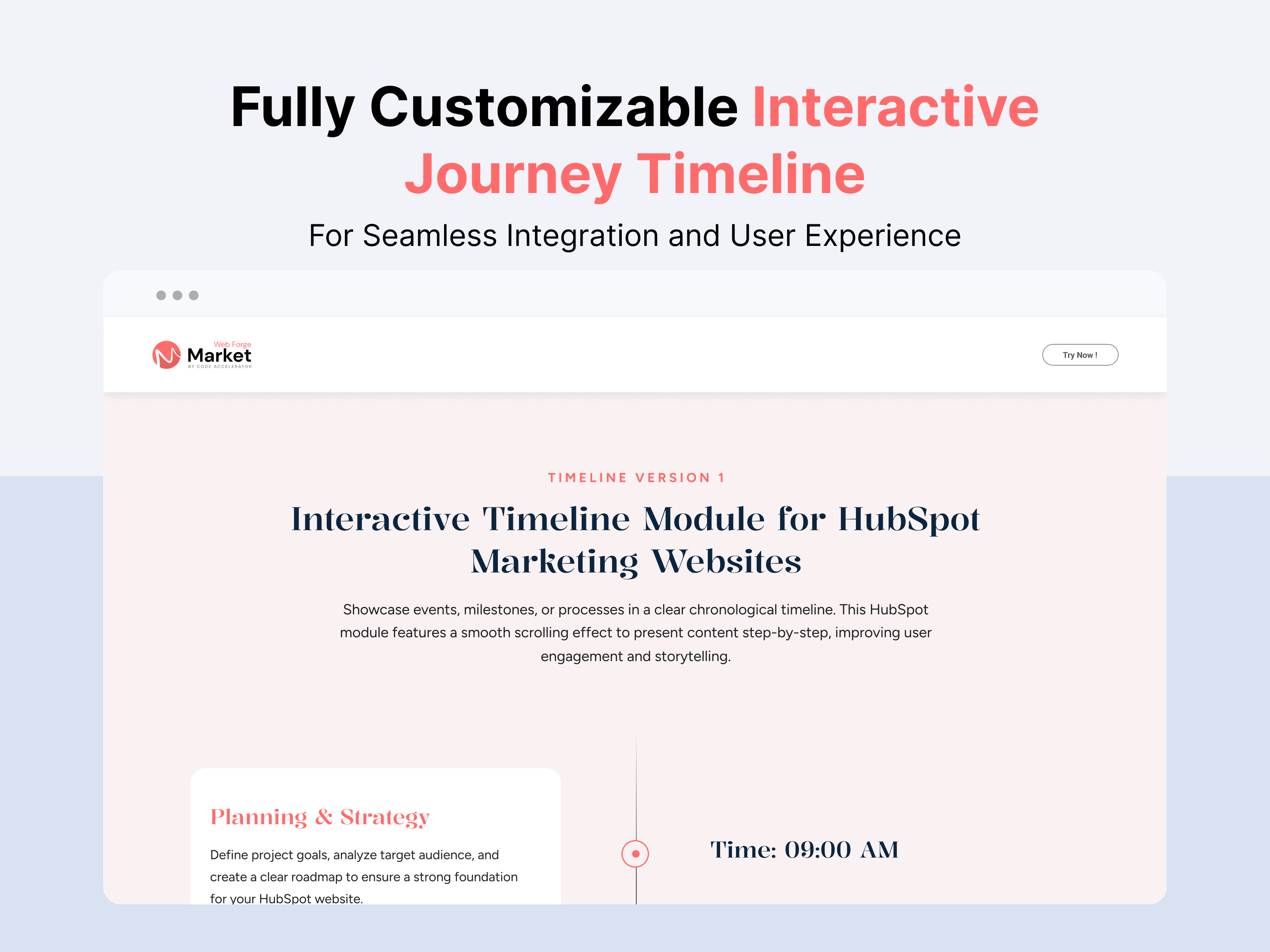
Latest Blog Highlights
Slider | Columns | Content | CTA | Blog Listing | Image |
Latest Blog Highlights
Price: $29
latest-blog-highlights
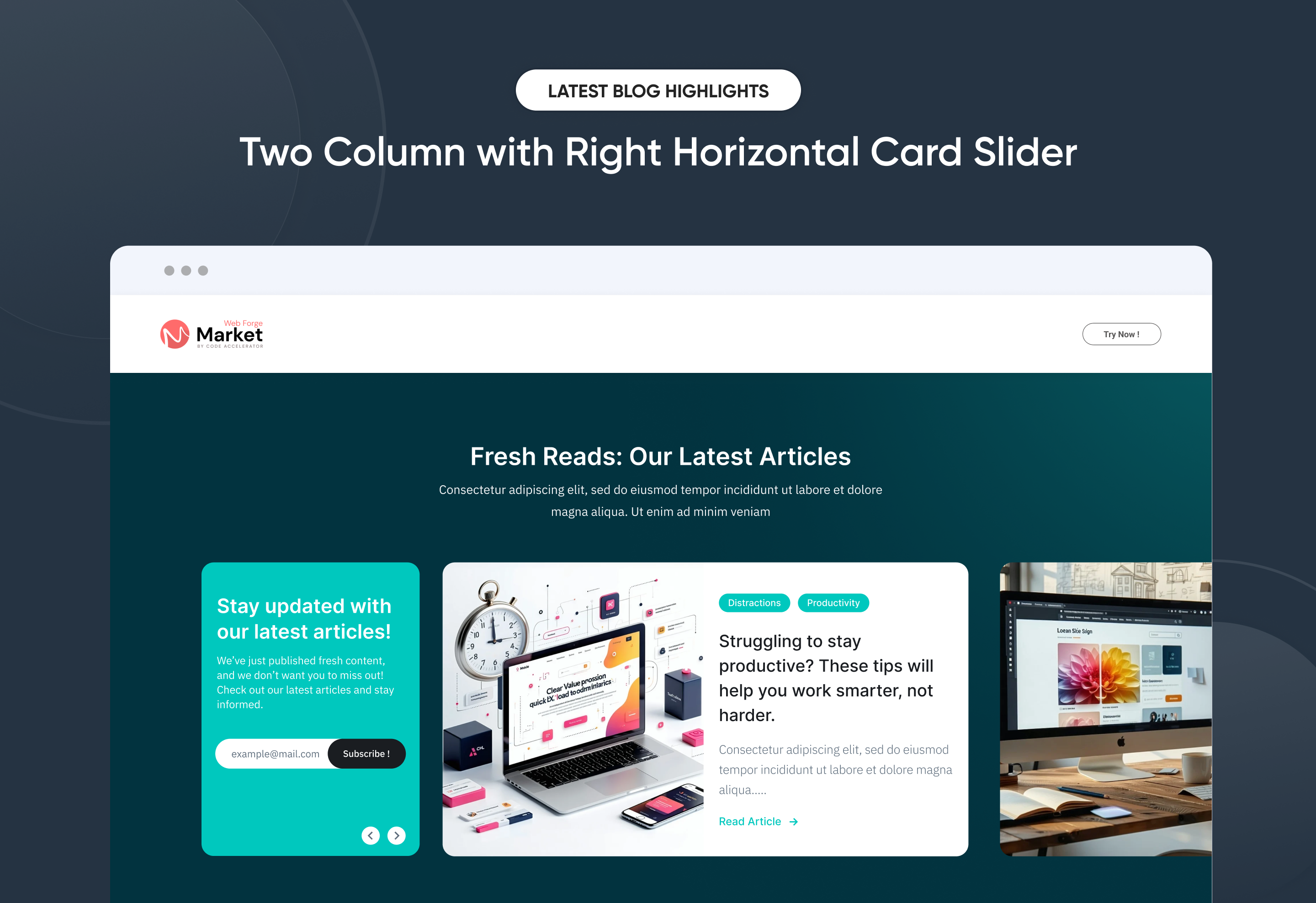
Two Column with Right Horizontal Card Slider
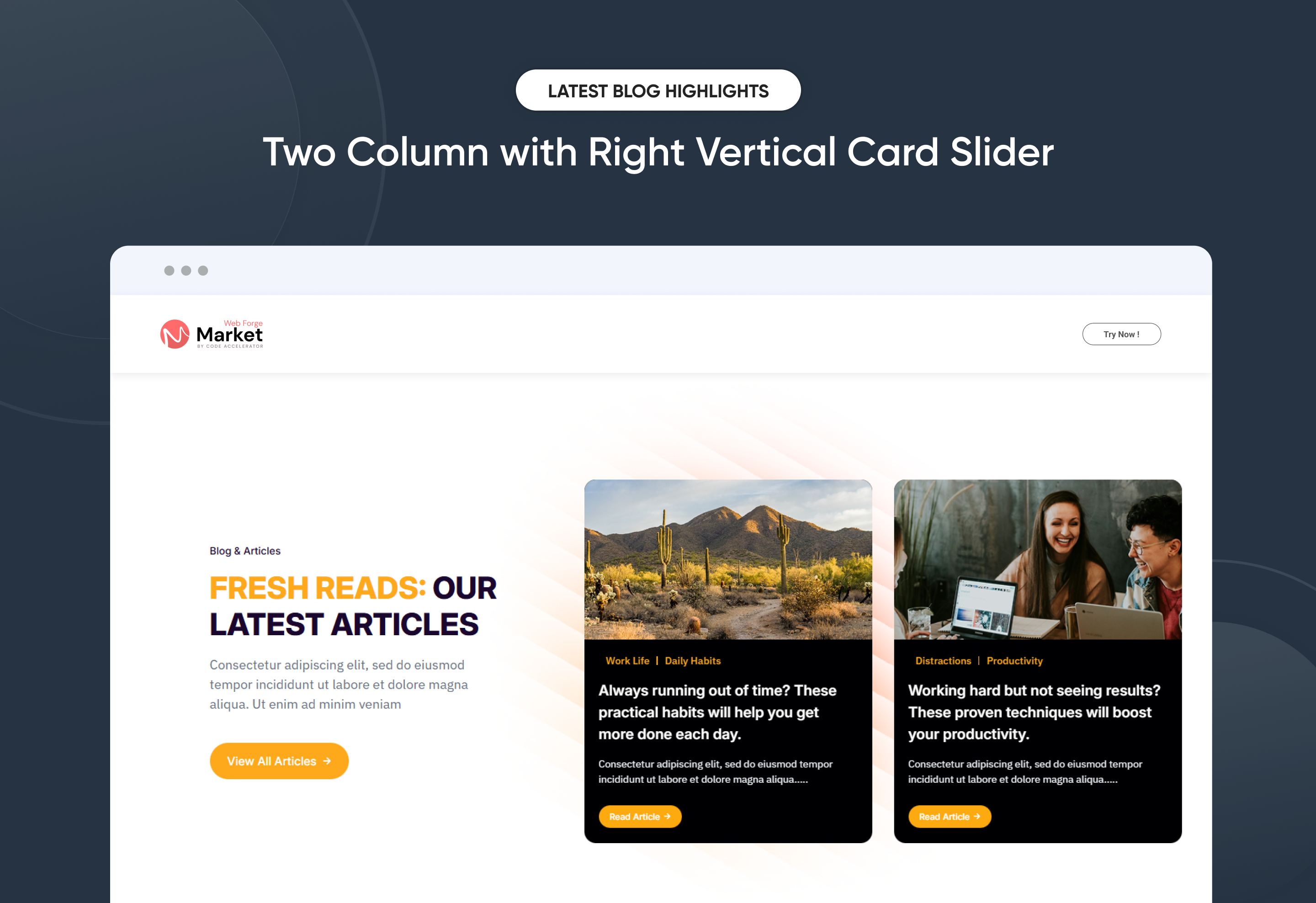
Two Column with Right Vertical Card Slider
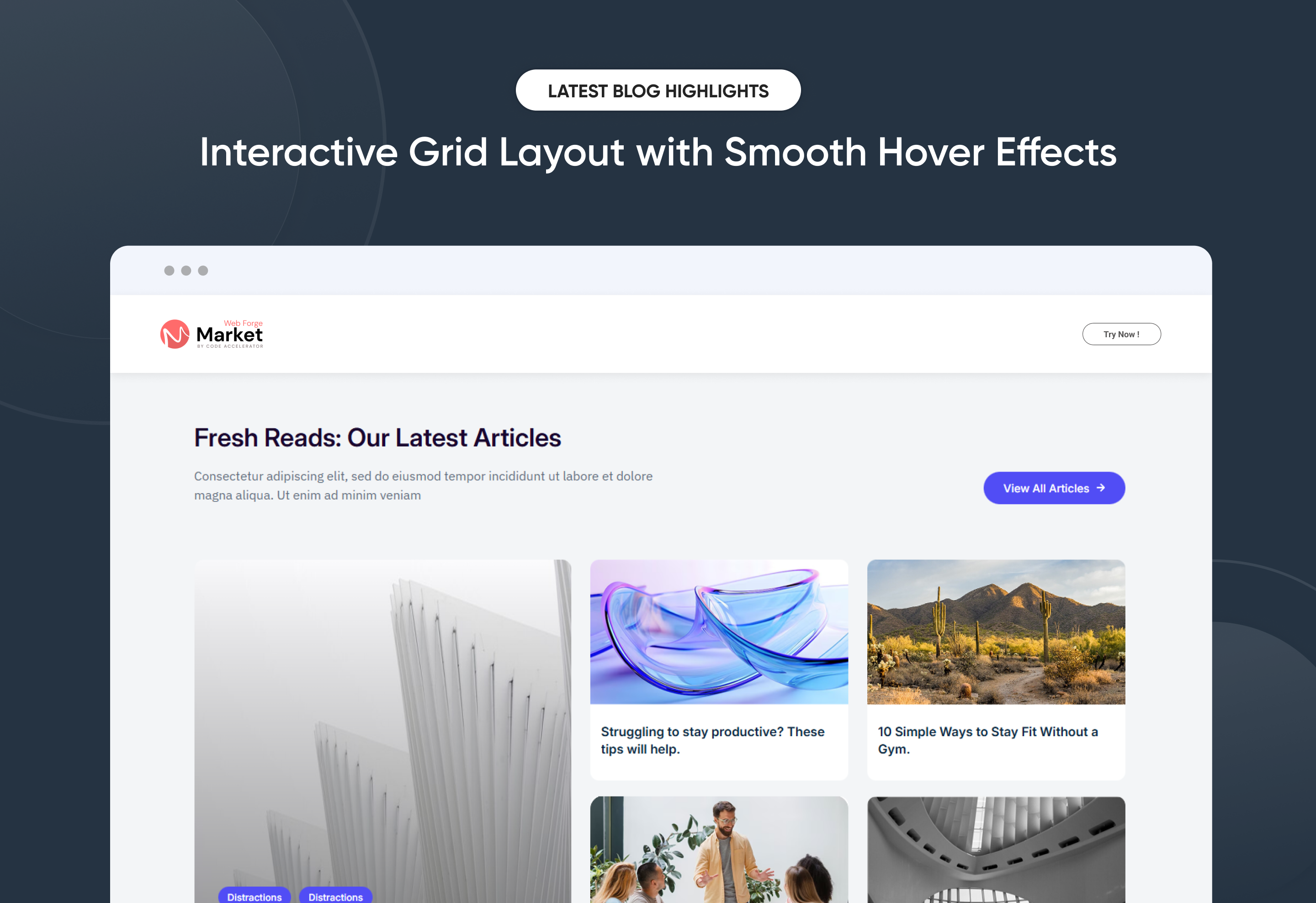
Interactive Grid Layout with Smooth Hover Effects

Effortlessly showcase your Latest Blog Highlights with a clean, modern layout designed to boost engagement and visibility. The Latest Blog Highlights module automatically pulls your most recent articles and gives you full control over layout, spacing, and display settings—no coding required. Customize titles, images, meta details, and call-to-action elements to match your brand style. Ideal for highlighting fresh content, driving traffic, and keeping any HubSpot page up to date.


Key Features of a Latest Blog Highlights Module :

Automatic Latest Post Fetching – Dynamically displays the most recent blog posts without manual updates.

Fully Mobile Responsive – Seamlessly adapts to all screen sizes for the best viewing experience.

Modern & Clean Design – Sleek, contemporary styling fits perfectly into any modern website.

Easy to Edit – Quickly customize content, styles, and settings without hassle.

Hover & Animation Effects – Engage users with smooth hover states, transitions, and subtle animations.

Optimized for Performance – Lightweight and fast for smooth transitions and loading.

Call to Action (CTA) – A friendly nudge like “Contact me” or “Book a Consultation” with a button.


How to Set Up the Latest Blog Highlights in HubSpot :

In the main dashboard, go to the ‘Content’ tab and select either ‘Website’ or ‘Landing Pages,’ depending on where you want to add the section. This lets you choose the right location for managing or updating your content.

Select the page where you want to apply the module.

Screenshot (20)

Search for "Latest Blog Highlights" and drag and drop the module into the desired location on your page.

ss330

Module Defaults Options: 

Layout ID :

To enable smooth scrolling for a CTA, assign an ID to the target element, reference that ID in the anchor link's href, and clicking the CTA will smoothly scroll the page to the section.

ss331

Layout Options :  

Choose your ideal layout (Layout 1, 2, or 3) and effortlessly arrange your cards to create the perfect visual flow. With Latest Blog Highlights, you can reorder content with ease, ensuring a smooth, well-structured, and engaging user experience every time.


ss332


Heading, Description CTA:
  • Fully Customizable heading, description & CTA
  • Show/Hide Toggle Option

ss333

Post Column Content Image, Tag, Title, Description and  CTA : 

You can change the Image, Tag, Title, Description and CTA with the option to show or hide it, allowing for a flexible and customizable user experience.

  • Update the Image, Tag, Title, Description and CTA
  • Easily manage and organize how content is shown based on user interaction

ss334

The Latest Blog Highlights offers two flexible display options to match your content needs. Use the Custom Card option to manually create curated blog cards with full control over images, titles, descriptions, and links—ideal for featured or evergreen content. Choose the Latest Blog Post option to automatically display your most recent blog articles, keeping your pages fresh without manual updates. Both options are fully customizable, responsive, and easy to manage within the HubSpot editor, making this module perfect for showcasing blog content across website pages, landing pages, and blog templates.

ss335

In Form filed select your subscribe form 

ss344

jQuery Add/Remove :

Users can add or remove jQuery JavaScript as needed, providing flexibility to enhance functionality or optimize performance based on their requirements.

ss345


Module Style Options: 

Module Setting :

Adjust the margin, padding, container width and background colors to achieve your desired look and feel for the module. This flexibility lets you fine-tune the layout and aesthetics, ensuring your design is both visually appealing and user-friendly.

ss336

Heading, Description and CTA Style Settings :

Easily control the look and feel of your section’s text and call-to-action elements. Adjust font size, weight, and color for headings, fine-tune paragraph styles for descriptions, and customize CTA buttons with your preferred text, link, style, and hover effects. These options ensure your content and CTAs align with your brand while remaining clear, engaging, and professional across all devices.

ss337

Blog Post Setting :

You have full control over customizing the Post column box to align with your design preferences. Adjust the background, spacing, border and corners to create the perfect look for your layout. Tailor these elements to ensure your content stands out and blends seamlessly with the rest of your design.

  • Background Customization
    Choose a solid color for your blog post.
  • Spacing Control
    Adjust the padding and margin to create the ideal distance between elements and prevent overcrowding.
  • Border Style
     Choose from various styles like solid, dashed, or dotted.
  • Corner Radius
    Round the corners to create smooth, modern edges for a softer design.

ss339

ss338

Left Content Setting :

Take full control over your left column content by customizing the typography, spacing, and alignment to match your brand's design style. You can adjust text transform options, Arrow color to make them stand out. Whether you’re updating typography, or configuring borders every detail can be tailored for a cohesive and visually appealing look.

ss340

Post Content Setting :

Take full control over your column content by customizing the typography, spacing, and alignment to match your brand's design style. You can adjust text transform options, icon size to make them stand out. Whether you’re updating typography, or configuring borders every detail can be tailored for a cohesive and visually appealing look.

  • Typography Customization
    Adjust font size, style, and color for subheading, headings, descriptions, listing content and other text elements to create a consistent visual identity.
  • Spacing & Alignment
    Control padding, margin, and text alignment to ensure optimal content positioning and balance.
  • Text Transform
    Modify text case and style (uppercase, lowercase, capitalize) for better readability and emphasis.
  • Icon
    Customize the icon size and color to match your brand’s color palette and enhance the overall design.
  • CTA
    Customize the CTA Button line background color, text color, spacing, box shadow, corner and typography.

ss341

ss342

ss343

We hope you enjoy using our latest blog highlights module to create a seamless experience for both your users and your marketing team. At Code Accelerator, we're committed to ensuring your HubSpot experience is exceptional. If you need a custom HubSpot module or require a tailored HubSpot CMS or CRM setup, please don’t hesitate to Contact Us.

Module Tags: Slider | Columns | Content | CTA | Blog Listing | Image |
Discover More in the Knowledge Base

Explore detailed documentation, setup instructions, feature explanations, and best practices to help you get the most out of this module quickly and efficiently.
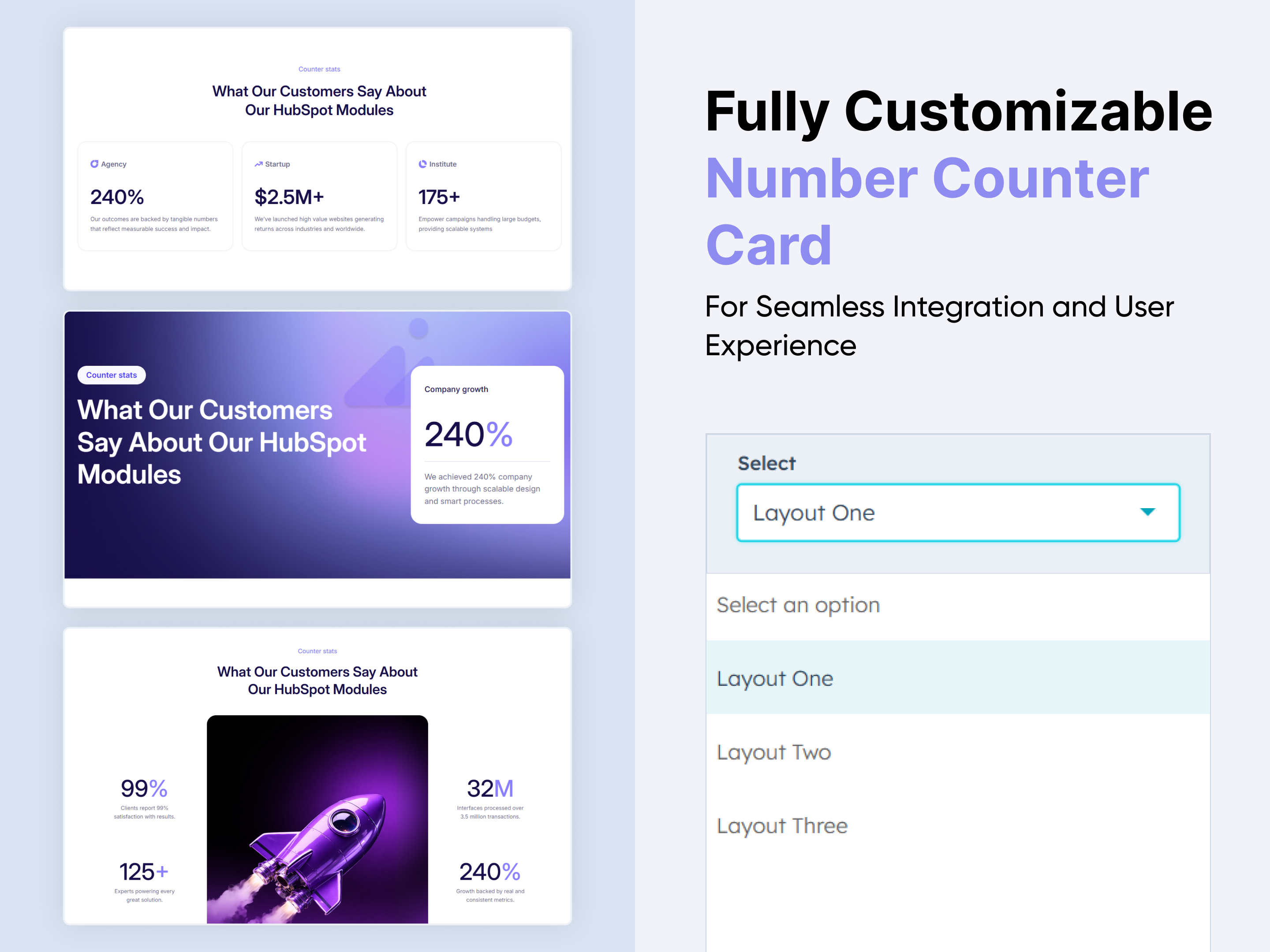
Dynamic Overlap Cards
Columns | Content | CTA | Image |
Dynamic Overlap Cards
Price: $19
Overlap card
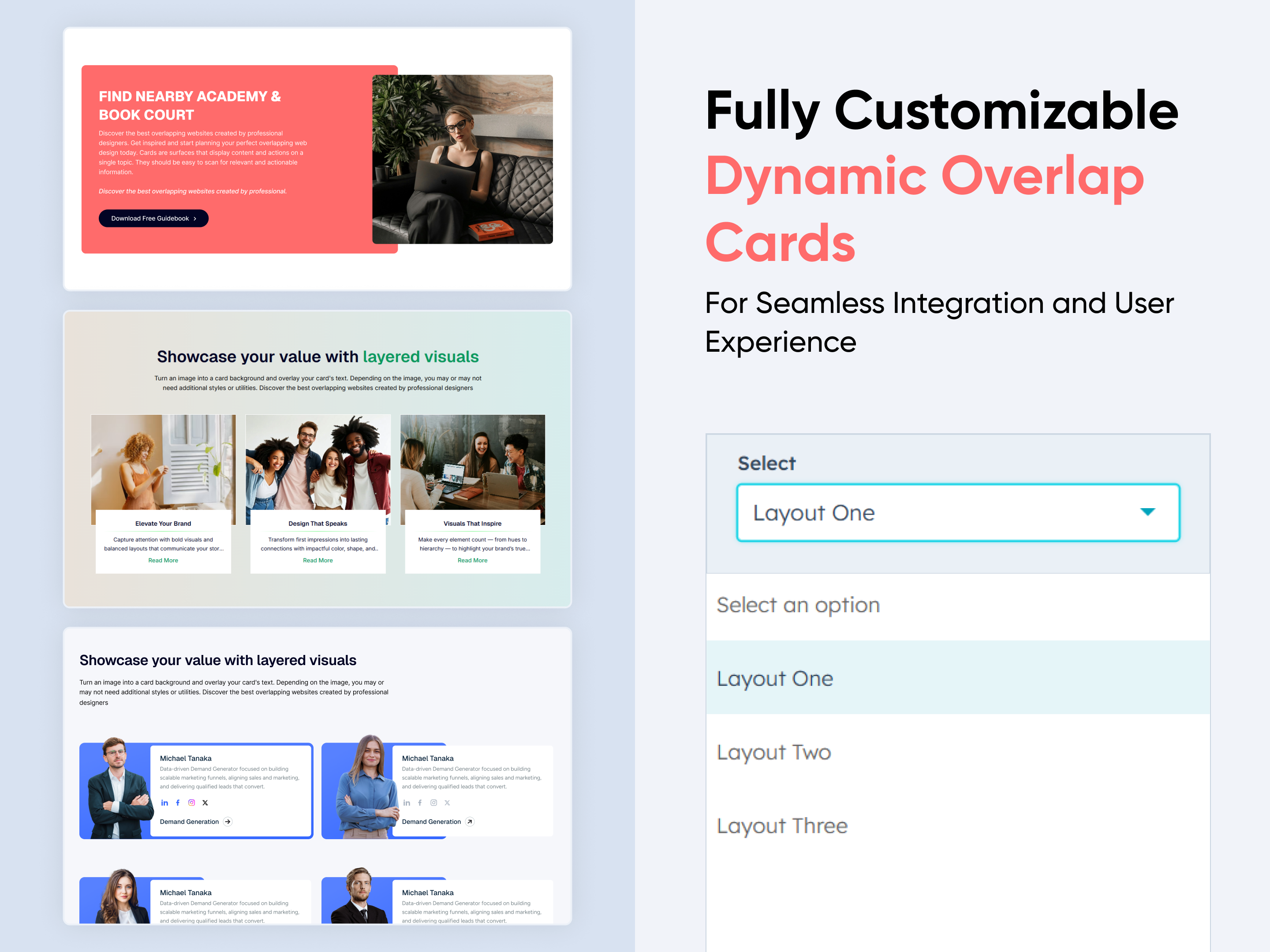
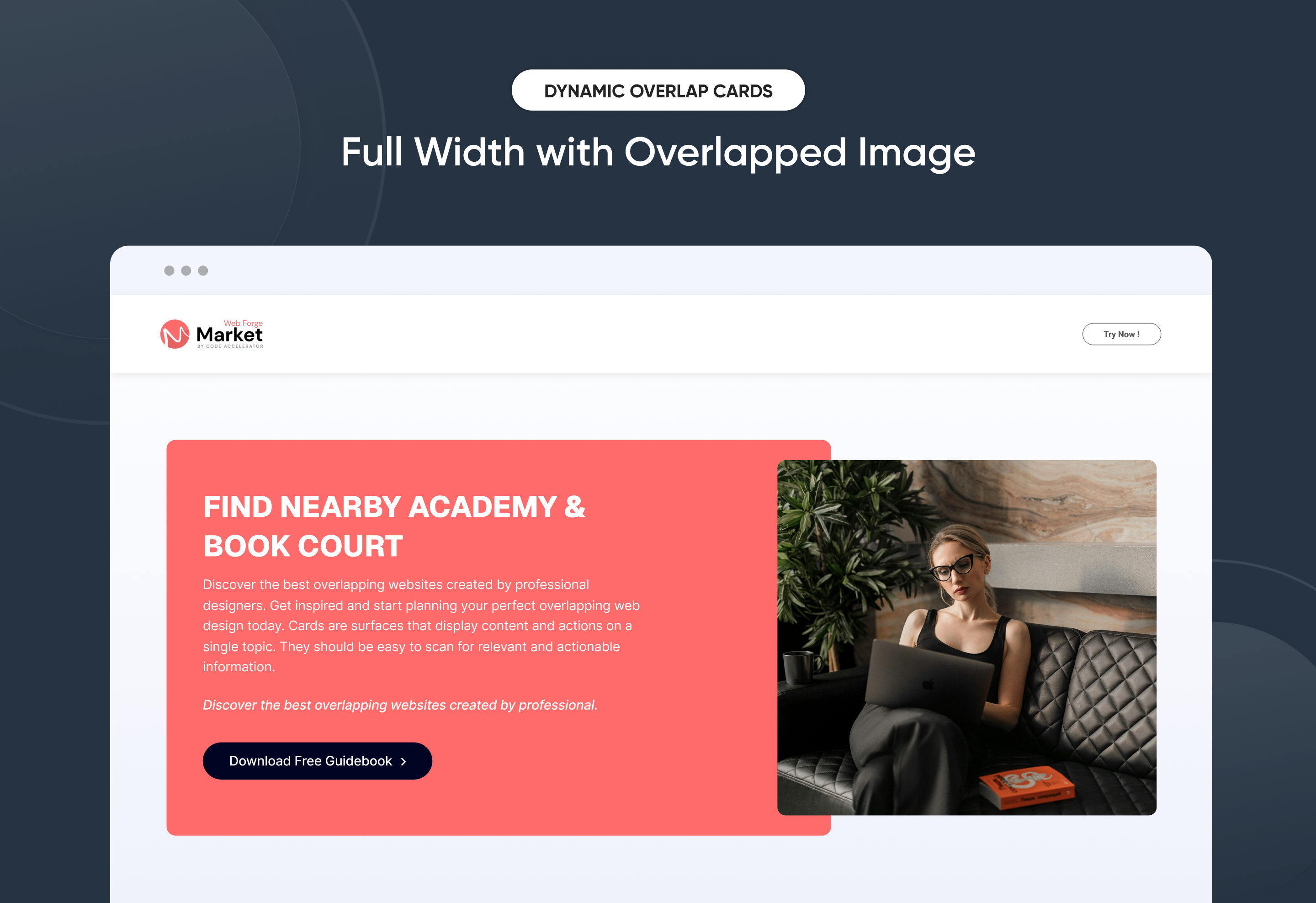
Full Width with Overlapped Image
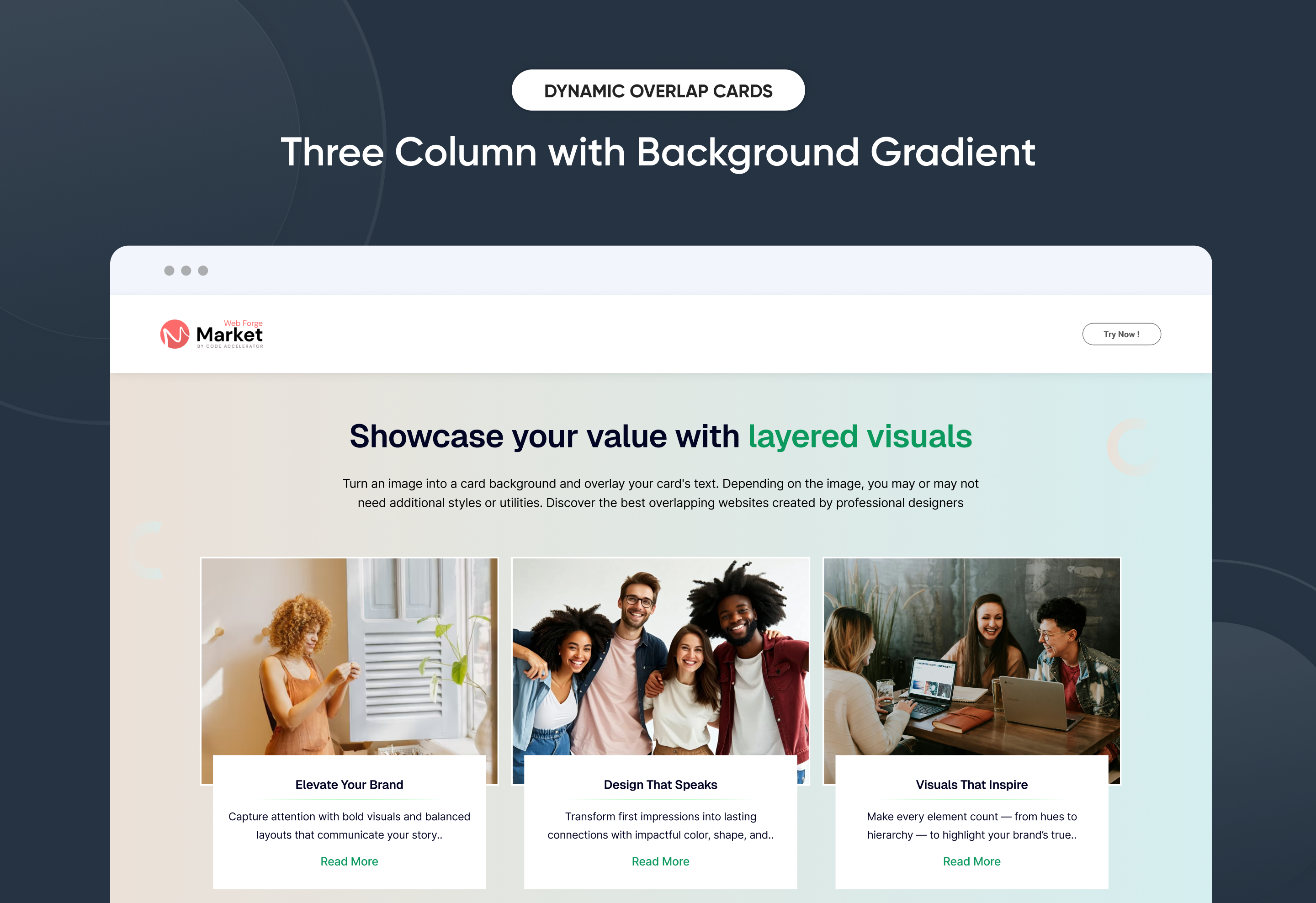
Three Column with Background Gradient
Three Column with Attractive Hover Effects-1

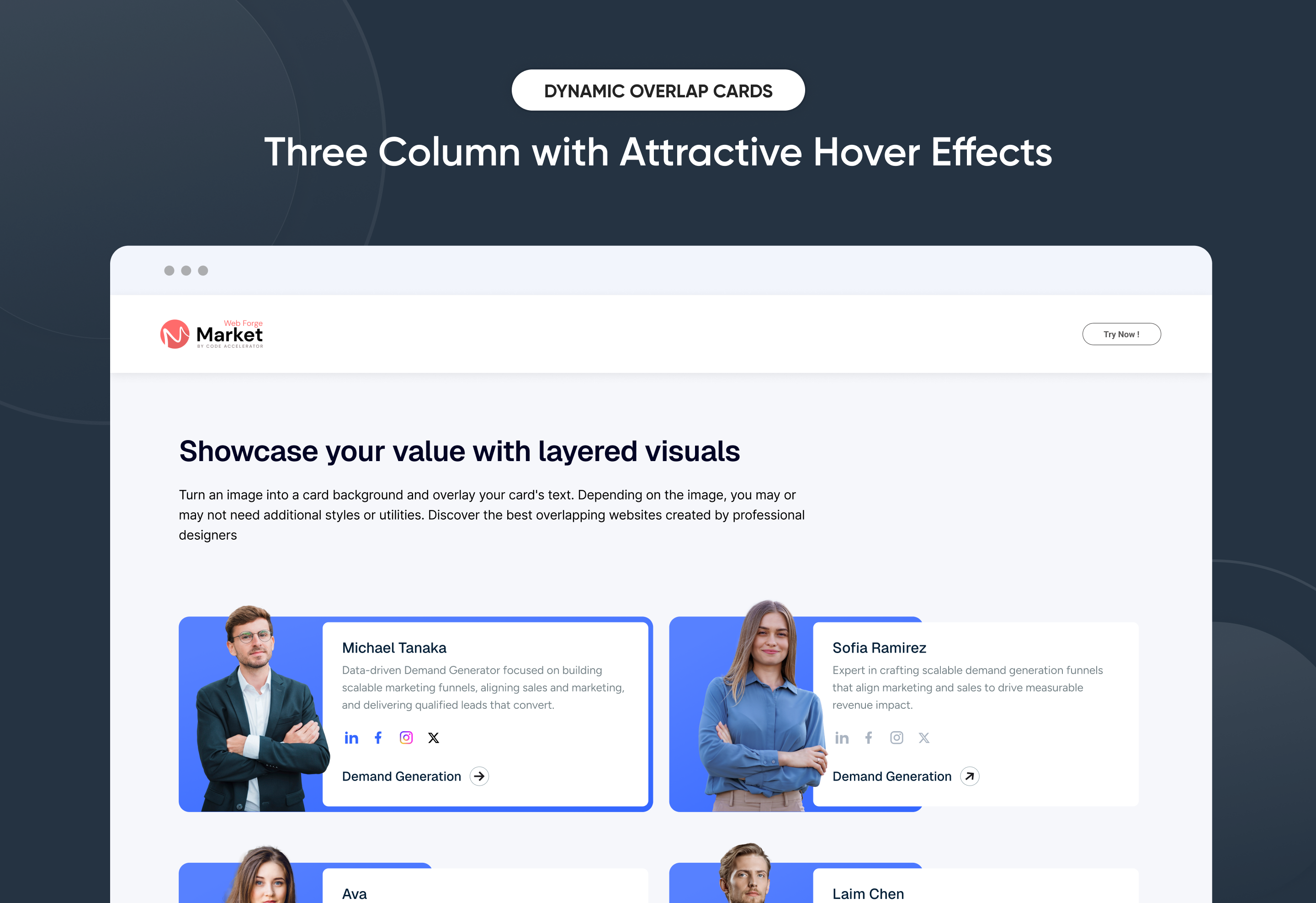
Effortlessly build eye-catching overlap-style content sections to highlight services, features, or team members with visual depth. The Dynamic Overlap Cards module offers full control over layout, spacing, and animations—no coding needed. Customize text, images, and hover effects to perfectly match your brand. Ideal for creating modern, interactive showcases on any HubSpot page.


Key Features of a Dynamic Overlap Cards Module :

Modern Overlap Card Design – Create visually stunning layouts with layered card effects that instantly grab attention.

Fully Mobile Responsive – Seamlessly adapts to all screen sizes for the best viewing experience.

Modern & Clean Design – Sleek, contemporary styling fits perfectly into any modern website.

Easy to Edit – Quickly customize content, styles, and settings without hassle.

Hover & Animation Effects – Engage users with smooth hover states, transitions, and subtle animations.

Optimized for Performance – Lightweight and fast for smooth transitions and loading.

Call to Action (CTA) – A friendly nudge like “Contact me” or “Book a Consultation” with a button.


How to Set Up the Dynamic Overlap Cards in HubSpot :

In the main dashboard, go to the ‘Content’ tab and select either ‘Website’ or ‘Landing Pages,’ depending on where you want to add the section. This lets you choose the right location for managing or updating your content.

Select the page where you want to apply the module.

Screenshot (20)

Search for "Dynamic Overlap Cards" and drag and drop the module into the desired location on your page.

ss55

Module Defaults Options: 

Layout ID :

To enable smooth scrolling for a CTA, assign an ID to the target element, reference that ID in the anchor link's href, and clicking the CTA will smoothly scroll the page to the section.

ss350

Layout Options :  

Choose your ideal layout (Layout 1, 2, or 3) and effortlessly arrange your cards to create the perfect visual flow. With Dynamic Overlap Cards, you can reorder content with ease, ensuring a smooth, well-structured, and engaging user experience every time.


ss351


Heading & Description:
  • Fully Customizable heading & description
  • Show/Hide Toggle Option

ss352

Card Column Content Image, Title, Description, Social icons & CTA : 

You can change the Image, Title, Description, Social icons & CTA with the option to show or hide it, allowing for a flexible and customizable user experience.

  • Update the Image, Title, Description, Social icons and CTA
  • Easily manage and organize how content is shown based on user interaction

ss353

Module Style Options: 

Module Setting :

Adjust the margin, padding, container width and background colors to achieve your desired look and feel for the module. This flexibility lets you fine-tune the layout and aesthetics, ensuring your design is both visually appealing and user-friendly.

ss354

Heading & Description Style Settings :

Easily control the look and feel of your section’s text. Adjust font size, weight, and color for headings, and fine-tune paragraph styles for descriptions. These options ensure your content aligns with your brand while staying clear and professional across all devices.

ss355

Card & Text Column Setting :

You have full control over customizing the card column box to align with your design preferences. Adjust the background, spacing, border, corners and box shadow to create the perfect look for your layout. Tailor these elements to ensure your content stands out and blends seamlessly with the rest of your design.

  • Background Customization
    Choose a solid color for your column box.
  • Spacing Control
    Adjust the padding and margin to create the ideal distance between elements and prevent overcrowding.
  • Border Style
     Choose from various styles like solid, dashed, or dotted.
  • Corner Radius
    Round the corners to create smooth, modern edges for a softer design.

ss356

ss357

Card Content Setting :

Take full control over your column content by customizing the typography, spacing, and alignment to match your brand's design style. You can adjust text transform options, icon size to make them stand out. Whether you’re updating typography, or configuring borders every detail can be tailored for a cohesive and visually appealing look.

  • Typography Customization
    Adjust font size, style, and color for subheading, headings, descriptions, listing content and other text elements to create a consistent visual identity.
  • Spacing & Alignment
    Control padding, margin, and text alignment to ensure optimal content positioning and balance.
  • Text Transform
    Modify text case and style (uppercase, lowercase, capitalize) for better readability and emphasis.
  • Icon
    Customize the icon size and color to match your brand’s color palette and enhance the overall design.
  • CTA
    Customize the CTA Button line background color, text color, spacing, box shadow, corner and typography.

ss358

ss359

We hope you enjoy using our dynamic overlap cards module to create a seamless experience for both your users and your marketing team. At Code Accelerator, we're committed to ensuring your HubSpot experience is exceptional. If you need a custom HubSpot module or require a tailored HubSpot CMS or CRM setup, please don’t hesitate to Contact Us.

Module Tags: Columns | Content | CTA | Image |
Discover More in the Knowledge Base

Explore detailed documentation, setup instructions, feature explanations, and best practices to help you get the most out of this module quickly and efficiently.
Case Study
Case Study
Columns | Content | CTA | Image |
case
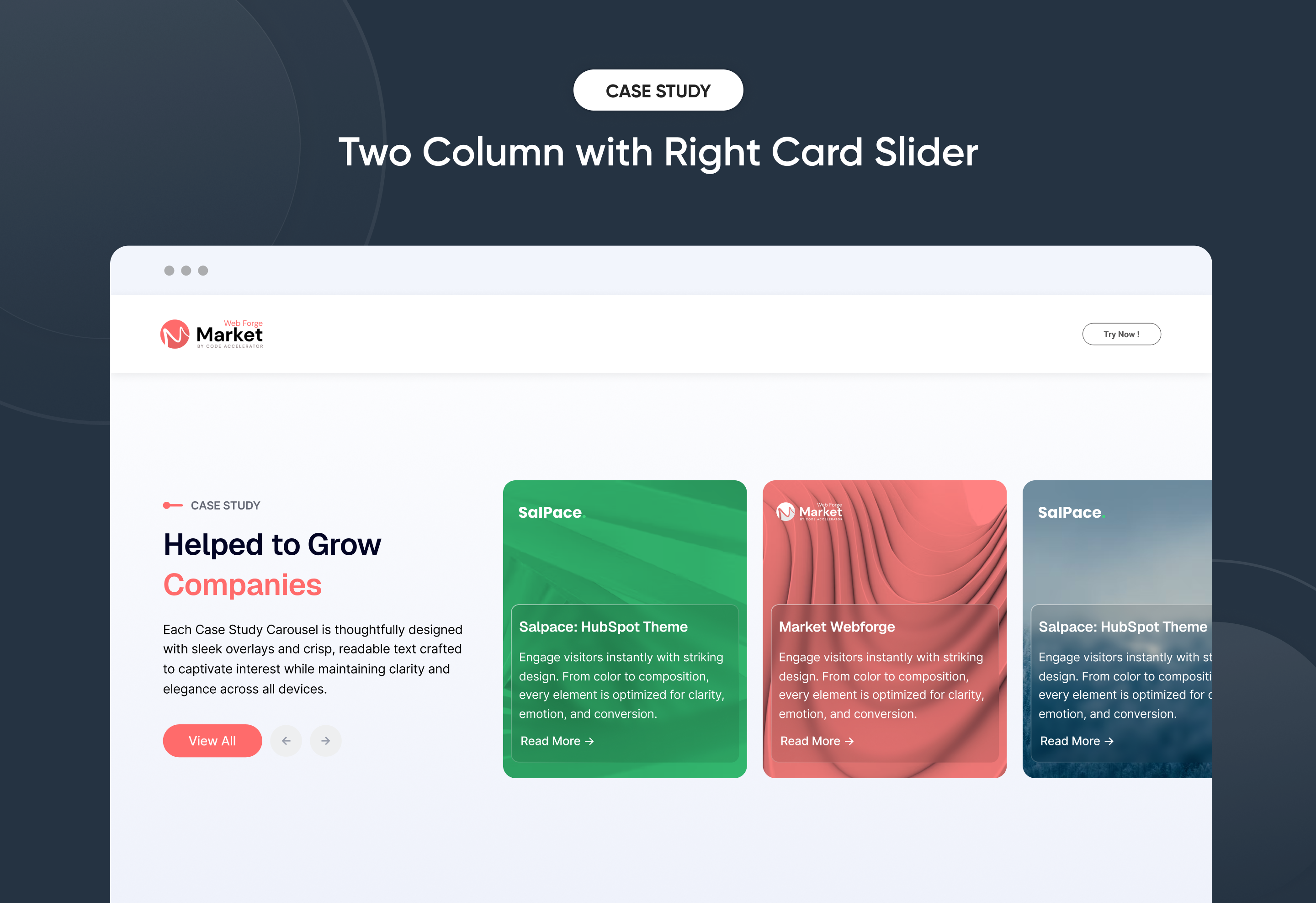
Two Column with Right Card Slider
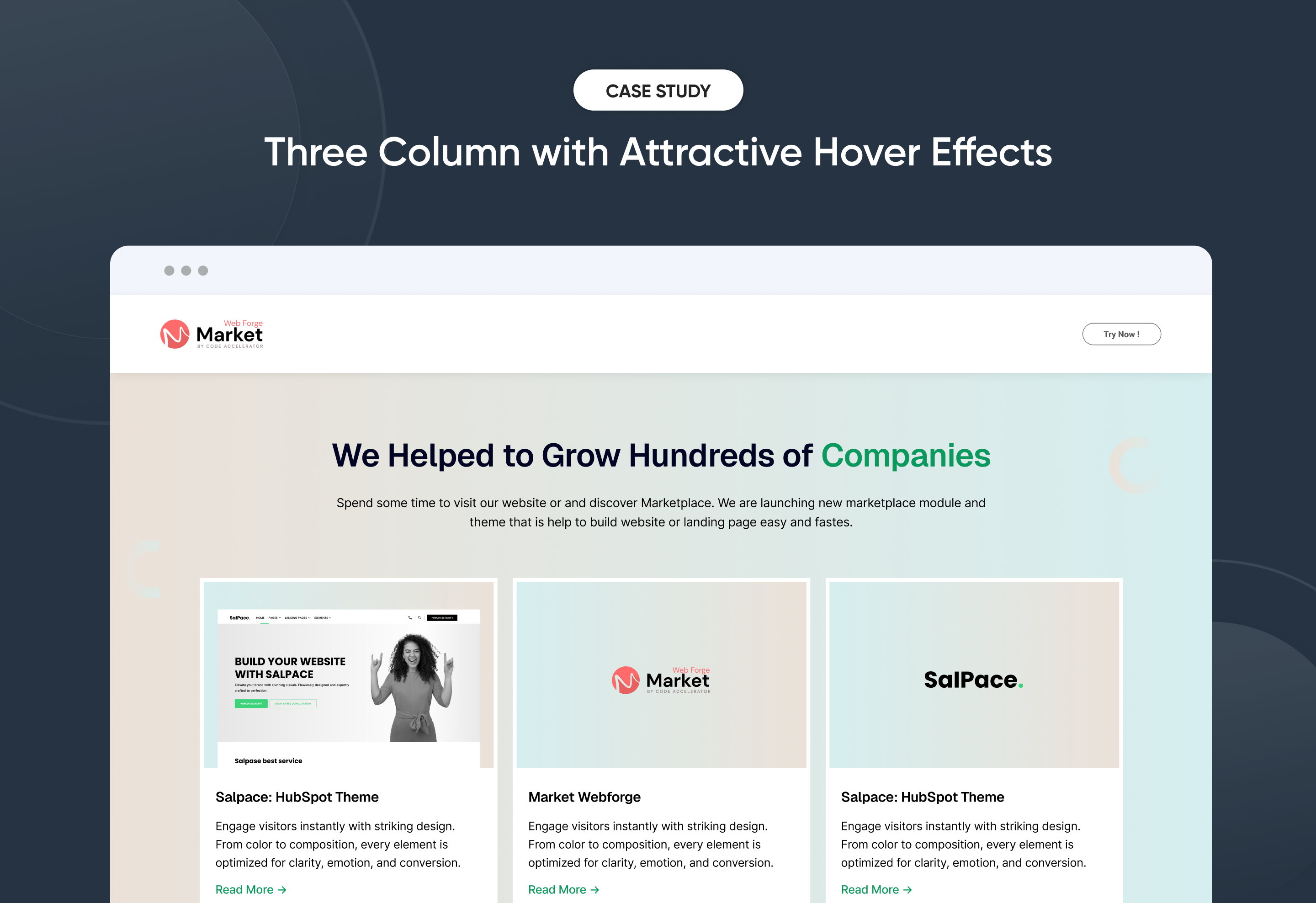
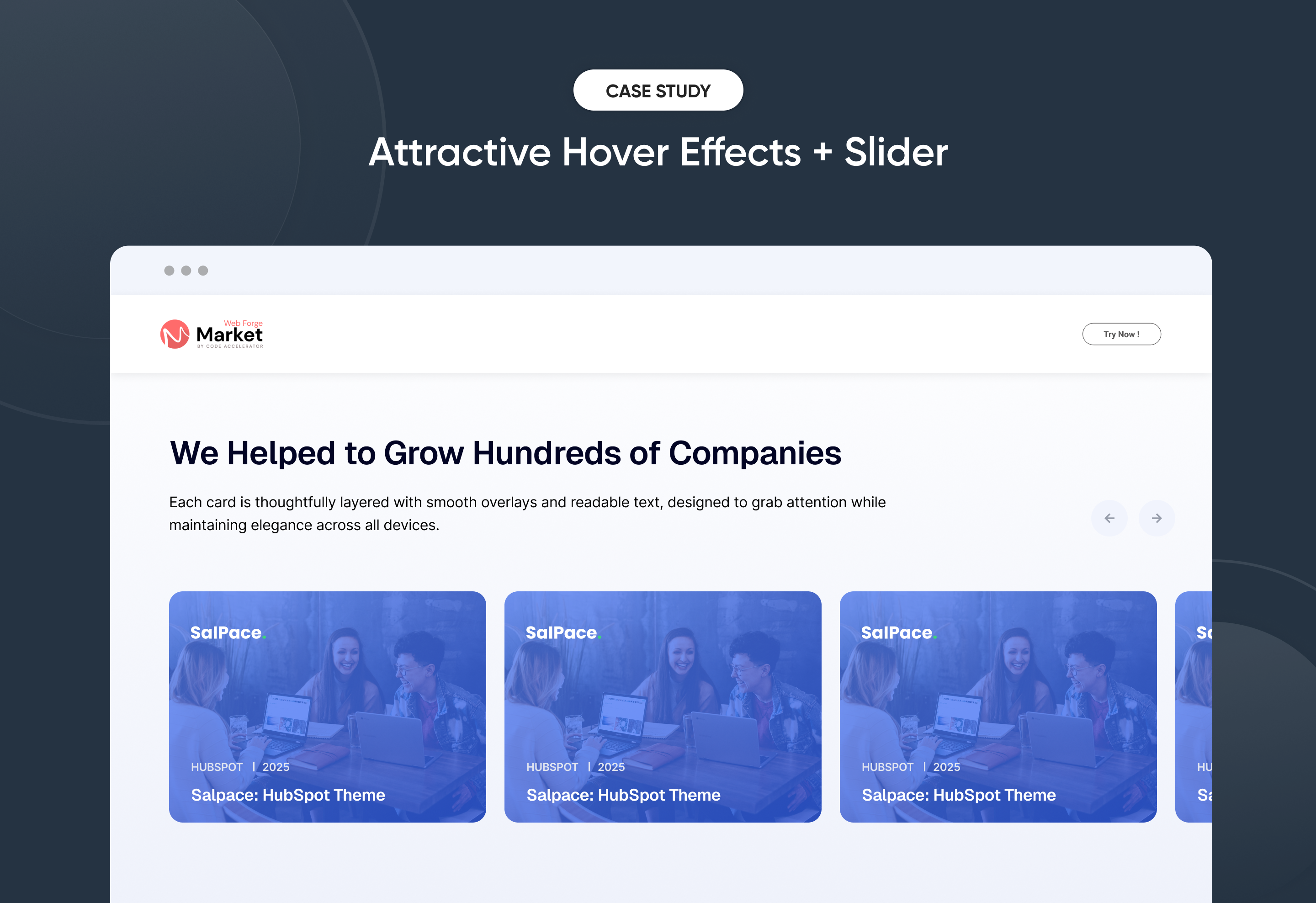
Three Column with Attractive Hover Effects
Attractive Hover Effects + Slider

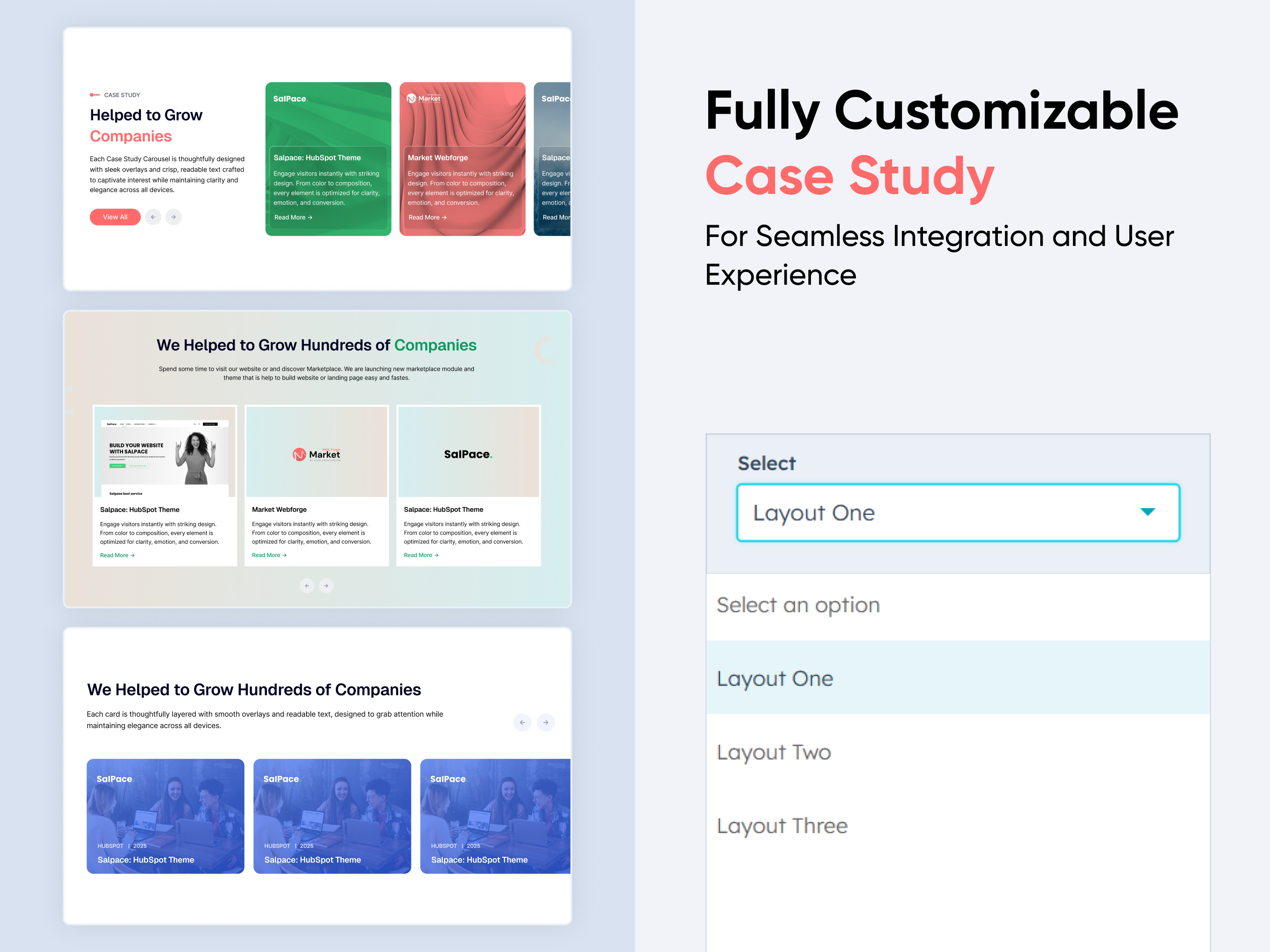
Quickly create a compelling ‘Case Study section to showcase client success stories and real results with impact. This flexible module lets you customize layouts, images, and content to match your brand style. No coding required—just simple, intuitive controls. Perfect for presenting case studies in a clear, engaging, and professional way on any HubSpot page.


Key Features of a Case Study Module :

Smooth Slider Functionality – Built-in carousel with autoplay, navigation arrows, and swipe support for a modern browsing experience.

Fully Mobile Responsive – Seamlessly adapts to all screen sizes for the best viewing experience.

Modern & Clean Design – Sleek, contemporary styling fits perfectly into any modern website.

Easy to Edit – Quickly customize content, styles, and settings without hassle.

Hover & Animation Effects – Engage users with smooth hover states, transitions, and subtle animations.

Optimized for Performance – Lightweight and fast for smooth transitions and loading.

Call to Action (CTA) – A friendly nudge like “Contact me” or “Book a Consultation” with a button.


How to Set Up the Case Study in HubSpot :

In the main dashboard, go to the ‘Content’ tab and select either ‘Website’ or ‘Landing Pages,’ depending on where you want to add the section. This lets you choose the right location for managing or updating your content.

Select the page where you want to apply the module.

Screenshot (20)

Search for "Case Study" and drag and drop the module into the desired location on your page.

ss300

Module Defaults Options: 

Layout ID :

To enable smooth scrolling for a CTA, assign an ID to the target element, reference that ID in the anchor link's href, and clicking the CTA will smoothly scroll the page to the section.

ss301

Layout Options :  

For the Case Study, select your preferred layout (e.g., Layout 1, Layout 2 or Layout 3). Easily rearrange event cards within the chosen layout to achieve the perfect content flow and visual arrangement, ensuring a seamless and engaging user experience.

Options : 

  • Layout 1 : The layout features a subheading, heading, description, CTA and card format.
  • Layout 2 : The layout features a heading, description with hover animation card.
  • Layout 3 : The layout includes a heading, description and content card format.

ss302


Sub Heading, Heading & Description:
  • Fully Customizable Sub heading, Heading & Description
  • Show/Hide Toggle Option

ss303


Card Column Content Logo,  Tag, Title, Description & CTA : 

You can change the Logo, Tag, Title, Description & CTA with show/hide And Call-to-Action (CTA) with the option to show or hide it, allowing for a flexible and customizable user experience.

  • Update the Logo, Tag, Title, Description and CTA
  • Easily manage and organize how content is shown based on user interaction

ss304

jQuery Add/Remove :

Users can add or remove jQuery JavaScript as needed, providing flexibility to enhance functionality or optimize performance based on their requirements.

ss305

Module Style Options: 

Module Setting :

Adjust the margin, padding, container width and background colors to achieve your desired look and feel for the module. This flexibility lets you fine-tune the layout and aesthetics, ensuring your design is both visually appealing and user-friendly.

ss306

Heading & Description Style Settings :

Easily control the look and feel of your section’s text. Adjust font size, weight, and color for headings, and fine-tune paragraph styles for descriptions. These options ensure your content aligns with your brand while staying clear and professional across all devices.

ss307

Card Column Setting :

You have full control over customizing the card column box to align with your design preferences. Adjust the background, spacing, border, corners and box shadow to create the perfect look for your layout. Tailor these elements to ensure your content stands out and blends seamlessly with the rest of your design.

  • Background Customization
    Choose a solid color for your column box.
  • Spacing Control
    Adjust the padding and margin to create the ideal distance between elements and prevent overcrowding.
  • Border Style
     Choose from various styles like solid, dashed, or dotted.
  • Corner Radius
    Round the corners to create smooth, modern edges for a softer design.

ss308

Card Content Setting :

Take full control over your column content by customizing the typography, spacing, and alignment to match your brand's design style. You can adjust text transform options, icon size to make them stand out. Whether you’re updating typography, or configuring borders every detail can be tailored for a cohesive and visually appealing look.

  • Typography Customization
    Adjust font size, style, and color for subheading, headings, descriptions, listing content and other text elements to create a consistent visual identity.
  • Spacing & Alignment
    Control padding, margin, and text alignment to ensure optimal content positioning and balance.
  • Text Transform
    Modify text case and style (uppercase, lowercase, capitalize) for better readability and emphasis.
  • Logo
    Customize the logo size to match your brand’s color palette and enhance the overall design.
  • CTA
    Customize the CTA Button line background color, text color, spacing, box shadow, corner and typography.

ss309

ss310

ss311

Arrows Setting :
Personalize navigation arrows to match your brand style. Easily adjust background color, and corner radius for a clean or rounded look. Make your slider navigation both functional and visually appealing with full control.

ss312

We hope you enjoy using our case study module to create a seamless experience for both your users and your marketing team. At Code Accelerator, we're committed to ensuring your HubSpot experience is exceptional. If you need a custom HubSpot module or require a tailored HubSpot CMS or CRM setup, please don’t hesitate to Contact Us.

Module Tags: Columns | Content | CTA | Image |
Discover More in the Knowledge Base

Explore detailed documentation, setup instructions, feature explanations, and best practices to help you get the most out of this module quickly and efficiently.
Modern Video Showcase
Content | Video |
Modern Video Showcase
Price: $29
Content Grid Pro-1
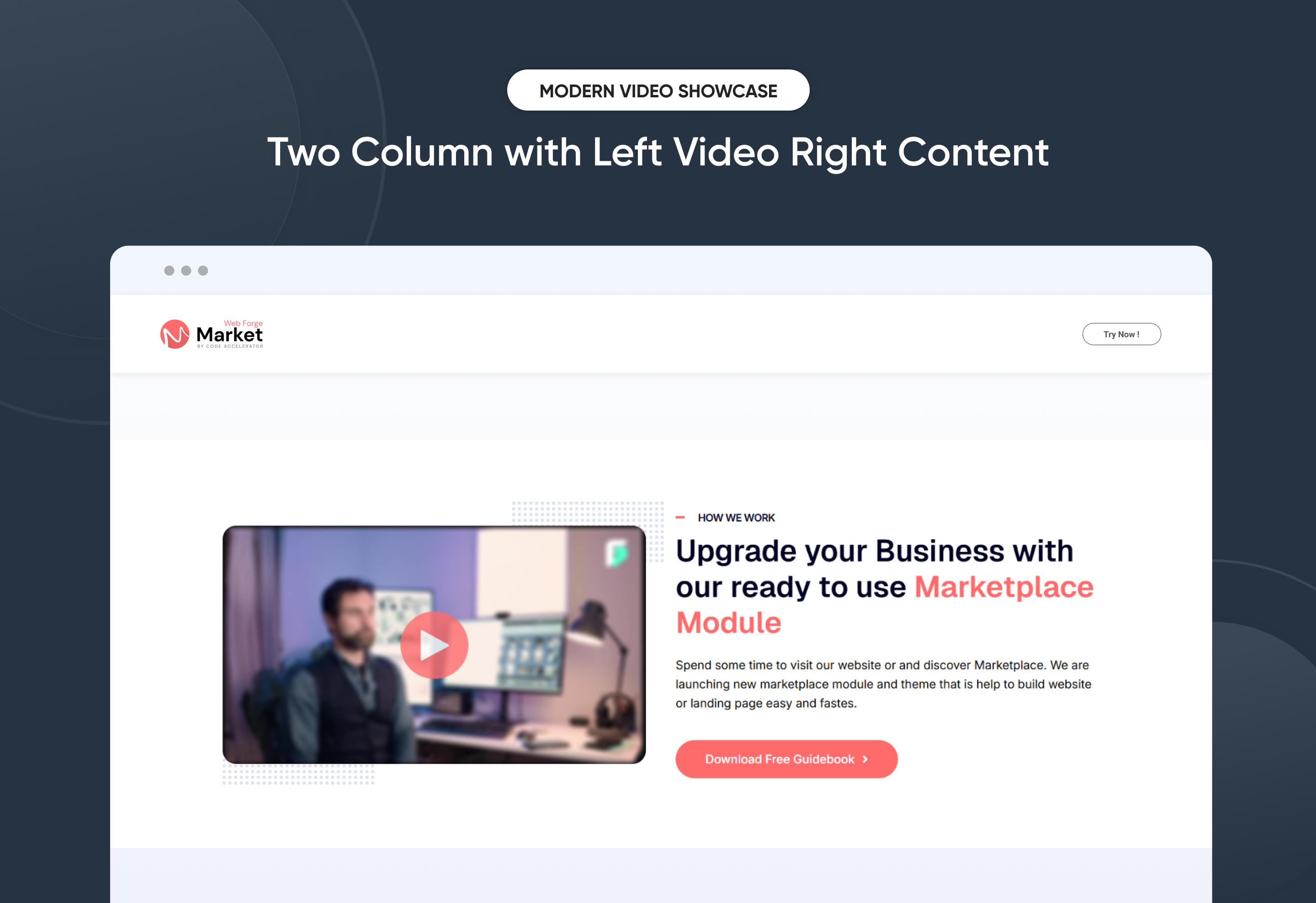
Two Column with Left Video Right Content
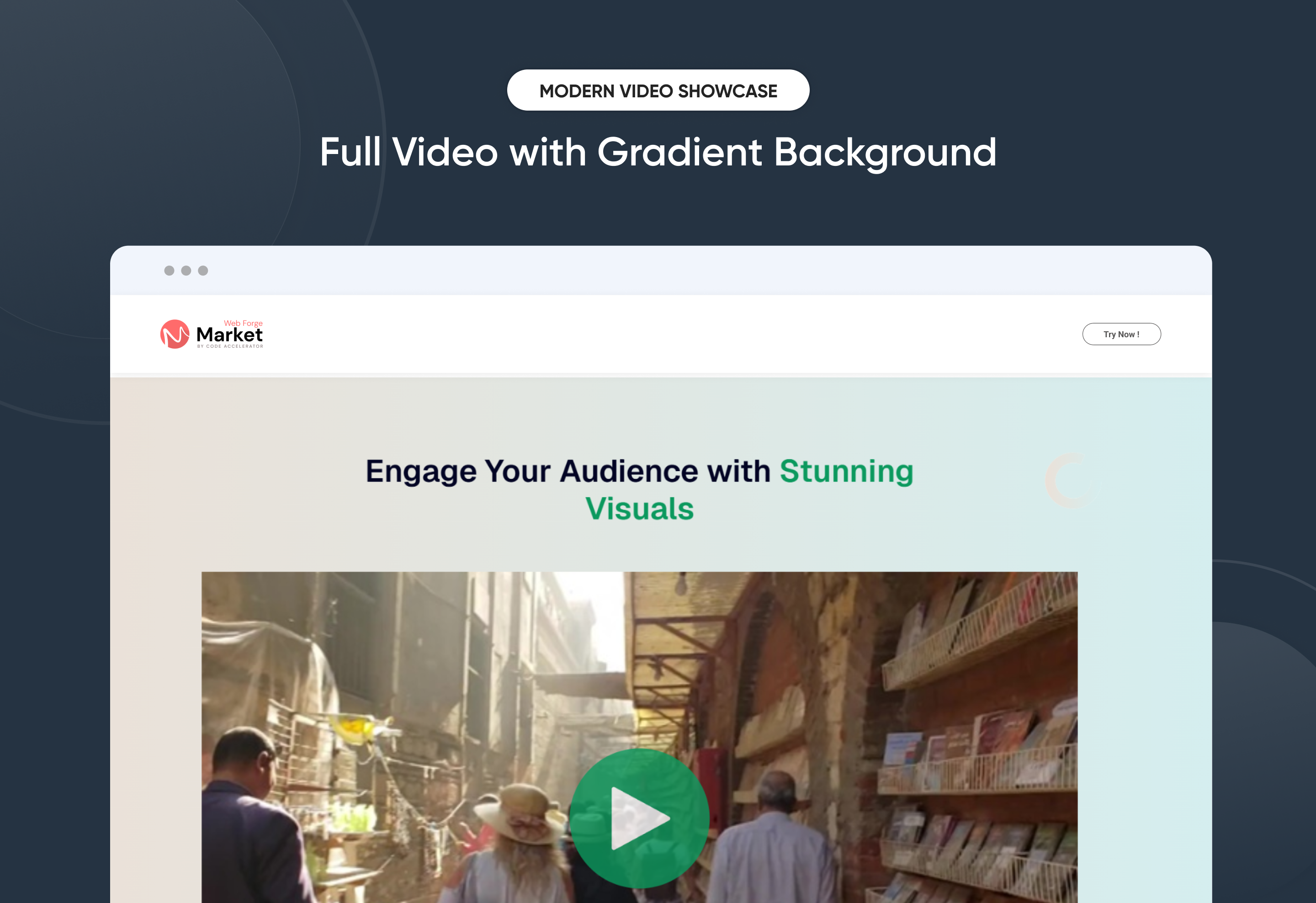
Full Video with Gradient Background
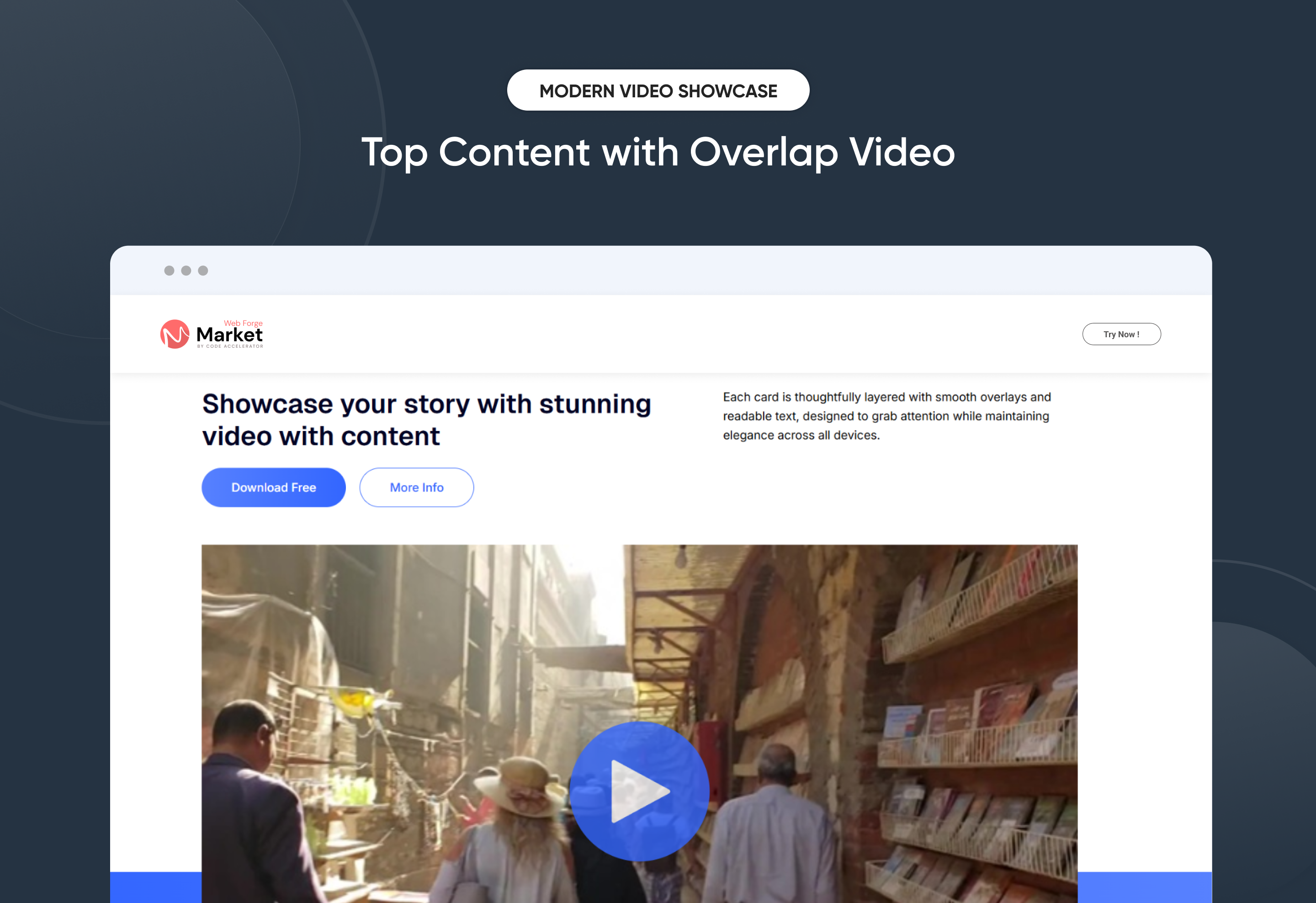
Top Content with Overlap Video

The Modern Video Showcase Module allows you to highlight your story, product, or service through stunning video integration combined with engaging content. Designed with flexibility and brand consistency in mind, it offers multiple layout options, customizable typography, and CTA buttons to drive user action. The module ensures smooth video playback with content, responsive design, and advanced controls for performance optimization. Perfect for landing pages, product launches, or storytelling sections, it blends video with impactful messaging to capture audience attention across all devices.

Key Features of a Modern Video Showcase Module :

  • Multiple Layouts: Side-by-side (text + video), full-width video, or stacked layout.

  • Background Settings: Gradient, solid color, or image background.

  • Content Alignment: Left, right, center positioning for text.

  • Spacing Controls: Padding & margin options for responsive adjustments.

  • Card Style: Option to wrap video in a styled card with rounded corners, shadows, or borders.

  • Video Sources: Support YouTube, Vimeo, or HubSpot video.

  • Play Button Style: Customizable icon, color, and size.

  • Primary & Secondary CTA: Add up to two buttons (e.g., Download Free, More Info).
  • Customizable Headings & Descriptions: Font size, weight, and color controls.

How to Set Up the Use Modern Video Showcase in HubSpot :

In the main dashboard, go to the ‘Content’ tab and select either ‘Website’ or ‘Landing Pages,’ depending on where you want to add the section. This lets you choose the right location for managing or updating your content.

Select the page where you want to apply the module.

Screenshot (20)

Search for "Modern Video Showcase" and drag and drop the module into the desired location on your page.

Module Defaults Options: 

Layout ID :

Easily enhance navigation by adding an ID to the target section and using the same ID in an anchor link. This enables a smooth scrolling effect when users click a Call-to-Action (CTA) button, improving the overall user experience.

Layout Options :  

Effortlessly showcase your story and connect with your audience through the Modern Video Showcase Module — perfect for product launches, campaign highlights, or brand storytelling. Built with flexible layouts and customizable styling, this module combines powerful video integration with engaging content and conversion-focused CTAs. With responsive design and smooth performance, it ensures your message is delivered beautifully across all devices.

  • Layout 1 – Feature Highlight Video

    A design that places your video side-by-side with strong headlines, descriptive text, and conversion-ready CTAs — ideal for introducing services, features, or campaigns.

  • Layout 2 – Storytelling & Experience Video

    A layout that emphasizes immersive visuals, customer journeys, or behind-the-scenes content, paired with supportive messaging that builds authentic brand connections.

  • Layout 3 – Full-Width Showcase Video

    A bold layout designed to spotlight product mockups, campaign highlights, or cinematic storytelling with full-width video and sleek modern presentation.


Video Column : 

  • Video Type
    Choose between HubSpot Video or iFrame embed. Perfect for flexibility when using hosted content or external platforms like YouTube and Vimeo.

  • Play Button Color
    Customize the play button color with a hex code. Perfect for keeping your video controls aligned with your brand style.

Content Column :

  • Heading Enable

    Toggle the main heading on or off. Great for when you want a video-focused section without extra text.

  • Enter Heading

    Add and customize the main heading text. Ideal for delivering a strong, eye-catching message.

  • Description Enable

    Show or hide the supporting description under your heading. Keeps the layout flexible for minimal or detailed storytelling.

  • Enter Description

    Add descriptive text below the heading. Perfect for explaining your offering in 1–2 concise lines.

  • CTA Show/Hide

    Enable or disable the call-to-action button. Useful if the section should be informational only.

  • CTA Choice

    Select from different CTA types (e.g., Simple CTA, HubSpot CTA). Tailor the call-to-action style to your campaign.

  • CTA Text

    Customize the button label. Use action-driven words like “Download Free Guidebook” or “Learn More.”

  • Link Options

    Choose where your CTA directs: internal pages, external links, or files. Optionally open in a new tab and set nofollow for SEO control.

  • CTA Icon

    Add or replace an icon inside your button. Great for emphasizing direction or action (e.g., arrow, play, download).

Module Style Options: 

Module Setting :

Adjust the margin, padding, container width and background colors to achieve your desired look and feel for the module. This flexibility lets you fine-tune the layout and aesthetics, ensuring your design is both visually appealing and user-friendly.

Heading & Description Setting :

The Heading & Description Settings in Modern Video Showcase allow you to fully customize the look and feel of your text by adjusting desktop and mobile typography (font family, size, weight, line height, and color), managing spacing (margins and padding for precise layout control), and applying text transform options such as uppercase, lowercase, or capitalize, ensuring your headings and descriptions remain visually consistent, responsive, and aligned with your brand style across all devices.

CTA Setting : 

  • Desktop Typography

    Customize font style, size, weight, and color for the CTA on desktop. Ensures your button text is bold, readable, and aligned with your brand style.

  • Mobile Typography

    Individually set typography for mobile devices. Keeps the CTA optimized and user-friendly across all screen sizes.

  • Spacing

    Adjust padding and margin around the CTA button. Helps maintain balanced layout and proper visual hierarchy.

  • Background

    Choose and style the background color or gradient of the CTA. Makes the button stand out and match your brand’s look.

  • Border

    Add or customize borders for the CTA button. Ideal for minimal designs or creating outlined button styles.

  • Border Radius

    Control the corner roundness of the CTA. Switch between sharp edges, soft curves, or pill-shaped buttons.

  • Text Transform

    Format your CTA text as uppercase, lowercase, or capitalized. Great for enforcing consistent design language.

  • Box Shadow Enable

    Add or remove shadows around the CTA. Enhances depth and draws more attention to the button.

  • Alignment

    Position the CTA left, center, or right within the section. Provides flexibility depending on layout style.

Video Column Setting :

  • Video Height
    Adjust the video height to fit your layout. Great for balancing video size with surrounding content.

  • Corner Radius
    Round the video corners for a softer, modern look — or keep them sharp for a bold, professional style.

  • Border Settings
    Add or customize a border around the video. Perfect for highlighting the video area or matching brand design.

  • Spacing Controls
    Set padding and margins around the video. Helps maintain clean, responsive layouts across devices.

  • Top Element Position Layout 1
    Choose where the top decorative element appears: top left or top right. Ideal for adding accents that frame the video.
  • Bottom Element Position Layout 1
    Select bottom left or bottom right placement for secondary design elements. Helps balance visuals in the layout.

We hope you enjoy using our modern video showcase to create a seamless experience for both your users and your marketing team. At Code Accelerator, we're committed to ensuring your HubSpot experience is exceptional. If you need a custom HubSpot module or require a tailored HubSpot CMS or CRM setup, please don’t hesitate to Contact Us.

Module Tags: Content | Video |
Discover More in the Knowledge Base

Explore detailed documentation, setup instructions, feature explanations, and best practices to help you get the most out of this module quickly and efficiently.
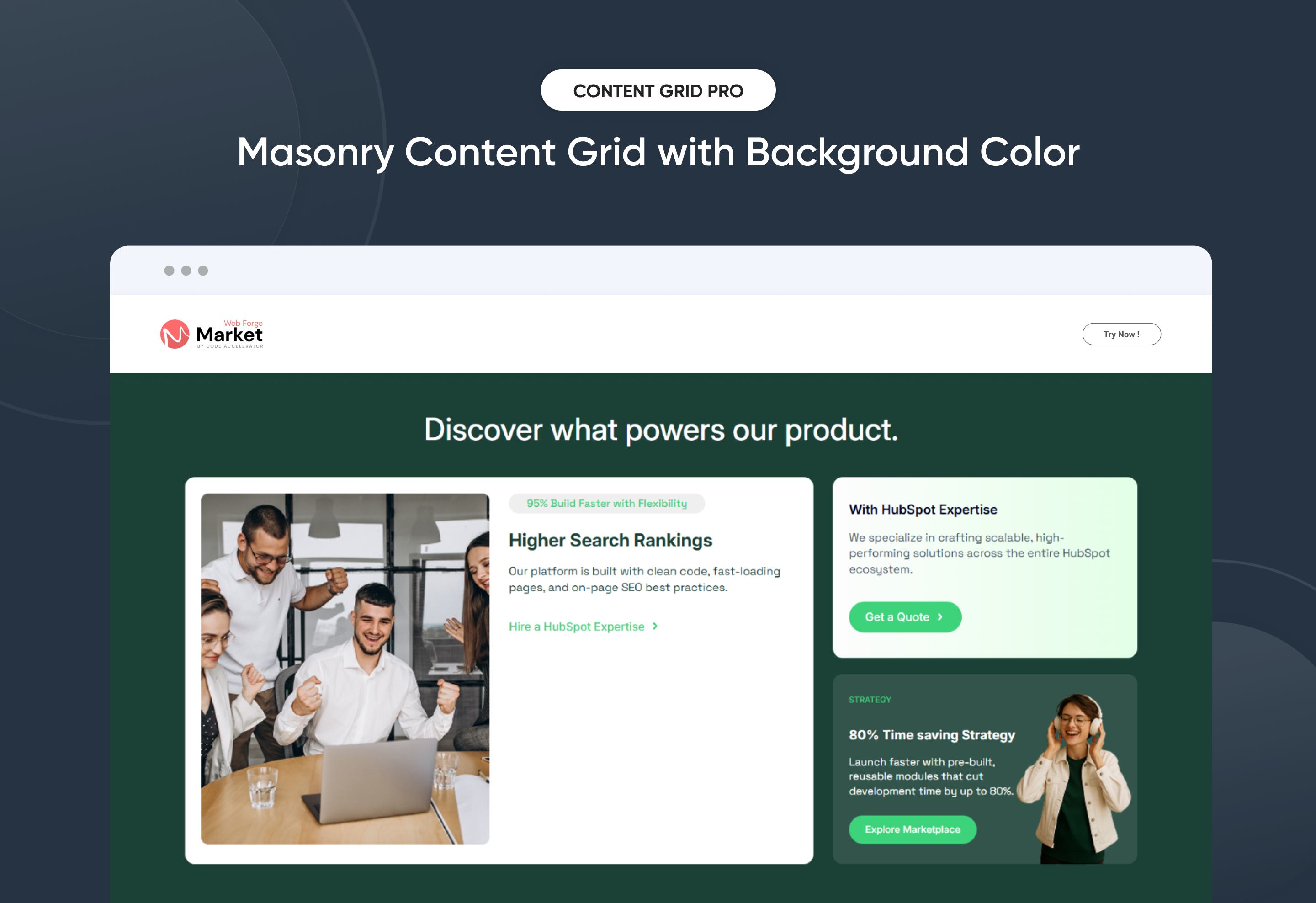
Content Grid Pro
Content Grid Pro
Columns | Content | CTA |
Content Grid Pro
Price: $29
Content Grid Pro
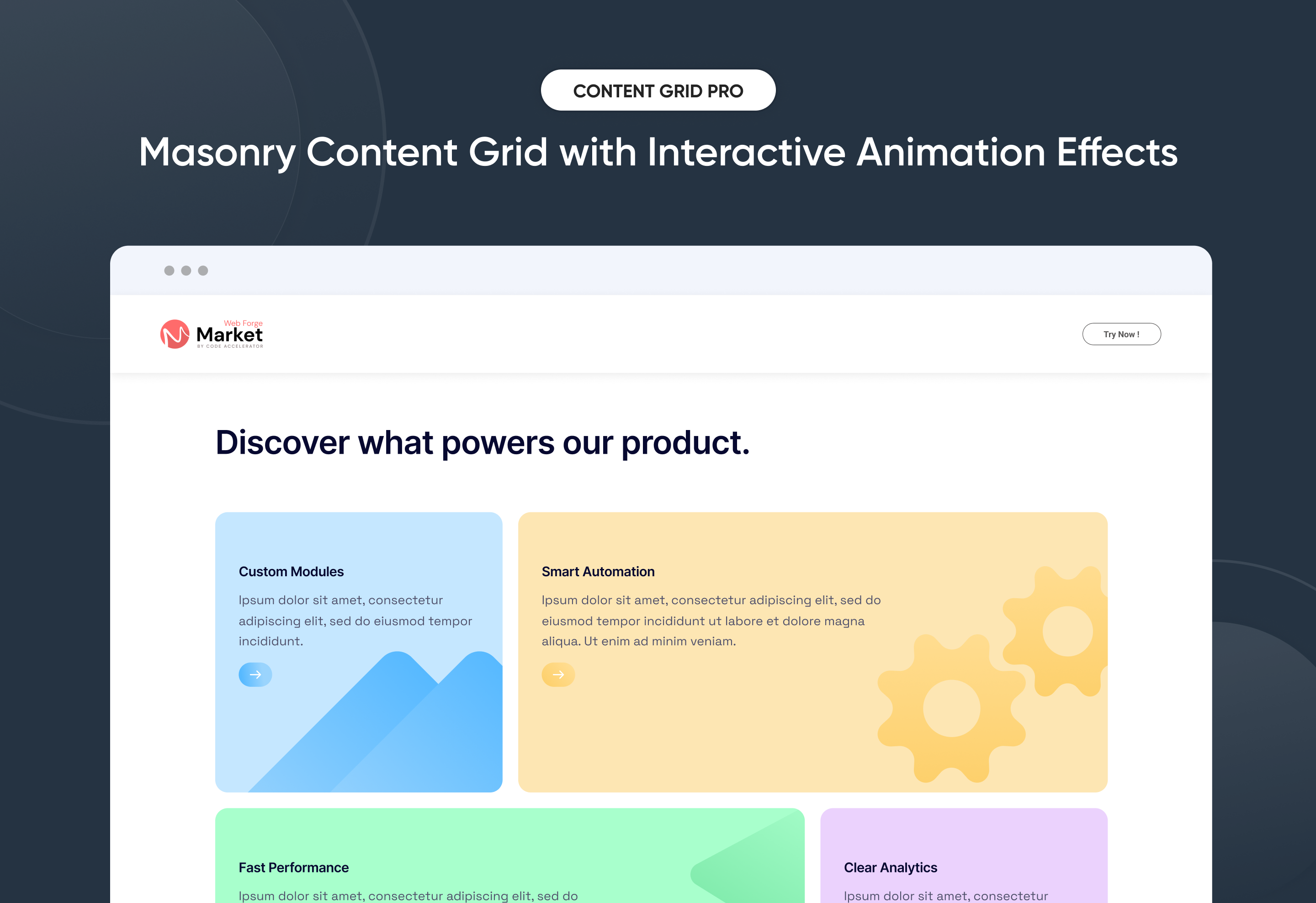
Masonry content Grid with Interactive Animation Effects
Two Column with gradient Background-1
Two Column with Right Image Overlap-1

Quickly build a customizable Content Grid Pro to organize and showcase your information with clarity and style. This flexible module lets you adjust layouts, colors, and hover effects to perfectly match your brand. No coding required—just simple, drag-and-drop controls. Ideal for displaying services, portfolios, resources, or team members in a clean, engaging, and professional way on any HubSpot page.


Key Features of a Content Grid Pro Module :

3 Unique Layout Options – Choose from three beautifully crafted slider layouts to match any design style.

Fully Mobile Responsive – Seamlessly adapts to all screen sizes for the best viewing experience.

Modern & Clean Design – Sleek, contemporary styling fits perfectly into any modern website.

Easy to Edit – Quickly customize content, styles, and settings without hassle.

Hover & Animation Effects – Engage users with smooth hover states, transitions, and subtle animations.

Optimized for Performance – Lightweight and fast for smooth transitions and loading.

Call to Action (CTA) – A friendly nudge like “Contact me” or “Book a Consultation” with a button.


How to Set Up the Content Grid Pro in HubSpot :

In the main dashboard, go to the ‘Content’ tab and select either ‘Website’ or ‘Landing Pages,’ depending on where you want to add the section. This lets you choose the right location for managing or updating your content.

Select the page where you want to apply the module.

Screenshot (20)

Search for "Content Grid Pro" and drag and drop the module into the desired location on your page.

ss270

Module Defaults Options: 

Layout ID :

To enable smooth scrolling for a CTA, assign an ID to the target element, reference that ID in the anchor link's href, and clicking the CTA will smoothly scroll the page to the section.

ss271

Layout Options :  

For the Content Grid Pro, select your preferred layout (e.g., Layout 1, Layout 2 or Layout 3). Easily rearrange event cards within the chosen layout to achieve the perfect content flow and visual arrangement, ensuring a seamless and engaging user experience.

Options : 

  • Layout 1 : The layout features a heading, title, description, CTA 4 cards format.
  • Layout 2 : The layout features a heading, title, description, CTA and image 3 cards.
  • Layout 3 : The layout includes a heading, icon, image, title, paragraph and CTA cards format.

ss272

 
Heading :
  • Fully Customizable Headings
  • Show/Hide Toggle Option

ss273

Card Column Content Sub Text, Heading, Paragraph, CTA and Image  : 

You can change the sub text, heading, paragraph, CTA and image with show/hide also , And Call-to-Action (CTA) with the option to show or hide it, allowing for a flexible and customizable user experience.

  • Update the Sub Text, Heading, Paragraph, CTA and Image
  • Easily manage and organize how content is shown based on user interaction

ss274

Module Style Options: 

Module Setting :

Adjust the margin, padding, container width and background colors to achieve your desired look and feel for the module. This flexibility lets you fine-tune the layout and aesthetics, ensuring your design is both visually appealing and user-friendly.

ss275

Heading Style Settings :

Easily control the look and feel of your section’s text. Adjust font size, weight, and color for heading. These options ensure your content aligns with your brand while staying clear and professional across all devices.

ss276

Card Column Setting :

You have full control over customizing the card column box to align with your design preferences. Adjust the background, spacing, border, corners and box shadow to create the perfect look for your layout. Tailor these elements to ensure your content stands out and blends seamlessly with the rest of your design.

  • Background Customization
    Choose a solid color for your column box.
  • Spacing Control
    Adjust the padding and margin to create the ideal distance between elements and prevent overcrowding.
  • Border Style
     Choose from various styles like solid, dashed, or dotted.
  • Corner Radius
    Round the corners to create smooth, modern edges for a softer design.

ss277

Card Content Setting :

Take full control over your column content by customizing the typography, spacing, and alignment to match your brand's design style. You can adjust text transform options, icon size to make them stand out. Whether you’re updating typography, or configuring borders every detail can be tailored for a cohesive and visually appealing look.

  • Typography Customization
    Adjust font size, style, and color for subheading, headings, descriptions, listing content and other text elements to create a consistent visual identity.
  • Spacing & Alignment
    Control padding, margin, and text alignment to ensure optimal content positioning and balance.
  • Text Transform
    Modify text case and style (uppercase, lowercase, capitalize) for better readability and emphasis.
  • Icon
    Customize the icon size and color to match your brand’s color palette and enhance the overall design.
  • CTA
    Customize the CTA Button line background color, text color, spacing, box shadow, corner and typography.
  • Image
    Customize the Image size and corner to match your brand’s color palette and enhance the overall design.

ss281

ss282

ss283

We hope you enjoy using our content grid pro module to create a seamless experience for both your users and your marketing team. At Code Accelerator, we're committed to ensuring your HubSpot experience is exceptional. If you need a custom HubSpot module or require a tailored HubSpot CMS or CRM setup, please don’t hesitate to Contact Us.

Module Tags: Columns | Content | CTA |
Discover More in the Knowledge Base

Explore detailed documentation, setup instructions, feature explanations, and best practices to help you get the most out of this module quickly and efficiently.

Modern Hero Banner
Modern Hero Banner
Banner | Content | Image | Columns | Hero Banner |
Modern Hero Banner
Price: $29
card-one
Single Row Minimalist Banner with UI elements
Two Column with Gradient Background
Two Column with Right Image Overlap

The Modern Hero Banner Module helps you make a powerful first impression with bold, responsive, and customizable hero sections. Designed for flexibility, it includes three unique layouts—growth-focused, people-driven, and digital showcase—giving you the freedom to present your brand exactly the way you want.

Easily update headings, descriptions, images, and call-to-action buttons directly inside HubSpot, without touching code. With mobile-friendly design, adjustable spacing, and complete style control, this module ensures your hero banner always looks sharp and performs seamlessly across all devices.

Whether you’re launching a campaign, showcasing services, or highlighting customer success, the Modern Hero Banner delivers a sleek, high-converting hero section that captures attention and drives results.

Key Features of a Modern Hero Banner Module :

  • Multiple Layouts – Choose from 3 distinct hero banner styles.

  • Responsive Design – Optimized for all screen sizes, ensuring a flawless experience on desktop, tablet, and mobile.

  • Flexible Content Options – Easily update headings, descriptions, and CTAs directly within HubSpot.

  • Customizable Visuals – Add images, graphics, or mockups to match your brand identity and campaign goals.

  • Engaging Call-to-Actions – Drive conversions with customizable CTA buttons tailored to your business objectives.

  • Design Flexibility – Adjust spacing, alignment, and background colors for a unique, on-brand look.

  • User-Friendly Editing – No coding required—built for marketers to launch modern hero sections quickly.

  • Optimized Performance – Lightweight and SEO-friendly to ensure speed and visibility.

  • Versatile Use Cases – Perfect for homepages, landing pages, service showcases, or campaign launches.

How to Set Up the Use Modern Hero Banner in HubSpot :

In the main dashboard, go to the ‘Content’ tab and select either ‘Website’ or ‘Landing Pages,’ depending on where you want to add the section. This lets you choose the right location for managing or updating your content.

Select the page where you want to apply the module.

Screenshot (20)

Search for "Modern Hero Banner" and drag and drop the module into the desired location on your page.

Module Defaults Options: 

Layout ID :

Easily enhance navigation by adding an ID to the target section and using the same ID in an anchor link. This enables a smooth scrolling effect when users click a Call-to-Action (CTA) button, improving the overall user experience.

Layout Options :  

Effortlessly capture attention and showcase your brand with the “Modern Hero Banner” module — perfect for homepages, landing pages, or campaign launches. Designed to make a powerful first impression, this hero section combines bold layouts, customizable content, and engaging calls-to-action that inspire visitors to take the next step. With responsive design and flexible styling, it ensures your hero banner looks sleek, professional, and high-converting across all devices.

Options:

  • Layout 1 – A design featuring strong headlines, supporting visuals, and conversion-ready CTAs.

  • Layout 2 – A layout that highlights customer stories, success metrics, and authentic brand connections.

  • Layout 3 – A layout ideal for product mockups, services, or campaign highlights with modern presentation.


Banner Content : 
  • Heading Enable
    Toggle the main heading on or off. Perfect when you want a clean hero layout without a large title.

  • Enter Heading
    Add and customize the main heading text. Use this space to deliver a strong, eye-catching message.

  • Description Enable
    Show or hide the supporting description under your heading. Ideal if you prefer a minimalist design.

  • Enter Description
    Add descriptive text below the heading. Great for explaining your value or offering in 1–2 concise lines.

  • CTA Show/Hide
    Easily enable or disable the call-to-action button. Useful if you want a hero section that’s informational only.

  • CTA
    Customize the CTA text, link, and style. A powerful way to drive visitors toward conversions.

  • Left Side Element Enable Layout 1
    Toggle supporting visuals on the left side of the banner. Helpful for adding icons, profile cards, or badges.

  • Left Side Element Layout 1
    Upload and manage images or graphics on the left side. Great for showcasing testimonials or team highlights.

  • Right Side Elements Enable Layout 1
    Show or hide additional visuals on the right side. Keeps the layout flexible for different campaign needs.

  • Right Side Elements Layout 1
    Add images, charts, or mockups to the right side of the banner. Perfect for highlighting growth stats, services, or product previews.

  • Right Column Content Layout 2
    • Contents Enable
      Toggle the right column content on or off. Useful when you want a clean hero without extra details.


    • Value Text
      Add a bold value number (e.g., “28K”). Great for showcasing achievements, stats, or milestones.


    • Sub Text
      Include supporting text under the value. Perfect for explaining what the number represents (e.g., “Happy Customers”).


    • Profile Enable
      Turn profile images on or off in the right column. Helpful for adding authenticity and human connection.


    • Profile Items
      Upload and manage multiple profile images. Ideal for highlighting teams, customers, or community members.

Module Style Options: 

Module Setting :

Adjust the margin, padding, container width and background colors to achieve your desired look and feel for the module. This flexibility lets you fine-tune the layout and aesthetics, ensuring your design is both visually appealing and user-friendly.

Heading & Description Setting :

The Heading & Description Settings in Modern Hero Banner allow you to fully customize the look and feel of your text by adjusting desktop and mobile typography (font family, size, weight, line height, and color), managing spacing (margins and padding for precise layout control), and applying text transform options such as uppercase, lowercase, or capitalize, ensuring your headings and descriptions remain visually consistent, responsive, and aligned with your brand style across all devices.

CTA Setting : 

  • Desktop Typography
    Customize font style, size, weight, and color for the CTA on desktop. Ensures your button text is bold, readable, and aligned with your brand style.
  • Mobile Typography
    Individually set typography for mobile devices. Keeps the CTA optimized and user-friendly across all screen sizes.
  • Spacing
    Adjust padding and margin around the CTA button. Helps maintain balanced layout and proper visual hierarchy.
  • Background
    Choose and style the background color or gradient of the CTA. Makes the button stand out and match your brand’s look.
  • Border
    Add or customize borders for the CTA button. Ideal for minimal designs or creating outlined button styles.
  • Border Radius
    Control the corner roundness of the CTA. Switch between sharp edges, soft curves, or pill-shaped buttons.
  • Text Transform
    Format your CTA text as uppercase, lowercase, or capitalized. Great for enforcing consistent design language.
  • Box Shadow Enable
    Add or remove shadows around the CTA. Enhances depth and draws more attention to the button.
  • Alignment
    Position the CTA left, center, or right within the hero section. Provides flexibility depending on layout style.

Image Column Setting (Layout 2 & 3):

  • Image Width
    Adjust the width of the image to fit your design. Helps maintain balance between visuals and text.
  • Border
    Add or customize borders around the image. Useful for creating separation or emphasis.
  • Spacing
    Control the margin and padding around the image. Ensures proper alignment and breathing space in the layout.
  • Border Radius
    Round the corners of the image as needed. Perfect for creating smooth, modern, or card-style visuals.


Elements Image Setting (Layout 1) :

Choose to place the image element at the top left or top right of the banner. Offers flexibility to align visuals with your content flow and overall design style.

Right Col Content/Profiles Setting (Layout 2) :

You can customize the right column content and profile background (border, corners, spacing) and adjust font size, color, line height, and spacing for values and subtext.

We hope you enjoy using our modern hero banner to create a seamless experience for both your users and your marketing team. At Code Accelerator, we're committed to ensuring your HubSpot experience is exceptional. If you need a custom HubSpot module or require a tailored HubSpot CMS or CRM setup, please don’t hesitate to Contact Us.

Module Tags: Banner | Content | Image | Columns | Hero Banner |
Discover More in the Knowledge Base

Explore detailed documentation, setup instructions, feature explanations, and best practices to help you get the most out of this module quickly and efficiently.
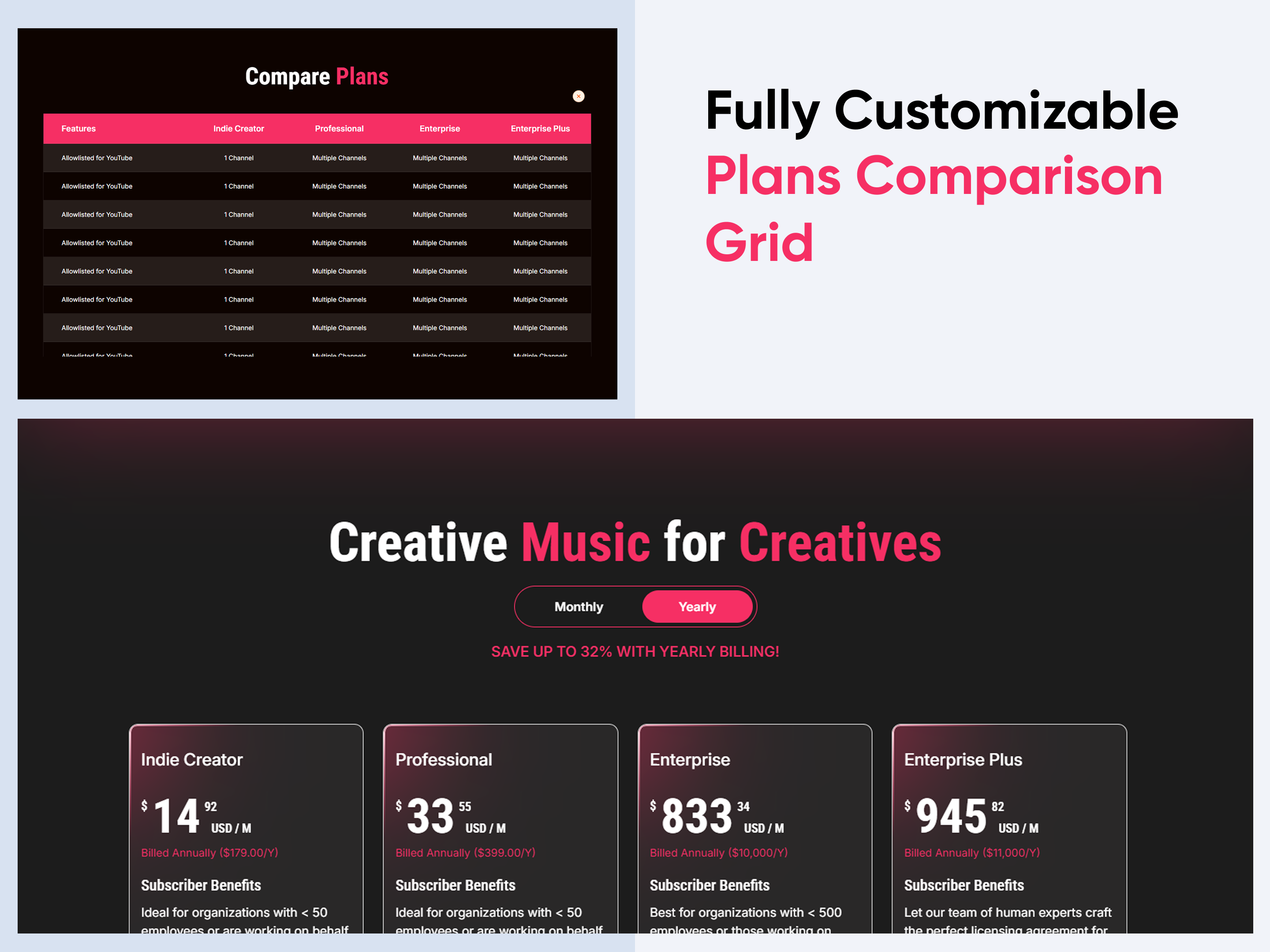
Feature Cards
Feature Cards
Columns | Content | CTA | Image |
card-two
Three Column with Border Hover Animation
Two Column In Dark UI
Three Column Vertically Cards with Sub Heading

Quickly create a personalized ‘Feature Cards’ section to showcase your product or service highlights with impact. This flexible module lets you customize layouts, colors, and styles to align with your brand. No coding required—just easy, intuitive controls. Ideal for presenting features in a clear, engaging, and professional way on any HubSpot page.


Key Features of a Feature Cards Module :

3 Unique Layout Options – Choose from three beautifully crafted slider layouts to match any design style.

Fully Mobile Responsive – Seamlessly adapts to all screen sizes for the best viewing experience.

Modern & Clean Design – Sleek, contemporary styling fits perfectly into any modern website.

Easy to Edit – Quickly customize content, styles, and settings without hassle.

Hover & Animation Effects – Engage users with smooth hover states, transitions, and subtle animations.

Optimized for Performance – Lightweight and fast for smooth transitions and loading.

Call to Action (CTA) – A friendly nudge like “Contact me” or “Book a Consultation” with a button.


How to Set Up the Feature Cards in HubSpot :

In the main dashboard, go to the ‘Content’ tab and select either ‘Website’ or ‘Landing Pages,’ depending on where you want to add the section. This lets you choose the right location for managing or updating your content.

Select the page where you want to apply the module.

Screenshot (20)

Search for "Feature Cards" and drag and drop the module into the desired location on your page.

ss251

Module Defaults Options: 

Layout ID :

To enable smooth scrolling for a CTA, assign an ID to the target element, reference that ID in the anchor link's href, and clicking the CTA will smoothly scroll the page to the section.

ss260

Layout Options :  

For the Feature Cards, select your preferred layout (e.g., Layout 1, Layout 2 or Layout 3). Easily rearrange event cards within the chosen layout to achieve the perfect content flow and visual arrangement, ensuring a seamless and engaging user experience.

Options : 

  • Layout 1 : The layout features a subheading, heading, icon, title and description 3 card format.
  • Layout 2 : The layout features a heading, title, description and icon with hover animation card.
  • Layout 3 : The layout includes a heading, description, tag, icon, title, paragraph and CTA card format.

ss261


Sub Heading & Heading :
  • Fully Customizable Sub heading & Headings
  • Show/Hide Toggle Option

ss262


Card Column Content Tag,  Icon, Title, Description & CTA : 

You can change the Tag, Icon, Title, Description & CTA with show/hide also in Layout One, And Call-to-Action (CTA) with the option to show or hide it, allowing for a flexible and customizable user experience.

  • Update the Tag, Icon, Title, Description and CTA
  • Easily manage and organize how content is shown based on user interaction

ss263

Module Style Options: 

Module Setting :

Adjust the margin, padding, container width and background colors to achieve your desired look and feel for the module. This flexibility lets you fine-tune the layout and aesthetics, ensuring your design is both visually appealing and user-friendly.

ss264

Heading & Description Style Settings :

Easily control the look and feel of your section’s text. Adjust font size, weight, and color for headings, and fine-tune paragraph styles for descriptions. These options ensure your content aligns with your brand while staying clear and professional across all devices.

ss265


Card Column Setting :

You have full control over customizing the card column box to align with your design preferences. Adjust the background, spacing, border, corners and box shadow to create the perfect look for your layout. Tailor these elements to ensure your content stands out and blends seamlessly with the rest of your design.

  • Background Customization
    Choose a solid color for your column box.
  • Spacing Control
    Adjust the padding and margin to create the ideal distance between elements and prevent overcrowding.
  • Border Style
     Choose from various styles like solid, dashed, or dotted.
  • Corner Radius
    Round the corners to create smooth, modern edges for a softer design.
  • Box Shadow
     Apply shadows to create a sense of elevation.

ss266

Card Content Setting :

Take full control over your column content by customizing the typography, spacing, and alignment to match your brand's design style. You can adjust text transform options, icon size to make them stand out. Whether you’re updating typography, or configuring borders every detail can be tailored for a cohesive and visually appealing look.

  • Typography Customization
    Adjust font size, style, and color for subheading, headings, descriptions, listing content and other text elements to create a consistent visual identity.
  • Spacing & Alignment
    Control padding, margin, and text alignment to ensure optimal content positioning and balance.
  • Text Transform
    Modify text case and style (uppercase, lowercase, capitalize) for better readability and emphasis.
  • Icon
    Customize the icon size and color to match your brand’s color palette and enhance the overall design.
  • CTA
    Customize the CTA Button line background color, text color, spacing, box shadow, corner and typography.

ss267

ss268

ss269

We hope you enjoy using our feature cards module to create a seamless experience for both your users and your marketing team. At Code Accelerator, we're committed to ensuring your HubSpot experience is exceptional. If you need a custom HubSpot module or require a tailored HubSpot CMS or CRM setup, please don’t hesitate to Contact Us.

Module Tags: Columns | Content | CTA | Image |
Discover More in the Knowledge Base

Explore detailed documentation, setup instructions, feature explanations, and best practices to help you get the most out of this module quickly and efficiently.
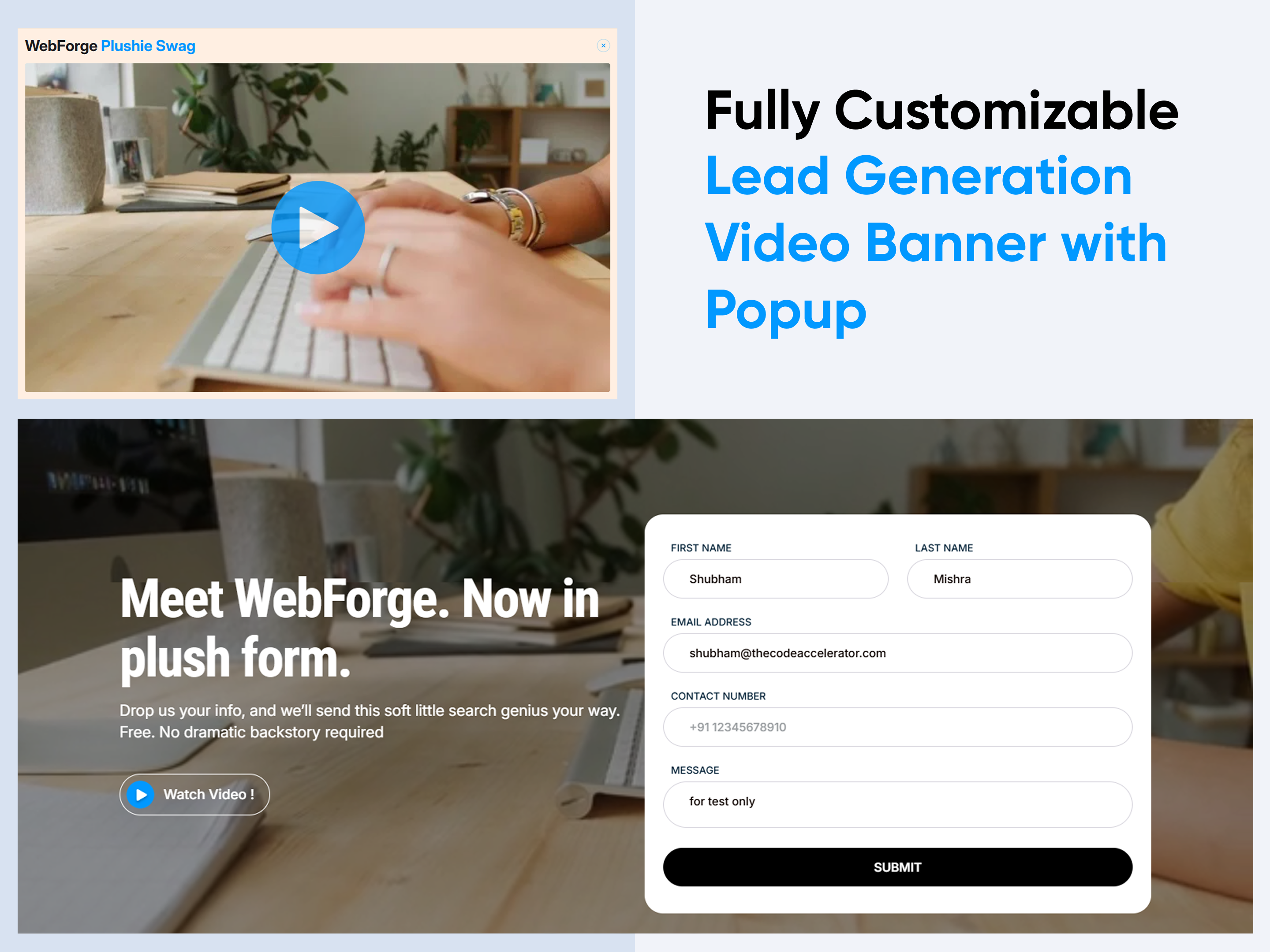
Use Case Tabs
Use Case Tabs
Columns | Content | Image | Tab |
card-three
Use Case Tabs with GIF Image
Two Column with gradient Background
Two Column with right Image and content with counter-1

Showcase different use cases in a clean, engaging way with the “Use Case Tabs” module for HubSpot. Highlight benefits across multiple tabs — each with customizable titles, icons, heading and description . Built for responsiveness and brand flexibility, this module lets you manage tab layouts (horizontal or vertical), colors, and spacing without any code. Ideal for presenting solutions by industry, department, or product use case — all in one interactive section.


Key Features of a Use Case Tabs Module :

Custom Tab Titles – Easily add and label multiple tabs.

Flexible Content Types – Supports images, CTAs, and even embedded forms or videos inside each tab for maximum versatility.

Icon/Image Support – Add icons or images to visually represent each tab and improve at-a-glance understanding.

Fully Responsive Design – Optimized for all devices (desktop, tablet, mobile).

Extensive Style Customization – Tab background (solid or gradient), Border styles, Padding/margins, Active/inactive states

Easy to Use with Drag & Drop – Built for HubSpot’s drag-and-drop page editor. No coding required to configure or style tabs

Reusable and Scalable – Add multiple tab sections to a page or reuse across templates.


How to Set Up the Use Case Tabs in HubSpot :

In the main dashboard, go to the ‘Content’ tab and select either ‘Website’ or ‘Landing Pages,’ depending on where you want to add the section. This lets you choose the right location for managing or updating your content.

Select the page where you want to apply the module.

Screenshot (20)

Search for "Use Case Tabs" and drag and drop the module into the desired location on your page.

ss235

Module Defaults Options: 

Layout ID :

Easily enhance navigation by adding an ID to the target section and using the same ID in an anchor link. This enables a smooth scrolling effect when users click a Call-to-Action (CTA) button, improving the overall user experience.

ss236

Layout Options :  

Effortlessly highlight different use cases with the “Use Case Tabs” module — perfect for presenting solutions by role, industry, or workflow. This interactive tabbed layout lets visitors explore content without leaving the page, boosting clarity and engagement. With a streamlined design and easy customization, it keeps information well-structured and accessible on any HubSpot landing or website page.

Options : 

  • Layout 1 : The layout features a  included Heading, description, Tabs with Image format.
  • Layout 2 & 3 : The layout features a  included Heading, description, Tabs with two column content.

ss237

 
Heading & Description :
  • All Layouts are ideal for building a clean and organized knowledge base. Both layouts allow you to customize headings and descriptions for each tab, helping you clearly label articles, topics, or help sections.
  • You can also enable a show/hide feature, giving users the option to expand or collapse content as needed—keeping the interface neat and user-friendly.

    ss238

All Tabbing & Content Customizable : 

Create an organized, interactive experience with customizable tabs that allow users to add and manage rich content with ease. Each tab includes:


ss239

Module Style Options: 

Module Setting :

Adjust the margin, padding, container width and background colors to achieve your desired look and feel for the module. This flexibility lets you fine-tune the layout and aesthetics, ensuring your design is both visually appealing and user-friendly.

ss240

Tabbing & Content Column Setting :

You have full control over customizing the tabbing & content box to align with your design preferences. Adjust the background, spacing, border, corners and to create the perfect look for your layout. Tailor these elements to ensure your content stands out and blends seamlessly with the rest of your design.

  • Background Customization
    Choose a solid color for your column box.
  • Spacing Control
    Adjust the padding and margin to create the ideal distance between elements and prevent overcrowding.
  • Corner Radius
    Round the corners to create smooth, modern edges for a softer design.

ss241

ss242

Tabbing & Content Setting :

Take full control over your column content by customizing the typography, spacing, and alignment to match your brand's design style. You can adjust text transform options, Whether you’re updating typography, or configuring borders every detail can be tailored for a cohesive and visually appealing look.

  • Typography Customization
    Adjust font size, style, and color for headings, descriptions, tabbing, listing content and other text elements to create a consistent visual identity.
  • Spacing & Alignment
    Control padding, margin, and text alignment to ensure optimal content positioning and balance.
  • Text Transform
    Modify text case and style (uppercase, lowercase, capitalize) for better readability and emphasis.
  • Tabbing 
    Customize the Tabbing background, corner, border, active effect, hover and typography.
  • Image
    Customize the image size and corner to match your brand’s color palette and enhance the overall design.
  • CTA
    Customize the CTA background color, text color, spacing, border, corner and typography.

ss243

ss244

ss245

We hope you enjoy using our use case tabs module to create a seamless experience for both your users and your marketing team. At Code Accelerator, we're committed to ensuring your HubSpot experience is exceptional. If you need a custom HubSpot module or require a tailored HubSpot CMS or CRM setup, please don’t hesitate to Contact Us.

Module Tags: Columns | Content | Image | Tab |
Discover More in the Knowledge Base

Explore detailed documentation, setup instructions, feature explanations, and best practices to help you get the most out of this module quickly and efficiently.
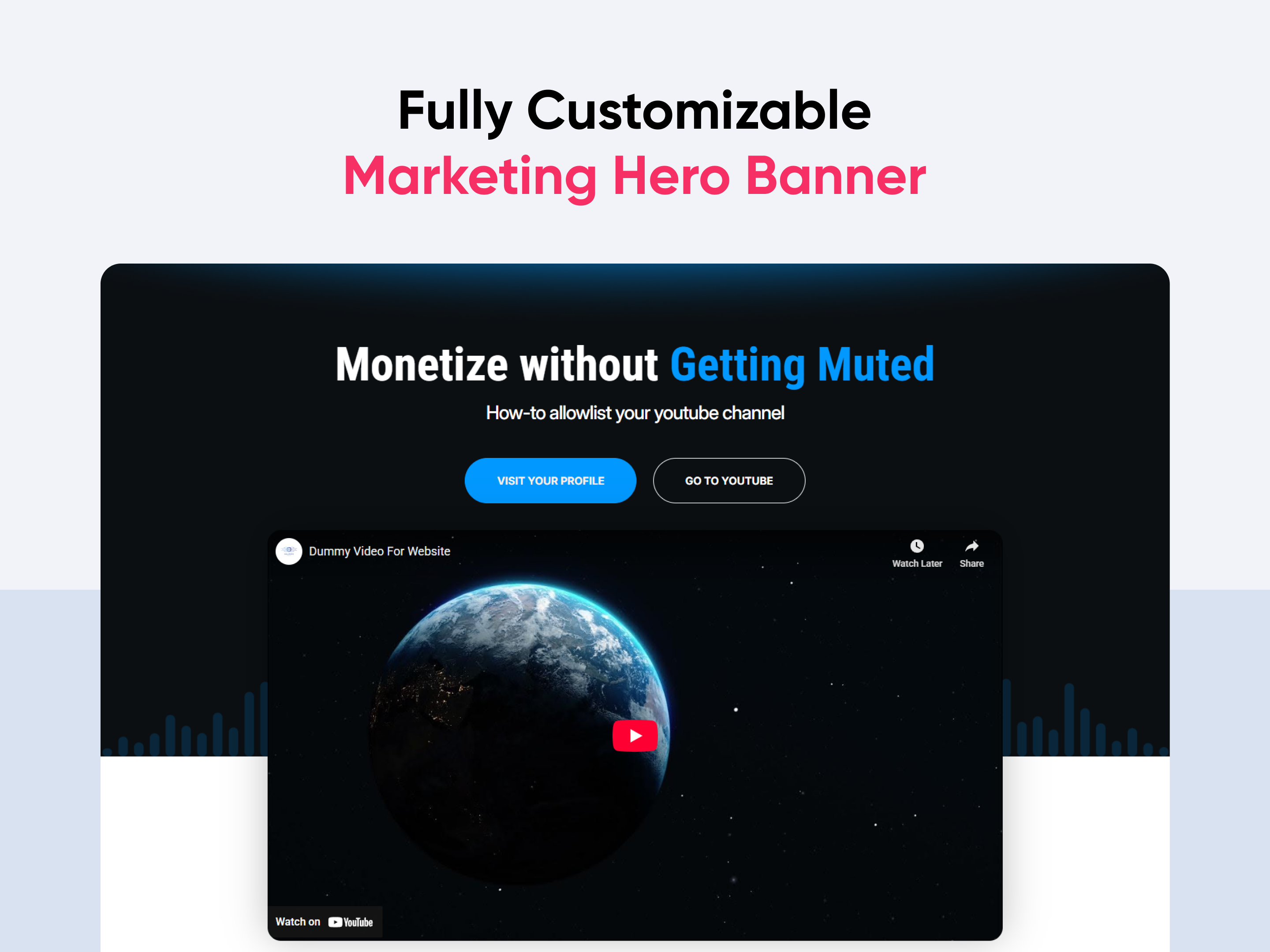
Feature Accordion Pro
Content | Image | Video | Accordion |
Feature Accordion Pro
Price: $29
Feature Accordion Pro
Two Column Accordion with left Image
Feature Accordion with Image + Video Support
Accordion with Animate Info cards & Image

Make your content interactive and engaging with Feature Accordion Pro, a flexible and modern accordion module designed for feature showcases, FAQs, and service highlights. This module helps you organize information into expandable sections, combining text, images, and videos for a clean, user-friendly experience.

With 3 ready-to-use layouts (Layout 1, Layout 2, and Layout 3), you can present content in classic split view, synchronized media with accordion, or feature grid style — all without coding. Built for responsiveness, customization, and performance, Accordion Pro ensures your content is easy to update, visually appealing, and optimized for every device.


Key Features of a Feature Accordion Pro Module :

  • Multiple Layout Options – Choose from Layout 1, Layout 2, or Layout 3 with a simple setting.
  • Customizable Headline & Description– Add engaging titles, and supporting text.
  • Easy Content Updates – Update text, images, and media fields without coding.
  • Advanced Customization – Control fonts, colors, spacing, and layouts directly in the editor.
  • Responsive Design – Optimized for desktop, tablet, and mobile.
  • Background Styles – Gradient, image or solid color options.
  • Typography & Color Controls – Easily adjust fonts, sizes, and colors.
  • Lightweight & Fast – Clean code ensures quick load times.
  • User-Friendly – Built for marketers and businesses with no coding required.

How to Set Up the Use Feature Accordion Pro in HubSpot :

In the main dashboard, go to the ‘Content’ tab and select either ‘Website’ or ‘Landing Pages,’ depending on where you want to add the section. This lets you choose the right location for managing or updating your content.

Select the page where you want to apply the module.

Screenshot (20)

Search for "Feature Accordion Pro" and drag and drop the module into the desired location on your page.


Module Defaults Options: 

Layout ID :

Easily enhance navigation by adding an ID to the target section and using the same ID in an anchor link. This enables a smooth scrolling effect when users click a Call-to-Action (CTA) button, improving the overall user experience.

Layout Options :  

Effortlessly organize and showcase content with the “Accordion Pro” module — perfect for presenting features, FAQs, or step-by-step processes. This interactive accordion layout helps visitors explore details without overwhelming them, improving clarity and engagement. With streamlined design and easy customization, it ensures information stays structured, accessible, and visually appealing on any HubSpot landing or website page.

Options : 

  • Layout 1 – A classic accordion design with text-based expandable sections for simple content presentation.

  • Layout 2 – A split layout combining an accordion on one side with synchronized images or videos on the other.

  • Layout 3 – An advanced layout with accordion content on the left and dynamic feature lists or supporting visuals on the right.


Heading & Description Content : 
  • Heading Enable
    Toggle the main heading on or off. Ideal if you want a clean accordion without a title.
  • Enter Heading
    Add and customize the main heading text. Use this to capture attention with a strong, engaging message.
  • Description Enable
    Toggle the supporting description on or off. Useful when you want only the heading without extra text. 
  • Enter Description
    Add descriptive text under the heading. Perfect for explaining benefits or context in 1–2 lines. It's only available in layout 1 and 3.

Accordion Content :

  • Accordion Items
    Add multiple collapsible items with a title and description. Perfect for presenting features, FAQs, or step-by-step information in an organized way.
  • Title
    Enter the main title for each accordion item. Ideal for highlighting the feature name, question, or key point.
  • Description
    Add supporting text under each title. Useful for explaining details, benefits, or answers in 1–3 short sentences.
  • Arrow Icon
    Choose or upload an icon that appears next to each title. Helps make items visually distinct and more engaging
  • Video/Image Option
    Choose whether to display an image or a video in the accordion’s media column. Ideal for making your content more engaging and interactive. It's only available in layout 2.

Image Column :

Upload and manage the main image that appears in the image column. Ideal for product photos, illustrations, or brand visuals.


Module Style Options: 

Module Setting :

Adjust the margin, padding, container width and background colors to achieve your desired look and feel for the module. This flexibility lets you fine-tune the layout and aesthetics, ensuring your design is both visually appealing and user-friendly.

Heading & Description Setting :

The Heading & Description Settings in Feature Accordion Pro allow you to fully customize the look and feel of your text by adjusting desktop and mobile typography (font family, size, weight, line height, and color), managing spacing (margins and padding for precise layout control), and applying text transform options such as uppercase, lowercase, or capitalize, ensuring your headings and descriptions remain visually consistent, responsive, and aligned with your brand style across all devices. Description does not available in layout 2.


Image Column Setting :

The Image Column Setting gives you complete control over how your visuals appear in the accordion module. You can adjust the image height to maintain consistent proportions, apply border radius for modern rounded edges, fine-tune spacing to create balanced layouts, and customize the border style, width, and color to frame your visuals. These options ensure your image or video blends seamlessly with the overall design while staying aligned with your brand style.

Inner Section Setting : 

The Inner Section Setting gives you complete control over the styling of the accordion’s content area. You can customize the background with solid colors, gradients, or images to match your brand, while the border radius option allows you to add modern rounded corners for a polished look. Fine-tune spacing (padding and margins) to create balanced layouts, and adjust the border style, width, and color for added definition. Additionally, the Below Section Corner Background setting provides an extra design layer to create seamless transitions and visually distinct sections. It's only option available in layout 1.

Accordion Section Setting : 

You can customize the accordion module: set header & body background colors, choose the active state color, adjust spacing for both mobile and desktop, and add border and border-radius.

Accordion Content Setting :

  • Accordion Title
    Customize the style of the accordion titles, including font, size, color, and spacing. Ensures headings are clear and match your brand.
  • Accordion Description Setting
    Control the appearance of the accordion content area with typography, color, and spacing options. Perfect for making text easy to read and engaging.
  • Arrow Setting
    Adjust the style, size, and color of the accordion toggle arrow to match your design and improve user interaction.


We hope you enjoy using our feature accordion pro to create a seamless experience for both your users and your marketing team. At Code Accelerator, we're committed to ensuring your HubSpot experience is exceptional. If you need a custom HubSpot module or require a tailored HubSpot CMS or CRM setup, please don’t hesitate to Contact Us.

Module Tags: Content | Image | Video | Accordion |
Discover More in the Knowledge Base

Explore detailed documentation, setup instructions, feature explanations, and best practices to help you get the most out of this module quickly and efficiently.
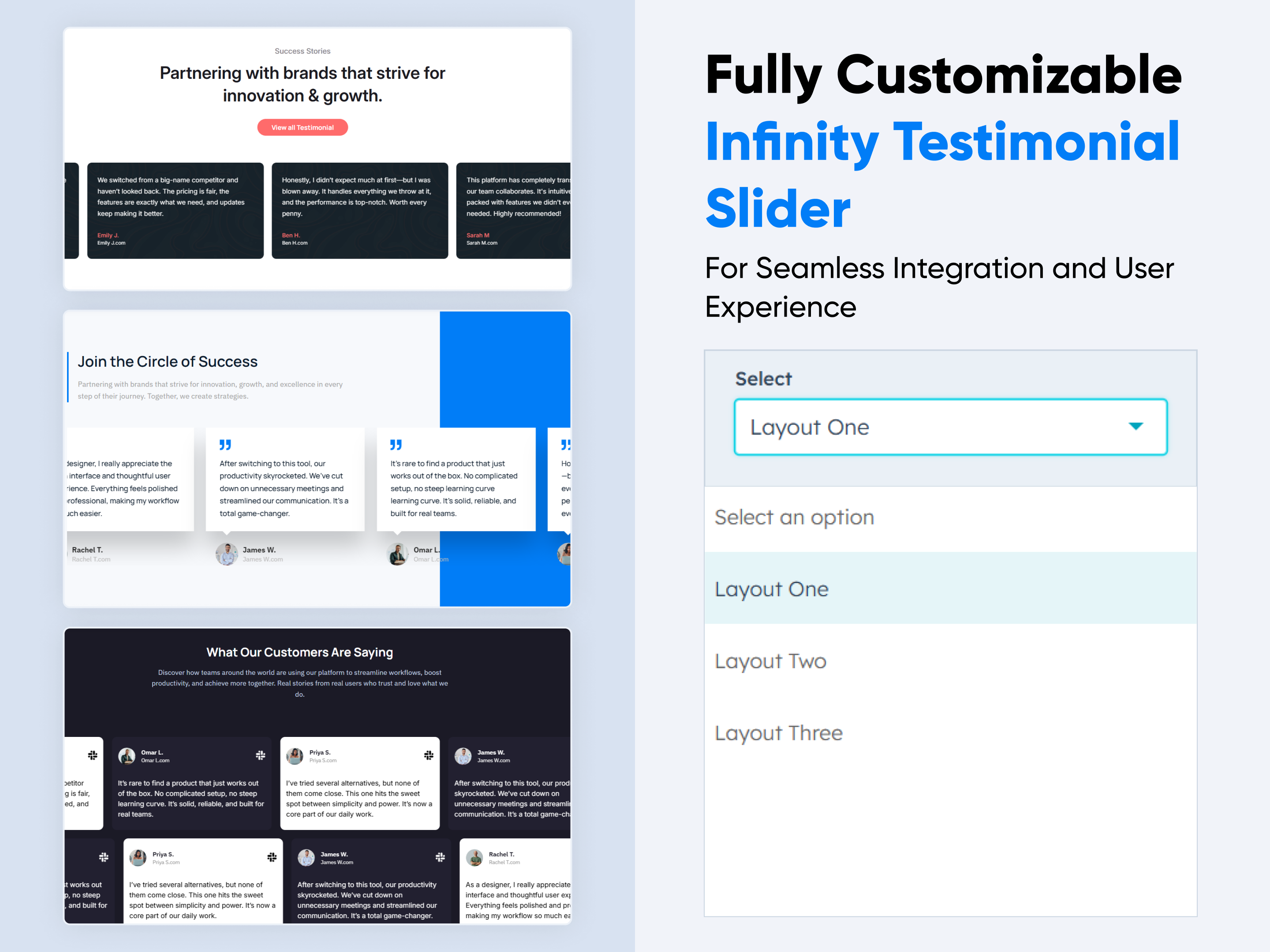
Info Cards
Info Cards
Columns | Content | CTA | Image |
Card Section
Three Column with Icon
Multi-Column with Hover Animation-1
Three Column with Overlap Image Effect

Easily build a personalized ‘Info Cards’ section to highlight key details with style. This flexible module allows you to customize layouts, colors, and design elements to suit your brand. No coding required—just simple, intuitive controls. Perfect for showcasing information in a clear, professional way on any page.


Key Features of a Info Cards Module :

3 Unique Layout Options – Choose from three beautifully crafted slider layouts to match any design style.

Fully Mobile Responsive – Seamlessly adapts to all screen sizes for the best viewing experience.

Modern & Clean Design – Sleek, contemporary styling fits perfectly into any modern website.

Easy to Edit – Quickly customize content, styles, and settings without hassle.

Hover & Animation Effects – Engage users with smooth hover states, transitions, and subtle animations.

Optimized for Performance – Lightweight and fast for smooth transitions and loading.

Call to Action (CTA) – A friendly nudge like “Contact me” or “Book a Consultation” with a button.


How to Set Up the Info Cards in HubSpot :

In the main dashboard, go to the ‘Content’ tab and select either ‘Website’ or ‘Landing Pages,’ depending on where you want to add the section. This lets you choose the right location for managing or updating your content.

Select the page where you want to apply the module.

Screenshot (20)

Search for "Info Cards" and drag and drop the module into the desired location on your page.

ss250

Module Defaults Options: 

Layout ID :

To enable smooth scrolling for a CTA, assign an ID to the target element, reference that ID in the anchor link's href, and clicking the CTA will smoothly scroll the page to the section.

ss259

Layout Options :  

For the Info Cards, select your preferred layout (e.g., Layout 1, Layout 2 or Layout 3). Easily rearrange event cards within the chosen layout to achieve the perfect content flow and visual arrangement, ensuring a seamless and engaging user experience.

Options : 

  • Layout 1 : The layout features a icon, title and description 3 card format.
  • Layout 2 : The layout features a image, title, description CTA with hover animation card.
  • Layout 3 : The layout includes a image column, title, description card format.

ss252


Card Column Content Icon, image, Title, Description & CTA : 

You can change the Icon, Image, Title, Description & CTA with show/hide also in Layout One, And Call-to-Action (CTA) with the option to show or hide it, allowing for a flexible and customizable user experience.

  • Update the Icon, Image, Title, Description and CTA
  • Easily manage and organize how content is shown based on user interaction

ss253

Module Style Options: 

Module Setting :

Adjust the margin, padding, container width and background colors to achieve your desired look and feel for the module. This flexibility lets you fine-tune the layout and aesthetics, ensuring your design is both visually appealing and user-friendly.

ss254

Card Column Setting :

You have full control over customizing the card column box to align with your design preferences. Adjust the background, spacing, border, corners and box shadow to create the perfect look for your layout. Tailor these elements to ensure your content stands out and blends seamlessly with the rest of your design.

  • Background Customization
    Choose a solid color for your column box.
  • Spacing Control
    Adjust the padding and margin to create the ideal distance between elements and prevent overcrowding.
  • Border Style
     Choose from various styles like solid, dashed, or dotted.
  • Corner Radius
    Round the corners to create smooth, modern edges for a softer design.
  • Box Shadow
     Apply shadows to create a sense of elevation.

ss255

Card Content Setting :

Take full control over your column content by customizing the typography, spacing, and alignment to match your brand's design style. You can adjust text transform options, icon size to make them stand out. Whether you’re updating typography, or configuring borders every detail can be tailored for a cohesive and visually appealing look.

  • Typography Customization
    Adjust font size, style, and color for subheading, headings, descriptions, listing content and other text elements to create a consistent visual identity.
  • Spacing & Alignment
    Control padding, margin, and text alignment to ensure optimal content positioning and balance.
  • Text Transform
    Modify text case and style (uppercase, lowercase, capitalize) for better readability and emphasis.
  • Icon
    Customize the icon size and color to match your brand’s color palette and enhance the overall design.
  • CTA
    Customize the CTA Button line background color, text color, spacing, box shadow, corner and typography.

ss258

ss256

ss257

We hope you enjoy using our info cards module to create a seamless experience for both your users and your marketing team. At Code Accelerator, we're committed to ensuring your HubSpot experience is exceptional. If you need a custom HubSpot module or require a tailored HubSpot CMS or CRM setup, please don’t hesitate to Contact Us.

Module Tags: Columns | Content | CTA | Image |
Discover More in the Knowledge Base

Explore detailed documentation, setup instructions, feature explanations, and best practices to help you get the most out of this module quickly and efficiently.
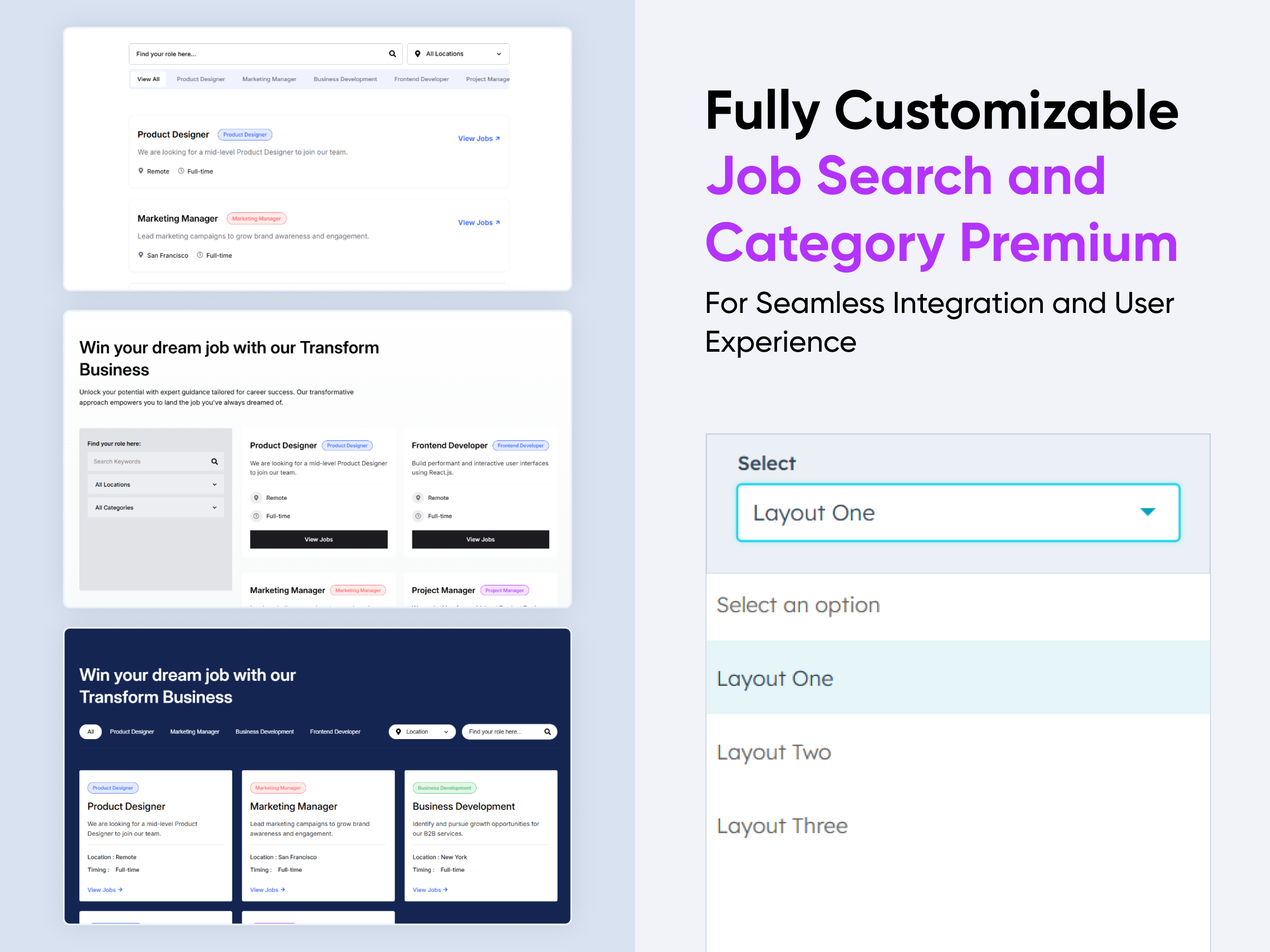
Hero Banner Pro
Hero Banner Pro
Banner | Content | CTA | Hero Banner | Image Columns
Pricing Plans Section-2
Two Column with Left Content and Right Image
Background Image with Glossy Effect
Two Column with right Image and content with counter

Make a stunning first impression with Hero Banner Pro, a flexible and modern hero section designed for high-converting landing pages and websites. This module lets you highlight your product, service, or brand message with engaging headlines, call-to-actions, visuals, and performance-driven counters.

With 3 ready-to-use layouts (Layout 1, Layout 2, and Layout 3), you can instantly switch designs to match your website’s style — no coding required. Built for responsiveness, customization, and ease of use, Hero Banner Pro ensures your hero section looks great on every device.


Key Features of a Hero Banner ProModule :

  • 🎨 Multiple Layout Options – Choose from Layout 1, Layout 2, or Layout 3 with a simple setting.
  • ✍️ Customizable Headline & Description– Add engaging titles, and supporting text.
  • 🔘 Flexible CTA Button – Add call-to-action buttons with custom styles and links.
  • 🔢 Counter/Stats Section – Showcase metrics like users, satisfaction rate, or integrations.
  • 📱 Responsive Design – Optimized for desktop, tablet, and mobile.
  • 🎨 Background Styles – Gradient, image or solid color options.
  • 🔧 Typography & Color Controls – Easily adjust fonts, sizes, and colors.
  • Lightweight & Fast – Clean code ensures quick load times.
  • 🙌 User-Friendly – Built for marketers and businesses with no coding required.

How to Set Up the Use Hero Banner Pro in HubSpot :

In the main dashboard, go to the ‘Content’ tab and select either ‘Website’ or ‘Landing Pages,’ depending on where you want to add the section. This lets you choose the right location for managing or updating your content.

Select the page where you want to apply the module.

Screenshot (20)

Search for "Hero Banner Pro" and drag and drop the module into the desired location on your page.

Module Defaults Options: 

Layout ID :

Easily enhance navigation by adding an ID to the target section and using the same ID in an anchor link. This enables a smooth scrolling effect when users click a Call-to-Action (CTA) button, improving the overall user experience.

Layout Options :  

Effortlessly highlight different with the “Hero Banner Pro” module — perfect for presenting solutions by role, industry, or workflow. This interactive tabbed layout lets visitors explore content without leaving the page, boosting clarity and engagement. With a streamlined design and easy customization, it keeps information well-structured and accessible on any HubSpot landing or website page.

Options : 

  • Layout 1A clean two-column design featuring a heading, description, and call-to-action on the left, paired with an image on the right.

  • Layout 2A content layout with a heading, description, CTA, and an integrated counter section for showcasing key stats.

  • Layout 3A two-column design with a heading, description, CTA, and counter section on the left, balanced by an image on the right.

 
Content Column :
  • Heading & Description
    Add and customize your main heading and supporting description text. Ideal for introducing your product, service, or key message.

  • CTA Show/Hide
    Toggle the Call-to-Action button(s) on or off. Useful when you want a clean banner without buttons.

  • CTA
    Configure your call-to-action button(s) with custom text, link, and style settings. Perfect for driving clicks and conversions.

  • Image Column Show/Hide
    Show or hide the image/media column in the layout. Ideal if you want a text-only banner. It's show only in layout 1.

  • Image Column
    Upload and manage the main banner image or illustration that appears in your layout.

  • Left Side Below Image Enable (Layout 1 only)
    Enable or disable the secondary image option below the main content on the left side.

  • Left Side Below Image (Layout 1 only)
    Upload and manage the secondary image that displays under the main content column when enabled.

Module Style Options: 

Module Setting :

Adjust the margin, padding, container width and background colors to achieve your desired look and feel for the module. This flexibility lets you fine-tune the layout and aesthetics, ensuring your design is both visually appealing and user-friendly.

Heading & Description Setting :

The Heading & Description Settings in Hero Banner Pro allow you to fully customize the look and feel of your text by adjusting desktop and mobile typography (font family, size, weight, line height, and color), managing spacing (margins and padding for precise layout control), and applying text transform options such as uppercase, lowercase, or capitalize, ensuring your headings and descriptions remain visually consistent, responsive, and aligned with your brand style across all devices.

CTA Setting :

The CTA Setting offers full control over your call-to-action design, allowing you to customize typography for both desktop and mobile, adjust spacing, set background styles, configure borders with radius options, apply text transformations, enable box shadows, and fine-tune alignment—ensuring your CTA buttons are visually appealing, responsive, and conversion-focused.

  • Desktop Typography – Customize font style, size, weight, and color for desktop view.

  • Mobile Typography – Optimize CTA text appearance for mobile devices.

  • Spacing – Adjust margins and padding for perfect button positioning.

  • Background – Choose colors or gradients for the CTA background.

  • Border – Define border style, width, and color.

  • Border Radius – Round the edges for softer or pill-style buttons.

  • Text Transform – Apply uppercase, lowercase, or capitalize styles.

  • Box Shadow Enable – Add depth and emphasis with shadows.

  • Alignment – Control the CTA button’s alignment (left, center, right).

List Section Setting :

The List Section Setting allows you to design visually appealing layouts by customizing background styles, borders, and corner shapes, while also giving control over spacing, alignment, and maximum width—ensuring the section remains structured, responsive, and aligned with the overall page design. It's only show in layout 2 & 3.      

  • Background – Customize section background with solid colors or gradients.

  • Border – Define style, thickness, and color for section borders.

  • Corner – Adjust border radius for rounded or sharp section edges.

  • Spacing – Control padding and margins for balanced layout.

  • Alignment – Position content left, center, or right for best visual impact.

  • Max Width – Set the maximum width to maintain consistency across devices.

List Content Setting :

The List Content Setting gives you control over both the main numeric values and their supporting subtext, allowing you to style statistics like user counts, percentages, and achievements in a way that makes them stand out while ensuring the descriptive text remains clear and consistent. It's only show in layout 2 & 3.  

  • Desktop Typography – Adjust font size, weight, color, and style for larger screens.

  • Mobile Typography – Customize text appearance specifically for mobile devices.

  • Text Transform – Control capitalization (uppercase, lowercase, capitalize).

Image Column Setting :

The Image Column Setting allows you to control the visual appearance of the image used in the right column. You can adjust the Height to define how tall the image should appear, configure the Corner options to set border-radius for sharp or rounded edges, and manage Spacing to control the padding or margin around the image, ensuring it aligns perfectly within the layout. It's only show in layout 1 and 3.

Left Side Image :

The Left Side Image setting lets you control the appearance and placement of the image displayed on the left side of the layout. You can adjust the Height/Width to resize the image proportionally and use the Position option to align it precisely within the section, ensuring it complements the heading and description for a balanced design.

We hope you enjoy using our hero banner pro module to create a seamless experience for both your users and your marketing team. At Code Accelerator, we're committed to ensuring your HubSpot experience is exceptional. If you need a custom HubSpot module or require a tailored HubSpot CMS or CRM setup, please don’t hesitate to Contact Us.

Module Tags: Banner | Content | CTA | Hero Banner | Image Columns
Discover More in the Knowledge Base

Explore detailed documentation, setup instructions, feature explanations, and best practices to help you get the most out of this module quickly and efficiently.
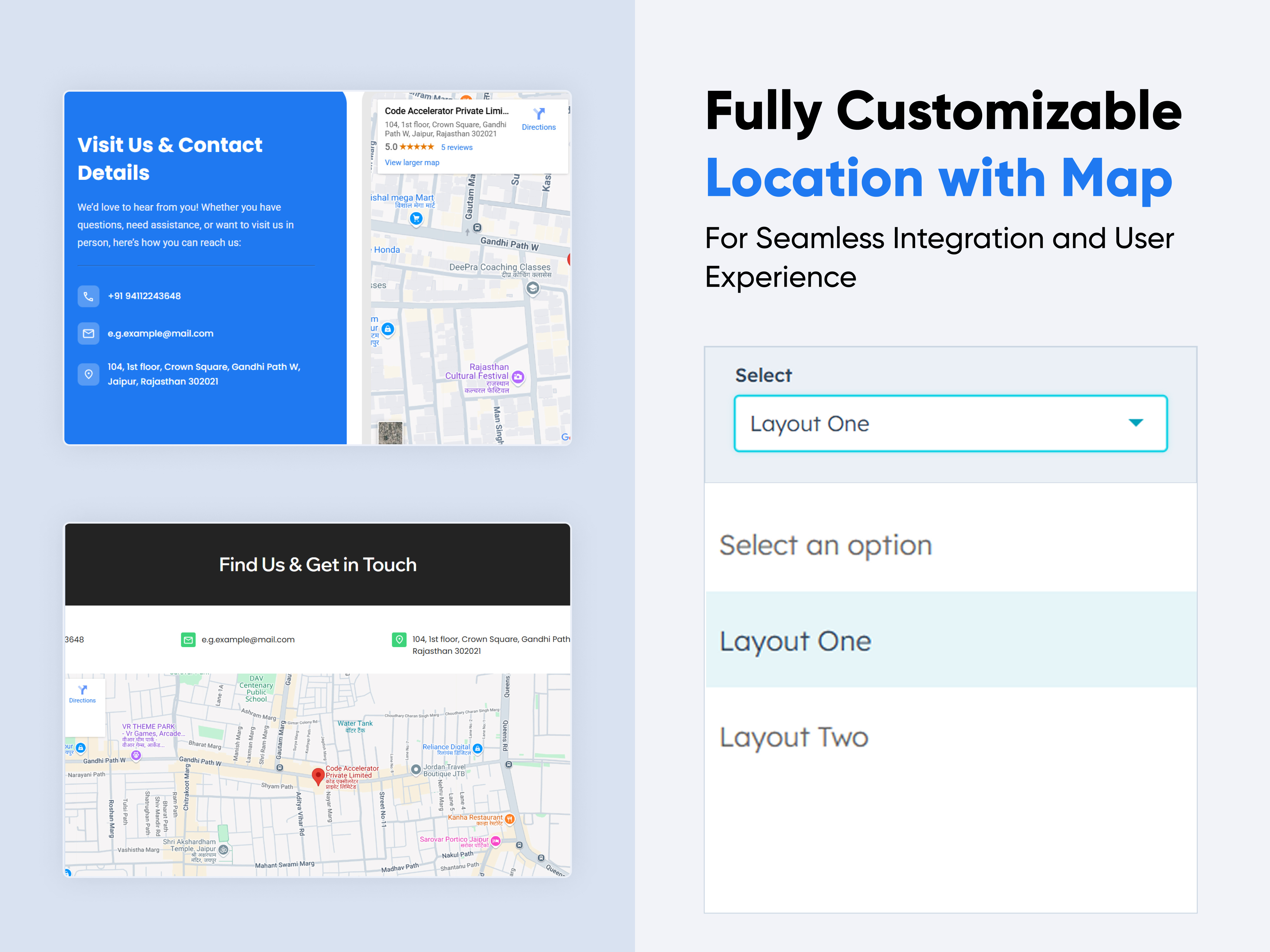
Pricing Plans Premium
Plan | Price | Contact |
Pricing Plans Premium
Price: $39
Pricing Plans Section-2
Two Column with Tabbing
Top Content with Background Color and Category-1
Top Content with Background Gradient

Turn your pricing section into a high-converting sales tool—without writing a single line of code.
Pricing Plans Premium lets you showcase, customize, and update your plans in minutes. Flexible layouts, currency toggles, and category-based pricing make it easy for customers to find the perfect fit. Drag-and-drop controls, interactive animations, and instant updates create a smooth buying experience that scales with your business growth.


Key Features :

Monthly & Yearly Toggle – Seamless switch between billing cycles.

3 Flexible Layouts – List, or accordion views adapt to any design style.

Modern & Clean Design – Sleek, contemporary styling fits perfectly into any modern website.

Easy to Edit – Quickly customize content, styles, and settings without hassle.

Easy to Integrate – Simple setup and integration into any page or theme.

Optimized for Performance – Lightweight and fast for smooth transitions and loading.

Category-Based Pricing – Organize plans by service category.


How to Set Up the Pricing Plans Premium Module in HubSpot :

In the main dashboard, go to the ‘Content’ tab and select either ‘Website’ or ‘Landing Pages,’ depending on where you want to add the section. This lets you choose the right location for managing or updating your content.

Select the page where you want to apply the module.

Screenshot (20)

Search for "Pricing Plans Premium" and drag and drop the module into the desired location on your page.

ss215

Module Defaults Options: 

Layout ID :

To enable smooth scrolling for a CTA, assign an ID to the target element, reference that ID in the anchor link's href, and clicking the CTA will smoothly scroll the page to the section.

ss216

Layout Options :  

Easily select your preferred layout (e.g., Plan Tab View, Tabbed View with toggle, or Dark View) to showcase your pricing in a format that matches your brand and content flow. Effortlessly reorder plans, switch between monthly and yearly billing, and adjust categories to create the ideal browsing experience. Whether you’re offering a few packages or managing a full suite of services, this module ensures a seamless, customizable, and engaging pricing journey for your customers.

Options : 

  • Layout 1 : The layout features a  included list Content with plan tab format.
  • Layout 2 : The layout features a Tabs, toggle Monthly, Yearly & currency toggle with plan cards.
  • Layout 3 : The layout includes a Tabs, Toggle with cards format.

ss217

 
Sub Heading & Heading :
  • Fully Customizable Sub heading & Headings
  • Show/Hide Toggle Option


    ss218

Tab & Toggle

Quickly guide visitors to the right plan using the built-in Tabs and Toggle controls. Users can switch between categories like CRM, Development, or Marketing & Sales, and instantly toggle between Monthly and Yearly pricing — all in real time without page reloads. These intuitive navigation options make comparing plans effortless, delivering a faster, clearer, and more personalized decision-making experience. And show hide also.


ss220

ss315

ss316

You can show/hide tab items. And when all tab items are hidden, only the plan cards of the first tabs will be shown.

ss320

Plan Cards 

Each plan card is fully customizable, allowing you to showcase key role details in a clean and engaging format. Include a compelling title, price, label, description and CTA. All content is managed directly in HTML for simple updates without touching the code logic. And you can add max 5 deferent plan cards according to tab items.

ss317

Plan Table

Easily customize your pricing tables to match your brand and business needs. Adjust column labels, reorder features, and highlight popular plans to guide customer choices. Add or remove rows with ease, control text alignment, and style borders, backgrounds, and typography — all without touching code. Whether you’re showing three simple tiers or a detailed enterprise comparison, the Plan Table customization tools ensure your pricing is always clear, attractive, and conversion-focused. You can add max 5 plans and also set table default show. 

ss318

ss319

Module Style Options: 

Module Setting :

Adjust the margin, padding, container width and background colors to achieve your desired look and feel for the module. This flexibility lets you fine-tune the layout and aesthetics, ensuring your design is both visually appealing and user-friendly.

ss225

Heading & Description

Easily style your pricing headings and descriptions to create the perfect first impression. Adjust font size, weight, and color, fine-tune spacing, and align text for maximum impact. Add compelling subheadings or supporting descriptions to highlight value and guide visitors toward the right choice. With flexible customization, your headings and descriptions stay on-brand, clear, and visually engaging — ensuring your pricing section speaks directly to your audience.

ss226

Tabs and Toggle – Styling Options

Customize the look and feel of your Tabs and Toggles to match your brand identity. Adjust colors, typography, and spacing, add hover and active state effects, and choose between rounded or square styles for a polished finish. Control the size and alignment for both desktop and mobile, ensuring smooth navigation across all devices. With flexible styling options, your Tabs and Toggles stay intuitive, attractive, and perfectly on-brand.

ss227

ss228

Card Column Setting :

You have full control over customizing the card column box to align with your design preferences. Adjust the background, spacing, border and corners to create the perfect look for your layout. Tailor these elements to ensure your content stands out and blends seamlessly with the rest of your design.

  • Background Customization
    Choose a solid color for your column box.
  • Spacing Control
    Adjust the padding and margin to create the ideal distance between elements and prevent overcrowding.
  • Border Style
     Choose from various styles like solid, dashed, or dotted.
  • Corner Radius
    Round the corners to create smooth, modern edges for a softer design.

ss229

Card Content Setting :

Take full control over your card content by customizing the typography, spacing, and alignment to match your brand's design style. You can adjust text transform options, icon size to make them stand out. Whether you’re updating typography, or configuring borders every detail can be tailored for a cohesive and visually appealing look.

  • Typography Customization
    Adjust font size, style, and color for subheading, headings, descriptions, listing content and other text elements to create a consistent visual identity.
  • Spacing & Alignment
    Control padding, margin, and text alignment to ensure optimal content positioning and balance.
  • Text Transform
    Modify text case and style (uppercase, lowercase, capitalize) for better readability and emphasis.
  • Icon
    Customize the icon size and color to match your brand’s color palette and enhance the overall design.
  • CTA
    Customize the CTA Button line background color, text color, spacing, box shadow, corner and typography.

ss230

Plan Table :

Style your Plan Table to perfectly align with your brand. Customize colors for headers, rows, and borders, adjust font sizes and weights, and fine-tune spacing for a clean, readable layout. Add highlight styles to feature your most popular plans, or apply alternating row colors for better visual flow. With full control over design elements, your pricing table remains clear, professional, and visually engaging on any device.

ss231

We hope you enjoy using our pricing plans premium module to create a seamless experience for both your users and your marketing team. At Code Accelerator, we're committed to ensuring your HubSpot experience is exceptional. If you need a custom HubSpot module or require a tailored HubSpot CMS or CRM setup, please don’t hesitate to Contact Us.

Module Tags: Plan | Price | Contact |
Discover More in the Knowledge Base

Explore detailed documentation, setup instructions, feature explanations, and best practices to help you get the most out of this module quickly and efficiently.
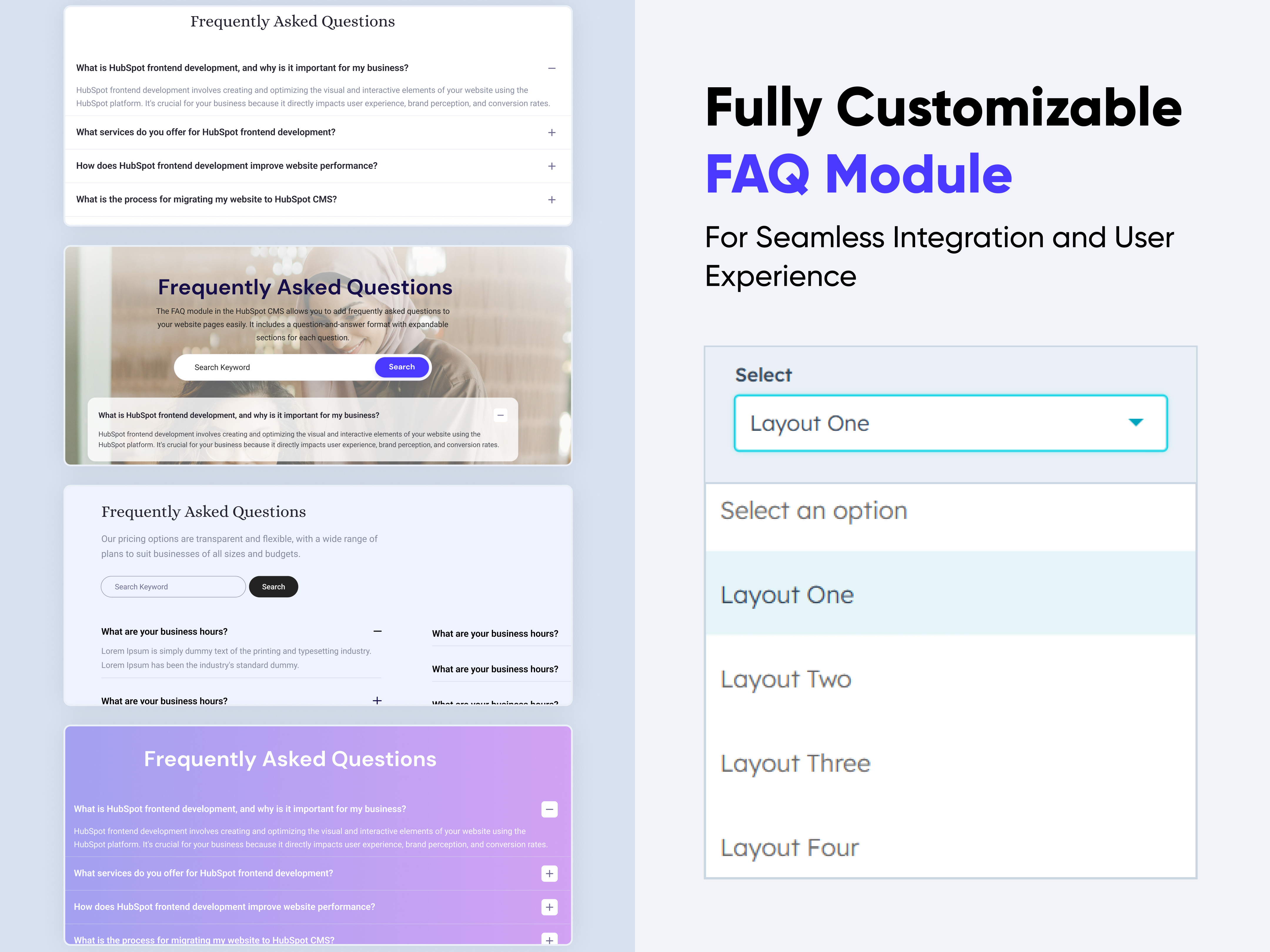
Job Search and Category Premium
Contact | Tab Content |
Job Search and Category Premium
Price: $39
Three Column with Scrollable Tag-bar
Full Width Layout with Background Image and Smart Filter
Three Column with Sticky Smart Filter
Three Column with Scrollable Tag-bar

Turn your careers page into a polished recruiting engine—without touching code.
Job Search and Category Premium lets you publish, filter, and promote open roles in minutes. Drag-and-drop controls, smart search, and one-click applications create a seamless candidate journey that scales with your hiring needs.


Key Features :

Advanced Search & Filters – Title, department, location, and keyword filters help visitors zero-in on the perfect role.

3 Flexible Layouts – List, grid, or accordion views adapt to any design style.

Modern & Clean Design – Sleek, contemporary styling fits perfectly into any modern website.

Easy to Edit – Quickly customize content, styles, and settings without hassle.

Easy to Integrate – Simple setup and integration into any page or theme.

Optimized for Performance – Lightweight and fast for smooth transitions and loading.

Category Tabs & Badges – Highlight “Remote,” “Hot,” or “New” openings with eye-catching labels.


How to Set Up the Job Search and Category Premium Module in HubSpot :

In the main dashboard, go to the ‘Content’ tab and select either ‘Website’ or ‘Landing Pages,’ depending on where you want to add the section. This lets you choose the right location for managing or updating your content.

Select the page where you want to apply the module.

Screenshot (20)

Search for "Job Search and Category Premium" and drag and drop the module into the desired location on your page.

ss200

Module Defaults Options: 

Layout ID :

To enable smooth scrolling for a CTA, assign an ID to the target element, reference that ID in the anchor link's href, and clicking the CTA will smoothly scroll the page to the section.

ss213

Layout Options :  

Easily select your preferred layout (e.g., Grid View, Tabbed View, or Stacked View) to display job roles in a format that suits your brand and content structure. Effortlessly reorder job posts and adjust categories to create the ideal browsing experience. Whether you're listing a few roles or managing a growing team, this module ensures a seamless, customizable, and engaging job search experience for your users.

Options : 

  • Layout 1 : The layout features a top banner with job post's format.
  • Layout 2 : The layout features a left sticky box with grid post's.
  • Layout 3 : The layout includes a top tab's, location, search bar and bottom post's column format.

ss201

 
Sub Heading & Heading :
  • Fully Customizable Sub heading & Headings
  • Show/Hide Toggle Option


    ss202

Search Bar, Location and Category 

Quickly connect job seekers with the right opportunities using the built-in Search Bar, Location dropdown, and Category tabs. Users can type their desired role, select a specific location, or filter by job categories like Product Design, Marketing, and Development — all in real-time without page reloads. These intuitive filters help streamline the job discovery process and deliver a faster, more personalized experience.


ss203

ss204

ss205

Job Post 

Each job post is fully customizable, allowing you to showcase key role details in a clean and engaging format. Include a compelling job title, category badge, location, employment type, and a detailed description under "About the Job & Role." With support for bullet points, highlights, and structured formatting, every post is easy to read and optimized for candidate engagement. All content is managed directly in HTML for simple updates without touching the code logic.

ss206

Popup Content and Form

Enhance user interaction with optional popup content and integrated forms for each job post. When enabled, candidates can click on a job to View Job details directly within a styled popup—keeping them on the page without disrupting the browsing flow. The form can be customized to collect applicant information like name, email, resume upload, and more. Fully compatible with HubSpot forms, this feature makes applying seamless, trackable, and conversion-friendly.

ss207Please select your form

ss214

Module Style Options: 

Module Setting :

Adjust the margin, padding, container width and background colors to achieve your desired look and feel for the module. This flexibility lets you fine-tune the layout and aesthetics, ensuring your design is both visually appealing and user-friendly.

ss208

Search Bar, Location, and Category – Styling Options

Easily tailor the look and feel of the search interface to match your brand. Customize typography (font family, size, weight), input spacing, border radius, and colors for both the Search Bar and Location dropdown. The Category tabs are fully styleable — modify tab alignment. Whether you're aiming for a sleek modern look or a bold branded style, you have full control to ensure visual consistency across your site.

ss209

Post Column Setting :

You have full control over customizing the post column box to align with your design preferences. Adjust the background, spacing, border and corners to create the perfect look for your layout. Tailor these elements to ensure your content stands out and blends seamlessly with the rest of your design.

  • Background Customization
    Choose a solid color for your column box.
  • Spacing Control
    Adjust the padding and margin to create the ideal distance between elements and prevent overcrowding.
  • Border Style
     Choose from various styles like solid, dashed, or dotted.
  • Corner Radius
    Round the corners to create smooth, modern edges for a softer design.

ss210

Post Content Setting :

Take full control over your post content by customizing the typography, spacing, and alignment to match your brand's design style. You can adjust text transform options, icon size to make them stand out. Whether you’re updating typography, or configuring borders every detail can be tailored for a cohesive and visually appealing look.

  • Typography Customization
    Adjust font size, style, and color for subheading, headings, descriptions, listing content and other text elements to create a consistent visual identity.
  • Spacing & Alignment
    Control padding, margin, and text alignment to ensure optimal content positioning and balance.
  • Text Transform
    Modify text case and style (uppercase, lowercase, capitalize) for better readability and emphasis.
  • Icon
    Customize the icon size and color to match your brand’s color palette and enhance the overall design.
  • CTA
    Customize the CTA Button line background color, text color, spacing, box shadow, corner and typography.

ss211

Popup Content :

Fully customize the appearance of your job detail popups to align with your brand. Control typography, padding, and background color, for a clean and professional presentation. Adjust style the close button and form elements for consistent design. Responsive by default, the popup adapts seamlessly to mobile and tablet views—ensuring an elegant user experience across all devices.

ss212

We hope you enjoy using our job search and category premium module to create a seamless experience for both your users and your marketing team. At Code Accelerator, we're committed to ensuring your HubSpot experience is exceptional. If you need a custom HubSpot module or require a tailored HubSpot CMS or CRM setup, please don’t hesitate to Contact Us.

Module Tags: Contact | Tab Content |
Discover More in the Knowledge Base

Explore detailed documentation, setup instructions, feature explanations, and best practices to help you get the most out of this module quickly and efficiently.
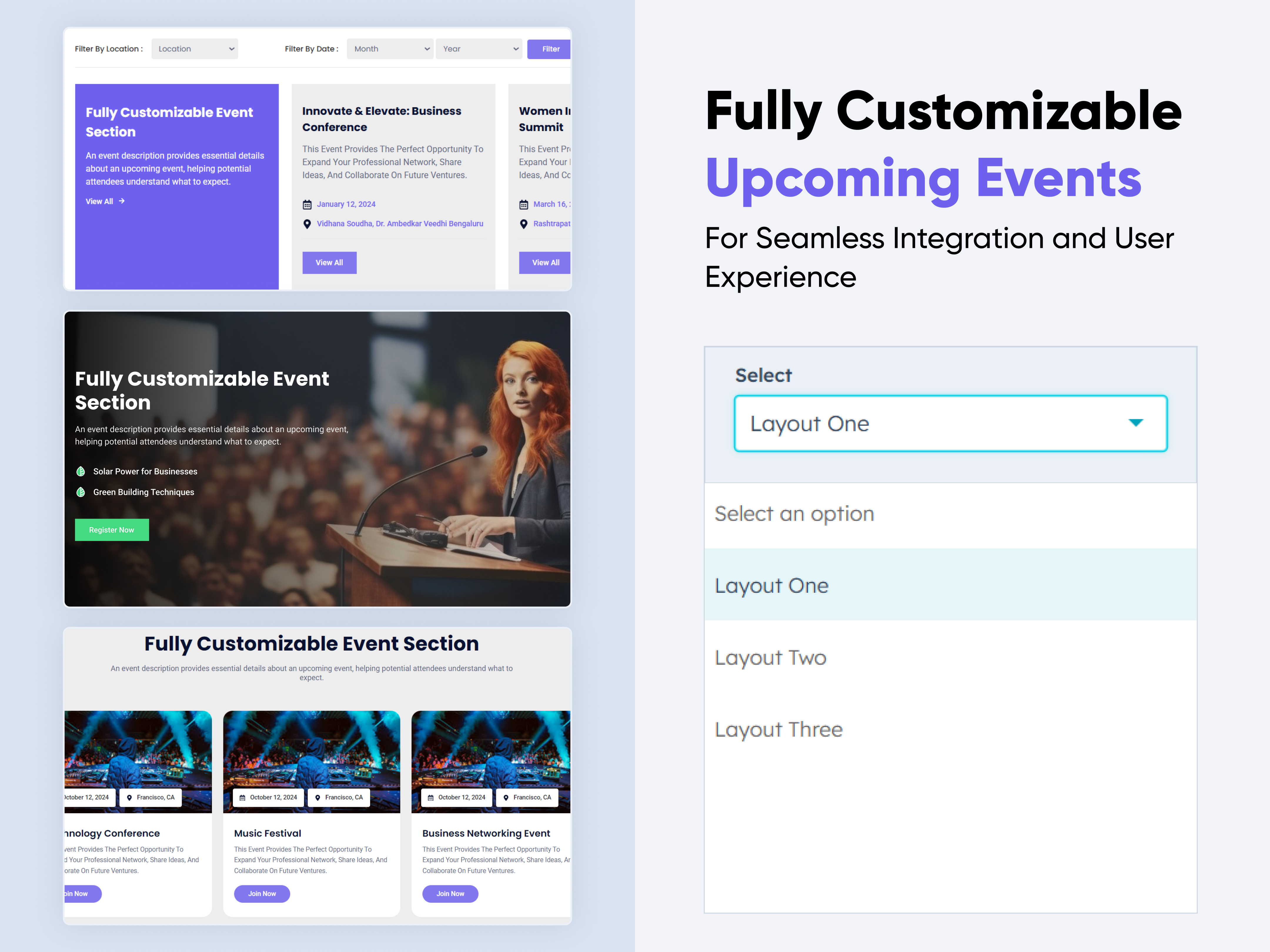
Infinity Logos Slider
Slider | Logo |
Infinity Logos Slider
Price: $29
thamb
Brand Logo with Pause on Hover
Top Content with infinite Animation

The Infinity Logos Slider is a smooth, continuously scrolling carousel crafted to showcase brand logos, client partnerships, or sponsor affiliations in a clean and engaging format. With its infinite loop animation and dual-direction sliding rows, this responsive module adds dynamic visual movement to your page. Perfect for building trust and brand authority, the slider elegantly highlights your collaborations, making your website look polished and professional.

Key Features Infinity Logos Slider Module :

Endless Looping Animation: Logos slide infinitely without interruption, creating a seamless and professional visual flow.

Dual-Direction RowsSupports multiple rows with independent directions—top row left-to-right, bottom row right-to-left—for dynamic motion.

Pause on HoverSlider automatically pauses when hovered, allowing users to view logos without distraction.

Fully Responsive: Works seamlessly on all devices (desktop, tablet, mobile).

Infinity Auto-Scrolling: Smooth auto-slide.

Fully Customizable Design: Easily adjust spacing, background color, and padding directly within the module settings.

Lightweight & Fast: Optimized for speed and performance.

How to Set Up the Infinity Logos Slider Module in HubSpot :

1. In the main dashboard, navigate to the Content tab and select either Website Pages or Landing Pages, depending on where you want to add the service section.

nav-timeline

2. Choose the page where you want to apply the module.

Screenshot (20)

3. Search for "Infinity Logos Slider" and drag and drop the module into the desired location on your page

ss92

Module Defaults Options:

Layout ID :

To enable smooth scrolling for a CTA, assign an ID to the target element, reference that ID in the anchor link's href, and clicking the CTA will smoothly scroll the page to the section.

ss93

Heading/Description & CTA : 

Easily customize the content in your module by modifying the "Heading," "Description & CTA. You can also choose to hide the section if desired, giving you complete control over the presentation and functionality of your content.

Options : 

  • Heading & Description Show/Hide Toggle
  • CTA Show/Hide Toggle

ss94

ss95

Logos Section :

Users can customize the repeat column logo as per their choice. They can also logo show/hide if not required.

ss96

Module Style Options: 

Module Setting :

Adjust the margins, padding, background colors, and container width to customize the module's appearance. This flexibility lets you refine the layout and aesthetics, creating a visually appealing, functional, and user-friendly design.

ss97

Heading & Description Setting :

Users can customize the spacing of the heading and adjust its typography, including color, font size, weight, alignment and line height. These settings apply to both mobile and desktop views, ensuring a personalized and visually cohesive design across all devices.

ss98

ss99

CTA Setting :

Users can customize the CTA background color, line height, and spacing for both desktop and mobile views. They can also adjust text transform, alignment, and box shadow, as well as add hover colors for a more dynamic design.

ss100

ss101

Logos Setting  & Left and Right Gradient Overlay:

Users can customize the logo spacing for both mobile and desktop views. Additionally, and also select background color. And you can change the gradient color of left and right fade overlay in layout 1 & 3. 

ss102

We hope you enjoy using infinity logos slider module to create a seamless experience for both your users and your marketing team. At Code Accelerator, we're committed to ensuring your HubSpot experience is exceptional. If you need a custom HubSpot module or require a tailored HubSpot CMS or CRM setup, please don’t hesitate to Contact Us.

Module Tags: Slider | Logo |
Discover More in the Knowledge Base

Explore detailed documentation, setup instructions, feature explanations, and best practices to help you get the most out of this module quickly and efficiently.
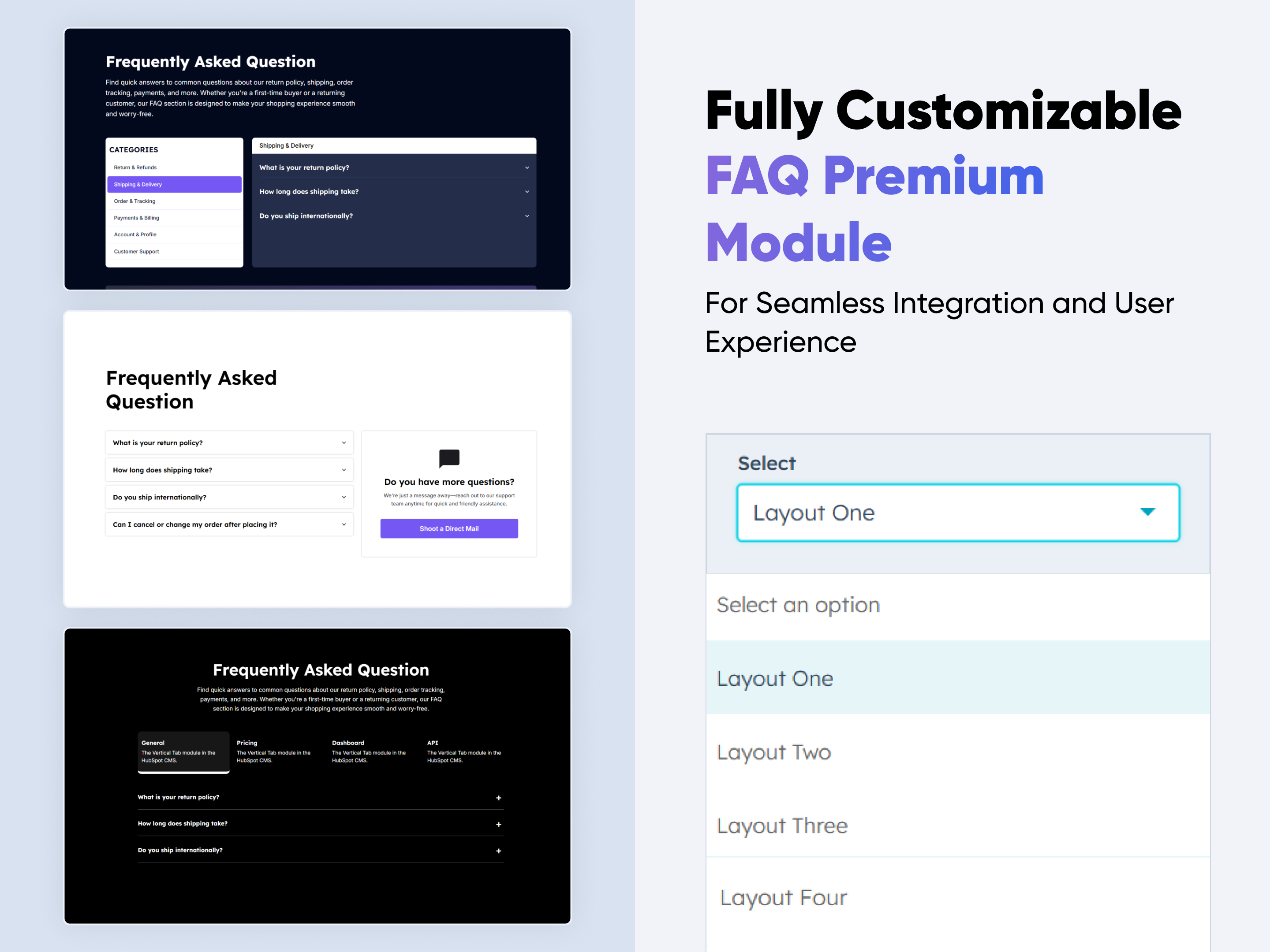
Stats Number Counter
Columns | Content |
Stats Number Counter
Price: $29
Frame 427318352-1
Multi-Column with Animated Number and Hover Effect
Multi-Column with Hover Animation
Two-Column Layout with Dark UI

Showcase your most important metrics with engaging animated counters that activate on scroll. Whether it's sales numbers, user growth, or performance stats, this module makes data visually appealing. Fully customizable with labels, colors, and layout options — no coding required. Perfect for dashboards, landing pages, or reports that need a bold, modern touch.

Key Features :

Fully Responsive Across All Devices:
The counter adapts seamlessly to mobile, tablet, and desktop screens, ensuring a consistent user experience no matter how visitors view your site.

Animated Count-Up Effect:
Numbers smoothly animate from zero to their target value as users scroll, drawing attention to your key stats and achievements.

Customizable Number & Labels:
Easily add number and descriptive labels to each stat block to enhance clarity and visual appeal.

Flexible Layout Options:
Choose between horizontal or vertical layouts and adjust spacing to best fit your design.

Prefix & Suffix Support:
Add currency symbols, percentage signs, or custom text before or after numbers to match your content needs.

Style Control in HubSpot Editor:
Customize fonts, colors, backgrounds, and borders directly within the HubSpot design editor — no coding needed.

Scroll Trigger Animation:
Counters only animate when they enter the viewport, improving performance and user engagement.

Lightweight & Fast Loading:
Built with performance in mind, ensuring smooth animations without slowing down your page.


Setting Up the Stats Number Counter Module in HubSpot : 

  1. In the main dashboard, navigate to the Content tab and select either Website Pages or Landing Pages, depending on where you want to add the service section.

    nav-timeline

  2. Choose the page where you want to apply the module.

    Screenshot (20)

  3. Search for "Stats Number Counter" and drag and drop the module into the desired location on your page

    ss80

Module Defaults Options: 

Layout ID :

You can add an ID to the target section and use the same ID in an anchor link to enable a smooth scrolling effect when a user clicks on a Call-to-Action (CTA) button, enhancing navigation and user experience.

ss81

Layout Options :  

For stats number counter module, select your preferred layout (e.g., Layout 1, Layout 2, or Layout 3). You can effortlessly rearrange the cards within the chosen layout to create the ideal content flow.

Options : 

  • Layout 1: The layout features a heading and description with four counter columns, number, title and content.
  • Layout 2: The layout features a heading and description with four counter columns, number, title and content.
  • Layout 3: The layout features a sub heading, heading and description with four counter columns, number, title and content with right column image.

ss82

Sub Heading, Heading & Description : 

You have the flexibility to customize the heading, subheading and description to match your design preferences. Additionally, you can choose to show or hide specific elements as needed for a tailored and dynamic layout.

ss83

ss84

Counter Columns :  

You can easily customize the counter cards in HubSpot by adjusting the following settings.

Options : 

  • Column Options: Choose and arrange card layouts with options for one, two, three, or four columns.
  • Counter Repeater: Easily add multiple animated counters using the repeater function. Customize each with unique numbers, title and content to highlight multiple stats in one seamless, responsive, and visually engaging section. 

ss85

Module Style Options: 

Module Setting :

Adjust margins, padding, background colors, and container width to achieve your preferred design and layout.

ss86

Sub Heading, Heading & Description Setting :

Users can easily customize alignment, spacing, and max-width for precise layout control. Typography options like font size, weight, and line height are fully adjustable. All settings are optimized for both desktop and mobile views for a seamless experience.

ss87

ss88

Counter Column Setting :

Users can customize the background color, spacing, border and corner as well as apply box shadows and borders to align with their branding. Additionally, they can set a background hover color for interactive effects.

ss89

Counter Content Setting :  

Users can customize the typography of the title and counter value and paragraph to align with their content, adjusting font size, weight, and line height for both mobile and desktop views. They can also modify spacing.

ss90

We hope you find our Stats Number Counter module valuable in enhancing both user experience and marketing effectiveness. At Code Accelerator, we're dedicated to making your HubSpot experience outstanding. For custom HubSpot modules or personalized HubSpot CMS and CRM setups, please feel free to reach out to Contact Us.

Module Tags: Columns | Content |
Discover More in the Knowledge Base

Explore detailed documentation, setup instructions, feature explanations, and best practices to help you get the most out of this module quickly and efficiently.
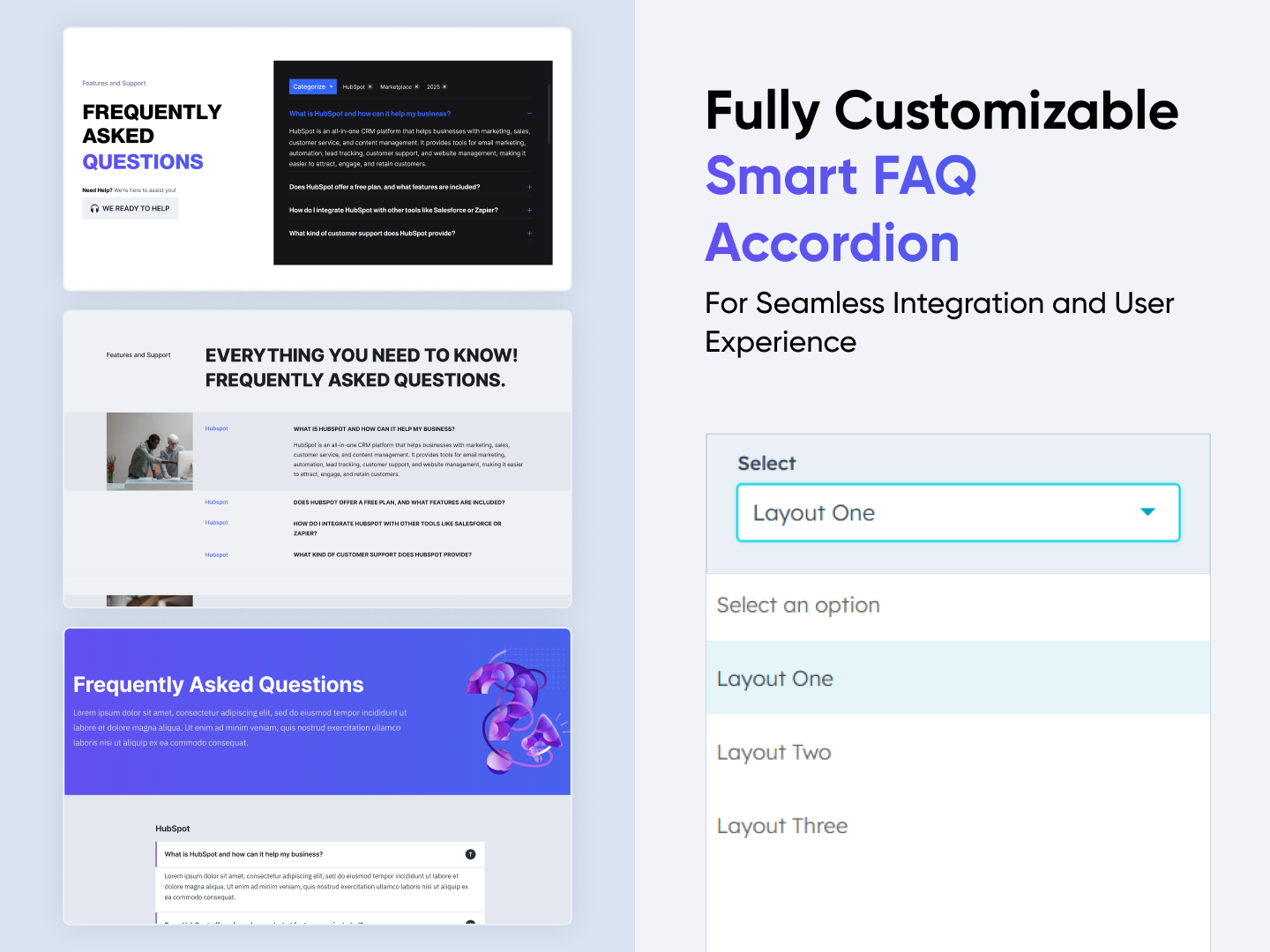
Step Process Or Services
Tab | Animation | Steps |
Step Process Or Services
Price: $49
Frame 427318352 (2)-1
Showcase Service offering or Steps with Graph Functionality
3 Column steps card with Hover Animation
Top Content with 3 Column Content Cards

The Step Process Or Services is designed to present step-by-step information in an organized, user-friendly format. This module is useful for tutorials, onboarding processes, instructional guides, or any content that requires sequential navigation.


Key Features of a Step Process Or Services :

✅ Graph Functionality 

  • Visually represent progress or performance with built-in graph elements for added clarity and impact.      

✅ Step Numbering

  • Each step is distinctly numbered to ensure clarity and easy tracking.

  • The numbering helps users follow the process in a structured way.

✅ Two-Column Layout

  • The left column typically contains the step number and title.

  • The right column provides images with more details.

  • This layout enhances readability and maintains a clean, structured design.

✅ Step with Tab Functionality

  • Each step can include a tab-based navigation system.

  • Tabs can be used to segment additional information without overwhelming the user.

✅ Responsive & Adaptive Design

  • Adjusts seamlessly for different screen sizes, ensuring a smooth experience on desktop and mobile.

  • On smaller screens, the two-column layout may stack vertically for better readability.

✅ Customizable Design

  • Colors, fonts, and step layouts can be customized to match branding and UI design preferences.

  • Step no. or visuals can be added next to steps for improved understanding.

How to Set Up the Step Process Or Services Module in HubSpot :

In the main dashboard, go to the ‘Content’ tab and select either ‘Website’ or ‘Landing Pages,’ depending on where you want to add the section. This lets you choose the right location for managing or updating your content.

Select the page where you want to apply the module.

Screenshot (20)

Search for "Step Process Or Services" and drag and drop the module into the desired location on your page.

ss61

Module Defaults Options: 

Layout ID :

You can add an ID to the target section and use the same ID in an anchor link to enable a smooth scrolling effect when a user clicks on a Call-to-Action (CTA) button, enhancing navigation and user experience.

ss62


Layout Options :  

For Parallax, select your preferred layout (e.g., Layout 1, Layout 2 or  Layout 3). You can easily rearrange the event cards within the chosen layout to create the ideal content flow and visual arrangement.

Options : 

  • Layout 1 : The layout features a heading and description, with a left-side column that includes a graph column. On the right side, you can add a column with a step number, title and  description for a well-structured and visually balanced design.
  • Layout 2 : The layout includes a 6 columns allowing you to add a step number, title, and description. Creating an interactive and visually engaging experience.
  • Layout 3 : The layout includes a heading, description with CTA, allowing you can add a number value, title, description and CTA for a structured and engaging presentation.

ss63

Heading & Description: 

You have the flexibility to customize the heading and description to match your design preferences. Additionally, you can choose to show or hide specific elements as needed for a tailored and dynamic layout. It's available in layout 1 and 3.

ss64

Content Column :

Easily customize the number value, title, paragraph, and all content to match your preferences. You can also choose to show or hide specific elements as needed for a flexible and dynamic layout.

ss65

Steps:

Easily customize the number value, title, and paragraph to match your preferences. You can also repeat unlimited tabs and choose to show or hide specific elements for a flexible and dynamic layout. It's available in all layouts.

ss66

ss67

ss68

Module Style Options: 

Module Setting :

Adjust the margins, padding, background colors, and container width to achieve your desired look and feel for the module. This flexibility lets you fine-tune the layout and aesthetics, ensuring your design is both visually appealing and user-friendly.

ss69

Heading, Description & CTA Setting :

Users can customize the heading, description and CTA adjust the typography, color, font size, weight, line height, background, border and corner for both mobile and desktop views, ensuring a personalized and visually cohesive design across all devices. This feature is available in Layouts 1 and 3 layouts.

ss70

ss71

Column Setting :

Easily customize the content column by adjusting background, spacing, box shadow, border and corner to match your design preferences and create a seamless visual experience. It's available in all layouts.

ss72

ss73

Column Content Setting :

Easily customize the column content by selecting a background, adjusting typography, spacing, alignment, border and corners to match your design preferences. Additionally, modify the typography of the step number, title, and description with ease. Available in all layouts.

ss74

ss75

Right Column Tab Content Setting :

Easily customize the tab column content by selecting a background, adjusting typography, spacing, and adding a corners to match your design preferences.

ss76

Right Tab Column Setting :

Easily customize the tab column by adjusting spacing, border, corners, box shadow and background color to match your design preferences. Available in Layout 1.

ss77

We hope you enjoy using our step process or services module to create a seamless experience for both your users and your marketing team. At Code Accelerator, we're committed to ensuring your HubSpot experience is exceptional. If you need a custom HubSpot module or require a tailored HubSpot CMS or CRM setup, please don’t hesitate to Contact Us.

Module Tags: Tab | Animation | Steps |
Discover More in the Knowledge Base

Explore detailed documentation, setup instructions, feature explanations, and best practices to help you get the most out of this module quickly and efficiently.
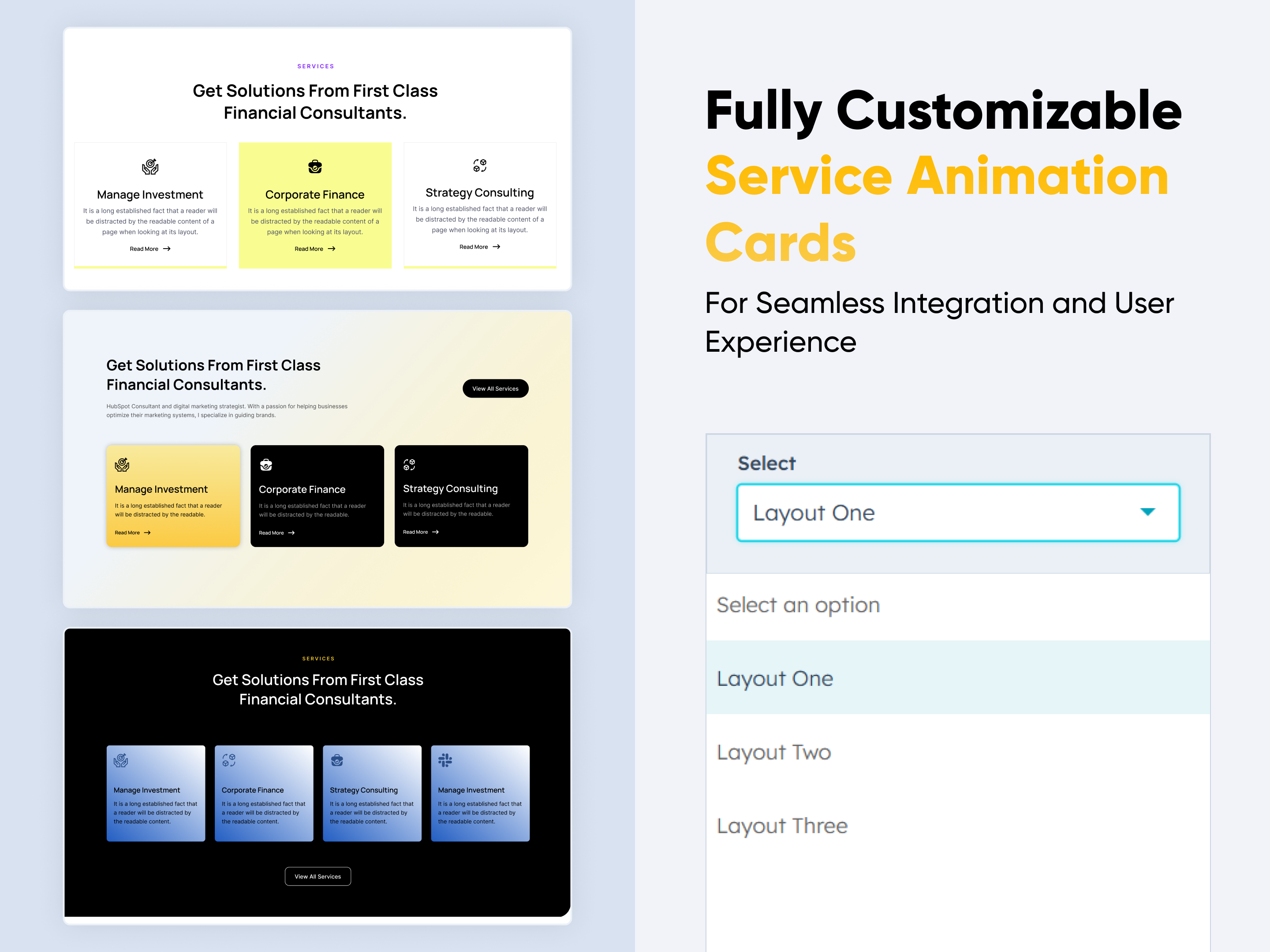
Motion Cards
Motion Cards
Columns | CTA Content | Image |
Frame 427318352 (1)
Three Column with Right Swipe Animation (1)
Two Column Content with  Right Image (1)
Two Column Content with  Right Image (2)

Motion Cards is a dynamic module designed to showcase your content with smooth entrance animations and hover effects. Easily highlight services, features, or team members using stylish, responsive cards. Customize layout, icons, text, and animations for an engaging visual experience.


Key Features of a Motion Cards Module :

Interactive Hover Effects – Enhance user engagement with smooth and dynamic hover animations.

Customizable Layouts – Choose and adjust card layouts to suit your content and design needs.

Responsive Design – Looks great and functions perfectly across all screen sizes.

Content Customization – Easily edit titles, descriptions, icons, and images as per your needs.

Styling Options – Personalize colors, fonts, spacing, and card shapes with ease.

Call-to-Action (CTA) Integration – Add CTAs to drive user interaction and conversions.

Performance Optimization – Lightweight design ensures fast loading and smooth performance.

Motion Animation – Apply entrance and hover-based animations for a modern visual impact.


How to Set Up the Motion Cards in HubSpot :

In the main dashboard, go to the ‘Content’ tab and select either ‘Website’ or ‘Landing Pages,’ depending on where you want to add the section. This lets you choose the right location for managing or updating your content.

Select the page where you want to apply the module.

Screenshot (20)

Search for "Motion Cards" and drag and drop the module into the desired location on your page.

ss41

Module Defaults Options: 

Layout ID :

Easily enhance navigation by adding an ID to the target section and using the same ID in an anchor link. This enables a smooth scrolling effect when users click a Call-to-Action (CTA) button, improving the overall user experience.

ss42

Layout Options :  

For the Motion Cards, select your preferred layout (e.g., Layout 1, Layout 2, Layout 3 or Layout 4). Easily rearrange event cards within the chosen layout to achieve the perfect content flow and visual arrangement, ensuring a seamless and engaging user experience.

Options : 

  • Layout 1 : The layout features a subheading, heading, CTA and service card format.
  • Layout 2 : The layout features a heading, description CTA with hover animation card.
  • Layout 3 : The layout includes a subheading, heading with animation card and CTA format.
  • Layout 4 : The layout includes a heading, description with hover animation card and CTA format.

ss43

 
Sub Heading & Heading :
  • Fully Customizable Sub heading, Headings & Description
  • Show/Hide Toggle Option


    ss44
    ss45

Card Column Content Icon, Title, Description & CTA : 

You can change the Icon, Title, Description & CTA with show/hide also in Layout One, And Call-to-Action (CTA) with the option to show or hide it, allowing for a flexible and customizable user experience.

  • Update the Icon, Title, Description and CTA
  • Easily manage and organize how content is shown based on user interaction

ss46

Module Style Options: 

Module Setting :

Adjust the margin, padding, container width and background colors to achieve your desired look and feel for the module. This flexibility lets you fine-tune the layout and aesthetics, ensuring your design is both visually appealing and user-friendly.

ss47

Card Column Setting :

You have full control over customizing the card column box to align with your design preferences. Adjust the background, spacing, border, corners and box shadow to create the perfect look for your layout. Tailor these elements to ensure your content stands out and blends seamlessly with the rest of your design.

  • Background Customization
    Choose a solid color for your column box.
  • Spacing Control
    Adjust the padding and margin to create the ideal distance between elements and prevent overcrowding.
  • Border Style
     Choose from various styles like solid, dashed, or dotted.
  • Box Shadow
     Apply shadows to create a sense of elevation.

ss48

Content Setting :

Take full control over your column content by customizing the typography, spacing, and alignment to match your brand's design style. You can adjust text transform options, icon size to make them stand out. Whether you’re updating typography, or configuring borders every detail can be tailored for a cohesive and visually appealing look.

  • Typography Customization
    Adjust font size, style, and color for subheading, headings, descriptions, listing content and other text elements to create a consistent visual identity.
  • Spacing & Alignment
    Control padding, margin, and text alignment to ensure optimal content positioning and balance.
  • Text Transform
    Modify text case and style (uppercase, lowercase, capitalize) for better readability and emphasis.
  • Icon & Image
    Customize the icon & image size and color to match your brand’s color palette and enhance the overall design.
  • CTA
    Customize the CTA Button line background color, text color, spacing, box shadow, corner and typography.

ss51

ss49

ss50

We hope you enjoy using our motion cards module to create a seamless experience for both your users and your marketing team. At Code Accelerator, we're committed to ensuring your HubSpot experience is exceptional. If you need a custom HubSpot module or require a tailored HubSpot CMS or CRM setup, please don’t hesitate to Contact Us.

Module Tags: Columns | CTA Content | Image |
Discover More in the Knowledge Base

Explore detailed documentation, setup instructions, feature explanations, and best practices to help you get the most out of this module quickly and efficiently.
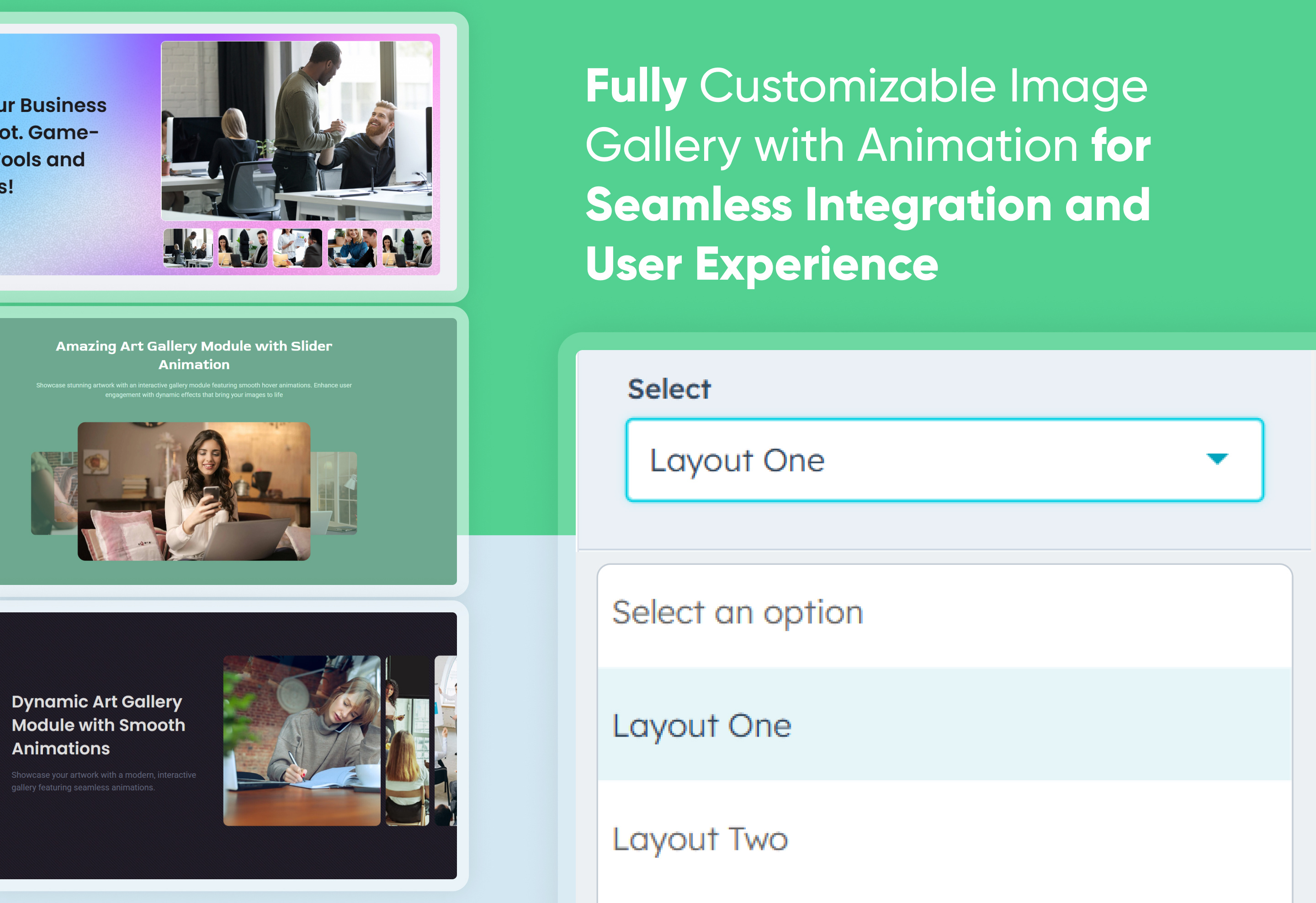
FAQ Premium
FAQ Premium
FAQ | Content | Tab | Image | Columns |
Frame 427318352
FAQ Accordion with Customer Support
FAQ Accordion with Tabbing
Two Column with Customer Supportabs

Boost customer support and engagement with the "FAQ Premium Module" for HubSpot. Featuring tabbed categories, rich content answers, live search, and responsive accordion design. Easily customizable with zero coding—perfect for modern, user-friendly websites.


Key Features of a FAQ Premium Module :

Custom Tab Titles – Easily add and label multiple tabs.

Accordion Functionality – Expands or collapses answers on click, keeping the layout clean and user-friendly. Only one     section opens at a time to reduce clutter.

Horizontal & Vertical Tab Layouts – Choose between horizontal or vertical tab orientation.

Fully Responsive Design – Optimized for all devices (desktop, tablet, mobile).

Extensive Style Customization – Tab background (solid or gradient), Border styles, Padding/margins, Active/inactive states

Easy to Use with Drag & Drop – Built for HubSpot’s drag-and-drop page editor. No coding required to configure or style tabs

Reusable and Scalable – Add multiple tab sections to a page or reuse across templates.


How to Set Up the FAQ Premium in HubSpot :

In the main dashboard, go to the ‘Content’ tab and select either ‘Website’ or ‘Landing Pages,’ depending on where you want to add the section. This lets you choose the right location for managing or updating your content.

Select the page where you want to apply the module.

Screenshot (20)

Search for "FAQ Premium" and drag and drop the module intothe desired location on your page.

ss28

Module Defaults Options: 

Layout ID :

Easily enhance navigation by adding an ID to the target section and using the same ID in an anchor link. This enables a smooth scrolling effect when users click a Call-to-Action (CTA) button, improving the overall user experience.

ss29

Layout Options :  

Easily organize your content with the "FAQ Premium" module — ideal for showcasing services, FAQs, or product details. This user-friendly layout allows visitors to switch between tabs without page reloads, improving engagement and readability. Clean design ensures information is structured and accessible. Perfect for enhancing UX on any HubSpot landing or website page.

Options : 

  • Layout 1 : Question Types and Support Options - Supports various formats like general queries, product-specific, or policy-based FAQs—tailored to meet different customer intents.
  • Layout 2 : Horizontal Tabs with Accordion - Easily navigate categorized FAQs using horizontal tabs with collapsible answers below each tab.
  • Layout 3 : Accordion with More Questions + Email CTA - Display FAQs in an accordion layout with a prompt and CTA button to email for more questions.
  • Layout 4 : Vertical Tabs and Accordions - Organize FAQs by category using vertical tabs with collapsible answers for each section.

ss30

 
Heading & Description :
  • All Layout are ideal for building a clean and organized knowledge base. Both layouts allow you to customize headings and descriptions, helping you clearly label articles, topics, or help sections.
  • You can also enable a show/hide feature, giving users the option to expand or collapse content as needed—keeping the interface neat and user-friendly.

    ss31

Tabbing & Accordion Customizable : 

Customize your Tabs and Accordions with full control over visibility and labels. Easily manage show/hide settings, update text, and add more sections as needed.

  • Show/Hide Tabs & Questions – Toggle visibility for any tab or question without removing content.
  • Edit Tab & Accordion Text – Change titles and question labels instantly to match your messaging.
  • Add More Tabs & Accordions – Easily expand your FAQ by adding new tabs and questions based on your content needs.

ss32

Module Style Options: 

Module Setting :

Adjust the margin, padding, container width and background colors to achieve your desired look and feel for the module. This flexibility lets you fine-tune the layout and aesthetics, ensuring your design is both visually appealing and user-friendly.

ss33

Tabbing & Accordion Column Setting :

You have full control over customizing the tabbing & content box to align with your design preferences. Adjust the background, spacing, border, corners and to create the perfect look for your layout. Tailor these elements to ensure your content stands out and blends seamlessly with the rest of your design.

  • Background Customization
    Choose a solid color & gradient for your column box.
  • Spacing Control
    Adjust the padding and margin to create the ideal distance between elements and prevent overcrowding.
  • Corner Radius
    Round the corners to create smooth, modern edges for a softer design.
  • Text Alignment
    Adjust text alignment (left, center, or right) to match your layout and reading flow.

ss35

ss36

Tabbing, Accordion & All Content Setting :

Take full control over your column content by customizing the typography, spacing, and alignment to match your brand's design style. You can adjust text transform options, Whether you’re updating typography, or configuring borders every detail can be tailored for a cohesive and visually appealing look.

  • Typography Customization
    Adjust font size, style, and color for headings, descriptions, tabbing, listing content and other text elements to create a consistent visual identity.
  • Spacing & Alignment
    Control padding, margin, and text alignment to ensure optimal content positioning and balance.
  • Text Transform
    Modify text case and style (uppercase, lowercase, capitalize) for better readability and emphasis.
  • Tabbing 
    Customize the Tabbing background, corner, border, active effect, hover and typography.
  • Image & Icon
    Customize the image size and corner to match your brand’s color palette and enhance the overall design.
  • CTA
    Customize the CTA background color, text color, spacing, border, corner, alignment and typography.

ss37

ss38

ss39

ss40

We hope you enjoy using our FAQ Premium module to create a seamless experience for both your users and your marketing team. At Code Accelerator, we're committed to ensuring your HubSpot experience is exceptional. If you need a custom HubSpot module or require a tailored HubSpot CMS or CRM setup, please don’t hesitate to Contact Us.

Module Tags: FAQ | Content | Tab | Image | Columns |
Discover More in the Knowledge Base

Explore detailed documentation, setup instructions, feature explanations, and best practices to help you get the most out of this module quickly and efficiently.
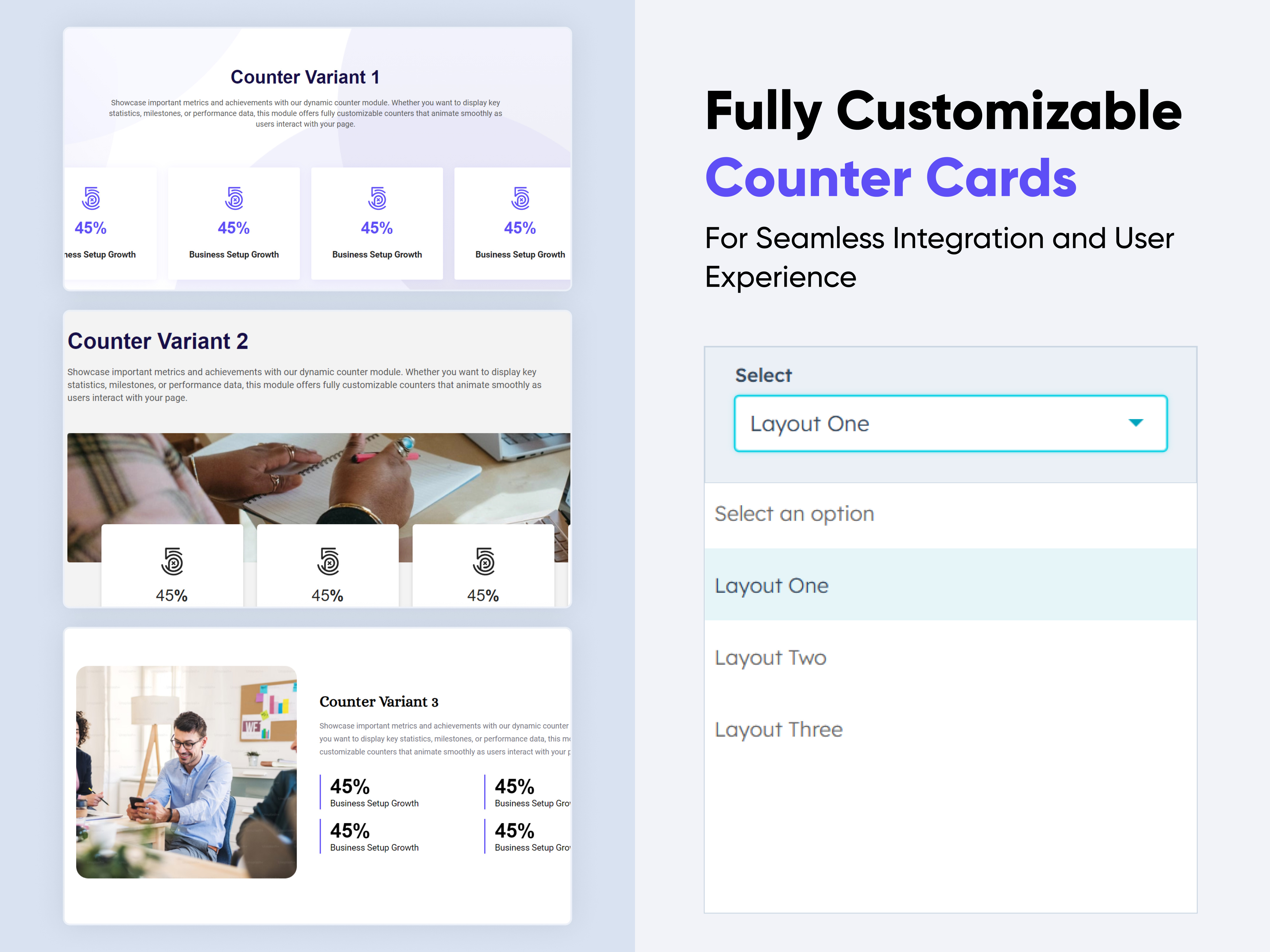
Tab with Content
Tab with Content
Columns | Content | Image | Tab |
Tab with Content
Price: $29

Organize your website content with the "Tab with Content" module for HubSpot. Easily add customizable tabs, rich text, and responsive layouts. Choose from horizontal or vertical alignment and style them to match your brand—no coding needed. Perfect for clean, user-friendly content display.


Key Features of a Tab with Content Module :

Custom Tab Titles – Easily add and label multiple tabs.

Rich Text Content Area – Each tab supports a rich text editor.

Horizontal & Vertical Tab Layouts – Choose between horizontal or vertical tab orientation.

Fully Responsive Design – Optimized for all devices (desktop, tablet, mobile).

Extensive Style Customization – Tab background (solid or gradient), Border styles, Padding/margins, Active/inactive states

Easy to Use with Drag & Drop – Built for HubSpot’s drag-and-drop page editor. No coding required to configure or style tabs

Reusable and Scalable – Add multiple tab sections to a page or reuse across templates.


How to Set Up the Tab with Content in HubSpot :

In the main dashboard, go to the ‘Content’ tab and select either ‘Website’ or ‘Landing Pages,’ depending on where you want to add the section. This lets you choose the right location for managing or updating your content.

Select the page where you want to apply the module.

Screenshot (20)

Search for "Tabbing with Content" and drag and drop the module into the desired location on your page.

ss15

Module Defaults Options: 

Layout ID :

Easily enhance navigation by adding an ID to the target section and using the same ID in an anchor link. This enables a smooth scrolling effect when users click a Call-to-Action (CTA) button, improving the overall user experience.

ss16

Layout Options :  

Easily organize your content with the "Tab with Content" module — ideal for showcasing services, FAQs, or product details. This user-friendly layout allows visitors to switch between tabs without page reloads, improving engagement and readability. Clean design ensures information is structured and accessible. Perfect for enhancing UX on any HubSpot landing or website page.

Options : 

  • Layout 1 : Vertical Tabs - Tabs appear in a vertical list on the left, with content on the right. Great for longer tab titles or detailed information. Provides a sidebar-like navigation that's perfect for documentation or comparison pages.
  • Layout 2 & 3 : Horizontal Tabs - Tabs are displayed side-by-side at the top, making it easy for users to switch between sections. Ideal for showcasing features, services, or content categories in a clean, linear format. Works best on wider screens.

ss17

 
Heading & Description :
  • Layout 1 and Layout 2 are ideal for building a clean and organized knowledge base. Both layouts allow you to customize headings and descriptions for each tab, helping you clearly label articles, topics, or help sections.
  • You can also enable a show/hide feature, giving users the option to expand or collapse content as needed—keeping the interface neat and user-friendly. Whether you prefer the structured sidebar of Layout 1 or the horizontal flow of Layout 2, these layouts provide a flexible way to manage and present helpful content.

    ss18

All Tabbing & Content Customizable : 

Create an organized, interactive experience with customizable tabs that allow users to add and manage rich content with ease. Each tab includes:

  • Tab Title - Short and clear titles help users navigate between sections. Perfect for labeling topics, categories, or content areas.
  • Rich Content Area (inside each tab)
    Headings - Use headings H1 to H6
    Descriptions - Provide detailed explanations or instructions for users.
    Bullet or Numbered Lists - Perfect for steps, tips, or grouped information.
    Images - Add product screenshots, infographics, or visual instructions to enhance clarity.

ss19

ss20

Module Style Options: 

Module Setting :

Adjust the margin, padding, container width and background colors to achieve your desired look and feel for the module. This flexibility lets you fine-tune the layout and aesthetics, ensuring your design is both visually appealing and user-friendly.

ss21

Tabbing & Content Column Setting :

You have full control over customizing the tabbing & content box to align with your design preferences. Adjust the background, spacing, border, corners and to create the perfect look for your layout. Tailor these elements to ensure your content stands out and blends seamlessly with the rest of your design.

  • Background Customization
    Choose a solid color for your column box.
  • Spacing Control
    Adjust the padding and margin to create the ideal distance between elements and prevent overcrowding.
  • Border Style
     Choose from various styles like solid, dashed, or dotted.
  • Corner Radius
    Round the corners to create smooth, modern edges for a softer design.

ss22

ss23

Tabbing & Content Setting :

Take full control over your column content by customizing the typography, spacing, and alignment to match your brand's design style. You can adjust text transform options, Whether you’re updating typography, or configuring borders every detail can be tailored for a cohesive and visually appealing look.

  • Typography Customization
    Adjust font size, style, and color for headings, descriptions, tabbing, listing content and other text elements to create a consistent visual identity.
  • Spacing & Alignment
    Control padding, margin, and text alignment to ensure optimal content positioning and balance.
  • Text Transform
    Modify text case and style (uppercase, lowercase, capitalize) for better readability and emphasis.
  • Tabbing 
    Customize the Tabbing background, corner, border, active effect, hover and typography.
  • Image
    Customize the image size and corner to match your brand’s color palette and enhance the overall design.
  • List Content
    Customize the list content color, text color, spacing, list style and typography.

ss24

ss25

ss26

We hope you enjoy using our tab with content module to create a seamless experience for both your users and your marketing team. At Code Accelerator, we're committed to ensuring your HubSpot experience is exceptional. If you need a custom HubSpot module or require a tailored HubSpot CMS or CRM setup, please don’t hesitate to Contact Us.

Module Tags: Columns | Content | Image | Tab |
Discover More in the Knowledge Base

Explore detailed documentation, setup instructions, feature explanations, and best practices to help you get the most out of this module quickly and efficiently.

Service Animation Cards
Columns | CTA Image |
Service Animation Cards
Price: $29
thumbnail-main
Three Column with Right Swipe Animation
Two Column Content with  Right Image
Two Column Content with  Right

Create a personalized "Service Animation Cards" section with ease. This flexible module lets you customize styles, layouts, and design elements to match your brand. No coding needed—just simple, intuitive controls. Perfect for adding a professional touch to your site.


Key Features of a Service Animation Cards Module :

3 Unique Layout Options – Choose from three beautifully crafted slider layouts to match any design style.

Fully Mobile Responsive – Seamlessly adapts to all screen sizes for the best viewing experience.

Modern & Clean Design – Sleek, contemporary styling fits perfectly into any modern website.

Easy to Edit – Quickly customize content, styles, and settings without hassle.

Easy to Integrate – Simple setup and integration into any page or theme.

Optimized for Performance – Lightweight and fast for smooth transitions and loading.

Call to Action (CTA) – A friendly nudge like “Contact me” or “Book a Consultation” with a button.


How to Set Up the Service Animation Cards in HubSpot :

In the main dashboard, go to the ‘Content’ tab and select either ‘Website’ or ‘Landing Pages,’ depending on where you want to add the section. This lets you choose the right location for managing or updating your content.

Select the page where you want to apply the module.

Screenshot (20)

Search for "Service Animation Cards" and drag and drop the module into the desired location on your page.

s1

Module Defaults Options: 

Layout Options :  

For the Service Animation Cards, select your preferred layout (e.g., Layout 1, Layout 2 or Layout 3). Easily rearrange event cards within the chosen layout to achieve the perfect content flow and visual arrangement, ensuring a seamless and engaging user experience.

Options : 

  • Layout 1 : The layout features a subheading, heading, CTA and service card format.
  • Layout 2 : The layout features a heading, description CTA with hover animation card.
  • Layout 3 : The layout includes a subheading, heading with animation card and CTA format.

s3

 
Sub Heading & Heading :
  • Fully Customizable Sub heading & Headings
  • Show/Hide Toggle Option


    s10

Card Column Content Icon, Title, Description & CTA : 

You can change the Icon, Title, Description & CTA with show/hide also in Layout One, And Call-to-Action (CTA) with the option to show or hide it, allowing for a flexible and customizable user experience.

  • Update the Icon, Title, Description and CTA
  • Easily manage and organize how content is shown based on user interaction

s11

Module Style Options: 

Module Setting :

Adjust the margin, padding, container width and background colors to achieve your desired look and feel for the module. This flexibility lets you fine-tune the layout and aesthetics, ensuring your design is both visually appealing and user-friendly.

s5

Card Column Setting :

You have full control over customizing the card column box to align with your design preferences. Adjust the background, spacing, border, corners and box shadow to create the perfect look for your layout. Tailor these elements to ensure your content stands out and blends seamlessly with the rest of your design.

  • Background Customization
    Choose a solid color for your column box.
  • Spacing Control
    Adjust the padding and margin to create the ideal distance between elements and prevent overcrowding.
  • Border Style
     Choose from various styles like solid, dashed, or dotted.
  • Corner Radius
    Round the corners to create smooth, modern edges for a softer design.
  • Box Shadow
     Apply shadows to create a sense of elevation.

s6

Content Setting :

Take full control over your column content by customizing the typography, spacing, and alignment to match your brand's design style. You can adjust text transform options, icon size to make them stand out. Whether you’re updating typography, or configuring borders every detail can be tailored for a cohesive and visually appealing look.

  • Typography Customization
    Adjust font size, style, and color for subheading, headings, descriptions, listing content and other text elements to create a consistent visual identity.
  • Spacing & Alignment
    Control padding, margin, and text alignment to ensure optimal content positioning and balance.
  • Text Transform
    Modify text case and style (uppercase, lowercase, capitalize) for better readability and emphasis.
  • Icon
    Customize the icon size and color to match your brand’s color palette and enhance the overall design.
  • CTA
    Customize the CTA Button line background color, text color, spacing, box shadow, corner and typography.

s7

s12

We hope you enjoy using our service animation cards module to create a seamless experience for both your users and your marketing team. At Code Accelerator, we're committed to ensuring your HubSpot experience is exceptional. If you need a custom HubSpot module or require a tailored HubSpot CMS or CRM setup, please don’t hesitate to Contact Us.

Module Tags: Columns | CTA Image |
Discover More in the Knowledge Base

Explore detailed documentation, setup instructions, feature explanations, and best practices to help you get the most out of this module quickly and efficiently.
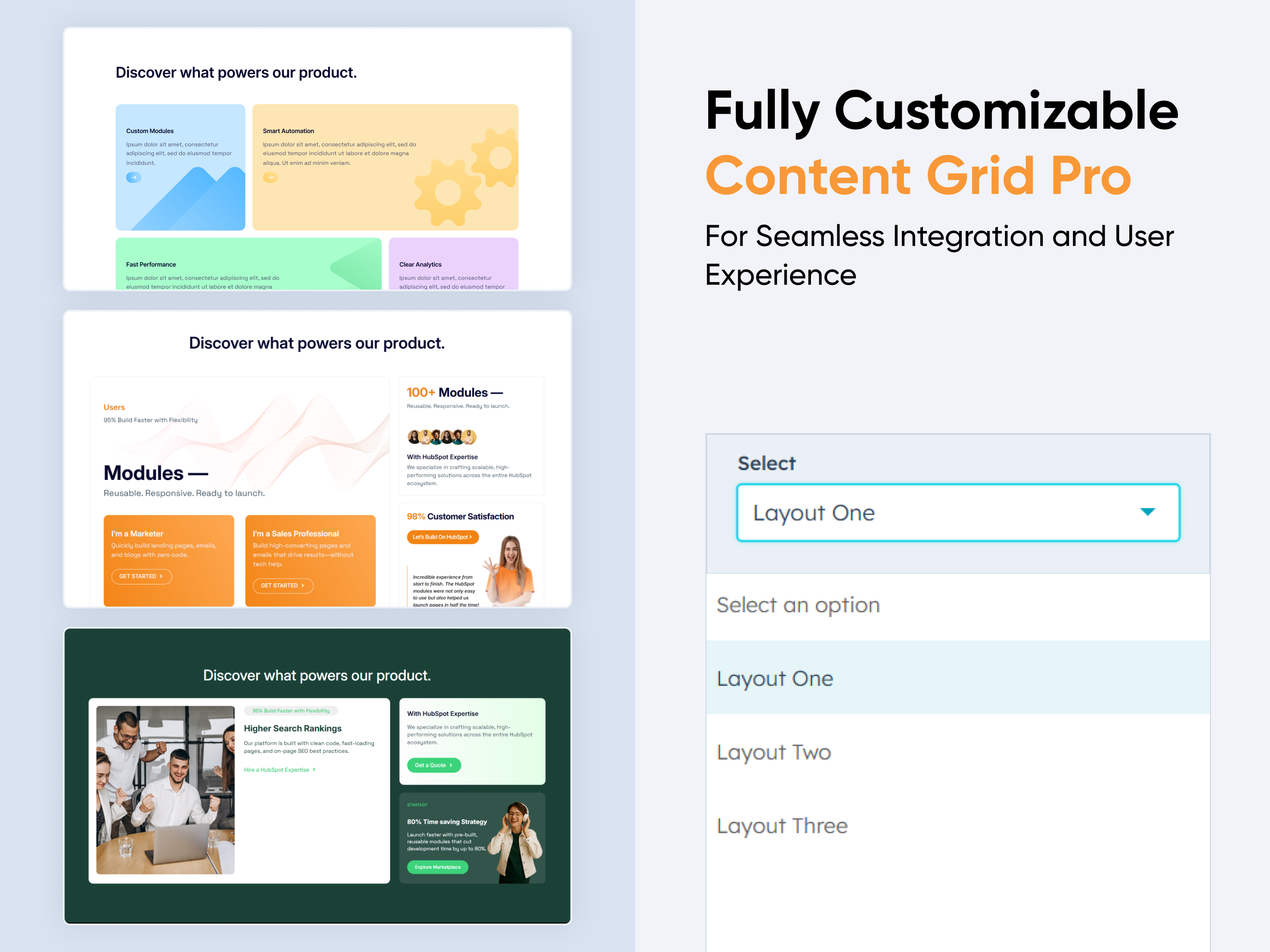
About Me
About Me
Columns | Content | CTA | Image |
Fully Customizable About Me Thumbnail
Two Column with Image
Two Column with Content
Two Column with CTA

Create a personalized "About Me" section with ease. This flexible module lets you customize styles, layouts, and design elements to match your brand. No coding needed—just simple, intuitive controls. Perfect for adding a professional touch to your site.


Key Features of a About Me Module :

3 Unique Layout Options – Choose from three beautifully crafted slider layouts to match any design style.

Fully Mobile Responsive – Seamlessly adapts to all screen sizes for the best viewing experience.

Personal Introduction  A brief overview highlighting who you are, your background, and personality.

Professional Summary – A snapshot of your career, skills, and areas of expertise.

Modern & Clean Design – Sleek, contemporary styling fits perfectly into any modern website.

Easy to Edit – Quickly customize content, styles, and settings without hassle.

Easy to Integrate – Simple setup and integration into any page or theme.

Optimized for Performance – Lightweight and fast for smooth transitions and loading.

Call to Action (CTA) – A friendly nudge like “Contact me” or “Book a Consultation” with a button.


How to Set Up the About Me in HubSpot :

In the main dashboard, go to the ‘Content’ tab and select either ‘Website’ or ‘Landing Pages,’ depending on where you want to add the section. This lets you choose the right location for managing or updating your content.

Select the page where you want to apply the module.

Screenshot (20)

Search for "About Me" and drag and drop the module into the desired location on your page.

drad

Module Defaults Options: 

Layout ID :

Easily enhance navigation by adding an ID to the target section and using the same ID in an anchor link. This enables a smooth scrolling effect when users click a Call-to-Action (CTA) button, improving the overall user experience.

id-op

Layout Options :  

For the About Me, select your preferred layout (e.g., Layout 1, Layout 2 or Layout 3). Easily rearrange event cards within the chosen layout to achieve the perfect content flow and visual arrangement, ensuring a seamless and engaging user experience.

Options : 

  • Layout 1 : The layout features a Image with experience info, subheading, heading, description and CTA format.
  • Layout 2 : The layout features a Image, subheading, heading and description with listing items and CTA.
  • Layout 3 : The layout includes a subheading, heading and description, with CTA and Image column format.

la-opt

Column Content Image, Sub Heading, Heading, Description & CTA : 

You can change the subheading, heading and description text with show/hide also in Layout One, And Call-to-Action (CTA) with the option to show or hide it, allowing for a flexible and customizable user experience.

  • Update the subheading, heading, description and CTA
  • Customize the image column content ( images, text, etc.)
  • Easily manage and organize how content is shown based on user interaction

left

right

Module Style Options: 

Module Setting :

Adjust the margins, padding, container width and background colors to achieve your desired look and feel for the module. This flexibility lets you fine-tune the layout and aesthetics, ensuring your design is both visually appealing and user-friendly.

bg-opt

Text Column Setting :

You have full control over customizing the column box to align with your design preferences. Adjust the background, spacing and corners to create the perfect look for your layout. Tailor these elements to ensure your content stands out and blends seamlessly with the rest of your design.

  • Background Customization
    Choose a solid color for your column box.
  • Spacing Control
    Adjust the padding and margin to create the ideal distance between elements and prevent overcrowding.
  • Corner Radius
    Round the corners to create smooth, modern edges for a softer design.

text-card

Content Setting :

Take full control over your column content by customizing the typography, spacing, and alignment to match your brand's design style. You can adjust text transform options, icon size to make them stand out. Whether you’re updating typography, or configuring borders every detail can be tailored for a cohesive and visually appealing look.

  • Typography Customization
    Adjust font size, style, and color for subheading, headings, descriptions, listing content and other text elements to create a consistent visual identity.
  • Spacing & Alignment
    Control padding, margin, and text alignment to ensure optimal content positioning and balance.
  • Text Transform
    Modify text case and style (uppercase, lowercase, capitalize) for better readability and emphasis.
  • Icon
    Customize the icon size and color to match your brand’s color palette and enhance the overall design.
  • CTA
    Customize the CTA Button line background color, text color, spacing, box shadow, corner and typography.
  • Vector
    You can show and hide vector image according to your preferences.
  • Image
    Customize the Image size and corner according to your preferences.
  • About Information Section
    Customize the information column and inner content like name and description adjust typography, spacing and alignment.

vec

content-setting

img-set

We hope you enjoy using our about me module to create a seamless experience for both your users and your marketing team. At Code Accelerator, we're committed to ensuring your HubSpot experience is exceptional. If you need a custom HubSpot module or require a tailored HubSpot CMS or CRM setup, please don’t hesitate to Contact Us.

Module Tags: Columns | Content | CTA | Image |
Discover More in the Knowledge Base

Explore detailed documentation, setup instructions, feature explanations, and best practices to help you get the most out of this module quickly and efficiently.
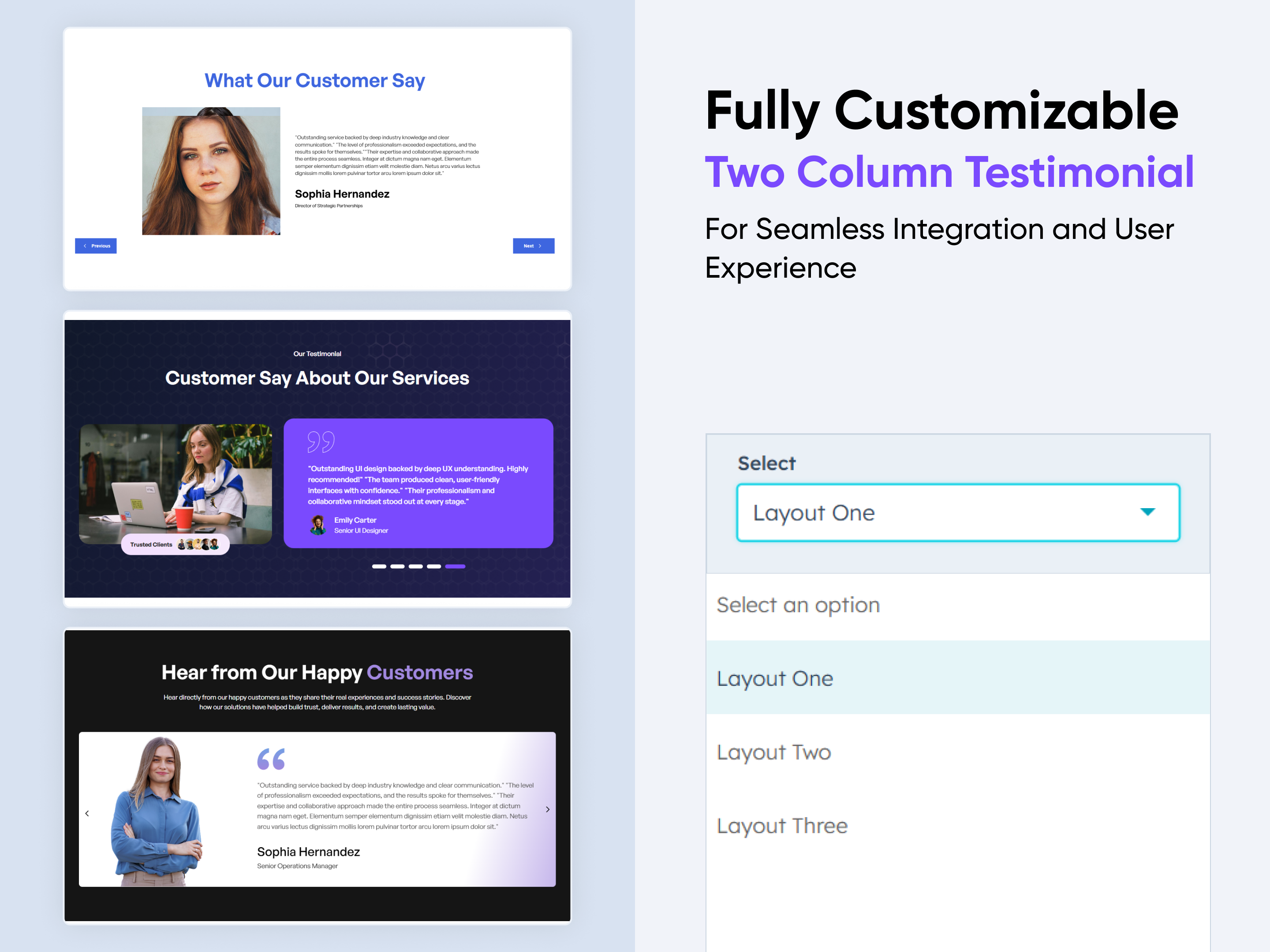
Infinity Testimonial Slider
Content | CTA Testimonial | Image |
Infinity Testimonial Slider
Price: $29
thumbnails
Heading with CTA Cards
Three Column With Hover Effect
Two Column with Categories

Showcase client feedback in style with the Infinity Testimonial Slider module. Smooth, continuous transitions highlight testimonials in an engaging, modern format that builds trust and enhances credibility.


Key Features of a Infinity Testimonial Slider Module :

3 Unique Layout Options – Choose from three beautifully crafted slider layouts to match any design style.

Fully Mobile Responsive – Seamlessly adapts to all screen sizes for the best viewing experience.

Infinite Auto Slide – Testimonials slide automatically in a smooth, endless loop.

Mobile Slide Dots Option – Optional navigation dots enhance mobile usability.

Modern & Clean Design – Sleek, contemporary styling fits perfectly into any modern website.

Easy to Edit – Quickly customize content, styles, and settings without hassle.

Easy to Integrate – Simple setup and integration into any page or theme.

Optimized for Performance – Lightweight and fast for smooth transitions and loading.


How to Set Up the Infinity Testimonial Slider in HubSpot :

In the main dashboard, go to the ‘Content’ tab and select either ‘Website’ or ‘Landing Pages,’ depending on where you want to add the section. This lets you choose the right location for managing or updating your content.

Select the page where you want to apply the module.

Screenshot (20)

Search for "Infinity Testimonial Slider" and drag and drop the module into the desired location on your page.

easy-add

Module Defaults Options: 

Layout ID :

Easily enhance navigation by adding an ID to the target section and using the same ID in an anchor link. This enables a smooth scrolling effect when users click a Call-to-Action (CTA) button, improving the overall user experience.

id

Layout Options :  

For the Infinity Testimonial Slider, select your preferred layout (e.g., Layout 1, Layout 2 or Layout 3). Easily rearrange event cards within the chosen layout to achieve the perfect content flow and visual arrangement, ensuring a seamless and engaging user experience.

Options : 

  • Layout 1 : The layout features a subheading, heading and CTA, infinity slider cards format.
  • Layout 2 : The layout features a heading and description, with client review infinity slider cards.
  • Layout 3 : The layout includes a heading and description, with feedbacks slider cards in a two-row format.

l-option

Heading/Description & CTA : 

You can change the heading and description text with show/hide also in Layout One, And Call-to-Action (CTA) with the option to show or hide it, allowing for a flexible and customizable user experience.

  • Update the heading, description and CTA
  • Customize the slider column content (text, images, etc.)
  • Easily manage and organize how content is shown based on user interaction

heading-1

card

Module Style Options: 

Module Setting :

Adjust the margins, padding and background colors to achieve your desired look and feel for the module. This flexibility lets you fine-tune the layout and aesthetics, ensuring your design is both visually appealing and user-friendly.

m-option

Heading & Description Setting :

In this module, you have full flexibility to customize the heading and description to perfectly align with your design vision. You can easily adjust the spacing around the text, apply text transformations such as uppercase or lowercase, define the maximum width for better content flow, and set the alignment (left, center, or right) to create the ideal layout. These options ensure your content remains visually balanced and responsive across all devices.

  • Text Styling Options
    Set font size, color, spacing, and apply text transforms like uppercase or capitalize.
  • Responsive Alignment
    Align your content (left, center, or right) for both desktop and mobile devices.
  • Max Width Control
    Limit the width of the heading and description to maintain clean, readable layouts.
  • Spacing Adjustments
    Add padding or margins around your content to create visual balance.

h-style

Slider Card Setting :

You have full control over customizing the column box to align with your design preferences. Adjust the background, spacing, border, corners, and box shadow to create the perfect look for your layout. Tailor these elements to ensure your content stands out and blends seamlessly with the rest of your design.

  • Background Customization
    Choose a solid color, gradient, or even an image background for your column box.
  • Spacing Control
    Adjust the padding and margin to create the ideal distance between elements and prevent overcrowding.
  • Border Styling
    Set borders with customizable width, color, and style to frame your content attractively.
  • Corner Radius
    Round the corners to create smooth, modern edges for a softer design.
  • Box Shadow
    Add depth with a box shadow to make your content appear elevated or to create a subtle floating effect.

card-s

Content Setting :

Take full control over your column content by customizing the typography, spacing, and alignment to match your brand's design style. You can adjust text transform options, icon size to make them stand out. Whether you’re updating typography, or configuring borders every detail can be tailored for a cohesive and visually appealing look.

  • Typography Customization
    Adjust font size, style, and color for headings, descriptions, and other text elements to create a consistent visual identity.
  • Spacing & Alignment
    Control padding, margin, and text alignment to ensure optimal content positioning and balance.
  • Text Transform
    Modify text case and style (uppercase, lowercase, capitalize) for better readability and emphasis.
  • Icon
    Customize the icon size and alignment to match your brand’s color palette and enhance the overall design.
  • Clients Info
    Customize the profile image, name and website.

con-setting

We hope you enjoy using our infinity testimonial slider module to create a seamless experience for both your users and your marketing team. At Code Accelerator, we're committed to ensuring your HubSpot experience is exceptional. If you need a custom HubSpot module or require a tailored HubSpot CMS or CRM setup, please don’t hesitate to Contact Us.

Module Tags: Content | CTA Testimonial | Image |
Discover More in the Knowledge Base

Explore detailed documentation, setup instructions, feature explanations, and best practices to help you get the most out of this module quickly and efficiently.
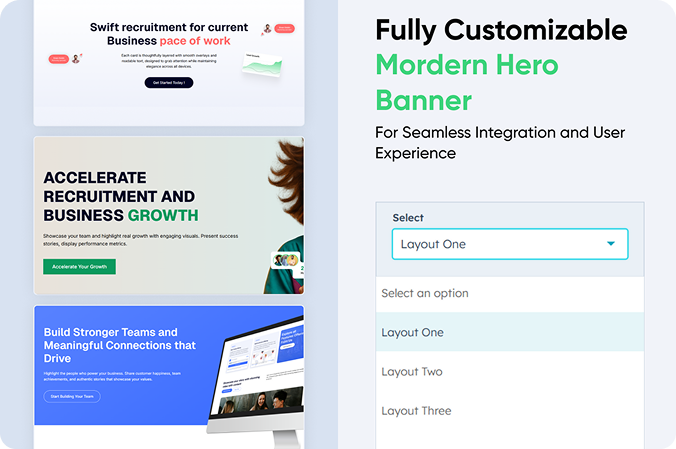
Events List Premium
Events List Premium
Columns | Content | CTA | Image | Tab | Events |
Events List Premium
Price: $39
Frame 427318346
Three Column With Categories
Three Column With Hover Effect
Two Column with Categories

A feature-rich, responsive event listing system designed to give users a seamless way to explore upcoming happenings. Perfect for organizations, communities, and brands that run multiple events across locations and timeframes.


Key Features of a Events List Premium Module :

🧩4 Layout Options

  • Choose from four professionally designed layouts.

  • Tailored for different use cases — from compact card views to full-detail layouts.

🎯 Advanced Filtering

Each layout includes built-in filters for:

  • Location – Narrow events by city, region, or venue.

  • Month – View events based on upcoming or specific months.

  • Category – Filter by event types (e.g., Webinar, Workshop, Conference).

  • Tab Option – Choose tabbed filtering for clean, fast navigation between categories.

📱 Fully Responsive

  • Mobile-first design adapts beautifully across devices.

  • Ensures touch-friendly interaction and smooth filtering on smaller screens.

How to Set Up the Events List Premium Module in HubSpot :

In the main dashboard, go to the ‘Content’ tab and select either ‘Website’ or ‘Landing Pages,’ depending on where you want to add the section. This lets you choose the right location for managing or updating your content.

Select the page where you want to apply the module.

Screenshot (20)

Search for "Events List Premium" and drag and drop the module into the desired location on your page.

Module Defaults Options: 

Layout ID :

Easily enhance navigation by adding an ID to the target section and using the same ID in an anchor link. This enables a smooth scrolling effect when users click a Call-to-Action (CTA) button, improving the overall user experience.

Layout Options :  

For the Event list, select your preferred layout (e.g., Layout 1, Layout 2, Layout 3 or Layout 4). Easily rearrange event cards within the chosen layout to achieve the perfect content flow and visual arrangement, ensuring a seamless and engaging user experience.

Options : 

  • Layout 1 : The layout features a heading and description, along with both filter and tab options, displayed in a three-column format.
  • Layout 2 : The layout features a subheading, heading, and description, with both filter and tab options, displayed in a three-column format enhanced by hover content effects.
  • Layout 3 : The layout includes a heading and description, with both filter and tab options presented in a two-column format for clear and organized content display.
  • Layout 4 : The layout features a heading and description, along with both filter and tab options, arranged in a clean single-column format for streamlined content presentation.

Content :

You can easily update the heading and description, customize the column content to match your needs, and choose between tab or filter options for a more dynamic and user-friendly content display.

  • Update the heading and description
  • Customize the column content (text, images, CTAs, etc.)
  • Choose between tab or filter options to display content
  • Easily manage and organize how content is shown based on user interaction

Module Style Options: 

Module Setting :

Adjust the margins, padding, background colors, and container width to achieve your desired look and feel for the module. This flexibility lets you fine-tune the layout and aesthetics, ensuring your design is both visually appealing and user-friendly.

Heading & Description Setting :

In this module, you have full flexibility to customize the heading and description to perfectly align with your design vision. You can easily adjust the spacing around the text, apply text transformations such as uppercase or lowercase, define the maximum width for better content flow, and set the alignment (left, center, or right) to create the ideal layout. These options ensure your content remains visually balanced and responsive across all devices.

  • Text Styling Options
    Set font size, color, spacing, and apply text transforms like uppercase or capitalize.
  • Responsive Alignment
    Align your content (left, center, or right) for both desktop and mobile devices.
  • Max Width Control
    Limit the width of the heading and description to maintain clean, readable layouts.
  • Spacing Adjustments
    Add padding or margins around your content to create visual balance.

Search Filter Or Tab Setting :

You can fully customize the typography for your tabs or search elements to create a seamless design that matches your brand. This feature gives you the flexibility to control various typographic styles and ensure your content is both visually appealing and easy to read across all devices.

  • Typography Control
    Adjust font styles, sizes, weights, and colors to ensure consistency with your overall design.
  • Spacing Options
    Modify line height, and padding around text to improve readability and enhance the layout.
  • Hover & Active States
    Customize hover effects and active tab states with different styles, colors, or underlines for a dynamic user experience.
  • Font Transformations
    Apply text transforms (uppercase, lowercase, capitalize) for added emphasis and style consistency.

Column Setting :

You have full control over customizing the column box to align with your design preferences. Adjust the background, spacing, border, corners, and box shadow to create the perfect look for your layout. Tailor these elements to ensure your content stands out and blends seamlessly with the rest of your design.

  • Background Customization
    Choose a solid color, gradient, or even an image background for your column box.
  • Spacing Control
    Adjust the padding and margin to create the ideal distance between elements and prevent overcrowding.
  • Border Styling
    Set borders with customizable width, color, and style to frame your content attractively.
  • Corner Radius
    Round the corners to create smooth, modern edges for a softer design.
  • Box Shadow
    Add depth with a box shadow to make your content appear elevated or to create a subtle floating effect.

Content Setting :

Take full control over your column content by customizing the typography, spacing, and alignment to match your brand's design style. You can adjust text transform options, fine-tune icon colors, and style the Call-to-Action (CTA) elements to make them stand out. Whether you’re updating typography, adding backgrounds, or configuring borders and hover effects, every detail can be tailored for a cohesive and visually appealing look.

  • Typography Customization
    Adjust font size, style, and color for headings, descriptions, and other text elements to create a consistent visual identity.
  • Spacing & Alignment
    Control padding, margin, and text alignment to ensure optimal content positioning and balance.
  • Text Transform
    Modify text case and style (uppercase, lowercase, capitalize) for better readability and emphasis.
  • Icon Color
    Customize the icon color to match your brand’s color palette and enhance the overall design.
  • CTA Styling
    Tailor the appearance of your Call-to-Action buttons, including typography, background color, border, corner radius, and hover effects to make them more engaging and interactive.

We hope you enjoy using our events list premium module to create a seamless experience for both your users and your marketing team. At Code Accelerator, we're committed to ensuring your HubSpot experience is exceptional. If you need a custom HubSpot module or require a tailored HubSpot CMS or CRM setup, please don’t hesitate to Contact Us.

Module Tags: Columns | Content | CTA | Image | Tab | Events |
Discover More in the Knowledge Base

Explore detailed documentation, setup instructions, feature explanations, and best practices to help you get the most out of this module quickly and efficiently.
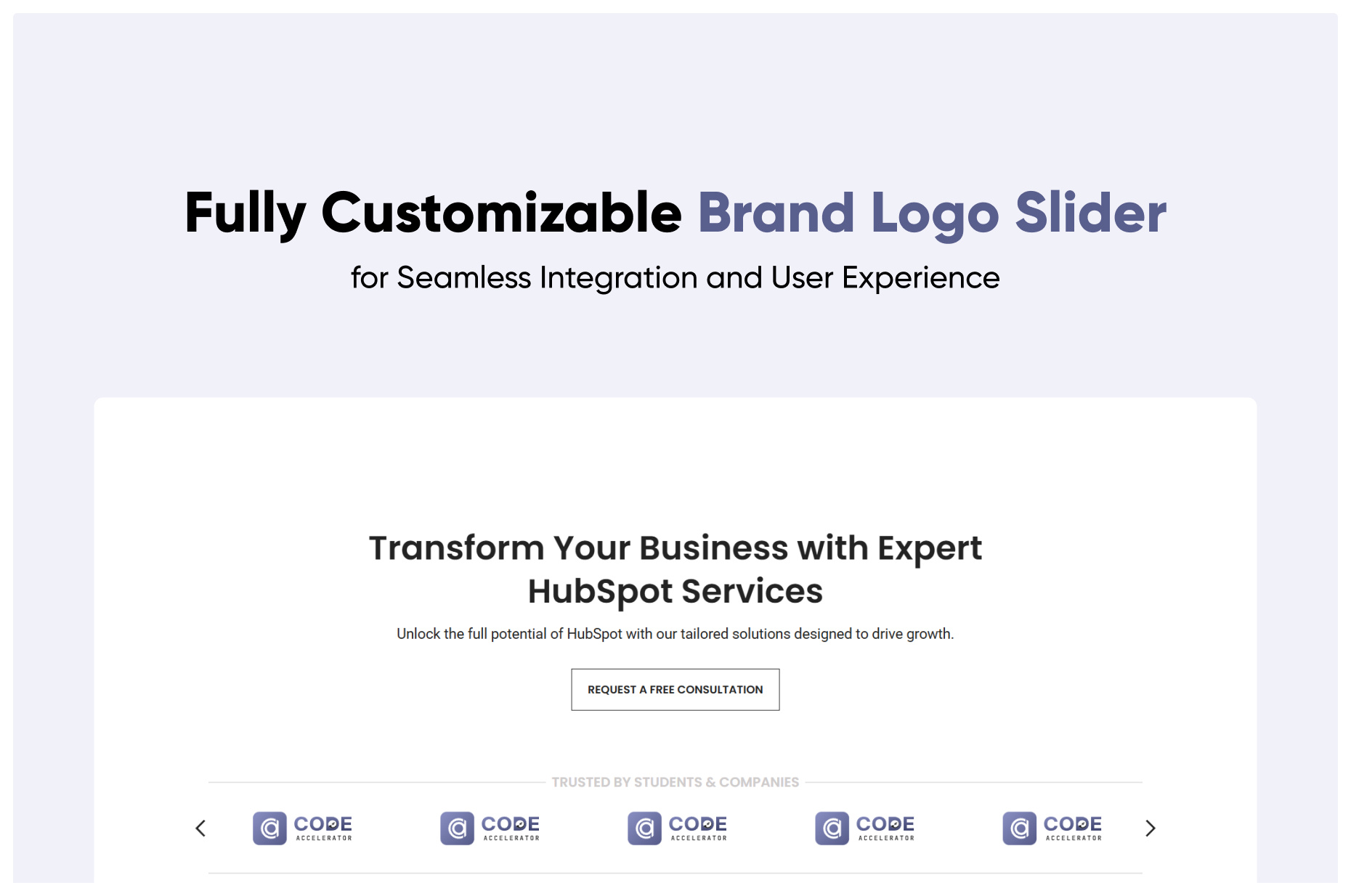
 Download eBook Now
Download eBook Now
EBook | Download | Content | Columns | Steps |
Download eBook Now
Price: $19
E-book Thumbnail
Two Column With Left Image-1
Four Column Section Download Button-1
Two Column with CTA-1

In today’s digital world, giving away free eBooks is a fantastic way to connect with your audience and generate leads! Creating a friendly "Download eBook Now" module makes it super easy for people to access valuable content while helping you capture those important leads.We're excited to help you create your very own custom HubSpot module for downloading eBooks. It’s super simple, and we’ll walk you through each step. Let’s dive in! 

⚙️ Key Features at a Glance

✅ 4 layout variations with individual styling controls

✅ Fully responsive design across mobile, tablet, and desktop

✅ Upload your eBook image or icon for visual appeal

✅ Clean code and developer-friendly structure

🧩 4 Ready-to-Use Layouts – Customize Your Way!

Our module offers four fun layout options, each designed to suit different needs, looks, and sections of your page:

1. Two Column  
   Enjoy a combination of left side content with a CTA and a neat list style.

2. Two Column with Image  
   Eye-catching left side image paired with engaging right side content that includes a heading and CTA, topped off with a lovely       image below.

3. 4 Column Cards
   Create a vibrant layout with four cards featuring a stylish design, complete with an eye-catching image on top and a download     icon below.

4. Two Column Cards
   Two beautifully designed cards with an attractive background! Each card has a left side image and a right side with text and a        compelling CTA to grab attention.


Every layout comes with its own style settings, making it super easy for you to personalize:

- Background and text colors
- Padding and spacing
- Button styles
- Typography 
- Image alignment and size

No design skills? No worries! Everything is easy to edit right in the HubSpot editor. Have fun customizing!

How to Set Up the Download eBook Now in HubSpot :

In the main dashboard, go to the ‘Content’ tab and select either ‘Website’ or ‘Landing Pages,’ depending on where you want to add the section. This lets you choose the right location for managing or updating your content.

Select the page where you want to apply the module.

layout-1

Search for "Download eBook Now" and drag and drop the module into the desired location on your page.

layout-1-1

Module Defaults Options: 

Layout ID :

Easily enhance navigation by adding an ID to the target section and using the same ID in an anchor link. This enables a smooth scrolling effect when users click a Call-to-Action (CTA) button, improving the overall user experience.

layout-2-1

Layout Options :  

For the Banner Pro, select your preferred layout (e.g., Layout 1, Layout 2, Layout 3, Layout 4 ). Easily rearrange event cards within the chosen layout to achieve the perfect content flow and visual arrangement, ensuring a seamless and engaging user experience.

layout-3-1

Options : 

  • Layout 1 : The layout features a heading and description with repeatable list content and CTA , along with an image displayed on the right side for a balanced and engaging design.
    LayoutOne
  • Layout 2 : Eye-catching left side image paired with engaging right side content that includes a heading and CTA, topped off with a lovely image below.

    LayoutTwo
  • Layout 3 :  Create a vibrant layout with four cards featuring a stylish design, complete with an eye-catching image on top and a download icon below.

    LayoutThree
  • Layout 4 : Two beautifully designed cards with an attractive background! Each card has a left side image and a right side with text and a compelling CTA to grab attention.

    LayoutFour

Heading/Description & CTA Content : 

You can modify the heading, description, and CTA with the flexibility to show or hide each element as needed.

layout-4

Image Column :

You can select and customize the column image according to your preferences, ensuring it aligns perfectly with your design.

layout-5-1

Column Content :

In Layout 3, you can add column content with multiple repeatable Card, offering greater flexibility and dynamic layout options to suit your content needs.

layoutColumnContent

Column Content :

In Layout 4, you can add column content with multiple repeatable content card, offering greater flexibility and dynamic layout options to suit your content needs.

layouyContent_column

Module Style Options: 

Module Setting :

Adjust the margins, padding, background , and container width to achieve your desired look and feel for the module. This flexibility lets you fine-tune the layout and aesthetics, ensuring your design is both visually appealing and user-friendly.

layout-6-1

Heading/Description & CTA Setting :

Users can customize spacing and adjust typography for the heading, description, and CTA. This includes modifying color, font size, weight, and line height for both mobile and desktop views—ensuring a personalized, visually cohesive design across all devices.

layout-7-1

Left List Content Setting :

In Layouts 1, you can customize the left column list by setting the color, desktop and mobile typography  and spacing, allowing it to align seamlessly with your design preferences.

Screenshot 2025-04-07 at 5.57.12 PM

Image Column Setting :

Easily customize the image height for desktop and mobile view, and rounded corners to achieve the perfect look for your design. It's available in layout 1 and 2.

layout-12

Content Column Setting :

Easily customize the image height for desktop and mobile view, and rounded corners to achieve the perfect look for your design. It's available in layout 3 and 4.

Screenshot 2025-04-07 at 6.07.08 PM

We hope you enjoy using our two column module to create a seamless experience for both your users and your marketing team. At Code Accelerator, we're committed to ensuring your HubSpot experience is exceptional. If you need a custom HubSpot module or require a tailored HubSpot CMS or CRM setup, please don’t hesitate to Contact Us.

Module Tags: EBook | Download | Content | Columns | Steps |
Discover More in the Knowledge Base

Explore detailed documentation, setup instructions, feature explanations, and best practices to help you get the most out of this module quickly and efficiently.
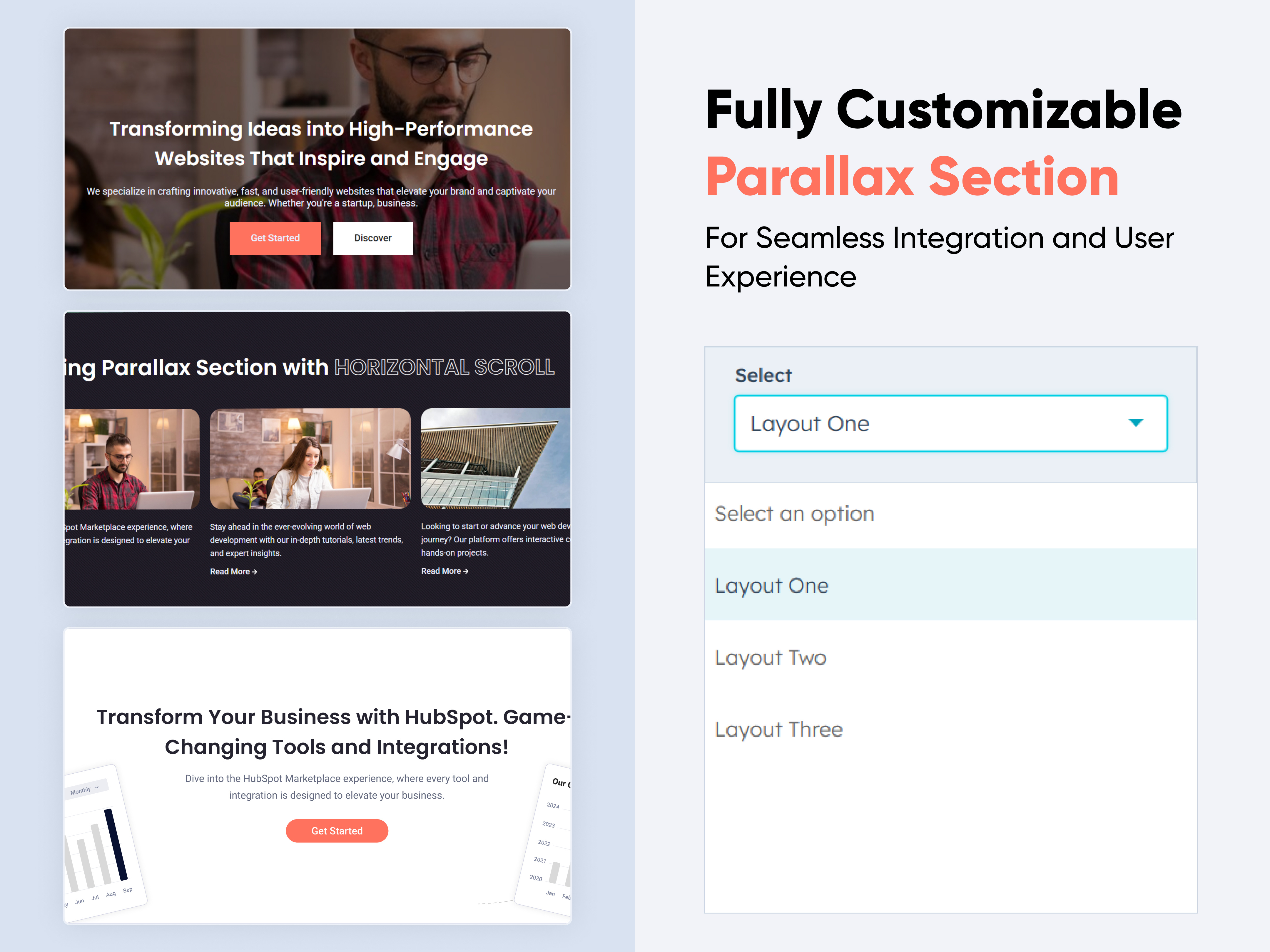
Tabbed Info Display
Tabbed Info Display
Columns | Content | CTA | Image |
Tabbed Info Display
Price: $29
01 thumbnail-May-12-2025-07-27-37-3532-AM
Two Column Content with  Right Image-1
Two Column Content, List With Image-1
Two Column Steps with Animation

A Tabbed Info Display is a flexible and visually balanced structure where content is split into two vertical sections — typically for combining text, images, and interactive elements. It enhances clarity, storytelling, and user engagement.


Key Features of a Tabbed Info Display Module :

🧩 Multiple Layouts

  • Various column orientations: text left/image right, image left/text right, centered content, staggered steps, etc.

  • Adaptable for landing pages, product intros, service descriptions, and more.

📄 Content with List + Right Column Image

  • Left column: bullet points, icons, or descriptive content.

  • Right column: static or animated image (e.g., feature breakdown, benefits list).

🔢 Background Content with Number Value + Right Image

  • Content appears over a background color or image.

  • Includes numerical highlights (e.g., stats, KPIs) and supporting visuals in the right column.

🖼️ Content on Background Image with Multiple CTAs + Left Side Image

  • Left column: product or hero image.

  • Right column: background image, layered content, and multiple buttons for different user actions (e.g., "Learn More", "Get Started").

🔁 Repeating Content with Step-by-Step + Animated Images

  • A vertically stacked, two-column layout with steps (1-2-3...) and accompanying animated images or icons.

  • Great for onboarding flows, process explanations, or feature walkthroughs.

How to Set Up the Tabbed Info Display Module in HubSpot :

In the main dashboard, go to the ‘Content’ tab and select either ‘Website’ or ‘Landing Pages,’ depending on where you want to add the section. This lets you choose the right location for managing or updating your content.

Select the page where you want to apply the module.

Screenshot (20)

Search for "Tabbed Info Display" and drag and drop the module into the desired location on your page.

ss105

Module Defaults Options: 

Layout ID :

Easily enhance navigation by adding an ID to the target section and using the same ID in an anchor link. This enables a smooth scrolling effect when users click a Call-to-Action (CTA) button, improving the overall user experience.

Layout Options :  

For the Tabbed Info Display, select your preferred layout (e.g., Layout 1, Layout 2, Layout 3, Layout 4 or Layout 5). Easily rearrange event cards within the chosen layout to achieve the perfect content flow and visual arrangement, ensuring a seamless and engaging user experience.

Options : 

  • Layout 1 : The layout features a heading and description with repeatable list content, along with an image displayed on the right side for a balanced and engaging design.
  • Layout 2 : The layout features a heading and description with repeatable list content with icon, along with an image displayed on the right side for a balanced and engaging design.
  • Layout 3 : The layout features a heading, description, and multiple CTAs, with the option to include an image in the left column for added visual impact.
  • Layout 4 : The layout features a heading, description, and CTA, with a two-column option. You can add a number value with a description on the left, and an image on the right for a visually appealing layout.
  • Layout 5 : The layout features a step number, heading, description, and CTA, accompanied by an image on the right. Content can be repeated multiple times with smooth animations for an engaging user experience.

Heading/Description & CTA Content : 

You can modify the heading, description, and CTA with the flexibility to show or hide each element as needed.

List Column Content :

You can add multiple list items with descriptions and icons, and choose to show or hide them based on your specific requirements. It's Available in layout 1 and 2.

Counter Column Content :

In Layout 4, you can add a counter value and content in the left column, with the flexibility to show or hide them as needed.

Image Column :

You can select and customize the column image according to your preferences, ensuring it aligns perfectly with your design.

Column Content :

In Layout 5, you can add column content with multiple repeatable items, offering greater flexibility and dynamic layout options to suit your content needs.

Module Style Options: 

Module Setting :

Adjust the margins, padding, background colors, and container width to achieve your desired look and feel for the module. This flexibility lets you fine-tune the layout and aesthetics, ensuring your design is both visually appealing and user-friendly.

Heading/Description & CTA Setting :

Users can customize spacing and adjust typography for the heading, description, and CTA. This includes modifying color, font size, weight, and line height for both mobile and desktop views—ensuring a personalized, visually cohesive design across all devices.

Left Column List Setting :

In Layouts 1, you can customize the left column list by setting the background color, border radius, border, and spacing, allowing it to align seamlessly with your design preferences.

Left List Content Setting :

In Layouts 1 and 2, you can customize the list title and description by adjusting typography, color, line height, spacing, and text transform to perfectly suit your design needs

Counter Content Setting :

In Layout 4, you can customize the typography of the left column's bottom content, including the value number and text. Adjust font size, line height, spacing, text transform, and apply a vertical border style to align with your design preferences.

Left Column Setting :

In Layout 4, you can set the background color, spacing, border, and border radius in the left column to match your desired styling and layout preferences.

Image Column Setting :

Easily customize the image height for desktop and mobile view, and rounded corners to achieve the perfect look for your design. It's available in layout 1, 2, 3 and 4.

Right Column Setting :

You can customize the right column by adjusting spacing, border radius, and border settings. Additionally, choose a background option—either an image or a solid color—to match your design preferences. It's available in layout 3.

Content Setting :

In Layout 5, you can customize the left column content typography for both desktop and mobile, including options for color, font size, spacing, text transform, and alignment to ensure a consistent and responsive design.

We hope you enjoy using our Tabbed Info Display module to create a seamless experience for both your users and your marketing team. At Code Accelerator, we're committed to ensuring your HubSpot experience is exceptional. If you need a custom HubSpot module or require a tailored HubSpot CMS or CRM setup, please don’t hesitate to Contact Us.

Module Tags: Columns | Content | CTA | Image |
Discover More in the Knowledge Base

Explore detailed documentation, setup instructions, feature explanations, and best practices to help you get the most out of this module quickly and efficiently.
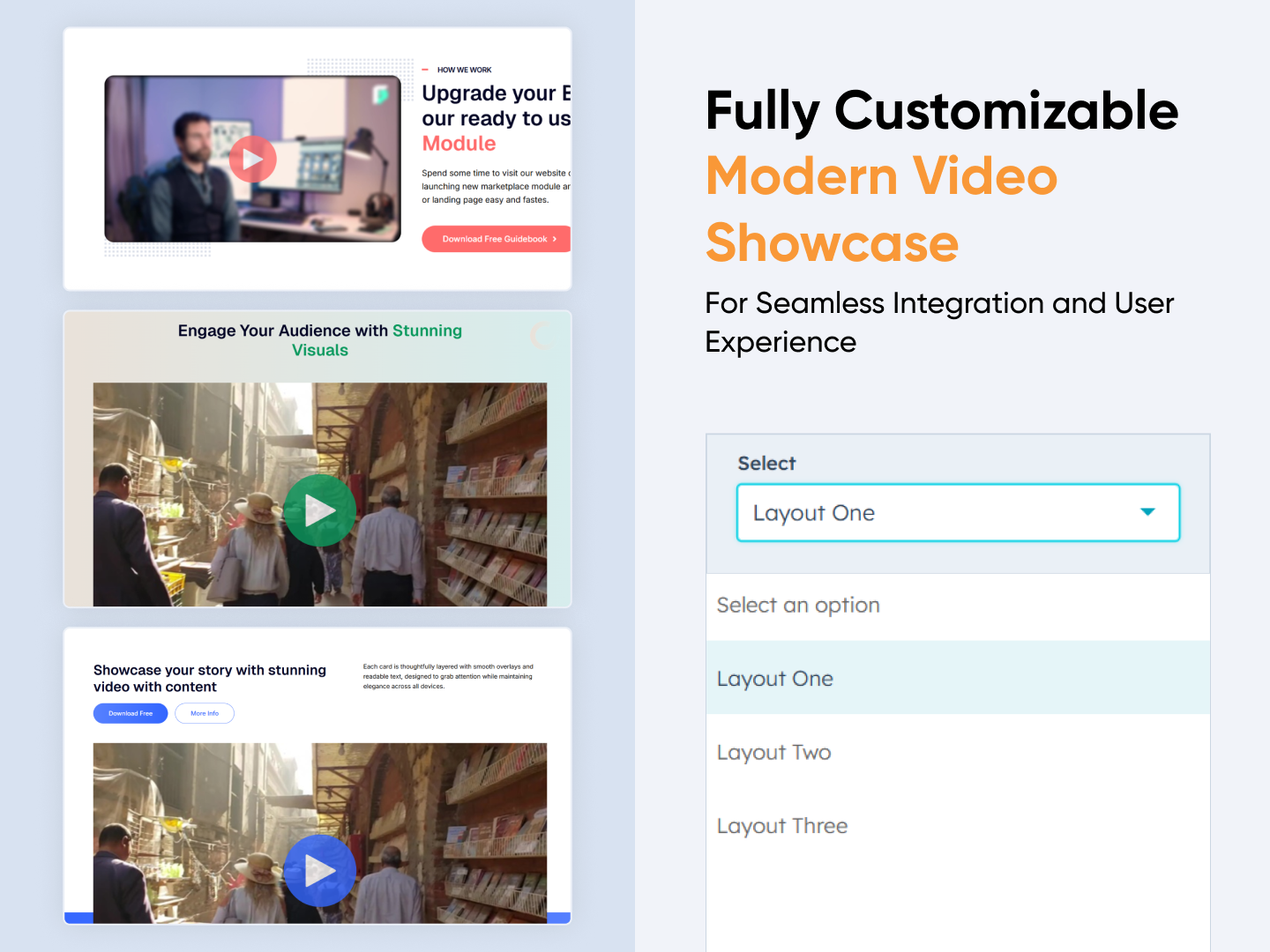
Banner Pro
Banner Pro
Video | Banner | Hero Banner | CTA | Image Content
Banner Pro Thumbnail
Two Column Content with Video Popup
Banner with Background Video
Content with Column Video

A banner component is a versatile UI element used to highlight key messages, promotions, or branding on a website. It provides a visually appealing way to capture user attention and drive engagement.


Key Features of a Banner Pro Module :

1. Multiple Layouts

  • Offers flexibility with various design structures banners.

  • Can accommodate different content types like text, images, and pop video.

2. CTA Popup with Video

  • A call-to-action button that triggers a video popup.

  • Enhances user engagement by presenting multimedia content without leaving the page.

3. Background Video Banner

  • A dynamic banner featuring an autoplay video as the background.

  • Helps create a more immersive experience, perfect for storytelling or branding.

4. Two-Column Content with Video

  • A hybrid layout that pairs descriptive content with an embedded video.
  • Useful for product showcases, tutorials, or company introductions.

How to Set Up the Banner Pro Module in HubSpot :

In the main dashboard, go to the ‘Content’ tab and select either ‘Website’ or ‘Landing Pages,’ depending on where you want to add the section. This lets you choose the right location for managing or updating your content.

Select the page where you want to apply the module.

Screenshot (20)

Search for "Banner Pro" and drag and drop the module into the desired location on your page.

Module Defaults Options: 

Layout ID :

Easily enhance navigation by adding an ID to the target section and using the same ID in an anchor link. This enables a smooth scrolling effect when users click a Call-to-Action (CTA) button, improving the overall user experience.

Layout Options :  

For the Banner Pro, select your preferred layout (e.g., Layout 1, Layout 2, or Layout 3). Easily rearrange event cards within the chosen layout to achieve the perfect content flow and visual arrangement, ensuring a seamless and engaging user experience.

Options : 

  • Layout 1 : The layout features a heading, description, and multiple CTAs with link and popup options, along with an image for a dynamic and engaging design.
  • Layout 2 : The layout includes a heading, description, and CTA. In the right column, you can add a HubSpot or YouTube video for an interactive user experience.
  • Layout 3 : The layout features a heading, description, and CTA, with the option to add a background video for a dynamic and engaging visual experience.

Banner Content : 

Easily customize all banner content, including the heading, description, CTA, image columns, popup content video options, and background video for a fully personalized and engaging design.

jQuery Add/Remove :

Users can add or remove jQuery JavaScript as needed, providing flexibility to enhance functionality or optimize performance based on their requirements.

Module Style Options: 

Module Setting :

Adjust the margins, padding, background colors, and container width to achieve your desired look and feel for the module. This flexibility lets you fine-tune the layout and aesthetics, ensuring your design is both visually appealing and user-friendly.

Heading & Description Setting :

Users can customize the module’s spacing and adjust the typography for the heading and description. This includes modifying the color, font size, weight, and line height for both mobile and desktop views, ensuring a personalized and visually cohesive design across all devices.

CTA Setting :

Easily adjust typography and spacing for both desktop and mobile views. Enhance your design with custom colors, borders, rounded corners, and hover effects for a polished and interactive user experience.

Image Column :

Easily customize the image height, alignment, spacing, and rounded corners to achieve the perfect look for your design. It's available in layout 1.

Popup Setting :

Effortlessly adjust typography and spacing for both desktop and mobile views. Enhance your design with custom colors, borders, rounded corners, and hover effects for a visually appealing and interactive experience. It's available in layout 1.

Video Column Setting :

Easily customize the video height, corners, background, and spacing to match your design preferences. Available in Layout 2.

We hope you enjoy using our banner pro module to create a seamless experience for both your users and your marketing team. At Code Accelerator, we're committed to ensuring your HubSpot experience is exceptional. If you need a custom HubSpot module or require a tailored HubSpot CMS or CRM setup, please don’t hesitate to Contact Us.

Module Tags: Video | Banner | Hero Banner | CTA | Image Content
Discover More in the Knowledge Base

Explore detailed documentation, setup instructions, feature explanations, and best practices to help you get the most out of this module quickly and efficiently.
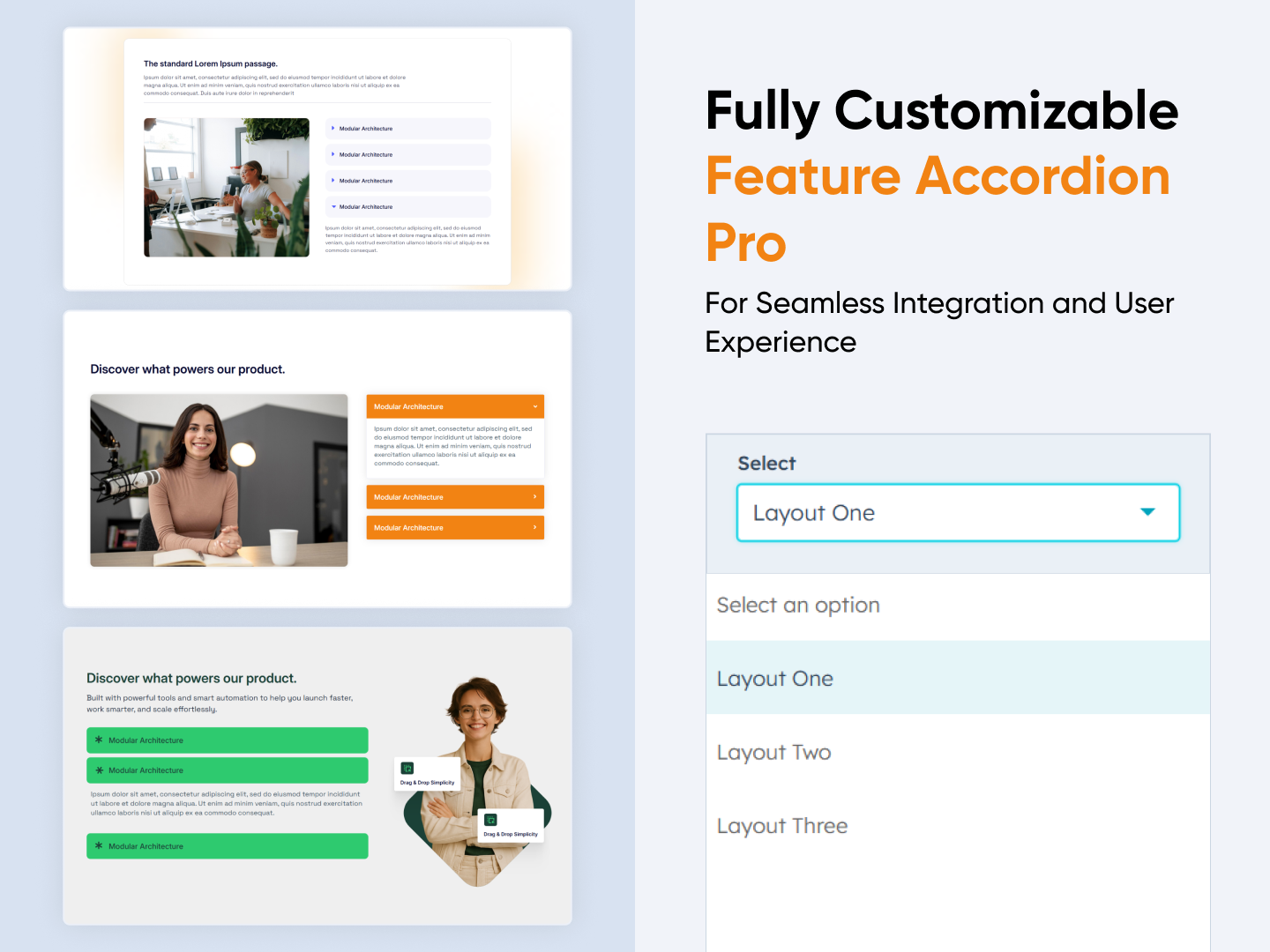
Sliding Animation Cards
Slider | Animation | Columns | Content | CTA |
Sliding Animation Cards
Price: $29
01 thumbnail-Mar-11-2025-11-00-20-2946-AM
02 thumbnail-2
Two Column with Background Color
Three Column with Background Image

A Sliding Animation Cards module is a UI component that features cards moving in a sliding motion, often used for showcasing content like images, text, or product listings dynamically.

Key Features of a Sliding Animation Cards Module :

  • Smooth Sliding Animation – Cards slide horizontally.

  • Responsive Design – Adjusts based on screen size for mobile and desktop.

  • Hover & Click Effects – Optional animations on interaction.

Use Cases

  • Image Galleries

  • Testimonial Sliders

  • Product Showcases

  • News & Blog Highlights

  • Interactive Dashboards

How to Set Up the Sliding Animation Cards Module in HubSpot :

In the main dashboard, go to the ‘Content’ tab and select either ‘Website’ or ‘Landing Pages,’ depending on where you want to add the section. This lets you choose the right location for managing or updating your content.

Select the page where you want to apply the module.

Screenshot (20)

Search for "Sliding Animation Cards" and drag and drop the module into the desired location on your page.

Module Defaults Options: 

Layout ID :

You can add an ID to the target section and use the same ID in an anchor link to enable a smooth scrolling effect when a user clicks on a Call-to-Action (CTA) button, enhancing navigation and user experience.

Layout Options :  

For Sliding Animation Cards, select your preferred layout (e.g., Layout 1, Layout 2 or  Layout 3). You can easily rearrange the event cards within the chosen layout to create the ideal content flow and visual arrangement.

Options : 

  • Layout 1 : The layout includes three columns only, each featuring a heading, a description with a Call-to-Action (CTA), and a hover effect where the CTA appears with a smooth horizontal slide animation.
  • Layout 2 : The layout includes two columns, each with a heading, a description, and a Call-to-Action (CTA) that appears with a smooth horizontal slide animation on hover, enhancing interactivity and engagement.
  • Layout 3 : The layout features three columns, each containing a heading, a description, and a Call-to-Action (CTA) that smoothly slides in on hover, creating an engaging and interactive user experience.

Content Column :

You can add a minimum of 3 and a maximum of 3 columns, each containing a title, description, and Call-to-Action (CTA) within a repeater content structure for easy customization and consistency.

Module Style Options: 

Module Setting :

Easily adjust the margins, padding, background colors, and container width to achieve your desired look and feel. This flexibility allows you to fine-tune the layout and aesthetics, ensuring a visually appealing and user-friendly design.

Column Setting :

You can customize the Content Column by adjusting the background color, box shadow, spacing, and corner radius, allowing for a polished and visually appealing design.

Heading & Description Setting :

You can customize the typography for both the heading and description by selecting fonts, sizes, and styles that match your design preferences. Additionally, you can adjust spacing for both desktop and mobile views and set the text alignment for optimal readability and aesthetics.

CTA Setting :

You can customize the Call-to-Action (CTA) by adjusting the typography, font size, weight, color, background color, spacing, border, box shadow, and corner radius, ensuring it aligns perfectly with your design and branding.

We hope you enjoy using our sliding animation cards module to create a seamless experience for both your users and your marketing team. At Code Accelerator, we're committed to ensuring your HubSpot experience is exceptional. If you need a custom HubSpot module or require a tailored HubSpot CMS or CRM setup, please don’t hesitate to Contact Us.

Module Tags: Slider | Animation | Columns | Content | CTA |
Discover More in the Knowledge Base

Explore detailed documentation, setup instructions, feature explanations, and best practices to help you get the most out of this module quickly and efficiently.
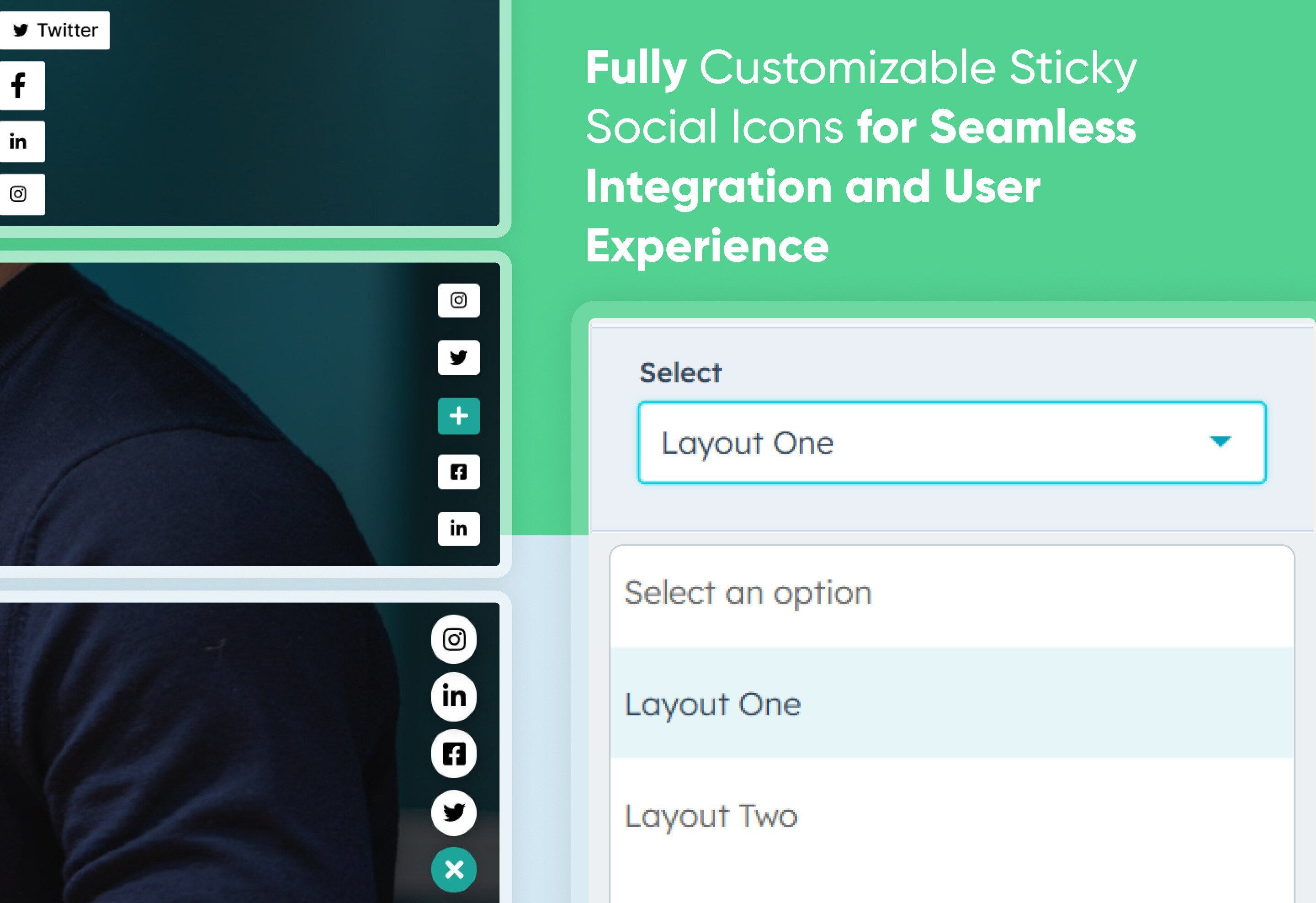
Two Column Steps
Two Column Steps
Steps | Animation | Columns | Tab |
Two Column Steps
Price: $29
Two Column Steps Thumbnail
Columns Steps with Heading Content Section
Heading With Tab Steps Content & Image
Heading With Tab Steps Content & Image Columns

The Two Column Steps Module is designed to present step-by-step information in an organized, user-friendly format. This module is useful for tutorials, onboarding processes, instructional guides, or any content that requires sequential navigation.


Key Features of a Two Column Steps Module :

1️⃣ Step Numbering

  • Each step is distinctly numbered to ensure clarity and easy tracking.

  • The numbering helps users follow the process in a structured way.

2️⃣ Two-Column Layout

  • The left column typically contains the step number and title.

  • The right column provides images with more details.

  • This layout enhances readability and maintains a clean, structured design.

3️⃣ Step with Tab Functionality

  • Each step can include a tab-based navigation system.

  • Tabs can be used to segment additional information without overwhelming the user.

4️⃣ Responsive & Adaptive Design

  • Adjusts seamlessly for different screen sizes, ensuring a smooth experience on desktop and mobile.

  • On smaller screens, the two-column layout may stack vertically for better readability.

5️⃣ Customizable Design

  • Colors, fonts, and step layouts can be customized to match branding and UI design preferences.

  • Step no. or visuals can be added next to steps for improved understanding.

How to Set Up the Two Column Steps Module in HubSpot :

In the main dashboard, go to the ‘Content’ tab and select either ‘Website’ or ‘Landing Pages,’ depending on where you want to add the section. This lets you choose the right location for managing or updating your content.

Select the page where you want to apply the module.

Screenshot (20)

Search for "Two Column Steps" and drag and drop the module into the desired location on your page.

Module Defaults Options: 

Layout ID :

You can add an ID to the target section and use the same ID in an anchor link to enable a smooth scrolling effect when a user clicks on a Call-to-Action (CTA) button, enhancing navigation and user experience.


Layout Options :  

For Parallax, select your preferred layout (e.g., Layout 1, Layout 2 or  Layout 3). You can easily rearrange the event cards within the chosen layout to create the ideal content flow and visual arrangement.

Options : 

  • Layout 1 : The layout features a heading and subheading, with a left-side column that includes a title, step number, and description. On the right side, you can add a column with a subtext, title, description, and an image for a well-structured and visually balanced design.
  • Layout 2 : The layout includes a heading and subheading with tab options, allowing you to add a step number, title, and description. Each step can feature a unique image, creating an interactive and visually engaging experience.
  • Layout 3 : The layout includes a heading with tab options, allowing you to add a step number, title, and description. Each step can feature a unique image, and within the image column, you can add a number value, title, and description for a structured and engaging presentation.

Sub Heading & Heading : 

You have the flexibility to customize the heading and subheading to match your design preferences. Additionally, you can choose to show or hide specific elements as needed for a tailored and dynamic layout. It's available in layout 1 and 2.

Content Column :

Easily customize the number value, title, paragraph, image, and all content to match your preferences. You can also choose to show or hide specific elements as needed for a flexible and dynamic layout. It's available in layout 1.

Steps:

Easily customize the number value, title, paragraph, and image to match your preferences. You can also repeat unlimited tabs and choose to show or hide specific elements for a flexible and dynamic layout. It's available in layout 2 and 3.

jQuery Add/Remove :

Users can add or remove jQuery JavaScript as needed, providing flexibility to enhance functionality or optimize performance based on their requirements.

Module Style Options: 

Module Setting :

Adjust the margins, padding, background colors, and container width to achieve your desired look and feel for the module. This flexibility lets you fine-tune the layout and aesthetics, ensuring your design is both visually appealing and user-friendly.

Sub Heading & Heading Setting :

Users can customize the module’s spacing and adjust the typography for the heading, sub heading. This includes modifying the color, font size, weight, and line height for both mobile and desktop views, ensuring a personalized and visually cohesive design across all devices. This feature is available in Layouts 1 and 2 and heading setting available in all layouts.

Column Setting :

Easily customize the content column by adjusting spacing, and background color to match your design preferences and create a seamless visual experience. It's available in layout 1.

Left Column Content Setting :

Easily customize the column content by selecting a background, adjusting typography, spacing, corners, and adding a box shadow to match your design preferences. Additionally, modify the typography of the step number, title, and description with ease. Available in Layouts 1 and 3.

Right Column Content Setting :

Easily customize the column content by selecting a background, adjusting typography, spacing, corners, and adding a box shadow to match your design preferences. In Layout 3, you can also customize the bottom column on the image by setting typography, spacing, corners, font size, line height, and background for a refined visual experience.

Left Column Setting :

Easily customize the content column by adjusting spacing, corners, and background color to match your design preferences. Available in Layout 2.

Column Content Setting :

Easily customize the column content by selecting a background, adjusting typography, spacing, corners, and adding a box shadow to match your design preferences. Available in Layout 2.

We hope you enjoy using our two column steps module to create a seamless experience for both your users and your marketing team. At Code Accelerator, we're committed to ensuring your HubSpot experience is exceptional. If you need a custom HubSpot module or require a tailored HubSpot CMS or CRM setup, please don’t hesitate to Contact Us.

Module Tags: Steps | Animation | Columns | Tab |
Discover More in the Knowledge Base

Explore detailed documentation, setup instructions, feature explanations, and best practices to help you get the most out of this module quickly and efficiently.
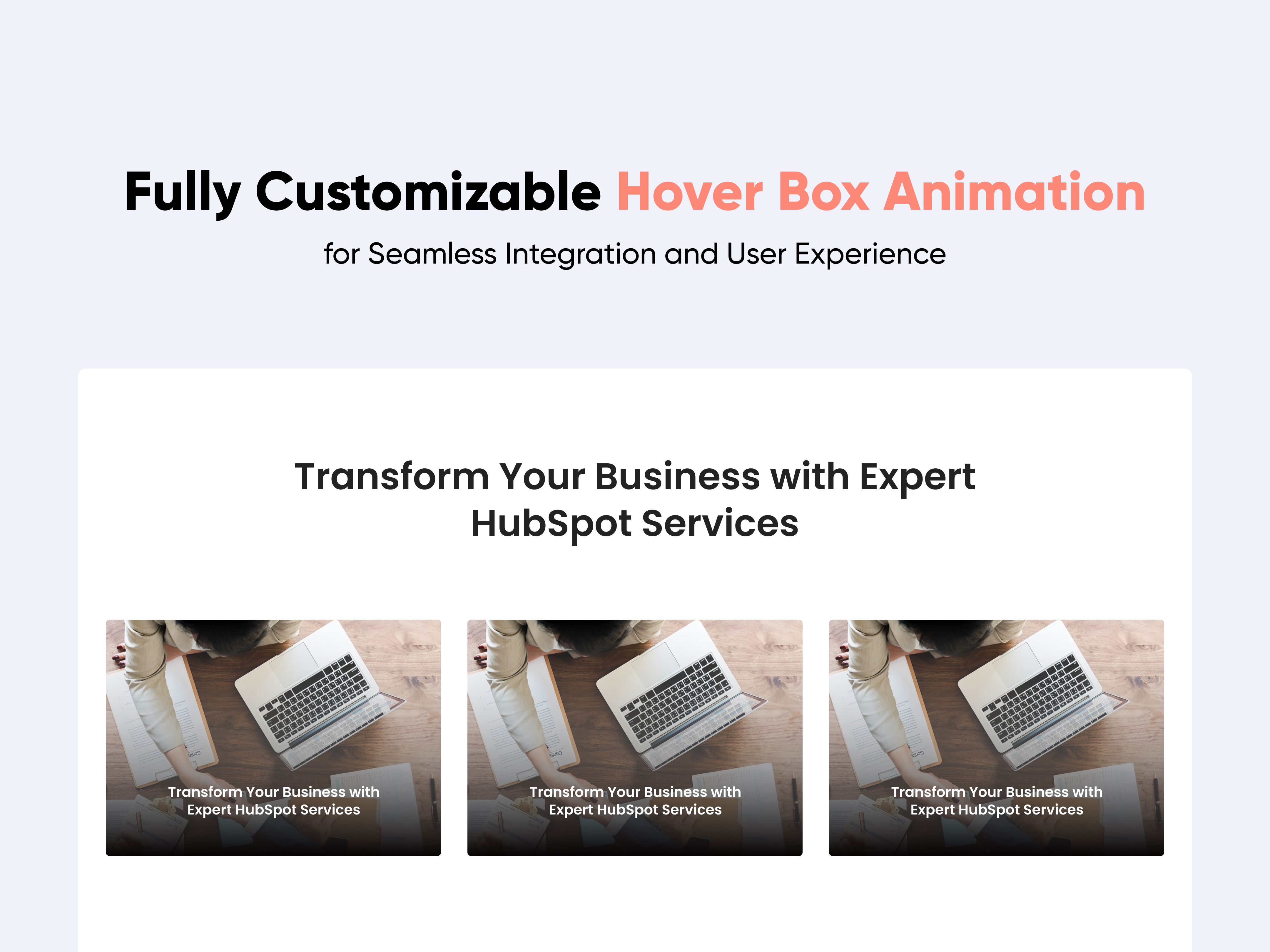
Image Gallery With Animation
Gallery | Image | Animation | Slider |
Image Gallery With Animation
Price: $29
01 thumbnail-Mar-27-2025-05-08-14-7226-AM
Content With Image Gallery Tab Slider
Content with Image Slider
Image Gallery with Horizontal

An Image Gallery with Animation module is a visually appealing and interactive way to display images on a website or application. It enhances user engagement through smooth transitions, effects, and interactive animations.


Key Features of a Image Gallery with Animation Module :

  • Image Display: Supports various image formats (JPEG, PNG, SVG, GIF, WebP

  • Mobile-Friendly: Fully responsive design for different screen sizes. 
  • SEO-Friendly: Supports image alt attributes and structured data.
  • Customizable Styles : Modify colors, borders, and effects easily.
  • Image Captions & Descriptions: Adds titles or descriptions for layouts.
  • Click to Expand: Enlarges an image when clicked.

Use Cases :

  • Portfolio Websites
  • E-commerce Product Galleries
  • Travel & Photography Blogs
  • Corporate Showcases
  • Social Media & Community Platforms

How to Set Up the Image Gallery with Animation Module in HubSpot :

In the main dashboard, go to the ‘Content’ tab and select either ‘Website’ or ‘Landing Pages,’ depending on where you want to add the section. This lets you choose the right location for managing or updating your content.

Select the page where you want to apply the module.

Screenshot (20)

Search for "Image Gallery With Animation" and drag and drop the module into the desired location on your page.

Module Defaults Options: 

Layout ID :

Easily enhance navigation by adding an ID to the target section and using the same ID in an anchor link. This enables a smooth scrolling effect when users click a Call-to-Action (CTA) button, improving the overall user experience.

Layout Options :  

For the Image Gallery with Animation, select your preferred layout (e.g., Layout 1, Layout 2, or Layout 3). Easily rearrange event cards within the chosen layout to achieve the perfect content flow and visual arrangement, ensuring a seamless and engaging user experience.

Options : 

  • Layout 1 : The layout features a heading, description, and CTA, along with a tabbed section displaying slider images for an interactive and visually engaging experience.
  • Layout 2 : The layout includes a heading and description, along with an image slider featuring a zoom effect on the active image for an engaging visual experience.
  • Layout 3 : The layout features a heading and description, complemented by an image click animation with smooth horizontal transitions for an engaging user experience.

Content Column Layout 1 & 3: 

Easily customize all column content, including the subheading, heading, description with CTA, and images, to match your preferences. You can also choose to show or hide elements as needed. In the right column, add images using the tab repeater for a dynamic and flexible layout. Available in Layouts 1 and 3.

Heading & Description :

Easily customize the heading and description to match your preferences, ensuring a personalized and cohesive design. Available in Layout 2.

Content Column Layout 2 :

Easily customize all column content by adjusting text, images, and styles to perfectly align with your design and branding preferences. Available in Layout 2.

jQuery Add/Remove :

Users can add or remove jQuery JavaScript as needed, providing flexibility to enhance functionality or optimize performance based on their requirements.

Module Style Options: 

Module Setting :

Adjust the margins, padding, background colors, and container width to achieve your desired look and feel for the module. This flexibility lets you fine-tune the layout and aesthetics, ensuring your design is both visually appealing and user-friendly.

Column Setting :

Customize the content column by adjusting spacing, borders, corners, and background to match your design preferences. Available in Layout 1.

Column Content Setting :

Customize the heading, subheading, CTA, and image gallery by adjusting typography, spacing, alignment, and text transformation. Additionally, set the image corner radius, border, and height to match your design preferences.

Heading/Description & CTA Setting :

Users can customize the module’s spacing and adjust the typography for the heading and description. This includes modifying the color, font size, weight, and line height for both mobile and desktop views, ensuring a personalized and visually cohesive design across all devices.This feature is available in Layouts 2.

We hope you enjoy using our image gallery with animation module to create a seamless experience for both your users and your marketing team. At Code Accelerator, we're committed to ensuring your HubSpot experience is exceptional. If you need a custom HubSpot module or require a tailored HubSpot CMS or CRM setup, please don’t hesitate to Contact Us.

Module Tags: Gallery | Image | Animation | Slider |
Discover More in the Knowledge Base

Explore detailed documentation, setup instructions, feature explanations, and best practices to help you get the most out of this module quickly and efficiently.
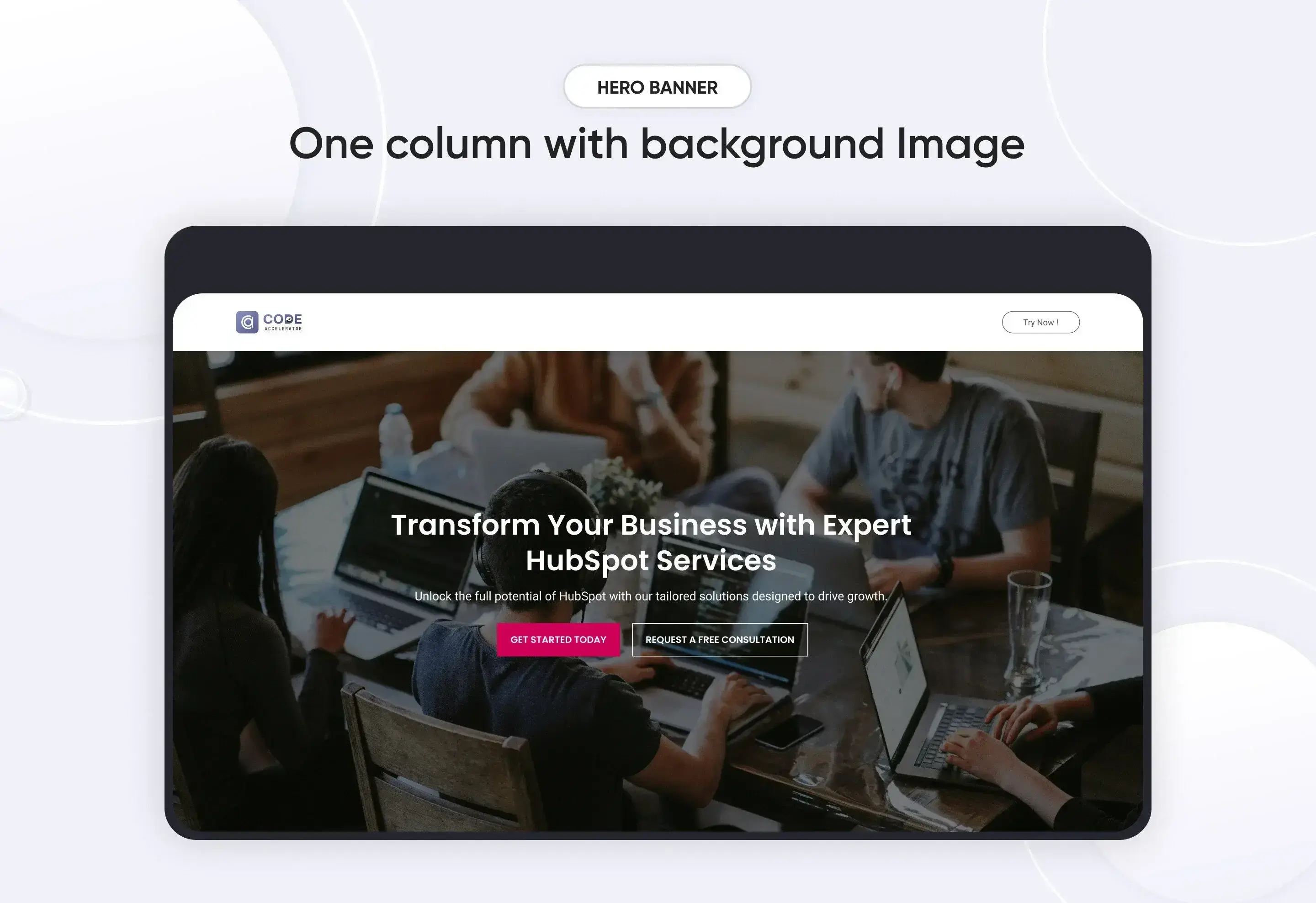
Parallax
Parallax
Parallax | Content | Horizontal | Animation |
Parallax Section Thumbnail
Background with Parallax Effect
Horizontal Scroll
Animation Scroll Effect

A Parallax Module is a web design feature that creates an illusion of depth by making background elements move at a different speed than foreground elements while scrolling. This effect enhances user engagement and visual appeal. 


Key Features of a Parallax Module :

  • Supports horizontal scrolling.

  • Animate elements based on scroll position.

  • Automatically adapts to different screen sizes.

  • Allows disabling parallax effects on smaller devices to improve performance.

  • Change overlay colors and opacity for better text readability.

  • Use ready-made parallax layouts for faster design.

How to Set Up the Parallax Module in HubSpot :

In the main dashboard, go to the ‘Content’ tab and select either ‘Website’ or ‘Landing Pages,’ depending on where you want to add the section. This lets you choose the right location for managing or updating your content.

Select the page where you want to apply the module.

Screenshot (20)

Search for "Parallax" and drag and drop the module into the desired location on your page.

Module Defaults Options: 

Layout ID :

You can add an ID to the target section and use the same ID in an anchor link to enable a smooth scrolling effect when a user clicks on a Call-to-Action (CTA) button, enhancing navigation and user experience.

Layout Options :  

For Parallax, select your preferred layout (e.g., Layout 1, Layout 2 or  Layout 3). You can easily rearrange the event cards within the chosen layout to create the ideal content flow and visual arrangement.

Options : 

  • Layout 1 : The layout includes a heading and description, multiple CTAs, and a parallax background image for an engaging visual experience.
  • Layout 2 : The layout features a heading along with a horizontal column scroll displaying images, content, and CTAs for an interactive experience.
  • Layout 3 : The layout includes a heading, description, CTA, and engaging image animations for a dynamic user experience.

Heading/Description & CTA : 

You can change the heading and description text with show/hide also in Layout Three, you can add a Call-to-Action (CTA) with the option to show or hide it, allowing for a flexible and customizable user experience. 

Slider Column Content :

Easily customize all column content by adjusting text, images, and styles to seamlessly align with your design and branding preferences.

jQuery Add/Remove :

Users can add or remove jQuery JavaScript as needed, providing flexibility to enhance functionality or optimize performance based on their requirements.

Module Style Options: 

Module Setting :

Adjust the margins, padding, background colors, and container width to achieve your desired look and feel for the module. This flexibility lets you fine-tune the layout and aesthetics, ensuring your design is both visually appealing and user-friendly.

Content Wrapper Setting :

You can customize the module by selecting a background of your choice and adjusting settings such as spacing and borders for both desktop and mobile. This feature is available in Layouts 1 and 3.

Heading/Description & CTA Setting :

Users can customize the module’s spacing and adjust the typography for the heading, description, and Call-to-Action (CTA). This includes modifying the color, font size, weight, and line height for both mobile and desktop views, ensuring a personalized and visually cohesive design across all devices.This feature is available in Layouts 1 and 3.

Slider Content Setting :

Easily customize image and content typography, adjust image height, spacing, and corner options. Set typography for content, configure CTAs, and add icons for a personalized design.

Mobile Arrow Setting :

In this layout, you can customize the mobile arrow's image size, background, spacing, border, and corner options. These features are available in Layout 2.

Bottom Image Setting :

In this layout, you can customize the animated image size, adjust its position, and apply transformations for dynamic animations. Available in Layout 3.

We hope you enjoy using our parallax module to create a seamless experience for both your users and your marketing team. At Code Accelerator, we're committed to ensuring your HubSpot experience is exceptional. If you need a custom HubSpot module or require a tailored HubSpot CMS or CRM setup, please don’t hesitate to Contact Us.

Module Tags: Parallax | Content | Horizontal | Animation |
Discover More in the Knowledge Base

Explore detailed documentation, setup instructions, feature explanations, and best practices to help you get the most out of this module quickly and efficiently.
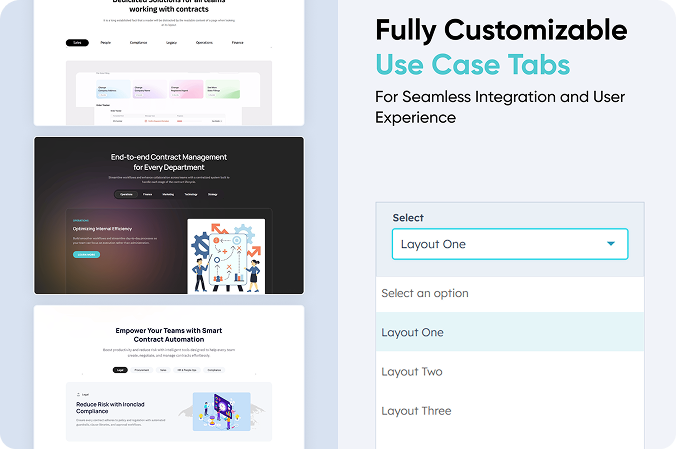
What We Offer
What We Offer
Animation | Columns | Content |
what we offer thumbnail
01 thumbnail (1)
01 thumbnail (2)

What we Offer are a fantastic way to showcase the services on your website! They make everything look neat and inviting, helping your visitors easily find important details about what you offer. With What we Offer, you can enhance the user experience and keep your audience engaged.

Key Features of a What we Offer Module :

Title Description

Icon or Image

Call to Action (CTA)

Hover Effects

SEO Optimization

Custom Styling

Responsive Design

How to Set Up the What We Offer Module in HubSpot :

In the main dashboard, go to the ‘Content’ tab and select either ‘Website’ or ‘Landing Pages,’ depending on where you want to add the section. This lets you choose the right location for managing or updating your content.

Select the page where you want to apply the module.

layout-1

Search for "What We Offer" and drag and drop the module into the desired location on your page.

Screenshot 2025-03-18 at 5.22.35 PM-1

Module Defaults Options: 

Screenshot 2025-03-18 at 5.23.01 PM

Heading/Description  : 

Feel free to change the heading and description text to show or hide them whenever you like! This way, you can create a fun and personalized user experience. Enjoy customizing!

Screenshot 2025-03-18 at 5.23.13 PM

Content Column :

You can customize all column content, allowing you to adjust text, images, and styles to match your design and branding preferences seamlessly.

Screenshot 2025-03-18 at 5.24.27 PM

Screenshot 2025-03-18 at 5.24.38 PM

Module Style Options: 

Module Setting :

Feel free to tweak the margins, padding, background colors, and container width to create the look you want for your module! This flexibility makes it easy to adjust the layout and style, helping ensure your design is both inviting and easy to use. Enjoy the creative process!

Screenshot 2025-03-18 at 5.24.55 PM

Heading/Description Setting :

You can easily give your headings and descriptions a personal touch! Feel free to customize the color, font size, weight, and line height for both mobile and desktop views. This way, you can create a beautiful and consistent design that looks great on any device!

Screenshot 2025-03-18 at 5.25.04 PM

Column Setting :

You can easily personalize the Content Column by tweaking the spacing, corner radius, background color, and border. These adjustments will help create a polished and visually appealing design!

Screenshot 2025-03-18 at 5.25.43 PM

Column Image Setting :

Feel free to personalize your image by customizing its border style, width, color, radius, and hover effects. It's a fun way to make your image stand out!

Screenshot 2025-03-18 at 5.25.56 PM

Column Title and Paragraph Setting :

Feel free to personalize the typography for your card content! Just choose the fonts, sizes, and styles that match your design preferences, and have fun making it your own!

Screenshot 2025-03-18 at 5.26.04 PM

Screenshot 2025-03-18 at 5.26.12 PM

Column CTA Setting :

Feel free to personalize your CTA! You can easily adjust the font typography, background color, hover color, corner color and style, as well as margins and padding. Make it yours and let your creativity shine!

Screenshot 2025-03-18 at 5.26.24 PM

We hope you enjoy using our what we offer module to create a seamless experience for both your users and your marketing team. At Code Accelerator, we're committed to ensuring your HubSpot experience is exceptional. If you need a custom HubSpot module or require a tailored HubSpot CMS or CRM setup, please don’t hesitate to Contact Us.

Module Tags: Animation | Columns | Content |
Discover More in the Knowledge Base

Explore detailed documentation, setup instructions, feature explanations, and best practices to help you get the most out of this module quickly and efficiently.
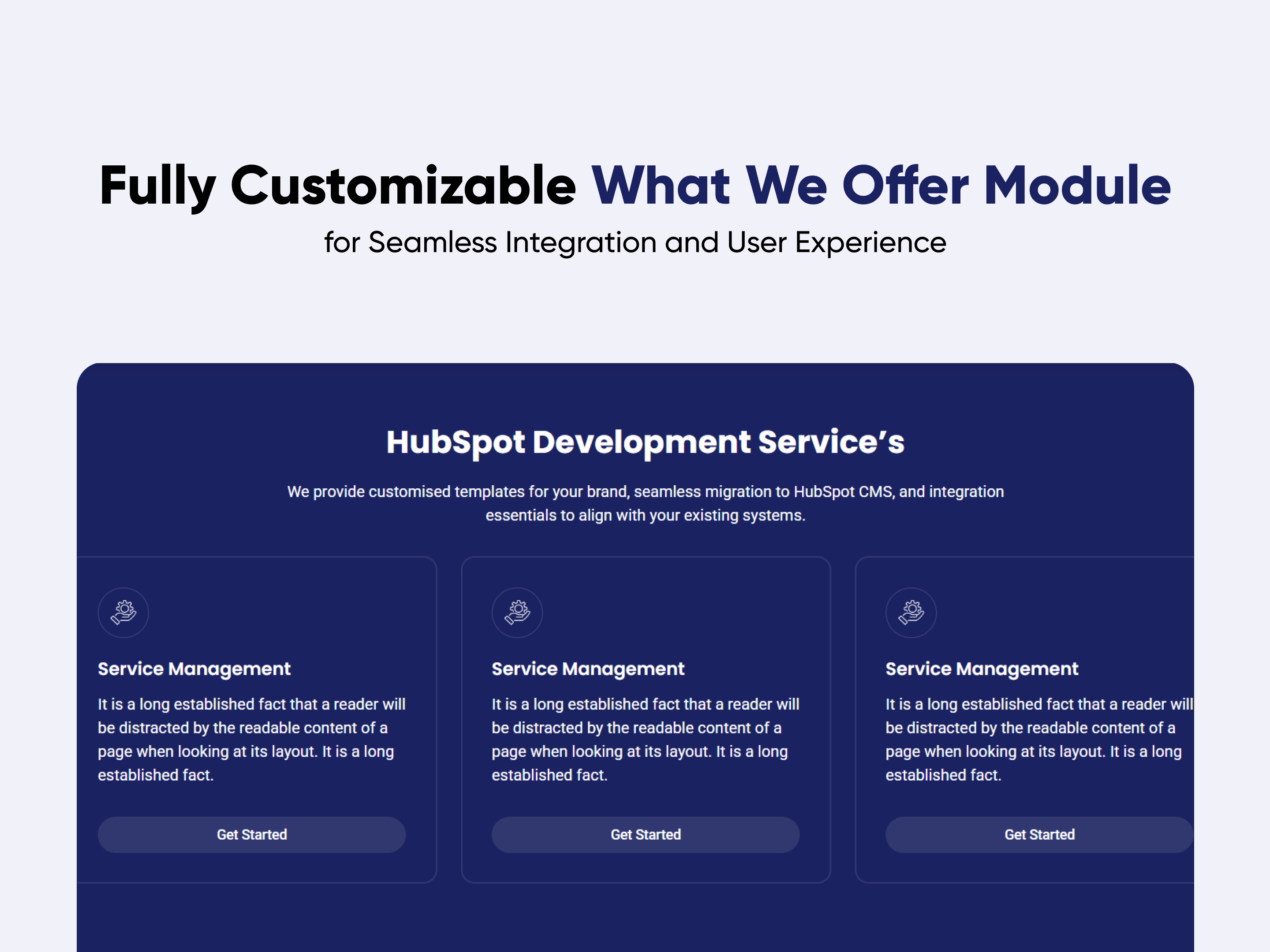
Horizontal Slides Panel
Columns | Content | Animation | Slider |
Horizontal Slides Panel
Price: $39
Horizontal Slider panel thumbnail
Four Column with Background Image
Five Column with Icon
Three Column with Top Heading and CTA

A Horizontal Slides Panel is a UI component that enables smooth left-to-right sliding of content, commonly used for displaying images, cards, or information in a structured and interactive way.

Key Features of a Horizontal Slides Panel Module :

✅ Smooth Horizontal Scrolling

✅ Click Sliding

✅ Multiple Layouts

✅ Responsive & Adaptive Design – Adjusts based on screen size and touch gestures.

✅ Text & Images  – Supports various content types within slides.

How to Set Up the Horizontal Slides Panel Module in HubSpot :

In the main dashboard, go to the ‘Content’ tab and select either ‘Website’ or ‘Landing Pages,’ depending on where you want to add the section. This lets you choose the right location for managing or updating your content.

Select the page where you want to apply the module.

Screenshot (20)

Search for "Horizontal Slides Panel" and drag and drop the module into the desired location on your page.

Module Defaults Options: 

Layout ID :

You can add an ID to the target section and use the same ID in an anchor link to enable a smooth scrolling effect when a user clicks on a Call-to-Action (CTA) button, enhancing navigation and user experience.

Layout Options :  

For Horizontal Slides Panel, select your preferred layout (e.g., Layout 1, Layout 2 or  Layout 3). You can easily rearrange the event cards within the chosen layout to create the ideal content flow and visual arrangement.

Options : 

  • Layout 1 : The layout features a heading and description, allowing you to add a minimum of 3 and a maximum of 4 cards. Each card includes a title, description, and Call-to-Action (CTA), providing a flexible and engaging content display.
  • Layout 2 : The layout features a heading and description, allowing you to add up to maximum 5 cards. Each card includes a title, description, and an icon, providing a flexible and visually engaging content display.
  • Layout 3 : The layout features a heading and Call-to-Action (CTA), allowing you to add up to 3 cards. Each card includes a title and description, providing a flexible and visually engaging content display.

Heading/Description & CTA : 

You can change the heading and description text with show/hide also in Layout Three, you can add a Call-to-Action (CTA) with the option to show or hide it, allowing for a flexible and customizable user experience. 

Content Column :

You can customize all column content, allowing you to adjust text, images, and styles to match your design and branding preferences seamlessly.

jQuery Add/Remove :

Users can add or remove jQuery JavaScript as needed, providing flexibility to enhance functionality or optimize performance based on their requirements.

Module Style Options: 

Module Setting :

Adjust the margins, padding, background colors, and container width to achieve your desired look and feel for the module. This flexibility lets you fine-tune the layout and aesthetics, ensuring your design is both visually appealing and user-friendly.

Heading/Description & CTA Setting :

Users can customize the module’s spacing and adjust the typography for the heading, description, and Call-to-Action (CTA). This includes modifying the color, font size, weight, and line height for both mobile and desktop views, ensuring a personalized and visually cohesive design across all devices.

Column Setting :

You can customize the Content Column by adjusting the spacing, corner radius, background color, border, and box shadow, allowing for a visually refined and well-structured design.

Column Content Setting :

You can customize the typography for the card content by selecting fonts, sizes, and styles that match your design preferences. Additionally, you can adjust the spacing for both desktop and mobile views and set the alignment for a visually cohesive and responsive design.

We hope you enjoy using our horizontal slides panel module to create a seamless experience for both your users and your marketing team. At Code Accelerator, we're committed to ensuring your HubSpot experience is exceptional. If you need a custom HubSpot module or require a tailored HubSpot CMS or CRM setup, please don’t hesitate to Contact Us.

Module Tags: Columns | Content | Animation | Slider |
Discover More in the Knowledge Base

Explore detailed documentation, setup instructions, feature explanations, and best practices to help you get the most out of this module quickly and efficiently.
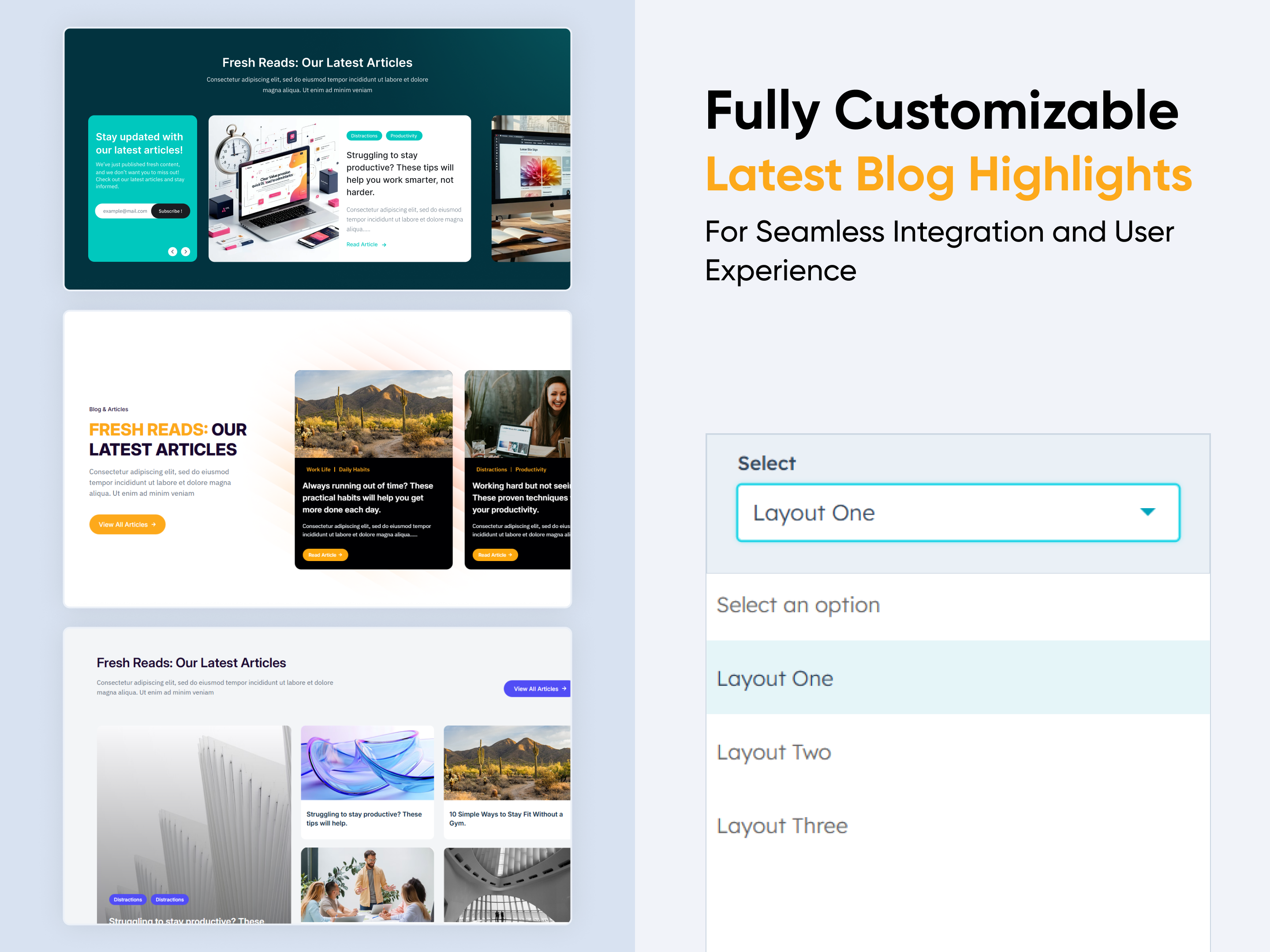
Banner
Banner
Banner | Hero Banner | Content | Columns |
Banner Thumbnail
Two Column with Right Image
Two Column Content With CTA & Image
Full Banner with Background Image

A Banner Module is a UI component used to display important messages, promotions, announcements, or visual content in a structured and engaging way. It can be static or dynamic, with interactive elements such as animations, buttons.

Key Features of a Banner Module :

  • Text Support – Can include image, text, and CTA.

  • Call-to-Action (CTA) Integration – Includes buttons for user interaction.

  • Responsive & Adaptive Design – Adjusts to different screen sizes.

  • Customizable Module– Supports different styles, colors, and layouts.

Use Cases:

🎯 Marketing & Promotions – Highlight sales, offers, and discounts.
📰 Announcements – Display alerts, news updates, and notifications.
📢 Hero Sections – Large banners for landing pages.
💻 Dashboard Notices – Important user notifications.
🎨 Brand Awareness – Showcasing company messages or taglines.

How to Set Up the Banner Module in HubSpot :

In the main dashboard, go to the ‘Content’ tab and select either ‘Website’ or ‘Landing Pages,’ depending on where you want to add the section. This lets you choose the right location for managing or updating your content.

Select the page where you want to apply the module.

Screenshot (20)

Search for "Banner" and drag and drop the module into the desired location on your page.

Module Defaults Options: 

Layout ID :

You can add an ID to the target section and use the same ID in an anchor link to enable a smooth scrolling effect when a user clicks on a Call-to-Action (CTA) button, enhancing navigation and user experience.

Layout Options :  

For Banner, select your preferred layout (e.g., Layout 1, Layout 2 or  Layout 3). You can easily rearrange the event cards within the chosen layout to create the ideal content flow and visual arrangement.

Options : 

  • Layout 1 : The layout features a heading and description with multiple Call-to-Action (CTA) options, allowing for flexible engagement and user interaction.
  • Layout 2 : The layout features two columns: one containing a heading, description, and a subscribe form, and the other displaying an image, creating a balanced and engaging design.
  • Layout 3 : The layout features two columns: one with a heading, description, and Call-to-Action (CTA), and the other showcasing an image, ensuring a visually balanced and engaging design.
  • Layout 4 : The layout features a centrally aligned heading, description, and Call-to-Action (CTA), creating a clean and visually appealing design.

Content Column :

You can customize all column content according to your preferences, allowing you to adjust heading, description, CTA & images, and styles to match your design and branding needs.

Module Style Options: 

Module Setting :

Adjust the margins, padding, background colors, and container width to achieve your desired look and feel for the module. This flexibility lets you fine-tune the layout and aesthetics, ensuring your design is both visually appealing and user-friendly.

Heading & Sub Heading Setting :

Users can customize the spacing of the module, as well as adjust the typography for the heading and sub heading. This includes modifying the color, font size, weight, and line height for both mobile and desktop views, allowing for a personalized and visually cohesive design across all devices.

CTA Setting :

You can customize the Call-to-Action (CTA) by adjusting the typography, font size, weight, color, background color, border, corner radius, and spacing, ensuring it aligns perfectly with your design and branding.

Form Setting :

In Layout Two, you can customize the Input and Call-to-Action (CTA) by adjusting the typography, font size, weight, color, background color, line height, border, and corner radius, ensuring a visually appealing and user-friendly design.

Image Setting :

In Layout Two and Layout Three, you can customize the image by adjusting its height and alignment, ensuring it integrates seamlessly with your design and enhances visual appeal.

We hope you enjoy using our banner module to create a seamless experience for both your users and your marketing team. At Code Accelerator, we're committed to ensuring your HubSpot experience is exceptional. If you need a custom HubSpot module or require a tailored HubSpot CMS or CRM setup, please don’t hesitate to Contact Us.

Module Tags: Banner | Hero Banner | Content | Columns |
Discover More in the Knowledge Base

Explore detailed documentation, setup instructions, feature explanations, and best practices to help you get the most out of this module quickly and efficiently.
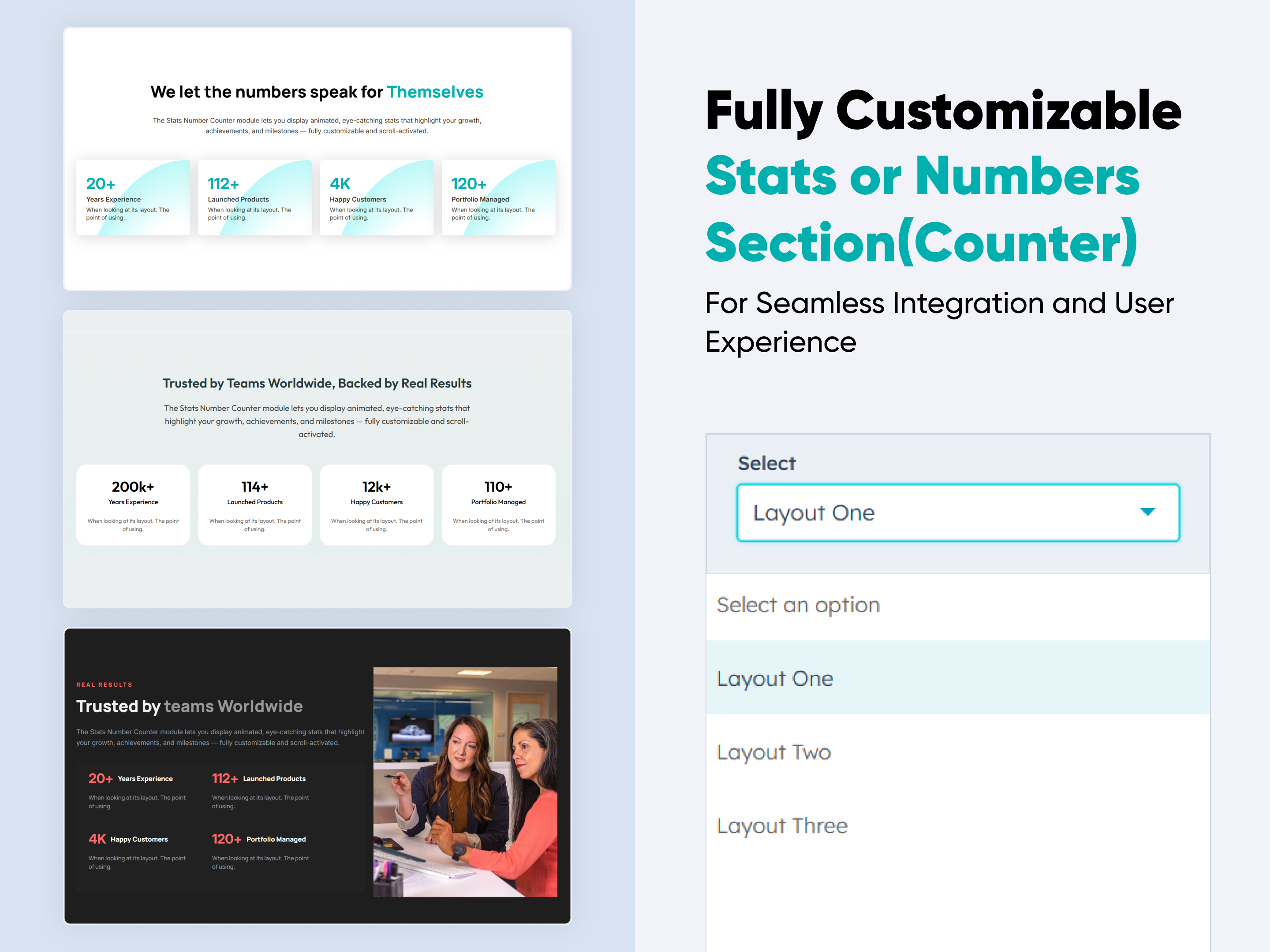
CTA Back To Top
CTA Back To Top
CTA | Animation |
CTA Back To Top
Price: free
CTA Back to Top Thumbnail
CTA Back To Top layout 1
CTA Back To Top Layout 2
CTA Back To Top Layout 3

A "Back to Top" button is a user interface element that allows users to quickly return to the top of a webpage without manually scrolling, enhancing navigation efficiency, especially on lengthy pages.


Key Features of a CTA Back To Top Module :


  • Visibility Control: The button typically appears after the user has scrolled a certain distance down the page, ensuring it's available when needed without cluttering the interface.

  • Customizable Positioning: Developers can position the button in various locations on the screen (e.g., bottom-right) to align with the website's design and user experience considerations.

  • Adjustable Appearance: Options to modify the button's size, shape (round, square), color, and iconography allow it to match the site's aesthetic seamlessly.

  • Smooth Scrolling: Implementing smooth scroll animations enhances the user experience by providing a gentle transition back to the top.

  • Device Responsiveness: The button can be configured to appear on specific devices (e.g., only on mobile or desktop).

  • Auto-Hide Functionality: To maintain a clean interface, the button can be set to disappear after a certain period of inactivity or when the user returns to the top of the page.

How to Set Up the CTA Back To Top Module in HubSpot :

In the main dashboard, go to the ‘Content’ tab and select either ‘Website’ or ‘Landing Pages,’ depending on where you want to add the section. This lets you choose the right location for managing or updating your content.

Select the page where you want to apply the module.

Screenshot (20)

Search for "CTA Back To Top" and drag and drop the module into the desired location on your page.

Module Defaults Options:

Layout Options :  

For CTA Back To Top, select your preferred layout (e.g., Layout 1, Layout 2 or Layout 3). You can easily rearrange the event cards within the chosen layout to create the ideal content flow and visual arrangement.

Button Arrow : 

You can choose from various selection options, including an arrow icon, an arrow image, and the HubSpot icon. These elements help enhance navigation, improve visual appeal, and align with your branding. Whether you're guiding users through a process or emphasizing key actions, these icons provide a polished and professional touch to your content.

Options : 

  • Button Arrow Show/Hide Toggle

In Layout One, you can enable or disable a blinking animation, allowing you to highlight key elements dynamically or maintain a clean, distraction-free interface.

Module Style Options: 

Button Setting :

You can fully customize the button by adjusting its position, background color, height, width, border, box shadow, and corner radius, ensuring it aligns perfectly with your design and branding.

Button Arrow Setting :

You can customize the button arrow by adjusting its size and color, ensuring it complements your design and enhances visibility.

Button Blink Animation Setting :

In Layout One, the Button Blink Animation settings let you customize the height, width, color, and corner radius, ensuring a visually engaging effect that matches your design preferences.

Animation Arrow Setting :

In Layout Two, you can customize the top animation arrow by adjusting its size and color, allowing you to enhance visibility and match your design style.


We hope you enjoy using our CTA Back to Top module to create a seamless experience for both your users and your marketing team. At Code Accelerator, we're committed to ensuring your HubSpot experience is exceptional. If you need a custom HubSpot module or require a tailored HubSpot CMS or CRM setup, please don’t hesitate to Contact Us.

Module Tags: CTA | Animation |
Discover More in the Knowledge Base

Explore detailed documentation, setup instructions, feature explanations, and best practices to help you get the most out of this module quickly and efficiently.
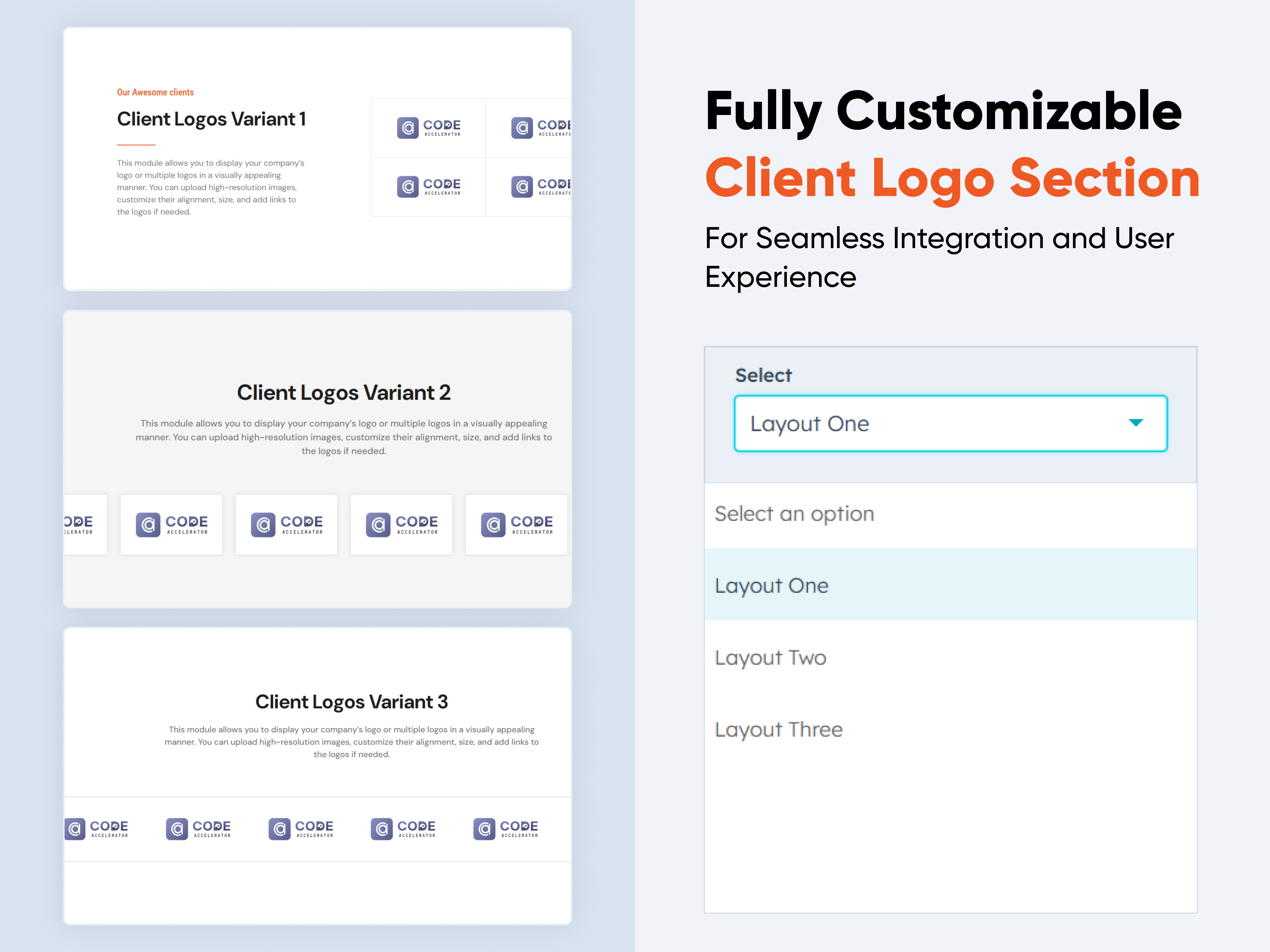
Location With Map
Location With Map
Map | Detail | Contact |
Location With Map
Price: free
Location with Map Thumbnail
02 thumbnail(1)
02 thumbnail-1

The module allows businesses, organizations, or individuals to showcase their physical address, contact numbers, email addresses, and interactive maps. It can be integrated with third-party services like Google Maps to improve accessibility.

Features of the Location With Map :

  1. Responsiveness: Fully adaptive to different screen sizes, ensuring a smooth experience on mobile, tablet, and desktop.

  2. Typography & Styling: Custom font styles, colors, and alignment options for enhanced design consistency.

  3. Displays the physical address with Google Maps.

  4. Phone numbers with clickable links for direct calling.

  5. Email addresses with mailto links for quick email composition.

How to Set Up the Location With Map Module in HubSpot :

In the main dashboard, go to the ‘Content’ tab and select either ‘Website’ or ‘Landing Pages,’ depending on where you want to add the section. This lets you choose the right location for managing or updating your content.

Select the page where you want to apply the module.

Screenshot (20)

Search for "Location With Map" and drag and drop the module into the desired location on your page.

Module Defaults Options: 

Layout ID :

You can add an ID to the target section and use that same ID in an anchor link to create a smooth scroll effect when a user clicks on a Call to Action (CTA) button.

Layout Options :  

For Location With Map, select your preferred layout (e.g., Layout 1 or Layout 2). You can easily rearrange the event cards within the chosen layout to create the ideal content flow and visual arrangement.

Options : 

  • Layout 1 : The layout includes a heading along with contact details such as phone number, email, and address, accompanied by a map for easy reference.
  • Layout 2 : The layout features a heading and description, with the left column displaying contact details such as phone number, email, and address, alongside a map for easy reference.

Heading & Description : 

Easily customize your module's content by modifying the "Heading," "Description," to fit your needs. You also have the option to hide the section, giving you full control over the presentation and functionality.

The "Heading" is displayed in all layouts, while the "Description" is shown only in Layout 2.

Options : 

  • Heading & Description Show/Hide Toggle

Column Content : 

Users can add details in organized columns, ensuring a structured and visually appealing layout. Each column can include essential contact information such as an email address with an icon, a phone number, and a physical address. This setup enhances readability and provides a clear, user-friendly presentation of contact details.

Map Add : 

You can add the map embed URL to seamlessly integrate an interactive map into your layout. This allows users to view the location directly on the page, improving accessibility and navigation. The embedded map can be customized for size, zoom level, and appearance to match the overall design and user experience.

Module Style Options: 

Module Setting :

Adjust the margins, padding, background colors, and container width to achieve your desired look and feel for the module. This flexibility allows you to fine-tune the layout and aesthetics, ensuring a visually appealing and user-friendly design.

Heading & Description Setting :

Users can customize the spacing of the module, as well as adjust the typography for the heading and description. This includes modifying the color, font size, weight, and line height for both mobile and desktop views, allowing for a personalized and visually cohesive design across all devices.

Row Setting :

Users can easily customize the row spacing specifically for Layout 1, ensuring a responsive design for both desktop and mobile views. Additionally, they can modify the background color, set the border and border radius, and apply a box shadow to enhance depth and visual appeal, creating a well-structured and visually engaging layout.

Left Column Setting :

Users can easily customize the left column spacing specifically for Layout 2, ensuring a responsive design for both desktop and mobile views. Additionally, they can modify the background color, set the border and border radius, and apply a box shadow to enhance depth and visual appeal, creating a well-structured and visually engaging layout.

Content Setting :

Users can customize the content typography, including font size, line height, and text transform, along with map settings for better layout and styling.

We hope you enjoy using our location with map module to create a seamless experience for both your users and your marketing team. At Code Accelerator, we're committed to ensuring your HubSpot experience is exceptional. If you need a custom HubSpot module or require a tailored HubSpot CMS or CRM setup, please don’t hesitate to Contact Us.

Module Tags: Map | Detail | Contact |
Discover More in the Knowledge Base

Explore detailed documentation, setup instructions, feature explanations, and best practices to help you get the most out of this module quickly and efficiently.
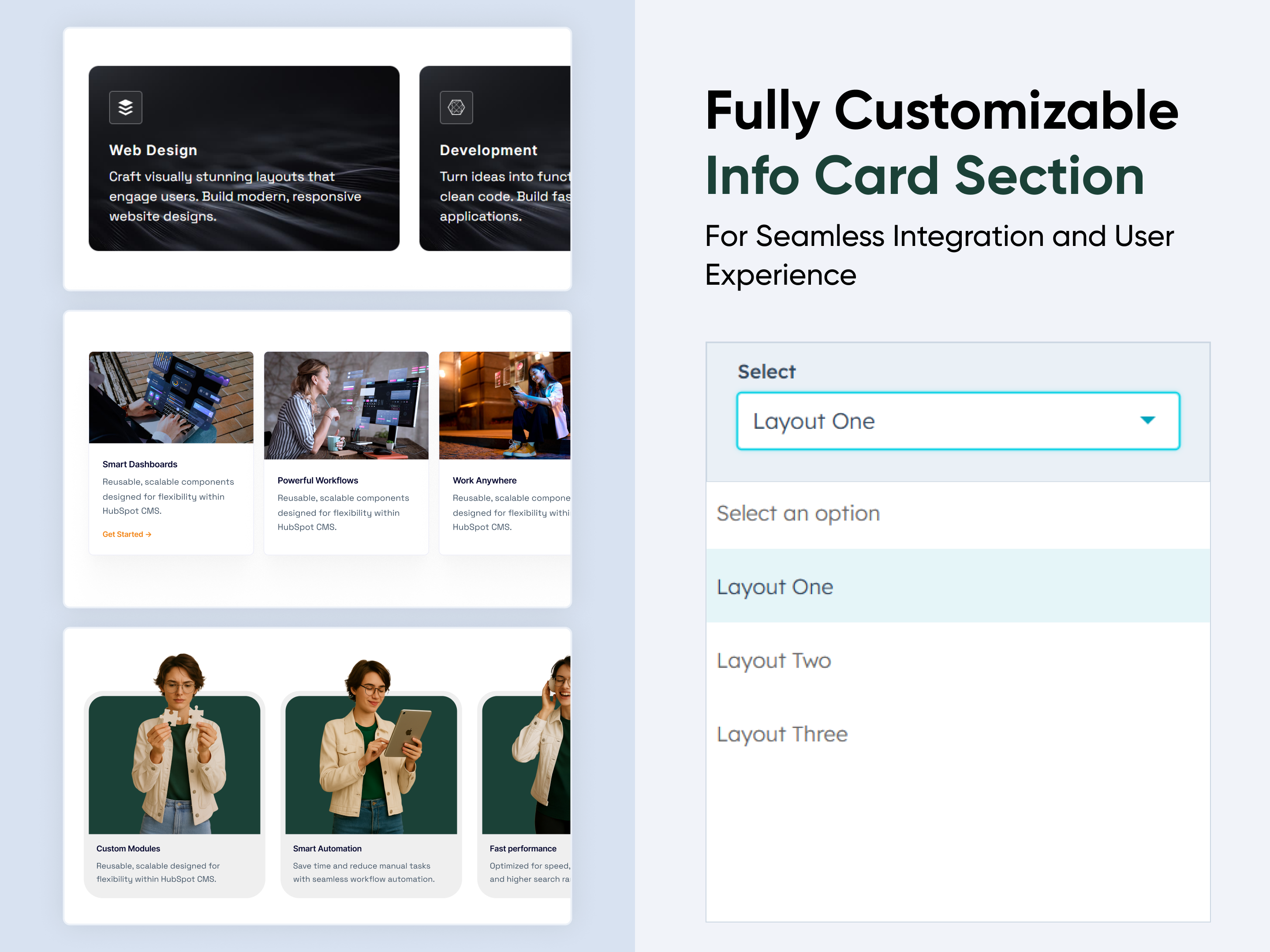
Testimonial Single
Testimonial Single
Testimonial | Slider | Animation |
Testimonial Single
Price: free
Testimonial Single Thumbnail
01 thumbnail-4

A Testimonial Single Module is a structured component used in websites and applications to display individual user testimonials. It highlights customer feedback in a visually appealing and engaging manner.


Key Components:


  1. Customer Name & Role: Displays the name of the person giving the testimonial and their position (if applicable).

  2. Profile Image: Option to include a photo or avatar of the customer.

  3. Testimonial Text: The actual review or feedback given by the customer.

Features of the Testimonial Single Module:


  1. Responsiveness: Fully adaptive to different screen sizes, ensuring a smooth experience on mobile, tablet, and desktop.

  2. Image : Ability to include profile image.

  3. Typography & Styling: Custom font styles, colors, and alignment options for enhanced design consistency.

How to Set Up the Testimonial Single Module in HubSpot :

In the main dashboard, go to the ‘Content’ tab and select either ‘Website’ or ‘Landing Pages,’ depending on where you want to add the section. This lets you choose the right location for managing or updating your content.

Select the page where you want to apply the module.

Screenshot (20)

Search for "Testimonial Single" and drag and drop the module into the desired location on your page.

Module Defaults Options: 

Layout ID :

You can add an ID to the target section and use that same ID in an anchor link to create a smooth scroll effect when a user clicks on a Call to Action (CTA) button.


Heading : 

Easily customize your module's content by modifying the "Heading," to fit your needs. You also have the option to hide the section, giving you full control over the presentation and functionality.

Options : 

  • Heading Show/Hide Toggle

Column Content : 

Easily update the description and profile image with just a few clicks. Additionally, you can customize the person's name and role to suit your needs.

Module Style Options: 

Module Setting :

Adjust the margins, padding, background colors, and container width to achieve your desired look and feel for the module. This flexibility allows you to fine-tune the layout and aesthetics, ensuring a visually appealing and user-friendly design.

Heading Setting :

Users can customize the heading's spacing and typography, including color, font size, weight, and line height. These adjustments can be made separately for mobile and desktop views, ensuring a personalized and visually cohesive design across all devices.

Column Setting :

Users can easily customize the column spacing for both desktop and mobile views. Additionally, they can adjust the background color, set the border and border radius, and apply a box shadow to enhance depth and visual appeal.

Content Setting :

You can customize the typography of column content, including font size, spacing, colors, and alignment. Additionally, you can adjust the image height and width while applying border-radius options for a refined appearance.

We hope you enjoy using our testimonial single module to create a seamless experience for both your users and your marketing team. At Code Accelerator, we're committed to ensuring your HubSpot experience is exceptional. If you need a custom HubSpot module or require a tailored HubSpot CMS or CRM setup, please don’t hesitate to Contact Us.

Module Tags: Testimonial | Slider | Animation |
Discover More in the Knowledge Base

Explore detailed documentation, setup instructions, feature explanations, and best practices to help you get the most out of this module quickly and efficiently.
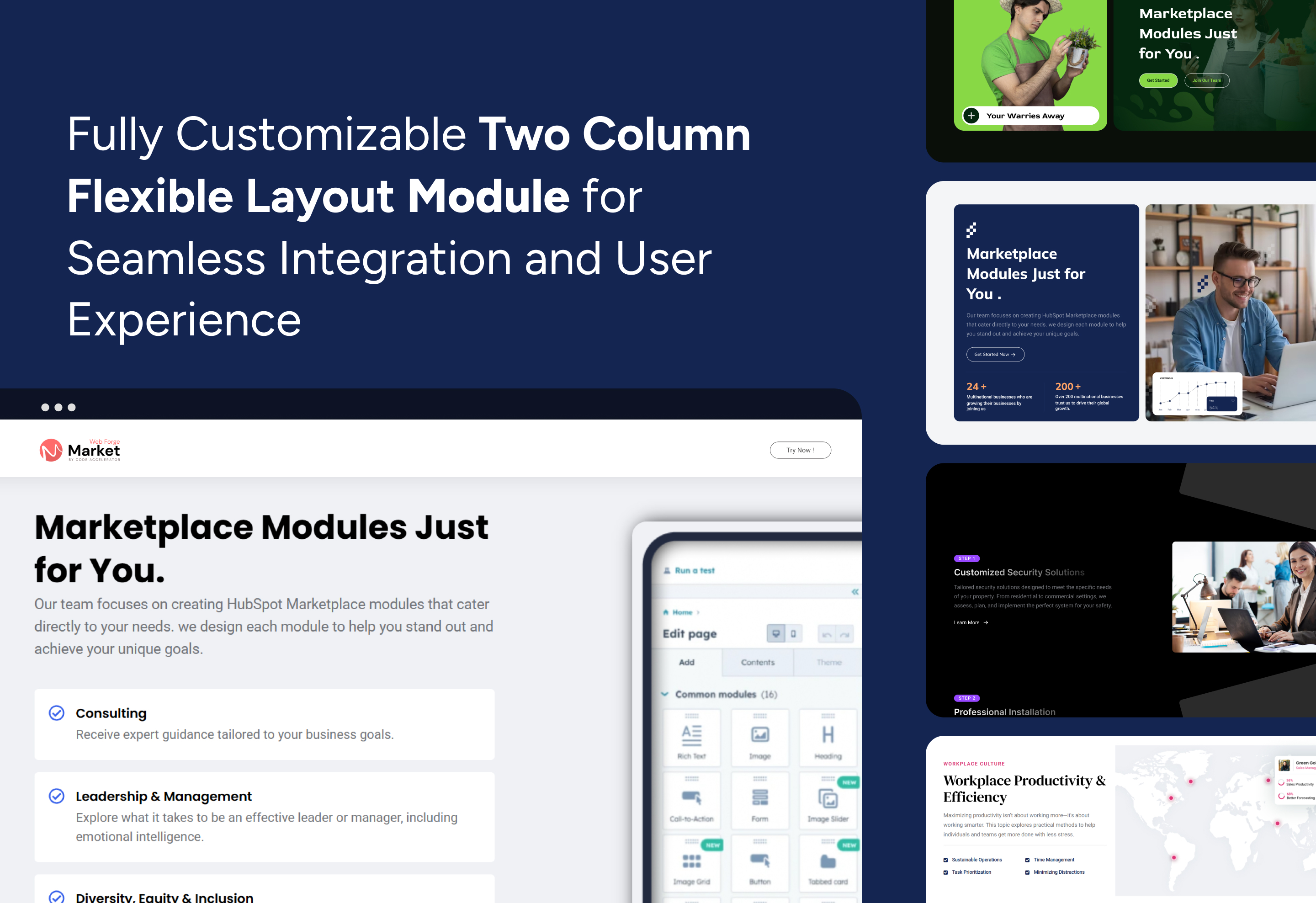
Work Steps Process
Work Steps Process
Process | Steps | Columns | Cards
Work Steps Process
Price: $39
Work Steps Process Thumbnail
01 thumbnail-Feb-24-2025-09-02-44-9618-AM
03 thumbnail
03 thumbnail(1)

The Steps Process Module is a system or software component designed to manage and track multi-step workflows, guiding users through sequential actions in a structured and organized manner. It is commonly used in project management, onboarding, e-commerce checkouts, form submissions, and automation processes.

Key Features Work Steps Process Module :

  • Works seamlessly on desktops, tablets, and mobile devices.
  • Provides a consistent user experience across platforms.
  • Customizable step names, descriptions, and icons
  • Customizable Appearance Change colors, sizes, shapes, and positioning to match your brand.
  • Lightweight & Fast-Loading Minimal impact on page speed.

How to Set Up the Work Steps Process Module in HubSpot :

In the main dashboard, go to the ‘Content’ tab and select either ‘Website’ or ‘Landing Pages,’ depending on where you want to add the section. This lets you choose the right location for managing or updating your content.

Select the page where you want to apply the module.

Screenshot (20)

Search for "Work Steps Process" and drag and drop the module into the desired location on your page.

Module Defaults Options: 

Layout ID :

You can add an ID to the target section and use that same ID in an anchor link to create a smooth scroll effect when a user clicks on a Call to Action (CTA) button.

Layout Options :  

For Work Steps Process, select your preferred layout (e.g., Layout 1, Layout 2, Layout 3 or Layout 4). You can easily rearrange the event cards within the chosen layout to create the ideal content flow and visual arrangement.

Options : 

  • Layout 1 : The layout features a 3-column design, with the column displaying the heading and description with step no.
  • Layout 2 : The layout is a 3-column design with column displaying the heading and description with icons.
  • Layout 3: The layout includes a tabbed design with titles and step-by-step navigation, along with updated images.
  • Layout 4 : The layout features a 3-column design, with each column showcasing a heading, description, and icon, all styled with a unique design.

Heading, Description & CTA : 

Easily customize your module's content by modifying the "Heading," "Description," and Call-to-Action (CTA) to fit your needs. You also have the option to hide the section, giving you full control over the presentation and functionality.

The "Heading" is displayed in all layouts, while the "Description" is shown only in Layout 2 and Layout 4. The CTA is available in Layout 2, Layout 3, and Layout 4.

Options : 

  • Heading/Description & CTA Show/Hide Toggle
  • CTA Change Text/URL with Show/Hide Toggle

Columns Content : 

Easily update the title, description, and step number with just a few clicks. Additionally, you can customize the CTA (Call to Action) text and link to align perfectly with your goals. You also have the flexibility to adjust the column layout, choosing between four or three columns to suit your design needs.

Module Style Options: 

Module Setting :

Adjust the margins, padding, background colors, and container width to achieve your desired look and feel for the module. This flexibility lets you fine-tune the layout and aesthetics, ensuring your design is both visually appealing and user-friendly.

Heading, Description & CTA Setting :

Users can customize the spacing of the module, as well as adjust the typography for the heading and description & CTA. This includes modifying the color, font size, weight, and line height for both mobile and desktop views, allowing for a personalized and visually cohesive design across all devices.

Column Section Setting :

Users can easily customize the column spacing for both desktop and mobile views. Additionally, you can adjust the background color, set the border and border radius, and apply a box shadow for added depth and visual appeal. You can also enhance interactivity by applying hover effects.

Content Setting :

Users can customize the typography of the column, including spacing, line height, font size, color, alignment, and text transform for both desktop and mobile views. This allows for complete control over the visual style and ensures consistency across devices.

Left Column Section Setting :

Users can customize the left tab column by adjusting the background, spacing, border, and border radius, as well as adding a box shadow for a more dynamic appearance.

Column Image Setting :

Users can customize the image height for both desktop and mobile views. Additionally, they can add a corner radius for a polished, modern look and adjust spacing with max-width options for better layout control.

We hope you enjoy using our work steps process module to create a seamless experience for both your users and your marketing team. At Code Accelerator, we're committed to ensuring your HubSpot experience is exceptional. If you need a custom HubSpot module or require a tailored HubSpot CMS or CRM setup, please don’t hesitate to Contact Us.

Module Tags: Process | Steps | Columns | Cards
Discover More in the Knowledge Base

Explore detailed documentation, setup instructions, feature explanations, and best practices to help you get the most out of this module quickly and efficiently.
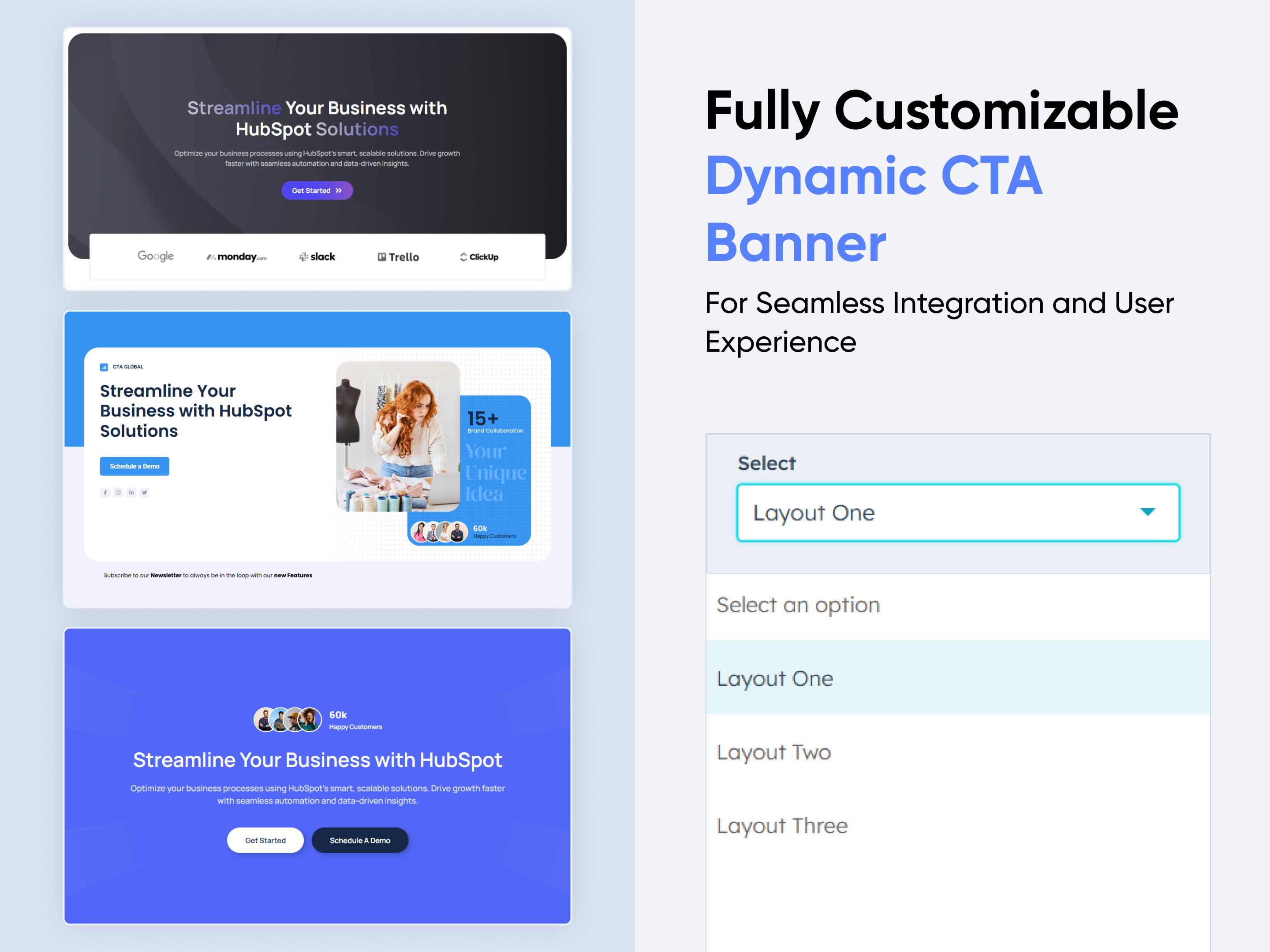
Sticky Social Icon
Sticky Social Icon
Sticky Social Icon
Price: $19
01 thumbnail-Jan-22-2025-01-38-37-3745-PM
03 thumbnail-Jan-22-2025-01-40-20-5902-PM
02 thumbnail-Jan-22-2025-01-39-45-1618-PM
04 thumbnail-Jan-22-2025-01-41-23-2667-PM

Sticky Social Icons are floating social media buttons that remain fixed on a webpage as users scroll. They provide easy access to social media profiles, boosting engagement and sharing opportunities.

Key Features Sticky Social Icon Module :

Sticky & Floating Design – Icons stay visible while scrolling, ensuring users always have access.

Customizable Appearance – Change colors, sizes, shapes, and positioning to match your brand.

Supports Major Social Networks – Facebook, Instagram, Twitter, LinkedIn, WhatsApp, etc.

Mobile-Friendly & Responsive – Optimized for all screen sizes.

Animation & Hover Effects – Add stylish hover effects for better user interaction.

Lightweight & Fast-Loading – Minimal impact on page speed.


How to Set Up the Sticky Social Icon Module in HubSpot :

In the main dashboard, go to the ‘Content’ tab and select either ‘Website’ or ‘Landing Pages,’ depending on where you want to add the section. This lets you choose the right location for managing or updating your content.

nav-timeline

Select the page where you want to apply the module.

Screenshot (20

Search for "Sticky Social Icon" and drag and drop the module into the desired location on your page.

Module Defaults Options:

Layout Option : 

You can choose the layout that best suits your preferences.

Button Icon :

Users can add a clickable social icon within the button, allowing for easy access to social media links.

Social Icons :

Users can add multiple social icons with links, enabling easy access to various social media platforms.

Module Style Options: 

Button Setting :

You can customize the click button by adjusting its position, background color, height, width, border, box shadow, and corner radius.

Social Icon Setting :

Users can customize the social icon by adjusting the background color, icon color, height, width, box shadow, and corner radius.

Content Setting :

Users can customize the hover social content by adjusting the font size, color, font weight, and line height. This setting is exclusive to Layout 3.

We hope you enjoy using sticky social icon module to create a seamless experience for both your users and your marketing team. At Code Accelerator, we're committed to ensuring your HubSpot experience is exceptional. If you need a custom HubSpot module or require a tailored HubSpot CMS or CRM setup, please don’t hesitate to Contact Us.

Module Tags:
Discover More in the Knowledge Base

Explore detailed documentation, setup instructions, feature explanations, and best practices to help you get the most out of this module quickly and efficiently.
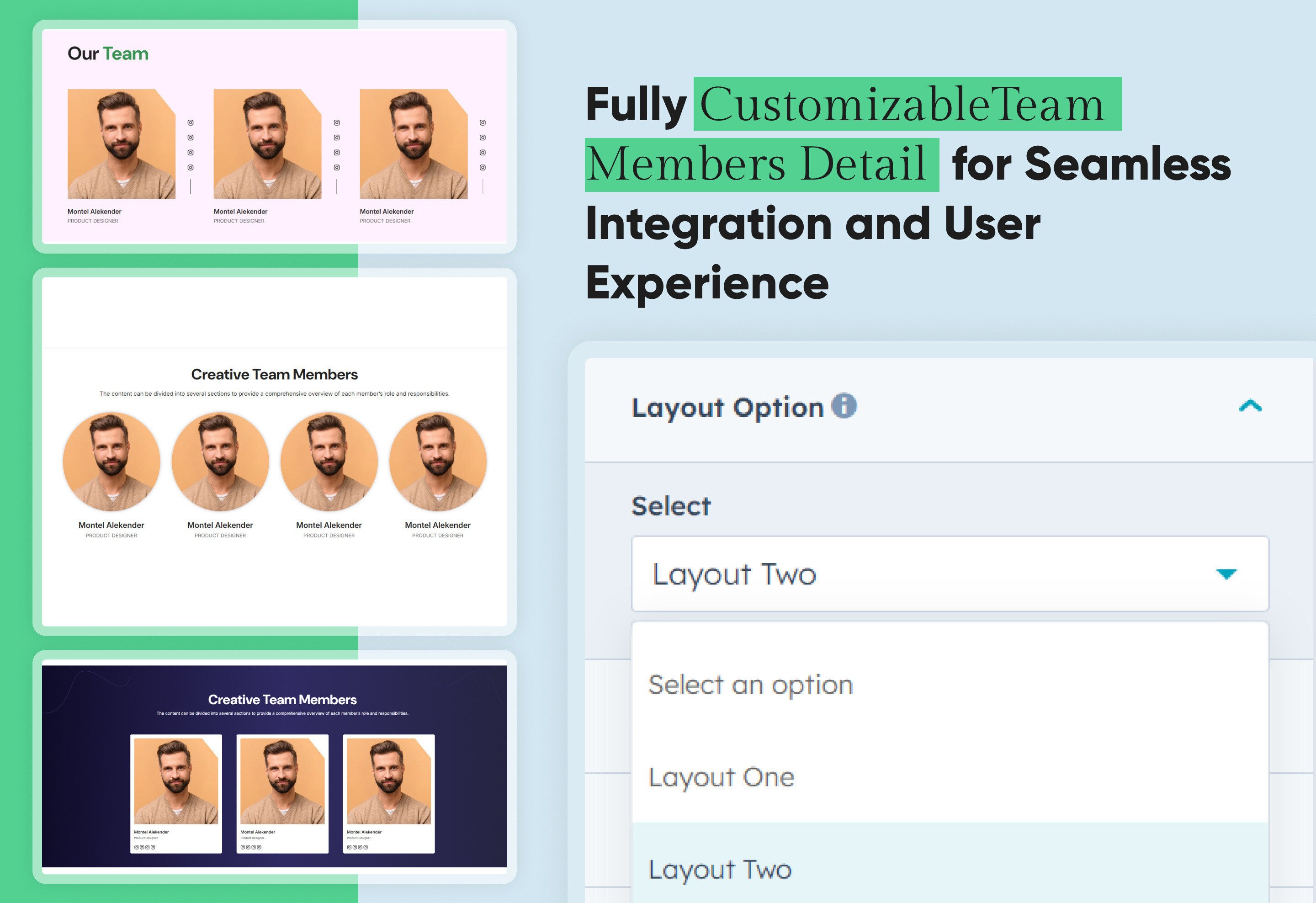
Brand Logo Slider
Brand Logo Slider
Logo | Slider | Animation | Image |
Brand Logo Slider
Price: free
Brand Logo Slider
02 thumbnail-Jan-20-2025-08-06-05-6027-AM

The Brand Logo Slider is a sleek and responsive carousel designed to display brand logos, client logos, or partner logos in an attractive and organized manner. It helps businesses build credibility by showcasing collaborations, sponsors, or featured brands in a visually appealing slider format.

Key Features Brand Logo Slider Module :

Fully Responsive: Works seamlessly on all devices (desktop, tablet, mobile).

Auto-Scrolling & Navigation: Smooth auto-slide.

Customizable Design: Adjust colors, sizes, and spacing to match your website's style.

Lightweight & Fast: Optimized for speed and performance.

How to Set Up the Brand Logo Slider Module in HubSpot :

In the main dashboard, go to the ‘Content’ tab and select either ‘Website’ or ‘Landing Pages,’ depending on where you want to add the section. This lets you choose the right location for managing or updating your content.

nav-timeline

Select the page where you want to apply the module.

Screenshot (20)

Search for "Brand Logo Slider" and drag and drop the module into the desired location on your page.

Module Defaults Options:

Layout ID :

To enable smooth scrolling for a CTA, assign an ID to the target element, reference that ID in the anchor link's href, and clicking the CTA will smoothly scroll the page to the section.

Heading/Description & CTA : 

Easily customize the content in your module by modifying the "Heading," "Description & CTA. You can also choose to hide the section if desired, giving you complete control over the presentation and functionality of your content.

Options : 

  • Heading & Description Show/Hide Toggle
  • CTA Show/Hide Toggle

Logos Section :

Users can customize the repeat column logo as per their choice. They can also add a logo title and show/hide the title if not required.

Module Style Options: 

Module Setting :

Adjust the margins, padding, background colors, and container width to customize the module's appearance. This flexibility lets you refine the layout and aesthetics, creating a visually appealing, functional, and user-friendly design.

Heading & Description Setting :

Users can customize the spacing of the heading and adjust its typography, including color, font size, weight, and line height. These settings apply to both mobile and desktop views, ensuring a personalized and visually cohesive design across all devices.

CTA Setting :

Users can customize the CTA background color, line height, and spacing for both desktop and mobile views. They can also adjust text transform, alignment, width, and box shadow, as well as add hover colors for a more dynamic design.

Logos Setting :

Users can customize the logo title typography by adjusting the font size, line height, and spacing for both mobile and desktop views. Additionally, they can modify the logo's height and width to ensure optimal display across devices.

We hope you enjoy using brand logo slider module to create a seamless experience for both your users and your marketing team. At Code Accelerator, we're committed to ensuring your HubSpot experience is exceptional. If you need a custom HubSpot module or require a tailored HubSpot CMS or CRM setup, please don’t hesitate to Contact Us.

Module Tags: Logo | Slider | Animation | Image |
Discover More in the Knowledge Base

Explore detailed documentation, setup instructions, feature explanations, and best practices to help you get the most out of this module quickly and efficiently.
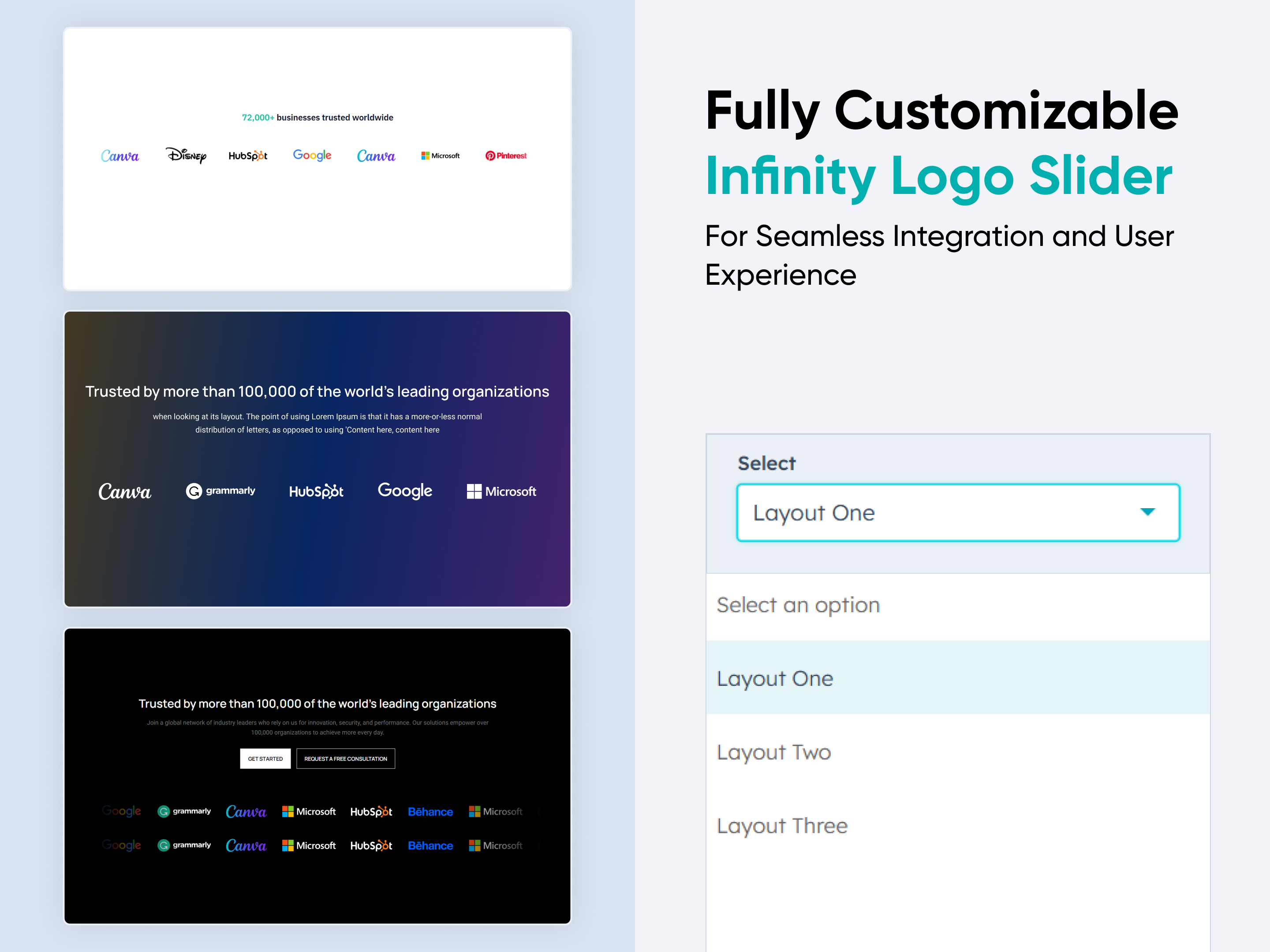
Animated Cards
Animated Cards
Animation | Cards | Content | Columns |
Animated Cards Thumbnail
03 thumbnail-Jan-02-2025-09-19-59-4623-AM
04 thumbnail-Jan-02-2025-09-52-25-8204-AM
04 thumbnail(1)-1

An Animated Cards Module typically refers to an interactive design element used on websites or applications. This module consists of a collection of "cards" (rectangular elements) that showcase information or content and include animations to enhance user engagement.

Key Features Animated Cards Module :

  1. Responsive Design: Adjusts seamlessly across devices, from desktops to mobile screens.

  2. Hover Effects: Visual feedback when users hover over cards, such as scaling, highlighting, or revealing additional information.

  3. Customizable Styles: Fully customizable with CSS variables for themes, fonts, colors, and animations.

  4. Performance Optimization: Lightweight animations optimized to ensure smooth interactions without lag.

How to Set Up the Animated Cards Module in HubSpot :

In the main dashboard, navigate to the ‘Content’ tab and select either ‘Website’ or ‘Landing Pages’, depending on where you want to add the section. This allows you to choose the appropriate location for managing or updating your content.

nav-timeline

Select the page where you want to apply the module.

Screenshot (20)

Search for "Animated Cards" and drag and drop the module into the desired location on your page.

Module Defaults Options:

Layout ID :

To enable smooth scrolling for a CTA, assign an ID to the target element, reference that ID in the anchor link's href, and clicking the CTA will smoothly scroll the page to the section.

Layout Options :  

For Animated Cards, choose a layout (e.g., Layout 1, Layout 2, or Layout 3) and rearrange the cards to achieve the desired content flow and visual arrangement.

Options : 

  • Layout 1 : This layout lets you add columns featuring an image, title, description, and a CTA that appears on hover.
  • Layout 2 : This layout lets you add columns featuring an icon, title, description, and a CTA.
  • Layout 3 : This layout allows you to add columns with an image, title, description, CTA and a hover-effect on column.

Heading & Description : 

Easily customize the content in your module by modifying the "Heading," "Description. You can also choose to hide the section if desired, giving you complete control over the presentation and functionality of your content.

Options : 

  • Heading/Description & Sub Heading Show/Hide Toggle

Content Columns :

Users can customize each column by adding a title, a description to convey key information, an image for visual appeal, and CTA text with a link to drive engagement. Additionally, they can replicate columns as needed to match their content requirements, creating a flexible and visually cohesive layout suitable for various purposes such as showcasing features, services, or products.

Module Style Options: 

Module Setting :

Adjust the margins, padding, background colors, and container width to customize the module's appearance. This flexibility lets you refine the layout and aesthetics, creating a visually appealing, functional, and user-friendly design.

Heading & Description Setting :

Users can customize the spacing of the heading, as well as adjust the typography for the heading and description. This includes modifying the color, font size, weight, and line height for both mobile and desktop views, allowing for a personalized and visually cohesive design across all devices.

Column Section Setting :

Users can customize column spacing and adjust the background, border, border radius, and box shadow to create their desired design style.


Column Content Setting :

Users can customize the title, description, and CTA typography by adjusting font size, line height, and spacing for both mobile and desktop views. They can also modify text transform and alignment. For the CTA, users can configure the border, border radius, background color, and add hover effects to enhance interactivity.

We hope you enjoy using  animated cards module to create a seamless experience for both your users and your marketing team. At Code Accelerator, we're committed to ensuring your HubSpot experience is exceptional. If you need a custom HubSpot module or require a tailored HubSpot CMS or CRM setup, please don’t hesitate to Contact Us.

Module Tags: Animation | Cards | Content | Columns |
Discover More in the Knowledge Base

Explore detailed documentation, setup instructions, feature explanations, and best practices to help you get the most out of this module quickly and efficiently.
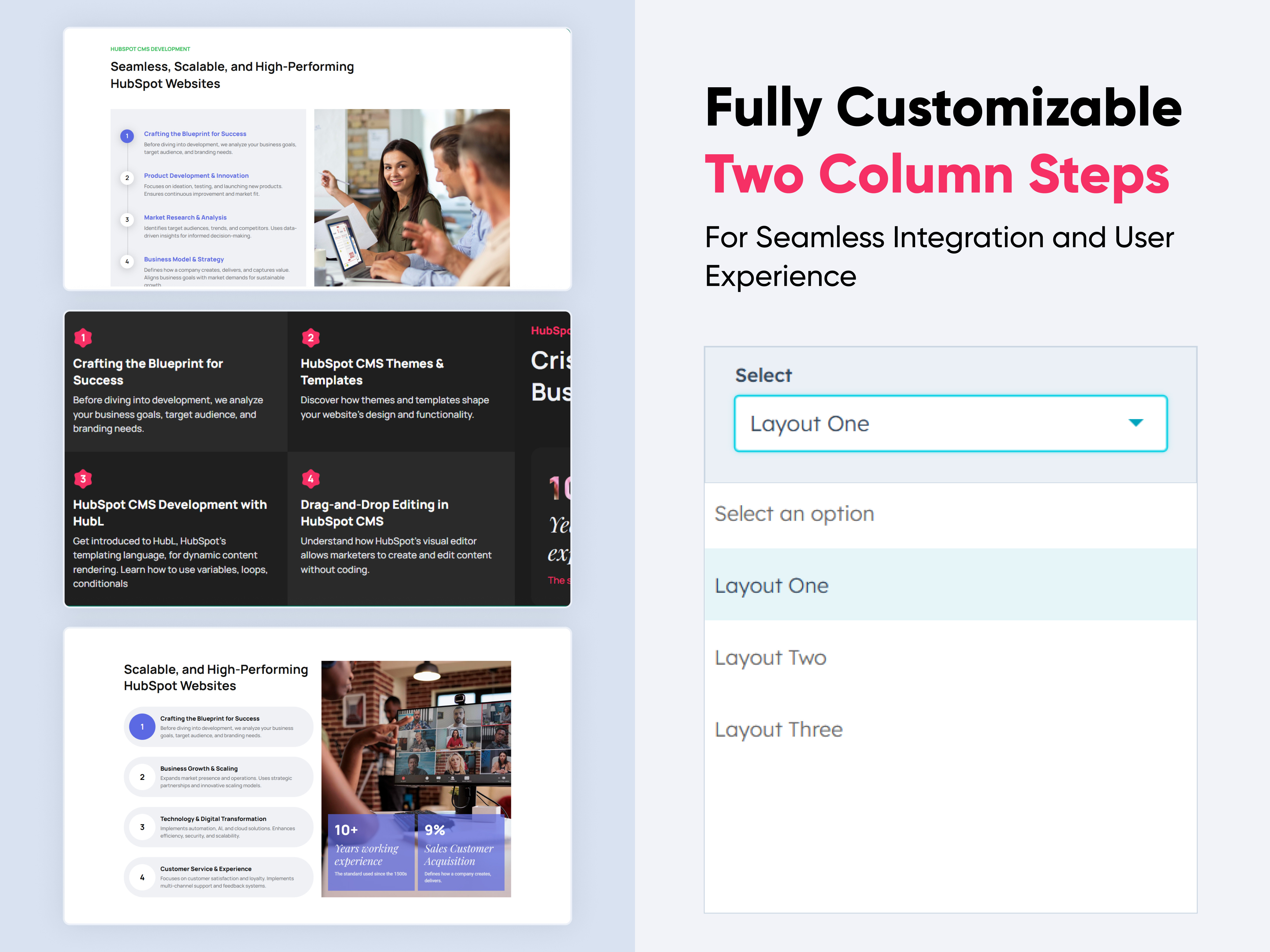
Multistyle Hero Banner
Hero Banner | Banner | Content | Columns |
Multistyle Hero Banner
Price: $29
Multistyle Hero Banner
03 thumbnail-Nov-25-2024-12-21-02-8557-PM
04 thumbnail-Nov-25-2024-12-22-19-2966-PM
04 thumbnail-Nov-25-2024-12-23-08-5191-PM

A Multistyle Hero Banner is a web design technique that combines various visual and stylistic elements to create a visually striking and functional focal point on a webpage. These banners are typically located at the top of a webpage and are designed to grab attention, communicate key messages, and set the tone for the website's branding. The "multistyle" approach adds variety and interest by integrating multiple design styles, such as imagery, typography, animations, and interactive elements.

Key Features Multistyle Hero Banner Module :

Imagery:

  • Background Images: Can feature high-quality photographs, illustrations, or abstract art.

  • Video Backgrounds: Provide a dynamic feel, especially for modern or tech-oriented sites.

Typography:

  • Headline Text: Bold, large, and impactful, often using contrasting fonts.

  • Subheadings: Smaller text providing additional context.

Responsive Design:

  • Ensures the banner is visually appealing and functional on all screen sizes.
  • Dynamic resizing of images, typography, and interactive elements.

Endlessly Customizable

It works like magic with just a few clicks! Customize everything you want—colors, fonts, paragraphs, headings, images, and videos effortlessly.

Layouts and Styles

The Hero module gives you the flexibility to choose from a range of layouts and styles tailored to your needs. Whether it’s a slider hero banner, a video banner design, or a minimalist look, this module provides the tools to craft the perfect visual impact.

Easily change module content.

You can easily customize the content in this module.

Effortlessly Customize Module Styles

You can easily adjust styles in this module, customizing spacing, text color, button color, background color, and more to suit your preferences.

How to Set Up the Multistyle Hero Banner Module in HubSpot :

In the main dashboard, navigate to the ‘Content’ tab and select either ‘Website’ or ‘Landing Pages’, depending on where you want to add the section. This allows you to choose the appropriate location for managing or updating your content.

nav-timeline

Select the page where you want to apply the module.

Screenshot (20)

Search for "Multistyle Hero Banner" and drag and drop the module into the desired location on your page.

Module Defaults Options:

Layout ID :

To enable a smooth scrolling effect for a Call to Action (CTA), start by assigning an ID to the target element. Then, use that ID in the href attribute of the anchor link for the CTA. When users click the CTA, the page will smoothly scroll to the designated section.

Layout Options :  

For Multistyle Hero Banner, select your preferred layout (e.g., Layout 1, Layout 2, or Layout 3, Layout 4, Layout 5, Layout 6). You can easily rearrange the cards within the chosen layout to create the ideal content flow and visual arrangement.

Options : 

  • Layout 1 : This layout allows you to add multiple slides, each with customizable content and a column for images.
  • Layout 2 : This layout features a background image, customizable content, and social icons with link options for seamless integration.
  • Layout 3 : This layout showcases centrally aligned content with a modern design. It also includes multiple CTA options, CTA with the ability to trigger popups for enhanced interactivity.
  • Layout 4 : This layout features a centrally aligned title with a two-column content design. It also includes multiple CTA options, CTA capable of triggering popups for added interactivity.
  • Layout 5 : This layout features an animated heading, accompanied by a two-column design that includes both content and an image for a dynamic and engaging presentation. 
  • Layout 6 : This layout features a background video with overlaying content, creating an immersive and dynamic visual experience.

Slide Content : 

For Layout 1, feel free to customize each slide by adding content and duplicating slides as needed to meet your requirements.

Content : 

In Layouts 2, 3, 5, and 6, you can customize the content title, description, and CTA text with links. Additionally, in Layout 4, you can modify the column content to suit your needs. Layout 2 also includes options to add and customize social icons with links.

Module Style Options: 

Module Setting :

Adjust the margins, padding, background colors, and container width to achieve your desired look and feel for the module. In Layout 1, you can assign a different background to each slide for added variety. This flexibility allows you to fine-tune the layout and aesthetics, ensuring your design is visually appealing, functional, and user-friendly.

Column Setting :

For Layout 1, users can customize the spacing of the left slide column, as well as adjust the border, border radius, and box shadow to achieve their desired design style.

Column Content Setting :

In Layout 1, users can customize the title, description, and CTA typography, including font size, line height, and spacing for both mobile and desktop views. Additionally, text transform and alignment options are available. For the CTA, users can configure the border, border radius, background color, and apply hover effects for enhanced interactivity.

Column Image Setting :

In Layouts 1 and 5, users can customize the column image width for both desktop and mobile views, as well as add a border radius for a polished and tailored design.

Dots Setting :

In Layout 1, users can customize the dots' height and width, background colors, border, border radius, and also set a unique background color for the active dot.

Content Setting :

In Layouts 2, 3, 4, 5, and 6, users can customize the heading, description, and call-to-action with options for font size, line height, color, spacing, alignment, and text transformation. Additionally, users can set background colors, hover backgrounds, borders, and text colors to enhance the design and interactivity.

Social Menu Setting :

In Layout 2, users can customize the social icons' height, color, and position them on the left or right side as desired.

Popup Content Setting :

In Layouts 3 and 4, users can customize the popup title, description, and CTA typography, including font size, color, spacing, text transformations, and alignment. Additionally, users can adjust the video spacing and corner styling for a tailored appearance.

Popup Section Setting :

In Layouts 3 and 4, the popup section allows users to add a background, adjust spacing, and customize the border, border radius, and width for a personalized design.

We hope you enjoy using multistyle hero banner module to create a seamless experience for both your users and your marketing team. At Code Accelerator, we're committed to ensuring your HubSpot experience is exceptional. If you need a custom HubSpot module or require a tailored HubSpot CMS or CRM setup, please don’t hesitate to Contact Us.

Module Tags: Hero Banner | Banner | Content | Columns |
Discover More in the Knowledge Base

Explore detailed documentation, setup instructions, feature explanations, and best practices to help you get the most out of this module quickly and efficiently.
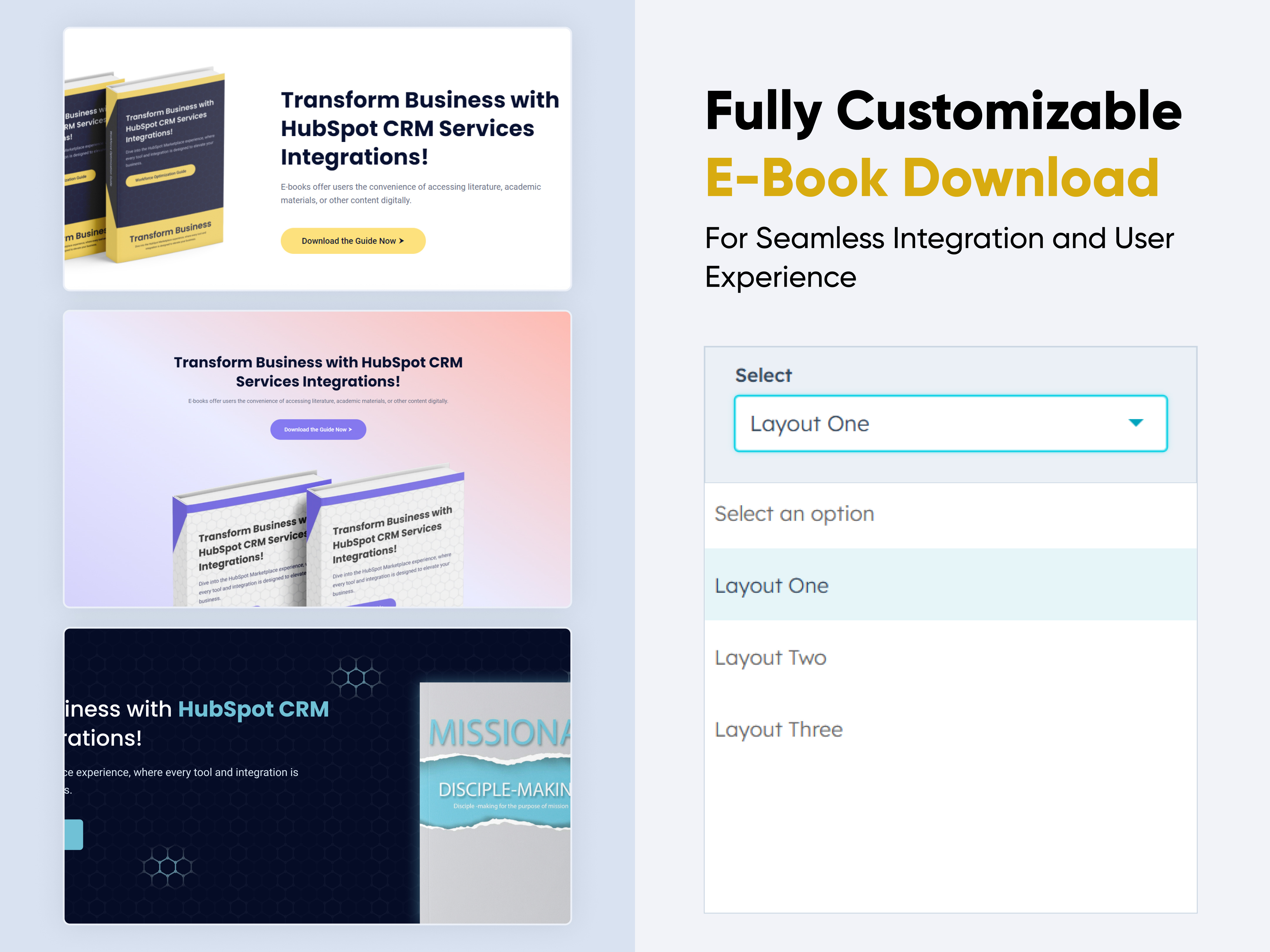
 Pricing Plans Card
Pricing Plans Card
Tab | Plan | Price | Columns | Content | Detail |
Pricing Plans Card
Price: $29
Pricing Plans Section-2
02 thumbnail-Oct-28-2024-05-41-51-0459-AM
03 thumbnail-Oct-28-2024-05-42-18-5329-AM
04 thumbnail-Oct-28-2024-05-45-01-5035-AM

A Pricing Plan module is a crucial part of many websites, particularly for businesses offering subscription services, products with tiered pricing. It typically includes information on the features and costs of different service levels to help customers choose the best option for their needs. Here's an overview of the key elements often included in a Pricing Plan module.

Key Features Pricing Plan Module :

  • Responsive Layout: Ensure that the module adjusts for mobile, tablet, and desktop views.
  • Plan Names and Levels: Each tier should have a distinct, easy-to-understand name (e.g., Basic, Standard, Premium).
  • Clear CTA Text: Each plan should have a dedicated button with actionable text like "Get Started" or "Choose Plan."
  • Expandable Details: Use collapsible sections to expand on feature descriptions without cluttering the layout.

How to Set Up the Pricing Plans Card Module in HubSpot :

In the main dashboard, navigate to the ‘Content’ tab and select either ‘Website’ or ‘Landing Pages’, depending on where you want to add the section. This allows you to choose the appropriate location for managing or updating your content.

nav-timeline

Select the page where you want to apply the module.

Screenshot (20)

Search for "Pricing Plans Card" and drag and drop the module into the desired location on your page.

Module Defaults Options:

Layout ID :

To enable a smooth scroll effect for a CTA (Call to Action), assign an ID to the target element. Then, use the same ID in an anchor link. When a user clicks the CTA, the page will smoothly scroll to the specified section.

Layout Options :  

For Pricing Plans, select your preferred layout (e.g., Layout 1, Layout 2, or Layout 3). You can easily rearrange the event cards within the chosen layout to create the ideal content flow and visual arrangement.

Options : 

  • Layout 1 : This layout displays pricing options with a toggle between monthly and yearly plans, allowing users to easily compare features and choose the best option.
  • Layout 2 : This layout showcases features alongside a single pricing option, with an optional dark background for enhanced visual appeal.
  • Layout 3: This layout features a modern design with a background image, creating a visually engaging and contemporary look.

Heading, Description & Sub Heading : 

Easily customize the content in your module by modifying the Heading, Description & Sub Heading to suit your needs. You can also choose to hide the section if desired, giving you complete control over the presentation and functionality of your content.

Options : 

  • Heading Show/Hide Toggle
  • Description Show/Hide Toggle
  • Sub Heading Show/Hide Toggle

Plan Cards Column : 

You can customize the plan's price, name, description, and features. Additionally, highlight Plan 2 with a 'Most Popular' tag and include a show/hide option for the CTA button to enhance user interaction.

List Icon :

You can easily add or remove icons from the features list, as well as customize their size and color to match your design preferences.

Plan Switch Column :

You can toggle between monthly and yearly plan prices in this layout, which is exclusively available in Layout One.

Module Style Options: 

Module Setting :

Adjust the margins, padding, background colors, and container width to achieve your desired look and feel for the module. This flexibility allows you to fine-tune the layout and aesthetics, ensuring that your design is not only visually appealing but also functional and user-friendly.

Heading, Description & Sub Heading Setting :

Users can customize the spacing of the module, as well as adjust the typography for the heading and description & sub heading. This includes modifying the color, font size, weight, and line height for both mobile and desktop views, allowing for a personalized and visually cohesive design across all devices.

Plan Column Setting :

Users have the flexibility to customize the plan column spacing for both desktop and mobile views. Additionally, you can modify the background color, set borders and border radii, and apply box shadows to enhance depth and visual appeal.

Content Setting :

Users can customize the typography of the plan column, adjusting spacing, line height, font size, and color for both desktop and mobile views. This feature provides complete control over the visual style, ensuring consistency across all devices.

Plan Switch Setting :

Users can customize the typography of the plan switch toggle in Layout One, allowing adjustments to spacing, line height, font size, and color for both desktop and mobile views.

Tabbing Mobile Content :

In this setup, you can customize the mobile view tabbing style exclusively for Layout 1 and Layout 3.

We hope you enjoy using our pricing module to create a seamless experience for both your users and your marketing team. At Code Accelerator, we're committed to ensuring your HubSpot experience is exceptional. If you need a custom HubSpot module or require a tailored HubSpot CMS or CRM setup, please don’t hesitate to Contact Us.

Module Tags: Tab | Plan | Price | Columns | Content | Detail |
Discover More in the Knowledge Base

Explore detailed documentation, setup instructions, feature explanations, and best practices to help you get the most out of this module quickly and efficiently.
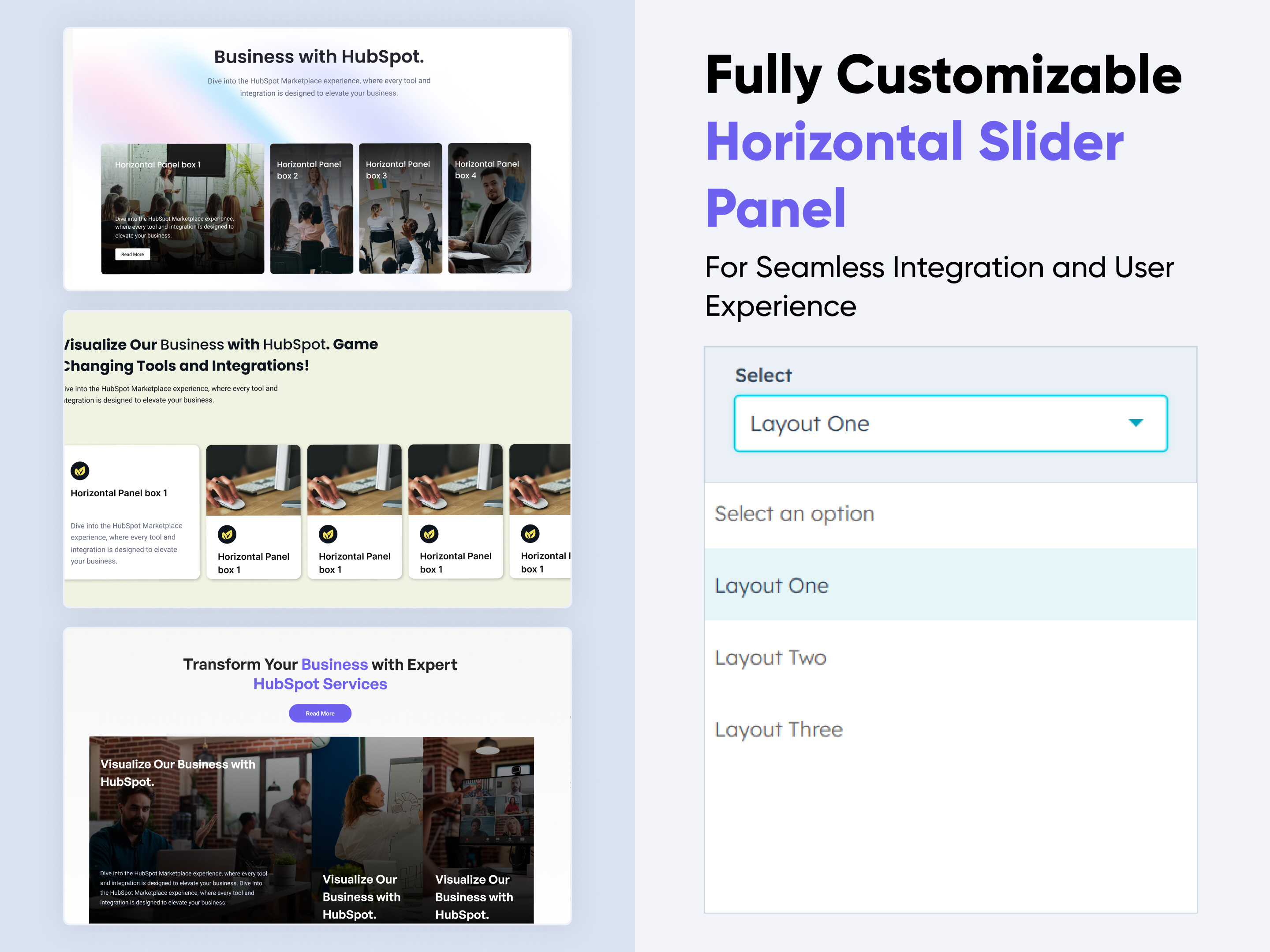
Hover Box Animation
Hover Box Animation
Gallery | Columns | Content | Animation | Cards |
Hover Box Animation
Price: free
Hover Box Animation Thumbnail
03 thumbnail-Oct-21-2024-01-26-42-7923-PM

The hover module is a powerful design component that enhances user engagement by displaying additional content or options when a user hovers over an element. This interactivity not only improves the visual appeal of your website or application but also provides users with quick access to relevant information.

Key Features of the Hover Box Animation Module:

  • Dynamic Content Display: Shows additional information or actions when a user hovers over the box, enhancing interactivity.

  • Customizable Styles: Easily adjust colors, typography, borders, and shadows to match your brand aesthetics.

  • Responsive Design: Automatically adjusts layout and size for optimal viewing on various devices.

  • Call-to-Action Buttons: Include buttons within the hover box for quick access to actions like "Learn More," "Buy Now," or "Contact Us."

How to Set Up the Hover Box Animation Module in HubSpot :

In the main dashboard, navigate to the ‘Content’ tab and select either ‘Website’ or ‘Landing Pages’, depending on where you want to add the section. This allows you to choose the appropriate location for managing or updating your content.

nav-timeline

Select the page where you want to apply the module.

Screenshot (20)

Search for "Hover Box Animation" and drag and drop the module into the desired location on your page.

Module Defaults Options:

Heading : 

Easily customize the content in your module by modifying the Heading to suit your needs. You can also choose to hide the section if desired, giving you complete control over the presentation and functionality of your content.

Options : 

  • Heading Show/Hide Toggle

Column Content

Unlock the full potential of HubSpot’s repeater field to seamlessly add unlimited column items. Effortlessly rearrange and organize your content, giving you the flexibility to structure it exactly as you need.

Module Style Options: 

Module Setting :

Adjust the margins, padding, background choices in colors, and container width to achieve your desired look and feel for the module. This flexibility allows you to fine-tune the layout and aesthetics, ensuring that your design is not only visually appealing but also functional and user-friendly.

Heading Setting :

Users can customize the spacing of the heading, as well as adjust the typography for the heading. This includes modifying the color, font size, weight, and line height for both mobile and desktop views, allowing for a personalized and visually cohesive design across all devices.

Column Section Setting :

Users can easily customize the column background, adjust spacing for both desktop and mobile views, and add borders and border-radius. Plus, apply hover color effects to create engaging, interactive designs.

Content Setting :

Users can effortlessly customize the typography of the column title, description, and CTA, including color, font size, and line height. Additionally, adjust the spacing and apply hover color effects for a more dynamic design.

We hope you enjoy using our hover module to create a seamless experience for both your users and your marketing team. At Code Accelerator, we're committed to ensuring your HubSpot experience is exceptional. If you need a custom HubSpot module or require a tailored HubSpot CMS or CRM setup, please don’t hesitate to Contact Us.

Module Tags: Gallery | Columns | Content | Animation | Cards |
Discover More in the Knowledge Base

Explore detailed documentation, setup instructions, feature explanations, and best practices to help you get the most out of this module quickly and efficiently.
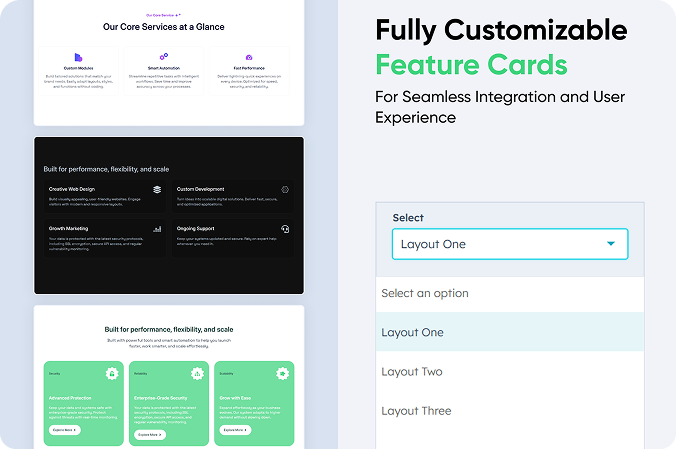
About Us Content
About Us Content
Columns | Counter | Detail | Cards
About Us Content
Price: free
03 thumbnail-Oct-14-2024-12-28-36-5839-PM

The About Us module is a dedicated section that introduces your company or organization to visitors. It highlights your mission, values, and the story behind your brand, helping to create a connection with your audience.

Key Features of the About Us Content Module:

  • Company Overview

    Provides a clear and concise introduction to your business, including its mission, vision, and core values.

  • Call to Action

    Encourages visitors to take the next step, whether it's contacting you, learning more, or exploring your products/services.

  • Core Values

    Emphasizes the principles and values that guide your company’s work and decision-making process.

How to Set Up the About Us Content Module in HubSpot :

In the main dashboard, navigate to the ‘Content’ tab and select either ‘Website’ or ‘Landing Pages’, depending on where you want to add the section. This allows you to choose the appropriate location for managing or updating your content.

Select the page where you want to apply the module.

Screenshot (20)

Search for "About Us Content" and drag and drop the module into the desired location on your page.

Module Defaults Options:

Column Reverse : 

With our seamless column switching feature, you can easily adjust and rearrange content layout without any hassle. Whether you're working with different screen sizes or simply want to change the order of your content, our flexible column structure allows for effortless switching.

Options : 

  • Left Column Image
  • Right Side Image

Heading & Description : 

Easily customize the content in your module by modifying the Heading & Description to suit your needs. You can also choose to hide the section if desired, giving you complete control over the presentation and functionality of your content.

Options : 

  • Heading Show/Hide Toggle
  • Description Show/Hide Toggle

CTA : 

You can also change the CTA text and CTA link and icon with show/hide option in it.

Options : 

  • CTA Show/Hide Toggle

Image Column :

You can change the column image in this group.

Module Style Options: 

Module Setting :

Adjust the margins, padding, background colors, and container width to achieve your desired look and feel for the module. This flexibility allows you to fine-tune the layout and aesthetics, ensuring that your design is not only visually appealing but also functional and user-friendly.

Heading & Description Setting :

Users can customize the spacing of the heading & description, as well as adjust the typography for the heading and description. This includes modifying the color, font size, weight, and line height for both mobile and desktop views, allowing for a personalized and visually cohesive design across all devices.

CTA Setting  :

Users can easily customize the CTA (Call-to-Action) typography for both desktop and mobile views, ensuring a consistent look across devices. They can also adjust the background color, border, border radius, and alignment separately for desktop and mobile, providing full control over the button's appearance. Additionally, hover colors can be added to enhance interactivity, making the CTA more engaging for users when they interact with it.

Column Image Setting :

Users have the ability to customize the image height for both desktop and mobile views, ensuring that visuals are optimized for different screen sizes. Additionally, they can apply a corner radius to the image for a polished, modern appearance. Spacing between elements can also be adjusted separately for desktop and mobile, allowing for greater control over the layout and design. This flexibility ensures that the images and overall presentation are visually appealing and responsive across all devices.

We hope you enjoy using our about us content module to create a seamless experience for both your users and your marketing team. At Code Accelerator, we're committed to ensuring your HubSpot experience is exceptional. If you need a custom HubSpot module or require a tailored HubSpot CMS or CRM setup, please don’t hesitate to Contact Us.

Module Tags: Columns | Counter | Detail | Cards
Discover More in the Knowledge Base

Explore detailed documentation, setup instructions, feature explanations, and best practices to help you get the most out of this module quickly and efficiently.

Upcoming Events
Upcoming Events
Events | Columns | Accordion | Cards Detail Animation | Steps |
Upcoming Events Thumbnail
02 thumbnail-Oct-11-2024-08-33-48-2777-AM
03 thumbnail-Oct-11-2024-08-35-10-2595-AM
04 thumbnail-Oct-11-2024-08-35-59-5734-AM

The Event Module is designed to provide an intuitive and flexible solution for managing events on your website or application. Whether you’re organizing a small meeting, a large conference, or recurring events, this module makes it easy to display, add, edit, and remove events seamlessly.

Key Features of the Upcoming Events Module:

  • Effortless Event Management – Easily add, edit, or remove events with a user-friendly interface.
  • Customizable Design – Adjust colors, fonts, backgrounds, and more to align with your brand’s aesthetic.
  • Responsive Layout – Fully adaptable across all devices, providing a seamless experience on mobile, tablet, and desktop.
  • Real-Time Updates – Instantly reflect any changes to event details, including date, location, or descriptions.
  • CTA Customization – Personalize the CTA text, links, and design to drive user engagement.
  • Flexible Typography & Spacing – Customize typography and set spacing for both mobile and desktop views.

Filter Options :

  • Location Filter → Allows users to select events happening in a specific city, state, or country.

  • Month Filter → Enables filtering events by a specific month.

  • Year Filter → Helps users find events from a particular year.

How to Set Up the Upcoming Events Module in HubSpot :

In the main dashboard, navigate to the ‘Content’ tab and select either ‘Website’ or ‘Landing Pages’, depending on where you want to add the section. This allows you to choose the appropriate location for managing or updating your content.

Select the page where you want to apply the module.

Screenshot (20)

Search for "Upcoming Events" and drag and drop the module into the desired location on your page.

Module Defaults Options: 

Layout ID :

You can add an ID in this and use that same ID in an anchor link to create a smooth scroll effect when a user clicks a CTA (Call to Action).

Layout Options :  

For Upcoming Events, select your preferred layout (e.g., Layout 1, Layout 2, or Layout 3). You can easily rearrange the event cards within the chosen layout to create the ideal content flow and visual arrangement.

Options : 

  • Layout 1 : The layout features a 3-column design, with the left column displaying the heading and description, while the remaining columns showcase the event details.
  • Layout 2 : The layout is a single-column design with background images, creating a visually engaging experience.
  • Layout 3: The layout features a 3-column design, with each column presenting different event details.

Heading, Description & CTA : 

Easily customize the content in your module by modifying the "Heading," "Description," and call-to-action (CTA) to suit your needs. You can also choose to hide the section if desired, giving you complete control over the presentation and functionality of your content.

Options : 

  • Heading/Description & CTA Show/Hide Toggle
  • CTA Change Text/URL with Show/Hide Toggle

Filter Options : 

A filter option in an event module allows users to refine event listings based on criteria like location, date, and year, enhancing search efficiency. Users can select a location from a select options, choose a month via a select options, or filter by year using a select field. 

Event Columns Content : 

You can change the event title, description, address, and date with just a few clicks. Additionally, customize your CTA (Call to Action) text and link to ensure it aligns with your event's goals.

Module Style Options: 

Module Setting :

Adjust the margins, padding, background colors, and container width to achieve your desired look and feel for the module. This flexibility allows you to fine-tune the layout and aesthetics, ensuring that your design is not only visually appealing but also functional and user-friendly.

Filter Setting :

A filter settings module should allow users to customize the appearance and behavior of filters, including background color, spacing, alignment, border styles, and border radius. Users can modify the select dropdown’s design, such as colors, font size, and padding, ensuring a tailored look. Additionally, CTA (Call-To-Action) button settings should allow customization of text, color, size, and hover effects for better user engagement. These settings enhance UI flexibility, making filters visually appealing and aligned with branding requirements while maintaining functionality and usability. 

Heading, Description & CTA Setting :

Users can customize the spacing of the module, as well as adjust the typography for the heading and description & CTA. This includes modifying the color, font size, weight, and line height for both mobile and desktop views, allowing for a personalized and visually cohesive design across all devices.

Content Column Setting :

Users can easily customize the Event Column Spacing for both desktop and mobile views. You can also adjust the Background Color, set the Border and Border Radius, and apply a Box Shadow for added depth and visual appeal.

Content Setting :

Users can customize the typography of the event column, including spacing, line height, font size, color, alignment, and text transform for both desktop and mobile views. This allows for complete control over the visual style and ensures consistency across devices.

Column Image Setting :

Users can customize the image height for both desktop and mobile views, and, if desired, add a corner radius to the image for a more polished and modern look.

We hope you enjoy using our upcoming events module to create a seamless experience for both your users and your marketing team. At Code Accelerator, we're committed to ensuring your HubSpot experience is exceptional. If you need a custom HubSpot module or require a tailored HubSpot CMS or CRM setup, please don’t hesitate to Contact Us.

Module Tags: Events | Columns | Accordion | Cards Detail Animation | Steps |
Discover More in the Knowledge Base

Explore detailed documentation, setup instructions, feature explanations, and best practices to help you get the most out of this module quickly and efficiently.
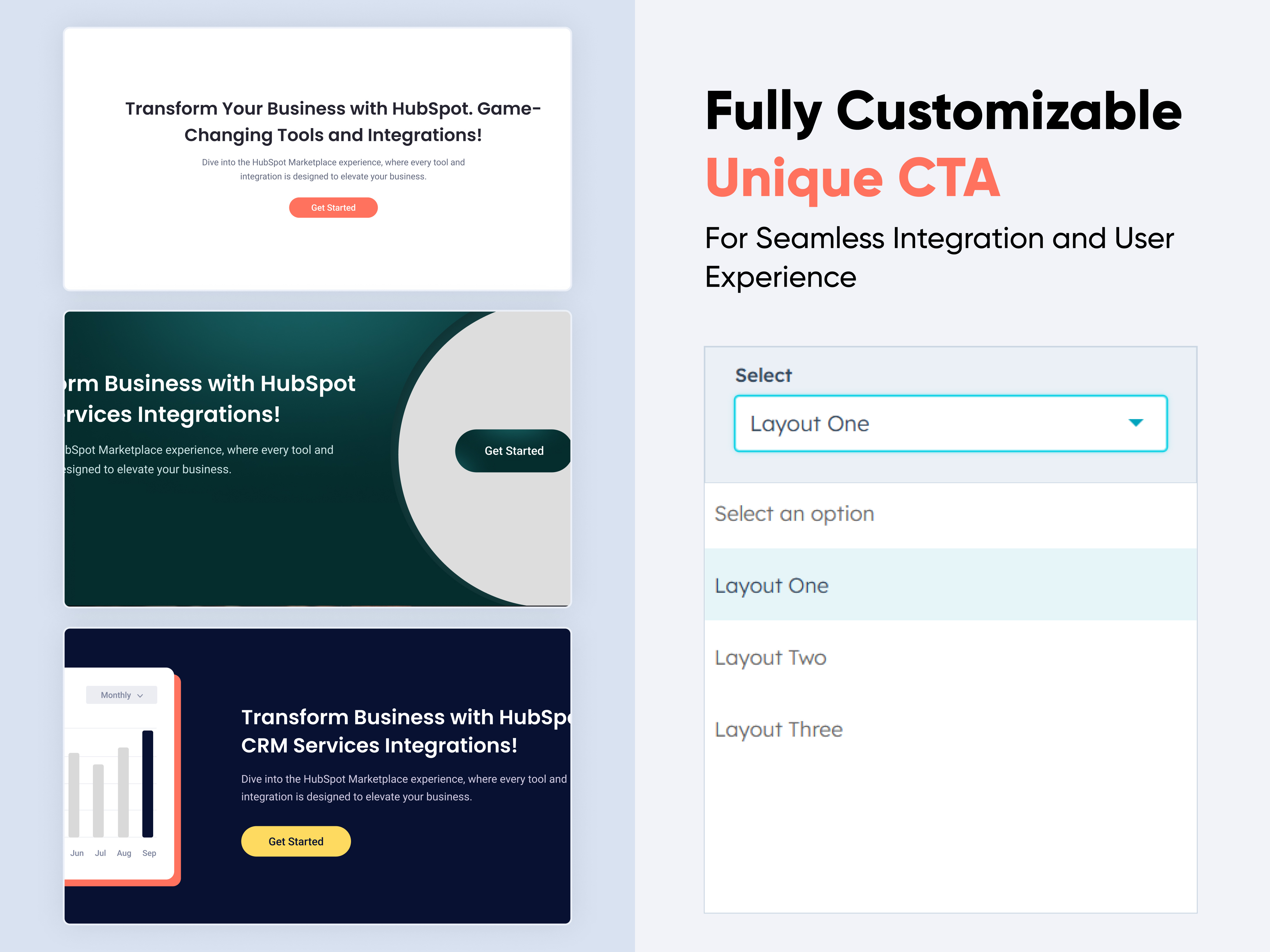
Unique CTA
Unique CTA
CTA | EBook | Animation | Content | Columns |
Unique CTA Thumbnail
02 thumbnail-Sep-17-2024-11-21-35-2405-AM
03 thumbnail-Sep-17-2024-11-22-00-8554-AM
03 thumbnail(1)-3

A CTA (Call to Action) Module is a web component designed to encourage users to take a specific action, such as subscribing, downloading, or purchasing. This section typically includes a compelling headline, supporting text, and a prominent button. The design should be clean, visually appealing, and mobile-responsive to maximize engagement. Effective CTA modules utilize clear, concise messaging, create a sense of urgency, and are regularly tested to optimize conversion rates.

Features and Customization Options:

  1. Compelling Headline: A strong, attention-grabbing headline that clearly conveys the value or purpose of the action.

  2. Action-Oriented Button: A prominent button with clear, persuasive text (e.g., "Sign Up," "Get Started," "Learn More") that encourages immediate user action.

  3. Supporting Text: Brief and concise text that explains the benefits or value proposition, providing additional context to support the CTA.

  4. Responsive Design: A layout that adapts seamlessly to different screen sizes, ensuring a great user experience on desktops, tablets, and mobile devices.

  5. Contrasting Colors: Strategic use of color to make the CTA button stand out and draw the user's eye to the desired action.

  6. Minimalistic Design: Clean and clutter-free design to keep the user's focus on the primary action.

  7. Clear Value Proposition: Clear messaging that quickly communicates what the user will gain by taking the action.

How to Set Up the Unique CTA Module in HubSpot :

  1. In the main dashboard, navigate to the Content tab and select either Website Pages or Landing Pages, depending on where you want to add the service section.

  2. Choose the page where you want to apply the module.

  3. Search for "Unique CTA" and drag and drop the module into the desired location on your page.

    Mask Group 2-1

Module Defaults Options: 

Layout Options :  

For the CTA module section, select your preferred layout (e.g., Layout 1, Layout 2 & Layout 3) and easily rearrange it to achieve the ideal content flow.

Options:

  • Layout 1:  For Layout 1 of a CTA (Call to Action) module, where the heading, description, and CTA button are all center-aligned.
  • Layout 2: For Layout 2 of a CTA (Call to Action) module, where the content is organized in a two-column format with the heading and description on the left and the CTA on the right.
  • Layout 3: For Layout 3 of a CTA (Call to Action) module, where the design is organized in a two-column format with an image on the left and the heading, description, and CTA on the right

Heading & Description : 

You can easily customize the content in your CTA module's heading sections to suit your needs. Adjust the 'Heading' and 'Description' to align with your specific messaging, or choose to hide these sections entirely if desired.

Options:

  • Toggle Visibility: Easily show or hide the heading and description sections based on your requirements, allowing for a cleaner and more focused design.

CTA Show/Hide :

You can customize the CTA link and CTA text according to your preferences, providing flexibility to tailor the call to action to your specific needs. Additionally, there is an option to show or hide the CTA entirely, giving you full control over its visibility.

CTA conten

Image Column :

For Layout 3, the left side of the CTA module features an image option that visually complements the content on the right. You have the flexibility to show or hide the image column based on your design needs, ensuring the layout remains adaptable and clean.

CTA image

Module Style Options: 

Module Setting :

You have full control over customizing the module's design to achieve your ideal layout. Adjust the margin and padding settings, choose a background option—whether it's a solid color, image, or gradient—and set the container width to perfectly align with your overall design goals.

CTA Module Settinf

CTA Section Setting :

You can customize the CTA section by adjusting the background color, spacing, border, border radius, and box shadow to create a distinctive and visually appealing design.

CTA Section setting

Heading & Description Setting :

Users can customize the maximum width, bottom spacing, and content alignment of the CTA module. Typography settings, including font size, weight, and line height for headings and descriptions, can be adjusted for both mobile and desktop views. Additionally, spacing adjustments are available for both mobile and desktop layouts, allowing for a tailored and responsive design.

CTA Heading setting

CTA Setting :

You can customize the CTA section for both desktop and mobile views by adjusting typography settings, background color, hover color, border, border radius, and spacing. Additionally, you can fine-tune the alignment for a cohesive and responsive design across different devices.

CTA SettingImage Column Setting :

For Layout 3, you can customize the image settings by adjusting the border radius, spacing. This allows for a tailored look that complements the overall design of your CTA module.

We hope you will love working with our CTA module and creating a seamless experience for both your users and marketers on your team. Here at Code Accelerator, we strive to ensure that your experience with HubSpot is a great one! If you need a custom HubSpot module or require a customized HubSpot CMS or CRM setup, Please Contact Us.

Module Tags: CTA | EBook | Animation | Content | Columns |
Discover More in the Knowledge Base

Explore detailed documentation, setup instructions, feature explanations, and best practices to help you get the most out of this module quickly and efficiently.
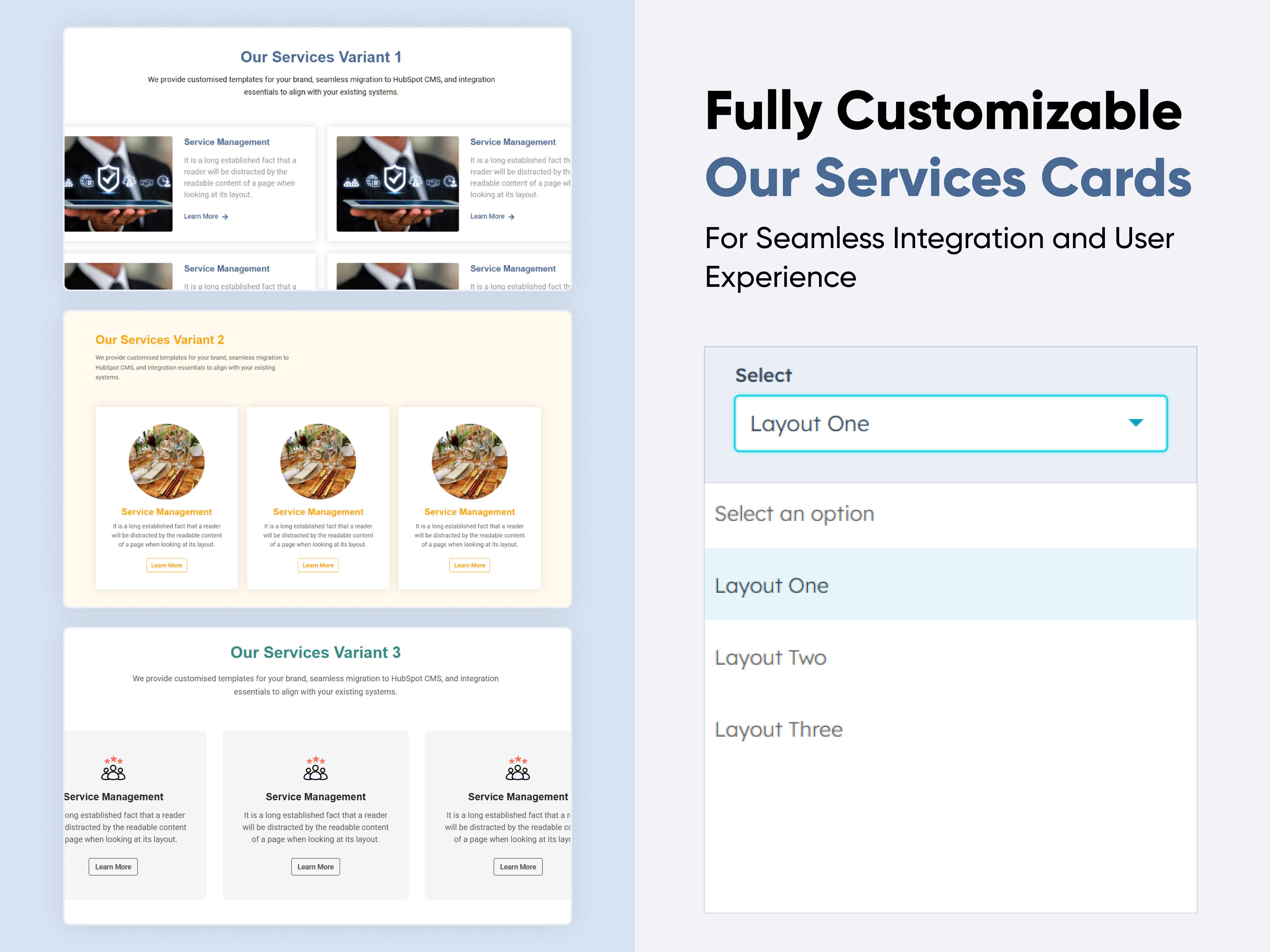
Team Members Detail
Team Members Detail
Team | Image | Cards |
Team Members Detail
Price: free
01 thumbnail-Sep-24-2024-01-24-52-5757-PM
02 thumbnail-Sep-24-2024-01-10-09-2649-PM
03 thumbnail-Sep-24-2024-01-25-26-4649-PM

A team member module is a crucial part of any team management or HR system. It focuses on managing individual team members, their profiles, roles, performance, and interactions within the team. This module serves as a centralized hub for storing and accessing detailed information about each team member, supporting their engagement and growth within the organization.

Key Features :

  1. Profile Management: Store detailed profiles for each team member.

  2. Role & Responsibility Management: Assign specific roles and responsibilities to each team member, with the ability to update as roles evolve.

  3. Flexibility & Scalability: Easily manage growing teams, changing roles.

How to Set Up the Team Members Module in HubSpot :

  1. In the main dashboard, navigate to the ‘Content’ tab and choose either ‘Website’ or ‘Landing Pages’ depending on where you want to add the service section.

  2. Select the page where you want to apply the module.

  3. Search for "Team Members Detail" and drag and drop the module into the desired location on your page.

Module Defaults Options:

Layout Options :  

For team members, choose your preferred layout (e.g., Layout 1, Layout 2, or Layout 3). You can easily rearrange the cards within the chosen layout to achieve the perfect content flow.

Options : 

  • Layout 1: A three-column layout with names and designations at the bottom and a social menu overlaying the image to the right
  • Layout 2: A four-column layout with a round image, where social icons appear only on hover,
  • Layout 3: A three-column layout with a background color, an image at the top, and all details (name, designation, and social icons) displayed at the bottom.

Heading & Description: 

Easily customize the content in your contact us heading sections. Modify the "Heading," "Description," to fit your needs, and choose to hide the section if desired.

Options : 

  • Heading & Description Hide/Show Toggle

Column Content :

You can easily customize the content in team member columns by editing the member names and designations.

Options :

  • Column options in single row
  • Repeat the column items

Module Style Options: 

Module Setting :

Adjust margins, padding, background colors, and container width to achieve the desired look and feel.

Heading & Description Setting :

Users can customize the bottom spacing, and content alignment. Additionally, users can adjust the typography for the heading, description, including font size, weight, and line height for both mobile and desktop views.

Column Section Setting :

Users can customize the column section by adjusting the background color, border, corners, and adding box shadows. They can also fine-tune spacing for both desktop and mobile views, ensuring optimal appearance across devices

Image Setting :

Users can customize the image height and width, as well as add borders, rounded corners, and box shadows for a polished look.

Column Content Setting :

Users can customize the member name and position typography separately for desktop and mobile views, including font size, style, and weight. Additionally, they can adjust the bottom spacing to ensure proper alignment and visual balance across different devices.

Social Setting :

Users can customize the icon’s color, background, height, and width, and can add borders with rounded corners. They can also apply hover effects such as background color, border color, and icon color changes. Additionally, spacing adjustments can be made for both desktop and mobile views, ensuring that icons look consistent and visually appealing across all devices. Users can also change the social icon divider’s color, height, and width, with these customization specifically applying to layout 1. 

We hope you enjoy using our team members module to create a seamless experience for both your users and your marketing team. At Code Accelerator, we're committed to ensuring your HubSpot experience is exceptional. If you need a custom HubSpot module or require a tailored HubSpot CMS or CRM setup, please don’t hesitate to Contact Us.

Module Tags: Team | Image | Cards |
Discover More in the Knowledge Base

Explore detailed documentation, setup instructions, feature explanations, and best practices to help you get the most out of this module quickly and efficiently.
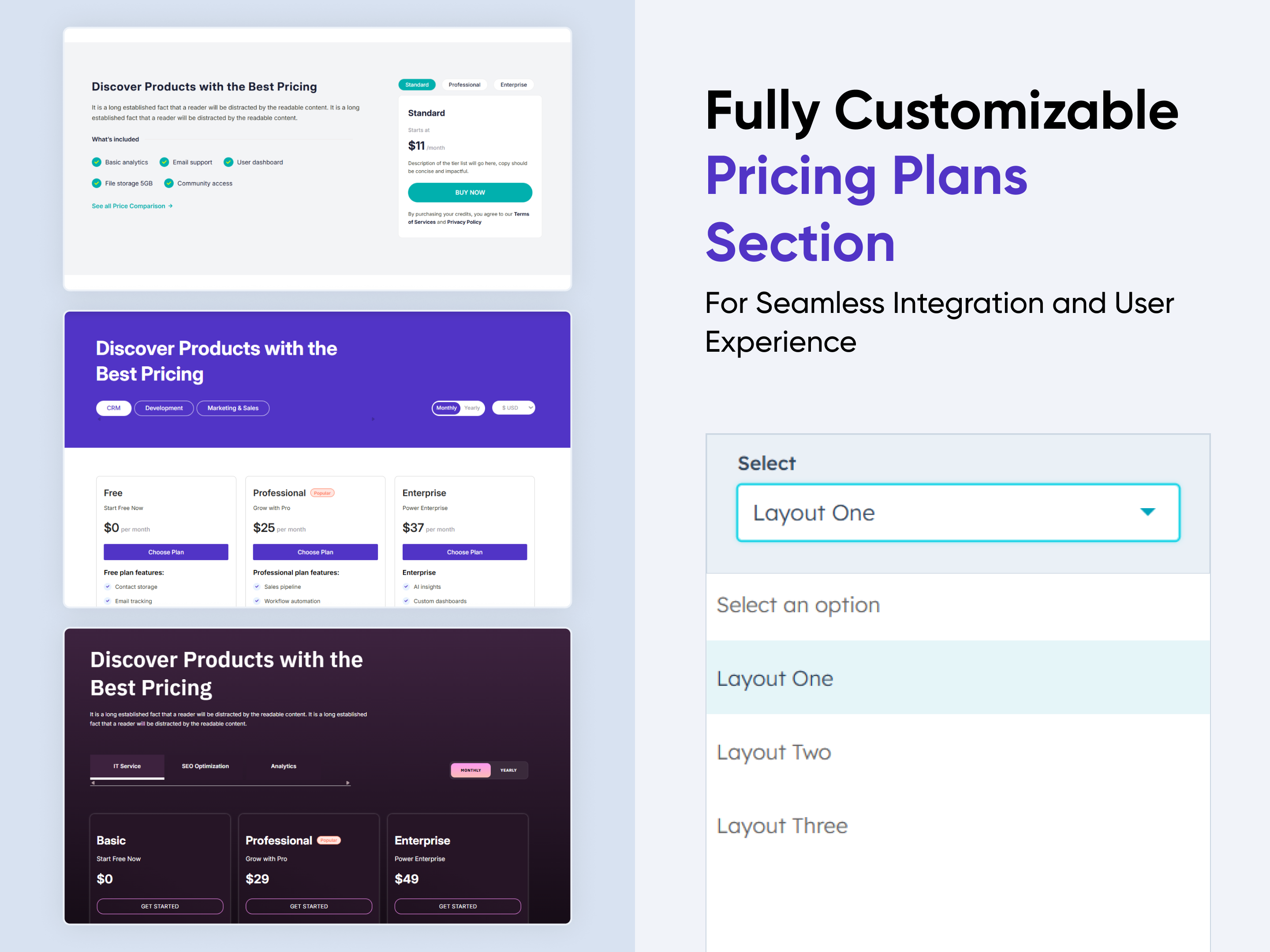
E-Book Download
E-Book Download
EBook | Columns | CTA | Cards Content |
E-book Download Thumbnail
02 thumbnail-Sep-20-2024-12-34-51-6221-PM
03 thumbnail-Sep-20-2024-12-35-26-5320-PM
04 thumbnail-3

The Ebook Module is a powerful tool designed to streamline the creation and distribution of digital publications. Here’s a comprehensive overview of its key features and benefits:

Key Features of the E-Book Download Module :

  • User-Friendly Interface:
    • Intuitive Design: Easily navigate through the module with a clean and straightforward layout.

    • Drag-and-Drop Functionality: Simplify the process of adding images, text.

  • Fully Responsive:
    • Mobile Optimization: Automatically adjusts content for optimal viewing on all devices, including desktops, tablets, and smartphones.

    • No Coding Required: Enjoy a seamless experience without the need for additional coding or styling adjustments.

  • Customization Options:
    • Styling Controls: Modify colors, typography, margins, paddings, box shadows, and borders directly from the styles tab to match your branding.

    • Template Variety: Choose from a selection of pre-designed templates or create your own unique layout.

  • Hyperlinks and Navigation:

    Easily add links and bookmarks for a smooth reading experience.

How to Set Up the E-Book Download Module in HubSpot :

In the main dashboard, navigate to the ‘Content’ tab and choose either ‘Website’ or ‘Landing Pages’ depending on where you want to add the service section.

Select the page where you want to apply the module.

Search for "E-Book Download" and drag and drop the module into the desired location on your page.

Ebook module search

Module Defaults Options: 

Layout Options :  

For E-Book Download, choose your preferred layout (e.g., Layout 1, Layout 2 or Layout 3). You can easily rearrange the cards within the chosen layout to achieve the perfect content flow.

Options : 

  • Layout 1: The module features a two-column layout: the left side displays an engaging ebook image, while the right side includes a compelling heading, a concise description, and a clear call-to-action (CTA). 
  • Layout 2: The module is organized into center align content with heading, description, CTA and E-Book image with  vibrant gradient background.
  • Layout 3: The module is organized into two columns the left side features a heading and description with CTA  while the right side E-Book image. 

Heading/Description & CTA : 

Easily customize the content in your module by modifying the "Heading," "Description," and call-to-action (CTA) to suit your needs. You can also choose to hide the section if desired, giving you complete control over the presentation and functionality of your content.

Options : 

  • Heading/Description & CTA Show/Hide Toggle
  • CTA Change Text/URL

Image Column : 

Easily customize and update the image in the module to align with your content. This allows you to refresh the visual presentation and ensure that the imagery resonates with your audience and branding.

Module Style Options: 

Module Setting :

Adjust the margins, padding, background colors, and container width to create the desired look and feel for your module. This flexibility allows you to fine-tune the layout and aesthetics, ensuring that your design is both visually appealing and functional.

Content Section Setting :

Users can customize the E-Book section's background color, vertical alignment, border, corner radius, and spacing for both desktop and mobile views. This ensures a tailored design experience that maintains consistency and visual appeal across all devices.

Heading & Description Setting : 

Users can customize the bottom spacing of the module, as well as adjust the typography for the heading and description. This includes modifying the color, font size, weight, and line height for both mobile and desktop views, allowing for a personalized and visually cohesive design across all devices.

CTA Setting :

Users can easily customize the call-to-action (CTA) typography for both desktop and mobile views. This includes adjusting the font family, line height, text color, hover color, and background color, as well as the hover background color. Additionally, users can add borders and customize hover border colors, modify corner radius, and adjust spacing options. Box shadow effects can also be applied to enhance the visual appeal of the CTA across devices.

Image Setting :

Users can customize the image width and, if desired, add borders and corner radius to the image. They can also adjust the spacing around the image to ensure it fits seamlessly within the overall design, enhancing visual coherence and presentation.

We hope you enjoy using our E-Book Download module to create a seamless experience for both your users and your marketing team. At Code Accelerator, we're committed to ensuring your HubSpot experience is exceptional. If you need a custom HubSpot module or require a tailored HubSpot CMS or CRM setup, please don’t hesitate to Contact Us.

Module Tags: EBook | Columns | CTA | Cards Content |
Discover More in the Knowledge Base

Explore detailed documentation, setup instructions, feature explanations, and best practices to help you get the most out of this module quickly and efficiently.
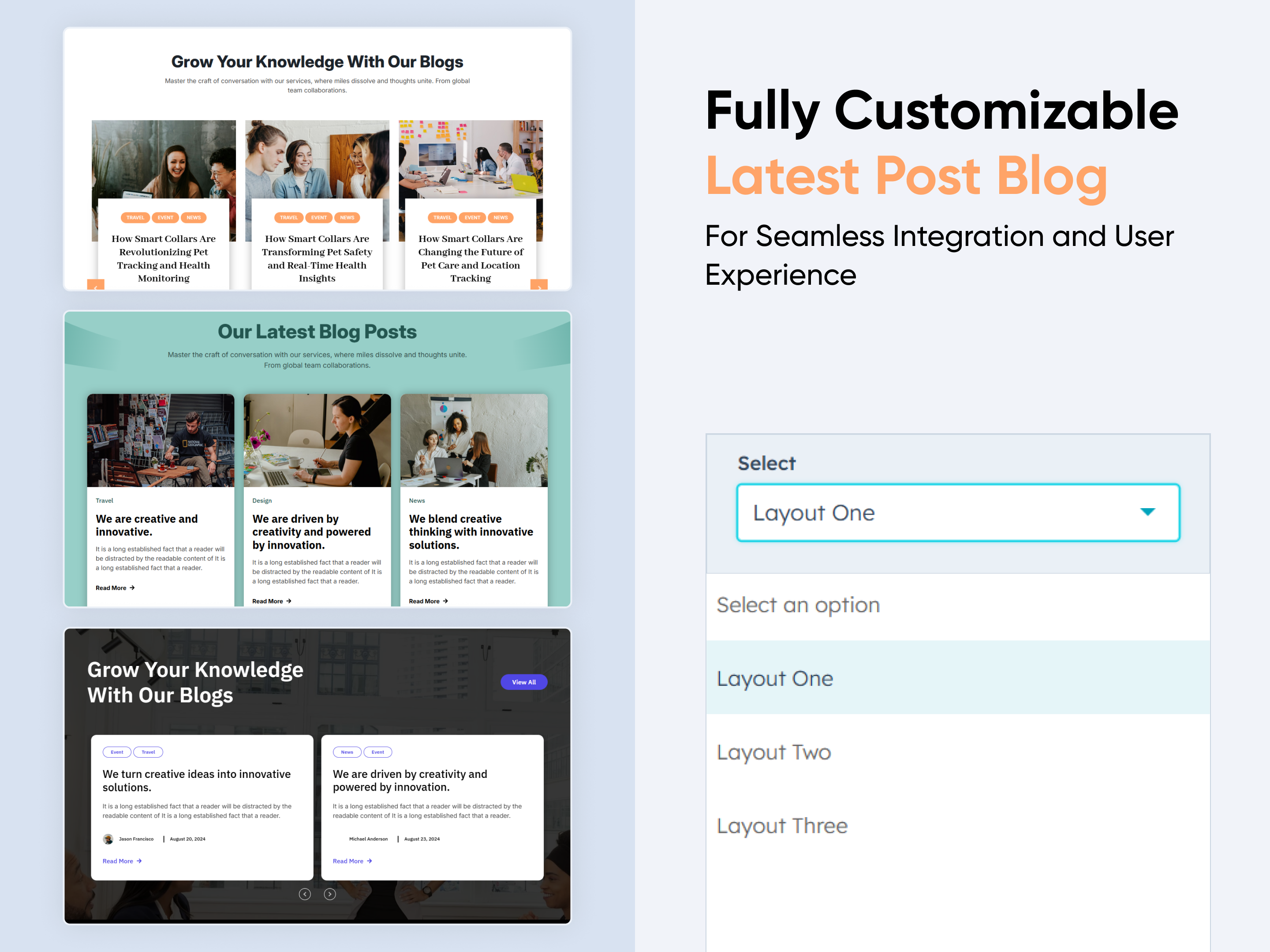
Countdown Coming soon
Animation | Counter | Coming soon |
Countdown Coming soon
Price: $29
Countdown-Coming-soon Thumbnail
02 thumbnail-Sep-18-2024-06-06-12-1653-AM
03 thumbnail-Sep-18-2024-06-06-56-5943-AM
03 thumbnail(1)-4

The "Coming Soon" module introduces an exciting new feature designed to enhance user experience by providing early insights into upcoming functionalities. This module will offer a sneak peek into the future updates, allowing users to stay informed and prepared for the latest advancements

Key Features of the Countdown Coming soon Module :

  • Customizable Countdown Timer
    Set a countdown timer with the ability to choose the end date and time, ensuring users know exactly when your content or product will launch.
  • Adaptable Time Settings
    Easily adjust the countdown by changing the days, hours to fit your launch schedule.
  • Fully Responsive Design
    The module automatically adapts to all devices, providing a seamless experience on desktops, tablets, and smartphones.
  • Three Design Variants
    Choose from three professionally designed styles to match your brand and aesthetic preferences.
  • Background Customization
    Set a custom background image, color to create a visually appealing waiting page.
  • SEO-Friendly
    Optimize the coming soon page with SEO settings to ensure your site maintains visibility even before it launches.

How to Set Up the Countdown Coming soon Module in HubSpot :

  1. In the main dashboard, navigate to the ‘Content’ tab and choose either ‘Website’ or ‘Landing Pages’ depending on where you want to add the service section.

    nav-timeline

  2. Select the page where you want to apply the module.

  3. Search for "Countdown Coming soon" and drag and drop the module into the desired location on your page.

    Coming soon search

Module Defaults Options: 

Layout Options :  

For Countdown Coming soon, choose your preferred layout (e.g., Layout 1, Layout 2 or Layout 3). You can easily rearrange the cards within the chosen layout to achieve the perfect content flow.

Options : 

  • Layout 1: A single-column layout with a white background and center-aligned text provides a clean, focused design that emphasizes simplicity and clarity. 
  • Layout 2: A two-column layout features a background image, with the left column displaying a heading and description, and the right column showcasing a countdown timer. 
  • Layout 3: A single-column layout with a background image and center-aligned text offers a sleek, streamlined design that highlights simplicity and clarity.

coming soon layout

Heading & Description : 

Easily customize the content in your module's heading sections. Adjust the "Heading" and "Description" to suit your needs, and choose to hide the section if desired. Note that the description option is not available in Layout 3.

Options : 

  • Heading & Description Show/Hide Toggle

coming  soon heading

Form : 

Easily customize and choose the form according to your preferences. You can also set a personalized thank you message and configure the form to redirect to another page upon submission.

coming soon form

Count Down : 

Effortlessly adjust the countdown date and time to match your preferences.

coming soon countdown

Module Style Options: 

Module Setting :

Customize margins, padding, background colors, and container width to achieve your desired look and feel.

coming soon module setting

Heading & Description : 

Users can adjust the typography for both the heading and description. This includes modifying color, font size, weight, and line height for mobile and desktop views, as well as setting text alignment.

coming soon headnig

Countdown Setting :

Users can easily customize the typography for the countdown heading and number value, including adjustments for both desktop and mobile views.

countdown setting

Form Setting :

Users can easily customize the form, input field settings, radio button, checkbox setting, rich text content, submit button, error messages, and form submission messages.

coming soon form style

We hope you enjoy using our countdown coming soon module to create a seamless experience for both your users and your marketing team. At Code Accelerator, we're committed to ensuring your HubSpot experience is exceptional. If you need a custom HubSpot module or require a tailored HubSpot CMS or CRM setup, please don’t hesitate to Contact Us.

Module Tags: Animation | Counter | Coming soon |
Discover More in the Knowledge Base

Explore detailed documentation, setup instructions, feature explanations, and best practices to help you get the most out of this module quickly and efficiently.
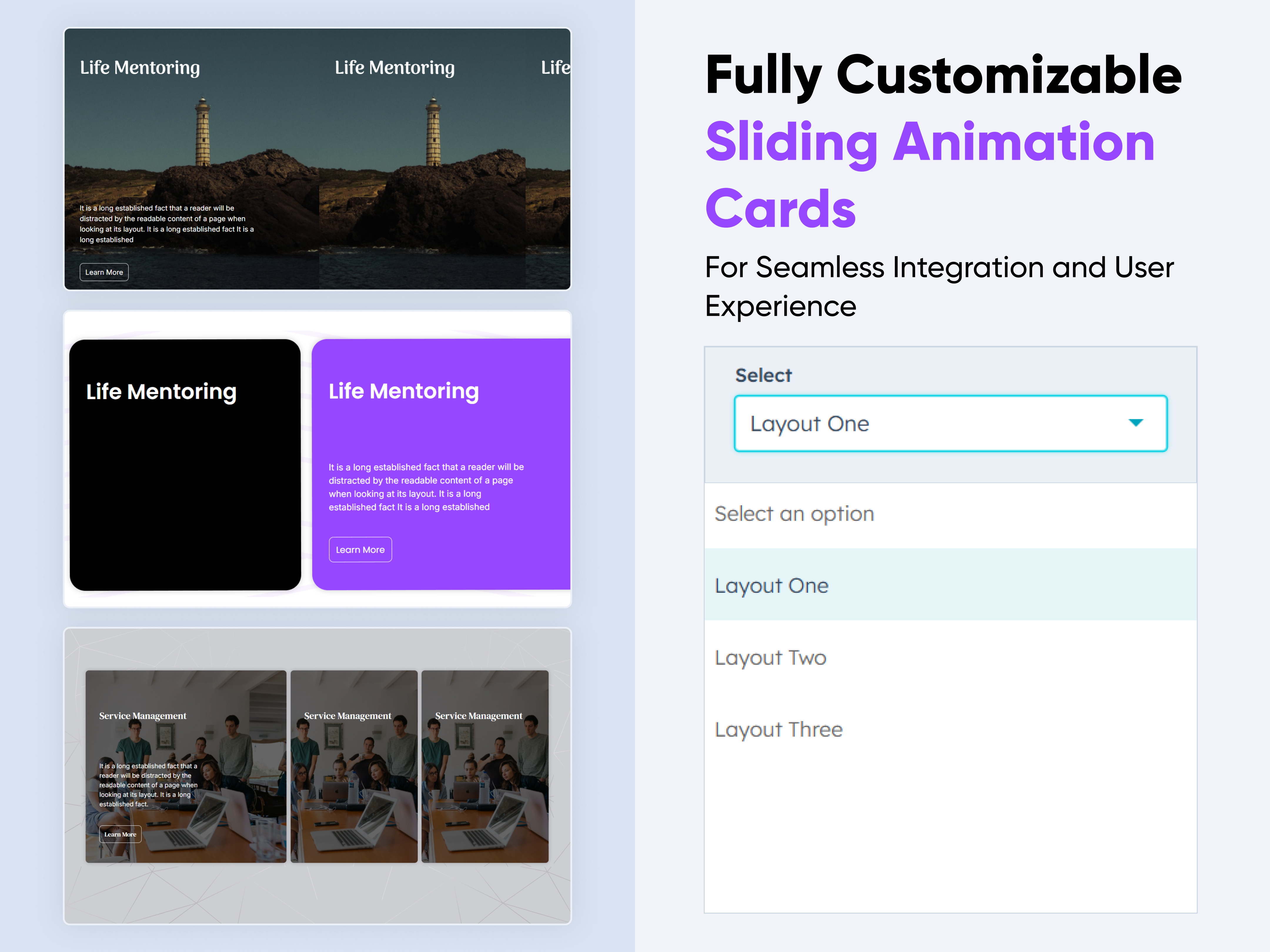
Our Services Cards
Our Services Cards
Cards | Columns | Detail |
Our Services Cards
Price: free
Our Service Cards Thumbnail
02 thumbnail
03 thumbnail

The Services Cards module is a versatile solution designed to showcase your services or offerings in a visually appealing and organized manner. This documentation provides a comprehensive guide to setting up, customizing, and managing the module, covering key features such as layout options, card customization, responsive design settings, and more.

Key Features :

  1. Select and arrange card layouts (e.g., one, two, or three columns).

  2. Customize card headings, descriptions, and icons.

  3. Adjust margin, padding, and background colors for optimal presentation.

  4. Ensure a responsive experience across all devices, including mobile, tablets, and desktops.

How to Set Up the Services Cards Module in HubSpot : 

  1. In the main dashboard, navigate to the ‘Content’ tab and choose either ‘Website’ or ‘Landing Pages’ depending on where you want to add the service section.

    nav-timeline

  2. Select the page where you want to apply the module.

    Screenshot (20)

  3. Search for "Our Services Cards" and drag and drop the module into the desired location on your page.

    module search

Module Defaults Options: 

Heading & Description : 

Customize the content in your service card heading sections with ease. Modify the "Heading" and "Description" to suit your needs, and choose to hide the section if desired.

Options : 

  • Heading & Description Hide/Show Toggle

Mask Group 2

Layout Options :  

For card sections, choose your preferred layout (e.g., Layout 1, Layout 2, or Layout 3). You can easily rearrange the cards within the chosen layout to achieve the perfect content flow.

Options : 

  • Layout 1: Two Column Left Image - Right Content
  • Layout 2:  Service Column With Round Image
  • Layout 3:  Service Column With Icons

layout

Service Column :  

You can easily customize the services cards in HubSpot by adjusting the following:

  • Column Options: Select and arrange card layouts (e.g., one, two, or three columns).
  • Images & Icon Setting: Easily customize the image height and border radius, and set the HubSpot icon color as well as the hover color.
  • Service Repeater: Modify the content, images, and styles for each card individually.

service repeat

Module Style Options: 

Module Setting :

Adjust margins, padding, background colors, and container width to achieve the desired look and feel.

module setting

Heading & Description Setting :

Users can customize the max width, bottom spacing and content alignments. and also users can customize the typography to fit the heading and description font size, weight, and line height for both mobile and desktop views. They can also adjust the spacing for mobile and desktop.

heading and des

Service Column Setting :

Users can customize the background color, spacing, border radius, and text alignment, as well as apply box shadows and borders to match their branding.

service col

Service Column - Content Setting :  

Users can customize the typography of the title and description to perfectly match the service content, including font size, weight, and line height for both mobile and desktop views. They can also adjust bottom spacing, and set the CTA background, spacing, hover color, and more.

service content

We hope you enjoy using our Services Cards module to create a seamless experience for both your users and your marketing team. At Code Accelerator, we're committed to ensuring your HubSpot experience is exceptional. If you need a custom HubSpot module or require a tailored HubSpot CMS or CRM setup, please don’t hesitate to Contact Us.

Module Tags: Cards | Columns | Detail |
Discover More in the Knowledge Base

Explore detailed documentation, setup instructions, feature explanations, and best practices to help you get the most out of this module quickly and efficiently.
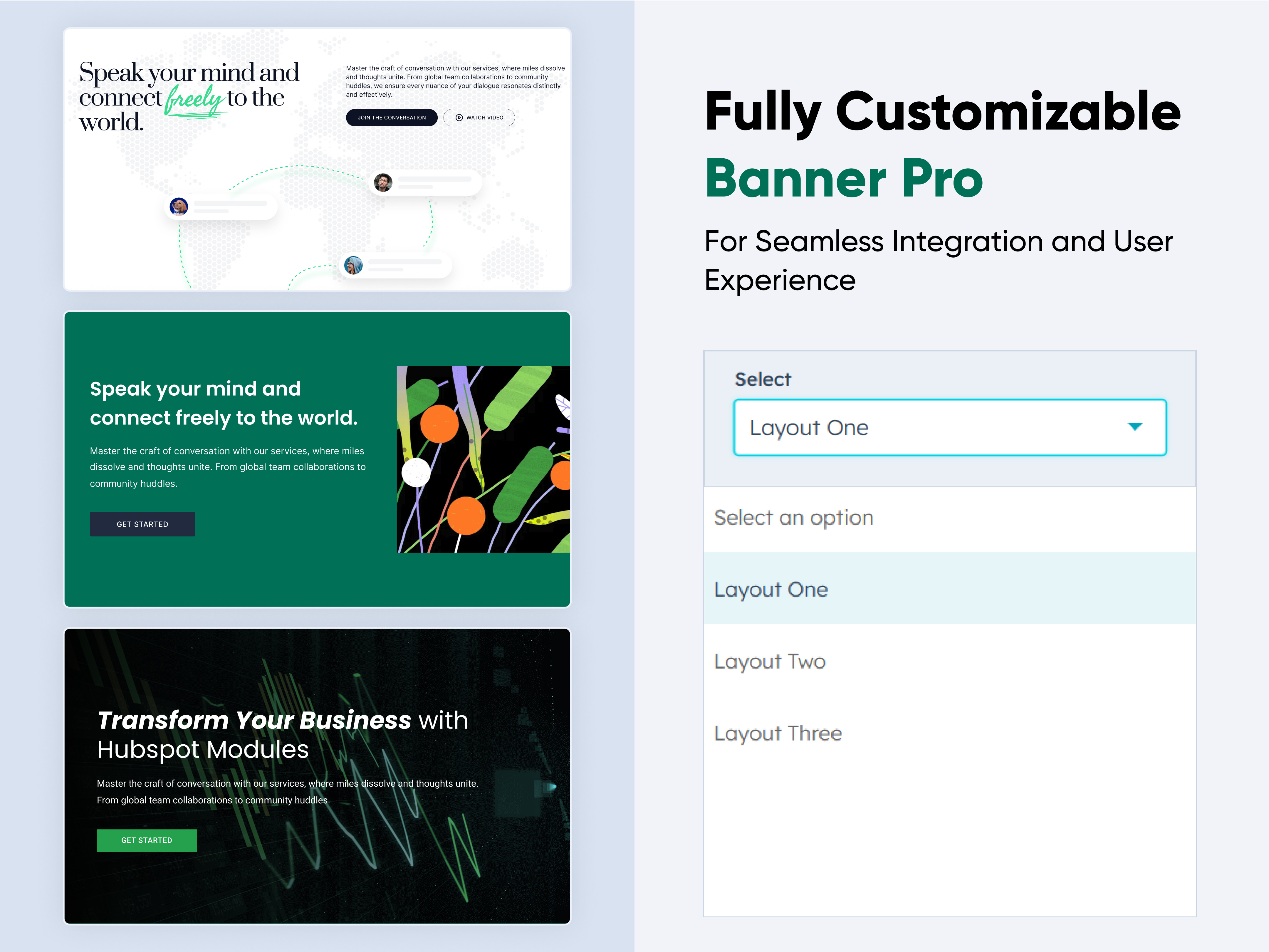
404 Section
404 Section
Content | Detail | 404 |
404 section Thumbnail
02 thumbnail-3
03 thumbnail-3

The 404 Module provides a user-friendly and customizable solution for handling "Page Not Found" errors on your website. It helps maintain a positive user experience even when visitors encounter broken links or deleted content.

Key Features :

  1. Customizable Error Message:

    • Personalize the error message to fit your brand’s tone, offering a friendly apology or helpful guidance.

  2. Mobile Optimization

    • Ensure the 404 page is responsive and looks great on all devices, from smartphones to desktops.

  3. Design and Layout

    • Choose from various design templates, color schemes, and fonts to match your site's style.

How to Set Up the 404 Module in HubSpot : 

  1. Navigate to the CMS/Dashboard where you can create templates or files.

    create file

  2. Click on "Create New File" and In the file type or template section, select HTML + HubL. For the template type, choose Error Page and  Name the file with something like error-page.html and Click the "Create" button.

    404 tempate create

  3. Open your 404 Section module and navigate to the module section in your CMS or code editor where your 404 module resides. Right-click on the module and copy the snippet and Locate and open your newly created error-page.html template. Find the appropriate location in the error-page.html file where you'd like the 404 module to appear and paste the copied snippet.

    module add

  4. In the top right corner, click on the gear icon to open the Settings. In the left-hand sidebar, go to Content > Pages. Select the appropriate domain if you have multiple domains. Scroll down to the System Pages section. Under Error Pages, you will see options for 404, 500, and other system pages. Click on the dropdown next to 404 Error Page. If you’ve already created your custom error-page.html template (with your 404 module added), it should appear in the dropdown. Select your custom template from the list. After selecting the new 404 error page template, click Save to apply the changes.

    404 setting

Module Defaults Options: 

Heading & Description : 

You can effortlessly tailor the content in your 404 module heading sections to fit your needs. Customize the 'Heading' and 'Description' to align perfectly with your messaging, and if needed, you can choose to hide the section altogether.

Options:

  • Toggle Visibility: Easily show or hide the heading and description sections as required.
  • Custom Heading Styles: Select from heading styles (h1 to h6) to adjust the prominence and appearance of your headings.

heading-des-1

Layout Options :  

For the 404 module section, select your preferred layout (e.g., Layout 1 or Layout 2) and easily rearrange it to achieve the ideal content flow.

Options:

  • Layout 1: A centered 404 section featuring a heading, description, CTA, and error image for a cohesive look.
  • Layout 2: A 404 section with a two-column design left-aligned heading, description, and CTA for a balanced presentation, with the error image on the right side.

layout-404

CTA Options :  

You can easily customize the 404 module CTA with options to tailor both the text and link.

404 -  CTA content

404 Error Image :  

You can choose to show or hide the image in the 404 module.

error image

Module Style Options: 

Module Setting :

Fine-tune margins, padding, background colors, and container width to create your ideal design and layout.

module setting - 404

Heading & Description Setting :

Users can customize the maximum width, bottom spacing, and content alignment. Additionally, typography settings—such as font size, weight, and line height for headings and descriptions—can be adjusted for both mobile and desktop views. Spacing adjustments are also available for mobile and desktop layouts.

heading-des-404

CTA Setting :

Position the CTA within your content (e.g., left, center, or right alignment). Adjust spacing around the CTA to ensure it’s visually appealing and effectively positioned within your layout. Control the size of the CTA button or text link to ensure it stands out appropriately.

cta setting 404

Error Image Setting :  

You can set the image height and width for both desktop and mobile views.

error image setting

We hope you find our 404 section module valuable in enhancing both user experience and marketing effectiveness. At Code Accelerator, we're dedicated to making your HubSpot experience outstanding. For custom HubSpot modules or personalized HubSpot CMS and CRM setups, please feel free to reach out to Contact Us.

Module Tags: Content | Detail | 404 |
Discover More in the Knowledge Base

Explore detailed documentation, setup instructions, feature explanations, and best practices to help you get the most out of this module quickly and efficiently.
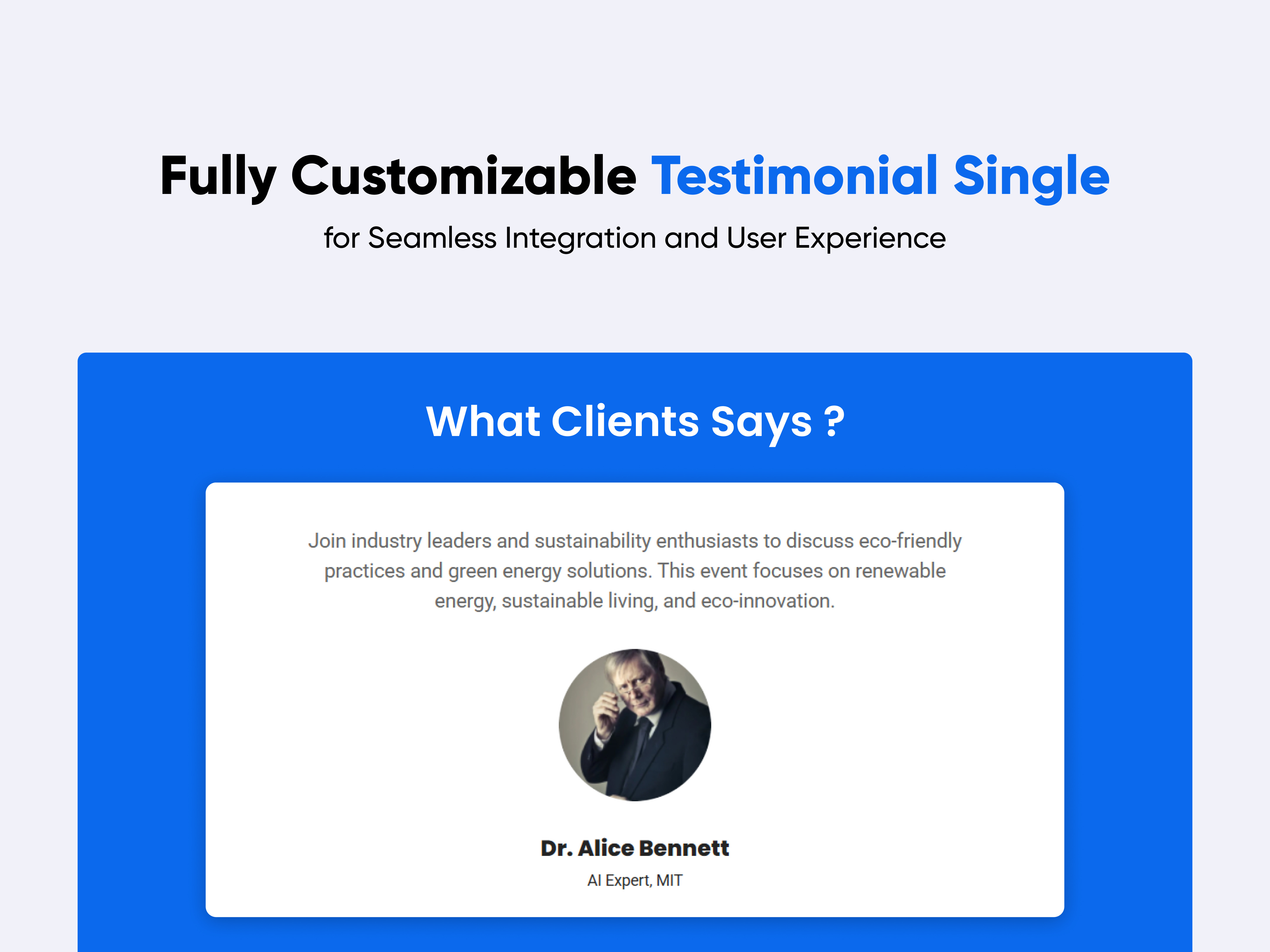
Main Hero Banner
Main Hero Banner
Hero Banner | Banner | Content | CTA | Detail
Main Hero Banner
Price: $29
03 thumbnail-2-1
02 thumbnail-2-1

A "Main Hero Banner" module in HubSpot is a prominent section, usually placed at the top of a webpage, that serves as the first visual element visitors see when they land on your site. It is designed to grab attention and convey your primary message or call-to-action. Here's what typically goes into the content of a Hero Banner module.

Key Features :

  1. Headline (Main Text)

    • Prominent and Impactful: The headline is usually the largest text element in the module, designed to quickly communicate the core message or value proposition.
    • Customizable Fonts and Sizes: You can adjust the font style, size, and color to align with your brand’s identity.
  2. Subheadline (Supporting Text)
    • Additional Context: Provides further explanation or supporting details for the main headline.
    • Flexible Placement: Can be placed above or below the headline, depending on the design.
  3. Call-to-Action (CTA)
    • Action-Oriented Buttons: Typically includes one or more buttons prompting visitors to take a specific action, such as "Sign Up," "Learn More," or "Contact Us."
    • Customizable Design: Button styles, colors, and text can be tailored to stand out within the hero module.
  4. Background Image or Overlay
    • Visual Appeal: The hero module often features a full-width background image that complements the text and overall design.
    • Overlay Options: A color or gradient overlay can be applied to enhance text readability over the background image or video.
  5. Responsive Design
    • Mobile Optimization: The hero module is designed to be fully responsive, ensuring that all elements (text, CTA, images, etc.) look great and function well on any device, including desktops, tablets, and smartphones.
  6. Customizable Layout
    • Flexible Content Arrangement: The module allows for various layouts, such as centered text, left-aligned text, or split-screen designs where text and images/videos are side by side.
    • Padding and Margin Control: You can adjust the spacing around elements to ensure the content is well-balanced and visually appealing.
  7. SEO-Friendly
    • Alt Text and Metadata: You can add alt text to images and metadata to the hero module content, helping improve SEO and accessibility.
  8. Theme and Brand Integration
    • Consistent Styling: The hero module can be designed to seamlessly integrate with your site’s overall theme and branding, ensuring a cohesive visual experience.

Setting Up the Main Hero Banner Module : 

  1. In the main dashboard, navigate to the Content tab and select either Website Pages or Landing Pages, depending on where you want to add the service section.

    nav-timeline

  2. Choose the page where you want to apply the module.

    Screenshot (20)

  3. Search for "Main Hero Banner" and drag and drop the module into the desired location on your page.

    Main Hero Banner

Module Defaults Options: 

Heading & Description : 

You can easily tailor the content in your hero banner heading sections to meet your specific needs. Customize the "Heading" and "Description" to perfectly align with your messaging, and if desired, you have the option to hide the section entirely.

Options : 

  • Toggle Visibility: Easily show or hide the heading and description sections as needed.
  • Custom Heading Styles: Choose from heading styles (h1 to h6) to control the prominence and appearance of your headings.

Heading hero

Layout Options :  

For hero banner sections, choose your preferred layout (e.g., Layout 1, Layout 2, or Layout 3). Easily rearrange the cards within your selected layout to achieve the perfect content flow.

Options : 

  • Layout 1: A hero banner with two columns featuring a heading, description, and CTA on the left, and an image on the right.
  • Layout 2: A hero banner with a centrally aligned heading, description, and CTA for a balanced and focused presentation.
  • Layout 3: A hero banner with a centrally aligned heading, description, and CTA, plus an additional content section at the bottom for extended messaging.

hero-layout

CTA Options :  

You can easily customize the hero banner's CTA with options for both text and link customization. The CTA is available for Layout 1 and Layout 2, allowing you to tailor the call-to-action to fit your needs perfectly.

CTA Options hero

Module Style Options: 

Module Setting :

Fine-tune margins, padding, background colors, and container width to create your ideal design and layout.

module setting hero

Heading & Description Setting :

Users can customize the maximum width, bottom spacing, and content alignment. Additionally, typography settings—such as font size, weight, and line height for headings and descriptions—can be adjusted for both mobile and desktop views. Spacing adjustments are also available for mobile and desktop layouts.

heading_hero-banner

CTA Setting :

Position the CTA within your content (e.g., left, center, or right alignment). Adjust spacing around the CTA to ensure it’s visually appealing and effectively positioned within your layout. Control the size of the CTA button or text link to ensure it stands out appropriately.

hero CTA setting

Image Column Setting :  

You can set image height for desktop and mobile also and set the border radius in image. image column only available in layout 1.

Image Column Setting Hero

Bottom Section Setting :  

In the bottom section of Layout 3, you can customize the background color, border radius, and spacing for both desktop and mobile views. Additionally, you can adjust the color and width of the center border.

Bottom Section Setting hero

Bottom Section Content Setting :  

In the bottom content section, you can customize the title and content by adjusting the size, weight, line height, and spacing for both desktop and mobile views.

Bottom Section Content Setting Hero

We hope you find our hero banner module valuable in enhancing both user experience and marketing effectiveness. At Code Accelerator, we're dedicated to making your HubSpot experience outstanding. For custom HubSpot modules or personalized HubSpot CMS and CRM setups, please feel free to reach out to Contact Us.

Module Tags: Hero Banner | Banner | Content | CTA | Detail
Discover More in the Knowledge Base

Explore detailed documentation, setup instructions, feature explanations, and best practices to help you get the most out of this module quickly and efficiently.
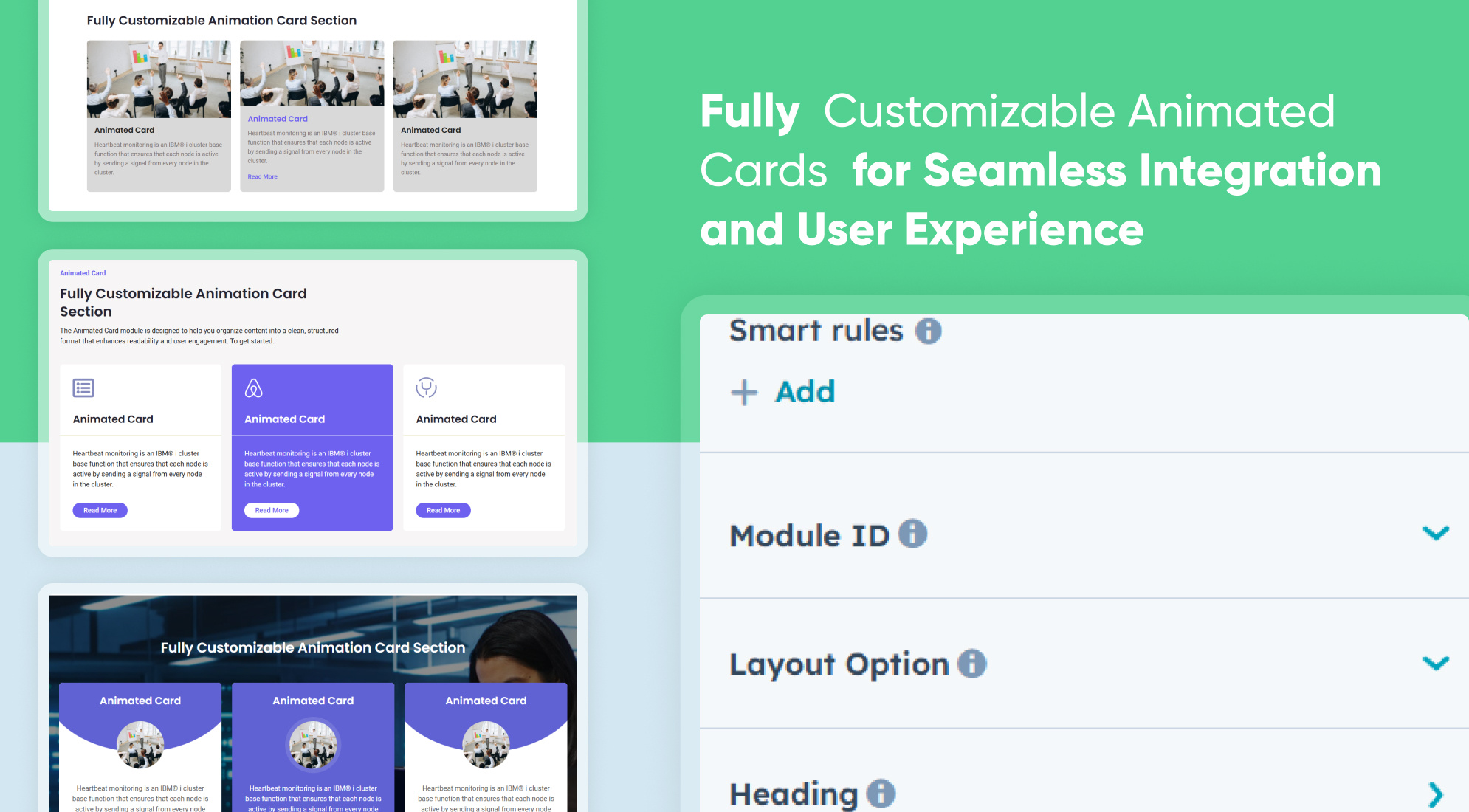
Client Logos Section
Banner | Hero Banner | Cards | Columns | Contact | Logo | Slider | Image | Testimonial |
Client Logos Section
Price: $19
Client Logo Section Thumbnail
02 thumbnail-4
03 thumbnail-4

The Client Logos Module is an essential component for showcasing logos on your website with maximum flexibility and control. Whether you’re displaying your own brand, partners, sponsors, or clients, this module provides a range of customization options to ensure that the logos integrate seamlessly with your site’s design and enhance the overall visual experience.

Features and Customization Options:

  1. Add/Remove Logos: 
    Add new logos or remove existing ones as needed. Support for various file formats ensures compatibility with your logo assets.

  2. Responsive Design: The module is designed to automatically adjust to different screen sizes, ensuring logos appear crisp and well-positioned on desktops, tablets, and mobile devices.

  3. Background Colors: 
    Set background colors to complement or contrast with the logos. Use solid colors or gradients to create a distinctive look.

  4. Borders and Box Shadows: 
    Add borders and box shadows to logos to create a sense of depth and separation. Customize border color, thickness, and style (solid, dashed, etc.), and adjust shadow settings for a tailored appearance.

  5. Text Alignment and Typography:
     Align accompanying text (e.g., logo descriptions, brand names) as desired—left, center, or right. Adjust typography settings including font family, size, color, and weight to ensure consistency with your site’s overall style.

  6. Margin and Padding: 
    Fine-tune the spacing around and within logos to achieve the desired layout. Adjust margin and padding to ensure logos are properly positioned and visually balanced.

  7. Layout Options: 
    Display logos in a grid format for a structured look or use a carousel for a dynamic, interactive presentation. Choose from various layout styles to suit your design needs.

Setting Up the Client Logos Module : 

  1. In the main dashboard, navigate to the Content tab and select either Website Pages or Landing Pages, depending on where you want to add the service section.

    nav-timeline

  2. Choose the page where you want to apply the module.

    Screenshot (20)

  3. Search for "Client Logos Section" and drag and drop the module into the desired location on your page.

    logo-module-add

Module Defaults Options: 

Heading & Description : 

You can effortlessly tailor the content in your client logos module heading sections to fit your needs. Customize the 'Heading' and 'Description' to align perfectly with your messaging, and if needed, you can choose to hide the section altogether.

Options:

  • Toggle Visibility: Easily show or hide the heading and description sections as required.
  • Custom Heading Styles: Select from heading styles (h1 to h6) to adjust the prominence and appearance of your headings.

heading-content-logo

Layout Options :  

For the client logos module section, select your preferred layout (e.g., Layout 1, Layout 2 & Layout 3) and easily rearrange it to achieve the ideal content flow.

Options:

  • Layout 1: The left column is dedicated to textual content, including a subheading, main heading, and a description. The right column showcases logo images, providing a clean and balanced presentation. 
  • Layout 2: In this layout, the heading and description are centrally aligned with the logo image, all presented in a single row.
  • Layout 3: In this layout, the heading and description are centrally aligned with the logo image in a single row. The logo image is enhanced with a top and bottom border, adding a touch of emphasis and structure.

layout logo

Logo Image Repeater :  

You have the flexibility to add or remove logos as needed and easily set different multi-logo configurations to suit your preferences.

logo repater

Module Style Options: 

Module Setting :

Fine-tune margin, padding, background colors, and container width to create your ideal design and layout.

module setting logo

Heading & Description Setting :

Users can customize the maximum width, bottom spacing, and content alignment. Additionally, typography settings—such as font size, weight, and line height for headings and descriptions - can be adjusted for both mobile and desktop views. Spacing adjustments are also available for mobile and desktop layouts.

heading-des-logo

Logo Column Setting :  

You can customize the image column by setting various properties such as the background, spacing, border radius, border, and outside border. The background option allows you to choose a color or image to enhance the column's visual appeal. Spacing options enable you to adjust padding and margins for better alignment and distribution of content. The border radius setting allows you to create rounded corners, giving the column a softer look. You can also define the border style, thickness, and color to highlight the content, while the outside border option adds an extra layer of emphasis around the column for additional customization.

logo col setting

Logo Image Setting :  

You can set the image height and width for both desktop and mobile views.

image setting - logoWe hope you will love working with our client logos module and creating a seamless experience for both your users and marketers on your team. Here at Code Accelerator, we strive to ensure that your experience with HubSpot is a great one! If you need a custom HubSpot module or require a customized HubSpot CMS or CRM setup, Please Contact Us.

Module Tags: Banner | Hero Banner | Cards | Columns | Contact | Logo | Slider | Image | Testimonial |
Discover More in the Knowledge Base

Explore detailed documentation, setup instructions, feature explanations, and best practices to help you get the most out of this module quickly and efficiently.
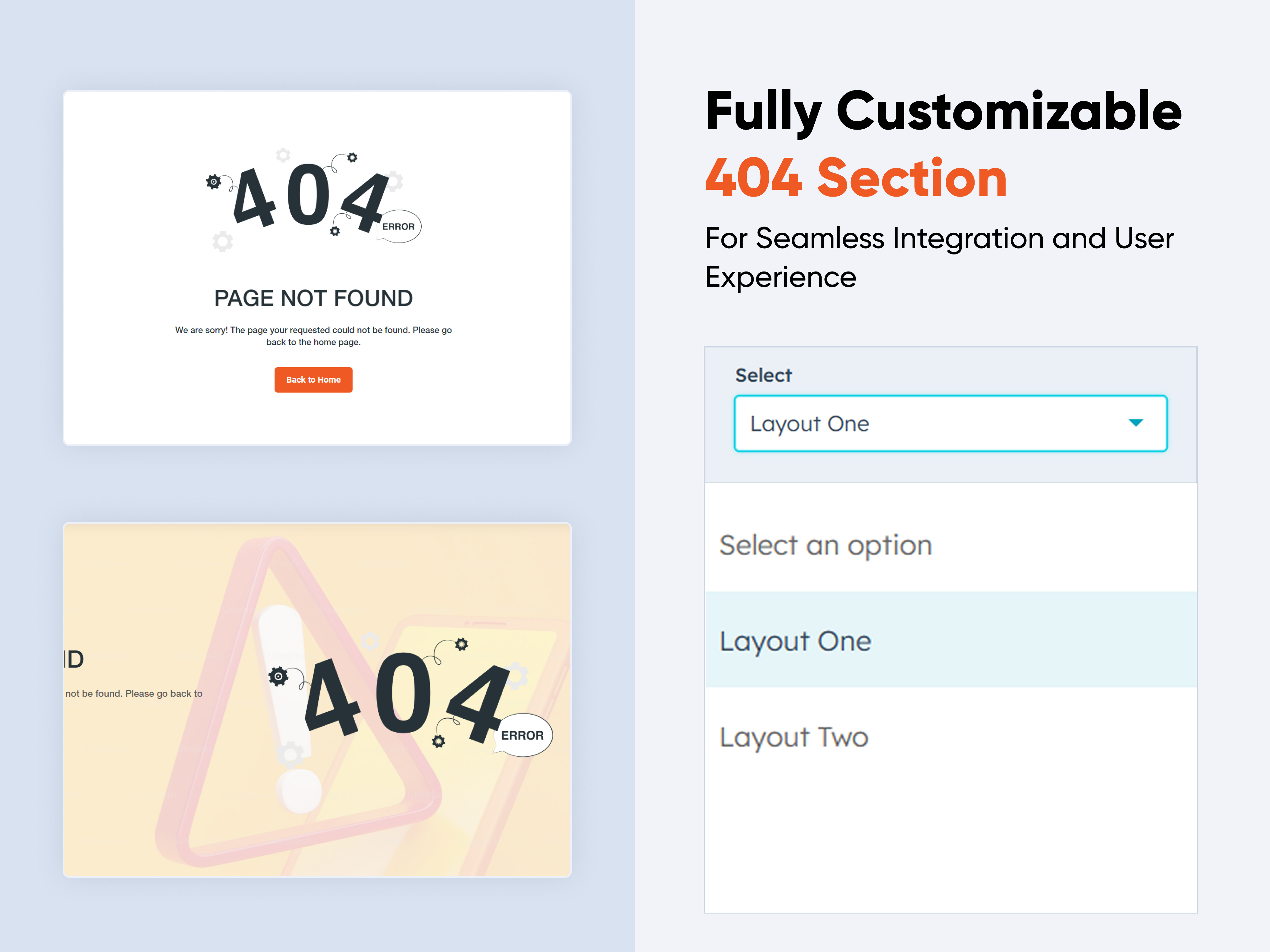
Counter Cards
Counter Cards
Columns | Cards |
Counter Cards Thumbnail
02 thumbnail-1
03 thumbnail-1
04 thumbnail-1

The Counter Module is a versatile and visually engaging tool designed to display animated number counters on your HubSpot website. Ideal for highlighting key metrics, milestones, or achievements, this module provides a simple yet powerful way to showcase important data, such as sales figures, customer satisfaction rates, or project milestones. Whether you're promoting business growth, achievements, or social proof, the Counter Module delivers both functionality and style.

Key Features :

  1. Fully Responsive Across All Devices: The counter adapts seamlessly to mobile, tablet, and desktop screens, ensuring a consistent user experience no matter how visitors view your site.

  2. Customizable Counter Settings: Easily set start and end values, and include prefixes or suffixes (like $, %, etc.) to match your metrics.

  3. Variety of Style Options: Choose from multiple layout designs, font styles, and colors to suit your brand’s aesthetic.

  4. Three Elegant Variants: Select from three distinct visual styles that can be applied to create the perfect presentation for your counters.

  5. Flexible Column Layout Options: Arrange your counters in single, double, or multi-column layouts to best fit your page’s design.

  6. Customizing Module Content: Effortlessly modify titles, labels, and descriptions to convey exactly what each counter represents.

Setting Up the Counter Cards Module in HubSpot : 

  1. In the main dashboard, navigate to the Content tab and select either Website Pages or Landing Pages, depending on where you want to add the service section.

    nav-timeline

  2. Choose the page where you want to apply the module.

    Screenshot (20)

  3. Search for "Counter Cards" and drag and drop the module into the desired location on your page

    counter add

Module Defaults Options: 

Heading & Description : 

Easily customize the content in your service card heading sections. Modify the "Heading" and "Description" to fit your needs, and choose to hide the section if you prefer.

Options : 

  • Heading & Description Toggle: Easily hide or show the heading and description sections.
  • Heading Type Feature: Select from heading styles ranging from h1 to h6 to customize the prominence of your headings.

heading counter

Layout Options :  

For counter card sections, select your preferred layout (e.g., Layout 1, Layout 2, or Layout 3). You can effortlessly rearrange the cards within the chosen layout to create the ideal content flow.

Options : 

  • Layout 1: Counter with four columns, featuring image/icon options and a title.
  • Layout 2: Counter with four columns, including image/icon options and a title with an accompanying image.
  • Layout 3: Counter with two columns; one column for an image and the adjacent column for counter content.

layout counter

Counter Column :  

You can easily customize the counter cards in HubSpot by adjusting the following settings.

Options : 

  • Column Options: Choose and arrange card layouts with options for one, two, three, or four columns.
  • Counter Repeater: Add and customize the image/icon, and title. 

countercol

Module Style Options: 

Module Setting :

Adjust margins, padding, background colors, and container width to achieve your preferred design and layout.

module setting counter

Heading & Description Setting :

Users can customize the maximum width, bottom spacing, and content alignments. Additionally, they can adjust typography settings, including heading and description font size, weight, and line height, for both mobile and desktop views. Spacing adjustments for mobile and desktop are also available.

heading counter-1

Counter Setting :

Users can customize the background color, spacing, border radius, and text alignment, as well as apply box shadows and borders to align with their branding. Additionally, they can set a background hover color for interactive effects.

counter setting

Counter Content Setting :  

Users can customize the typography of the title and counter value to align with their content, adjusting font size, weight, and line height for both mobile and desktop views. They can also modify bottom spacing, adjust icon/image height, change HubSpot icon color, and apply hover colors to the text, icon, and counter value.

counter content

We hope you find our Counter Cards module valuable in enhancing both user experience and marketing effectiveness. At Code Accelerator, we're dedicated to making your HubSpot experience outstanding. For custom HubSpot modules or personalized HubSpot CMS and CRM setups, please feel free to reach out to Contact Us.

Module Tags: Columns | Cards |
Discover More in the Knowledge Base

Explore detailed documentation, setup instructions, feature explanations, and best practices to help you get the most out of this module quickly and efficiently.
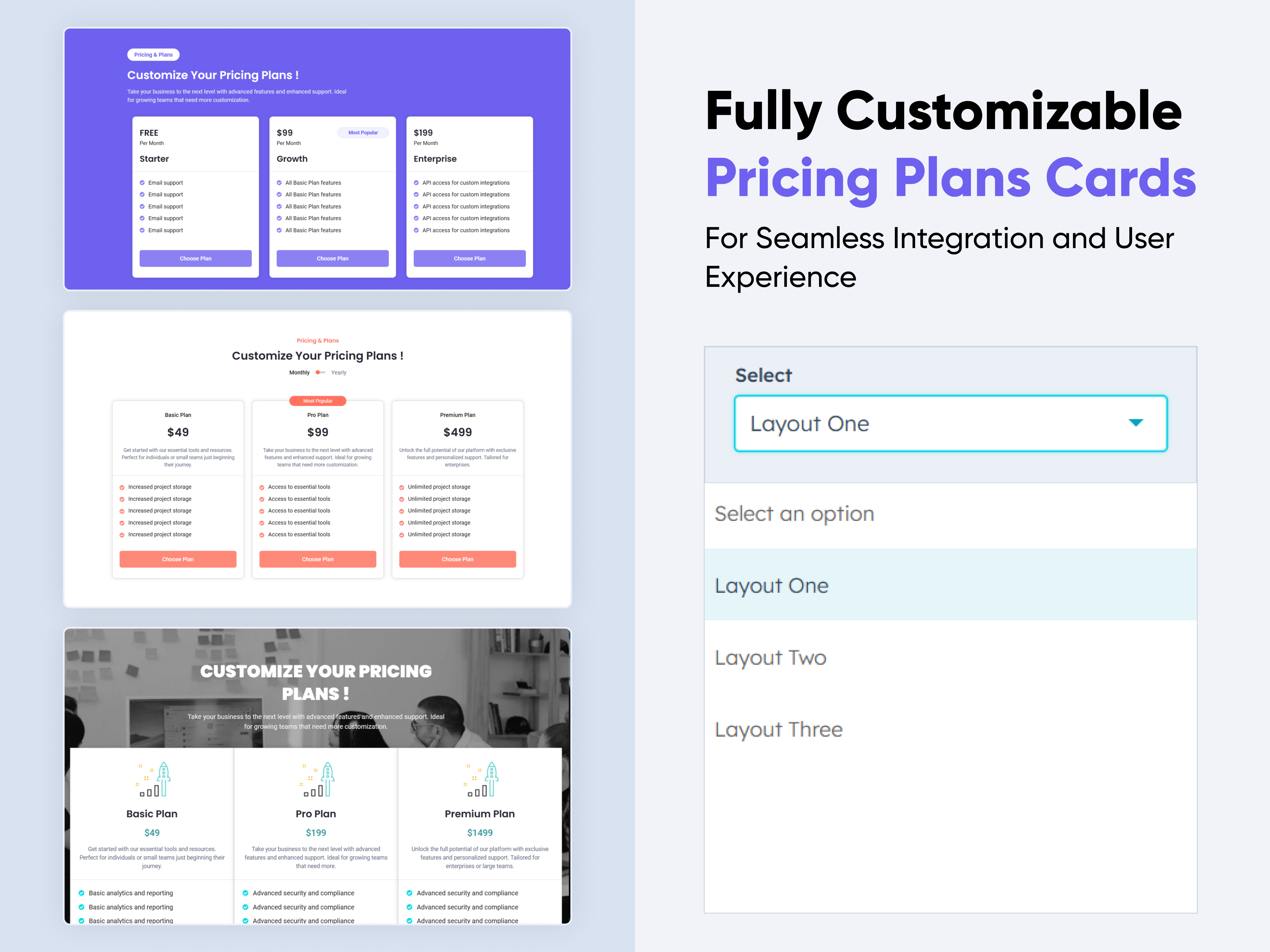
Timeline with Animation
Steps | Content | Animation |
Timeline with Animation
Price: $29
Timeline with Animation

A "timeline module" in the context of software or web development typically refers to a component or feature that allows users to create, manage, and display chronological events in an interactive and visually appealing manner. Here's a knowledge base covering various aspects of a timeline module:

Key Features : 

  1. Event Management: Users can add, edit, and delete events along a chronological timeline. Each event typically includes details such as a title, description, date, and optionally.

  2. Responsive Design: The timeline module should be responsive, meaning it adapts smoothly to different screen sizes and devices. This ensures a consistent user experience across desktops, tablets, and mobile devices.

  3. Customizable Styling: Users can customize the appearance of the timeline to match their branding or design preferences. This includes options for colors, fonts, sizes, and overall layout.

  4. Smooth Animations: Implement smooth animations to enhance the user experience during drag-and-drop actions.

How to Set Up the Timeline Module in HubSpot : 

  1. In the main dashboard, go to the ‘Content’ tab and select ‘Website’ or ‘Landing Pages’ based on where you want the timeline section. 

    nav-timeline

  2. Choose the appropriate page on which you would like to use it.

    Screenshot (20)

  3. Search for the "Timeline with Animation" and Drag and drop the module into the desired location on your page.

    search-timeline-1

Module Defaults Options: 

Heading & Description : 

You can customize the content displayed in your Timeline Heading Sections. Easily modify and refresh the "Heading" and "Description" as desired, and even choose to hide the section if you wish.

Options : 

  • Heading & Description Hide/Show Toggle

timeline heading

Timeline Content :  

In module, managing timelines, including adding and removing items and changing titles, descriptions, and years, is quite straightforward. Here’s a guide to help you.

Options : 

  • Timeline Add/Remove
  • Title Content Add/Remove
  • Description Content Add/Remove
  • Year Content Add/Remove

    Timeline Content

Timeline Position :  

You can easily customize the timeline in HubSpot by adjusting the following:

  • Timeline Position: Choose to have the timeline start on the left or the right side.
  • Text Alignment: Align the timeline text to the left or right.

These options allow you to tailor the timeline's appearance to fit your preferences and needs.

Options :

  • Timeline Start with Left
  • Timeline Start with Right
  • Left Align
  • Right Align

Timeline Position

Module Style Options: 

Module Setting :

Customize the max width of containers within your section to suit your layout preferences. Fine-tune spacing between elements for desktop and mobile views to optimize visual appeal and usability. Choose from background colors and gradients to enhance sections and modules throughout your site. Set unified styles for headings across your module.

module setting

Heading & Description Setting:

Users can customize the max width, bottom spacing and content alignments. and also users can customize the typography to fit the heading and description font size, weight, and line height for both mobile and desktop views. They can also adjust the spacing for mobile and desktop.

Edit-Page-Timeline-Module

Timeline Setting :

Users can customize the background color, spacing, border radius, and max width, including box shadow, vertical border, and dots, to align with their branding.

timeline-setting

Timeline Content Setting :  

Users can customize the typography to fit the timeline content font size, weight, and line height for both mobile and desktop views. They can also adjust the bottom spacing.

timeline content

We hope you will love working with our timeline module and creating a seamless experience for both your users and marketers on your team. Here at Code Accelerator, we strive to ensure that your experience with HubSpot is a great one! If you need a custom HubSpot module or require a customized HubSpot CMS or CRM setup, Please Contact Us.

Module Tags: Steps | Content | Animation |
Discover More in the Knowledge Base

Explore detailed documentation, setup instructions, feature explanations, and best practices to help you get the most out of this module quickly and efficiently.
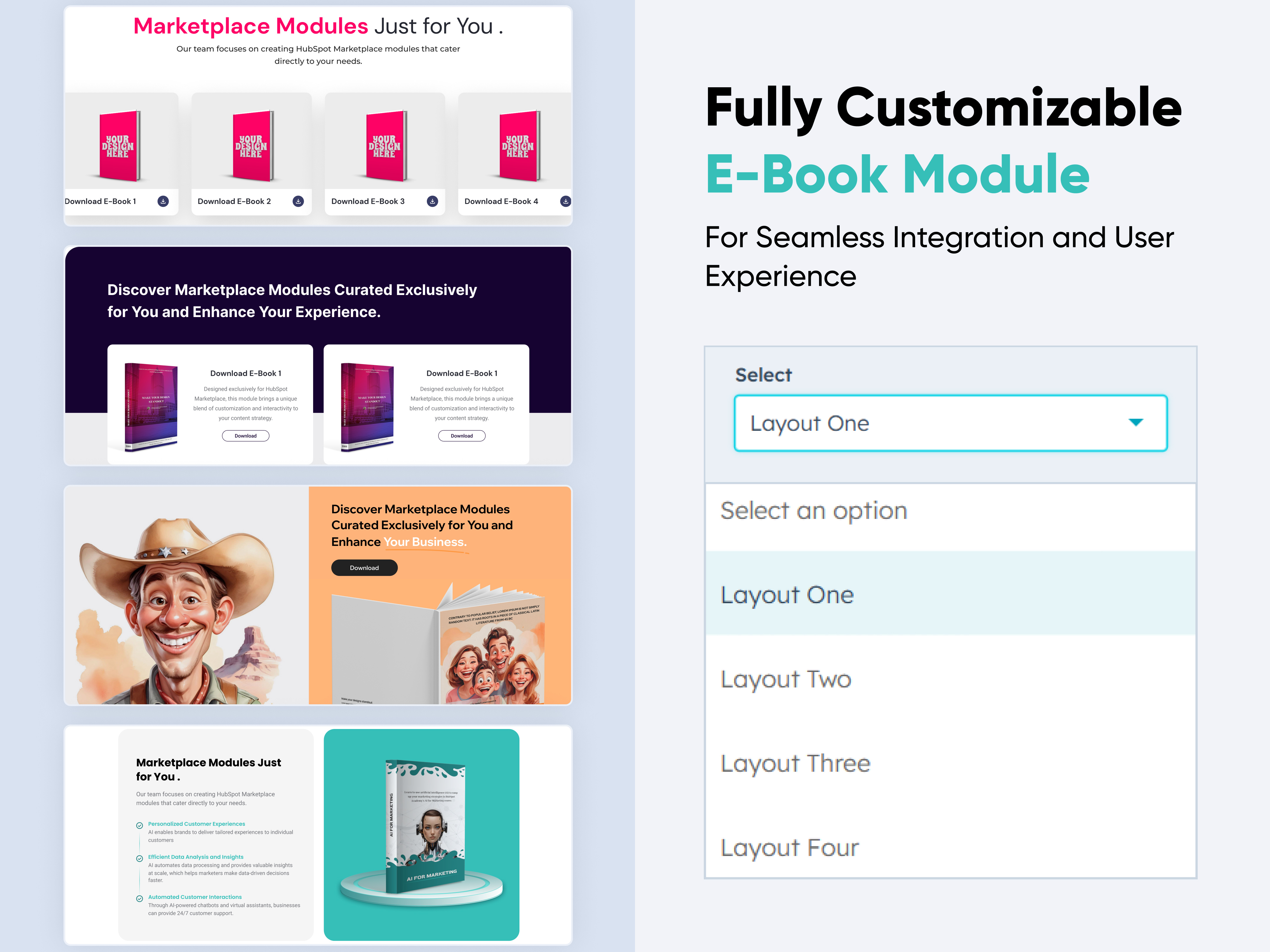
FAQ with Accordian
FAQ with Accordian
FAQ | Accordion | Content |
FAQ with Accordian
Price: free
FAQ Module Thumbnail

Customer support is essential for any business, and a well-organized FAQ section can significantly reduce the workload on your support team. Our FAQ Module is designed to streamline this process, enabling you to create, manage, and display FAQs on your website. In this knowledgebase, we will explore the features and setup process of our FAQ Module.

Key Features : 

  1. Customizable Layouts: Choose multiple layout options to match your website’s design.

  2. Responsive Design: The FAQ section is optimized for all devices, ensuring a seamless experience for your users.

  3. Search Functionality: Integrated search functionality allows users to find answers quickly.

  4. Collapsible Sections: Organize your FAQs into collapsible sections for easy navigation.

Setting Up the FAQ Module in HubSpot  :

  1. In the main dashboard, go to the ‘Content’ tab and select ‘Website’ or ‘Landing Pages’ based on where you want the FAQ section. 

    Navigation

  2. Choose the appropriate page on which you would like to use it.

    Screenshot (20)

  3. Search for the "FAQ with Accordian" and Drag and drop the module into the desired location on your page.


    Screenshot (20)-2

Module Defaults Options: 

Heading & Description : 

You can customize the content displayed in your FAQ Heading Sections. Easily modify and refresh the "Heading" and "Description" as desired, and even choose to hide the section if you wish.

Options : 

  • Heading & Description Hide/ Show Toggle
  • Heading Type feature for Heading

Screenshot (22)

Search Bar :  

You can customize the design of the search bar. You can easily change the placeholder and button label of the search bar and hide the section if needed.

Options : 

  • Search bar Show/ Hide Toggle
  • Button Position
  • Button Label

    Screenshot (24)

FAQ Accordions  :  

You can natively customize the layout in 2 columns or one column. Easily change the icons, add your question and answer, and include a CTA in the answer if desired.

Options : 

  • Column Options 
    • Choice

      Screenshot (25)

  •  Answers FAQ
  • Question FAQ
  • CTA Enable
  • CTA Choice 
  • CTA Label
  • CTA Link/URL

Icons Select :  

You can customize the icons when opening and closing the FAQ accordion.

  • Icon Position Alignment
  • Icon Vertical Alignment
  • Open Icon
  • Close Icon 

Screenshot (27)


Module Style Options: 

Module Setting :

Adjust the maximum width of containers to fit your layout preferences. Fine-tune the spacing between elements for both desktop and mobile views to enhance visual appeal and usability. Enhance the look of your sections and modules by choosing suitable background colors and gradients. Set unified styles for headings across your module.

faq module setting

Heading & Description : 

Users can customize the width, bottom spacing, max width and content alignments. 

Screenshot (29)

Heading Settings : 

Users can customize the typography to fit the Heading's font size, weight, and line height in Mobile & Desktop.

faq headingSettings

Description Settings : 

Users can customize the typography to fit the sub-heading or description font size, weight, and line height in Mobile & Desktop.

faq Description Settings

Search Setting: 

Users can customize the spacing, button, and input field design, including corners, colours, and spacing, to align with their branding.

Screenshot (32)

Screenshot (33)

Screenshot (34)

Accordion Setting:  

Users can customize the background, content size, border, colours, box-shadow, and corner radius to match their branding.

Screenshot (35)

Question Setting:  

Users can customize the typography for mobile and desktop, including spacing.

Screenshot (36)

Answer Setting:  

Users can customize the typography for mobile and desktop, including spacing.

Screenshot (37)

Answer CTA Setting:  

Users can customize the typography and spacing for mobile and desktop, including spacing, background colour, label colour, corner radius, hover colour, and box shadow.Screenshot (39)

icon Setting:  

Users can customize colour for active and default icons 

Screenshot (40)

We hope you will love working with our FAQ module and creating a seamless experience for both your users and marketers on your team. Here at Code Accelerator, we strive to ensure that your experience with HubSpot is a great one! If you need a custom HubSpot module or require a customized HubSpot CMS or CRM setup, please contact us.

Module Tags: FAQ | Accordion | Content |
Discover More in the Knowledge Base

Explore detailed documentation, setup instructions, feature explanations, and best practices to help you get the most out of this module quickly and efficiently.
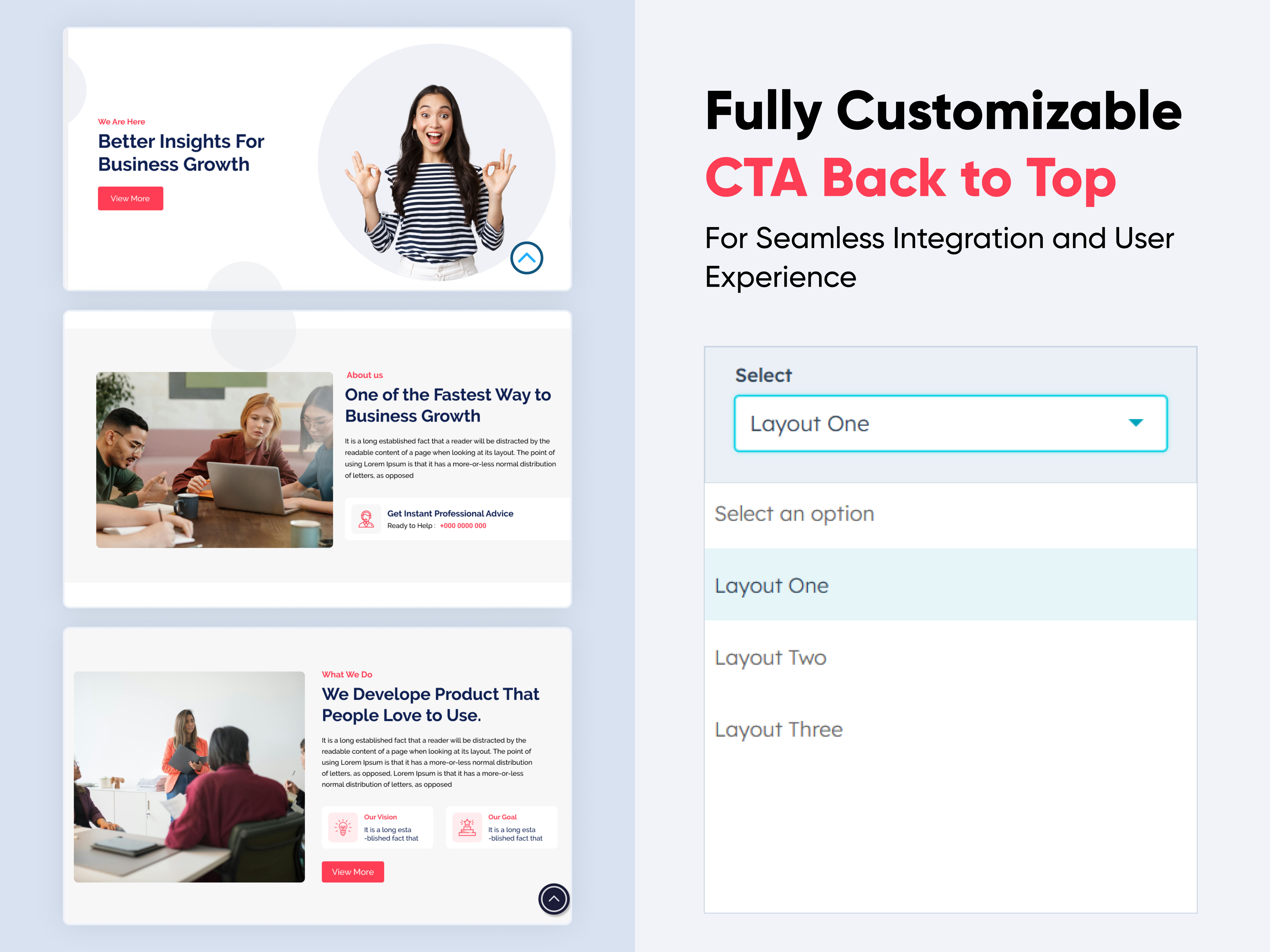
No results found.