
HubSpot Theme
HubSpot Modules
- Startup Growth Metrics
- Smart FAQ Accordion
- Premium Full Screen Banner
- Latest Insights Blog
- Two Column Testimonial
- Dynamic CTA Banner
- Latest Blog Highlights
- Dynamic Overlap Cards
- Case Study
- Modern Video Showcase
- Content Grid Pro
- Modern Hero Banner
- Feature Cards
- Use Case Tabs
- Feature Accordion Pro
- Info Cards
- Hero Banner Pro
- Pricing Plans Premium
- Job Search and Category Premium
- Infinity Logos Slider
- Stats Number Counter
- Step Process Or Services
- Motion Cards
- FAQ Premium
- Tab with Content
- Service Animation Cards
- About Me
- Infinity Testimonial Slider
- Events List Premium
- Download eBook Now
- Tabbed Info Display
- Banner Pro
- Two Column Steps
- Image Gallery With Animation
- Parallax
- What We Offer
- Horizontal Slides Panel
- Banner
- Sliding Animation Cards
- CTA Back To Top
- Location With Map
- Testimonial Single
- Work Steps Process
- Sticky Social Icon
- Brand Logo Slider
- Animated Cards
- Multistyle Hero Banner
- Pricing Plans Card
- Hover Box Animation
- About Us Content
- Upcoming Events
- Unique CTA
- Team Members Detail
- E-Book Download
- Countdown Coming soon
- Our Services Cards Documentation Page
- 404 Section
- Main Hero Banner
- Client Logos Section
- Counter Cards Documentation Page
- Timeline Module Documentation Page
- Knowlegebase: Hubspot FAQ Module


Provider:

Code Accelerator Pvt. Ltd.
thecodeaccelerator.comThe Dynamic CTA Banner Module helps you capture attention and drive action with smart, responsive, and highly customizable call-to-action banners. Built for flexibility, it includes multiple layout options and dynamic display controls, giving you the freedom to promote offers, announcements, and key messages exactly when and where they matter most.
Easily update banner text, supporting copy, CTA buttons, and links directly inside HubSpot—no coding required. With mobile-optimized design, flexible positioning, adjustable spacing, and full style controls, this module ensures your CTA banner looks consistent and performs flawlessly across all screen sizes.
Whether you’re promoting a limited-time offer, launching a campaign, or guiding users toward conversions, the Dynamic CTA Banner delivers a clean, high-impact experience that increases engagement and drives measurable results.
Key Features of a Dynamic CTA Banner Module :
-
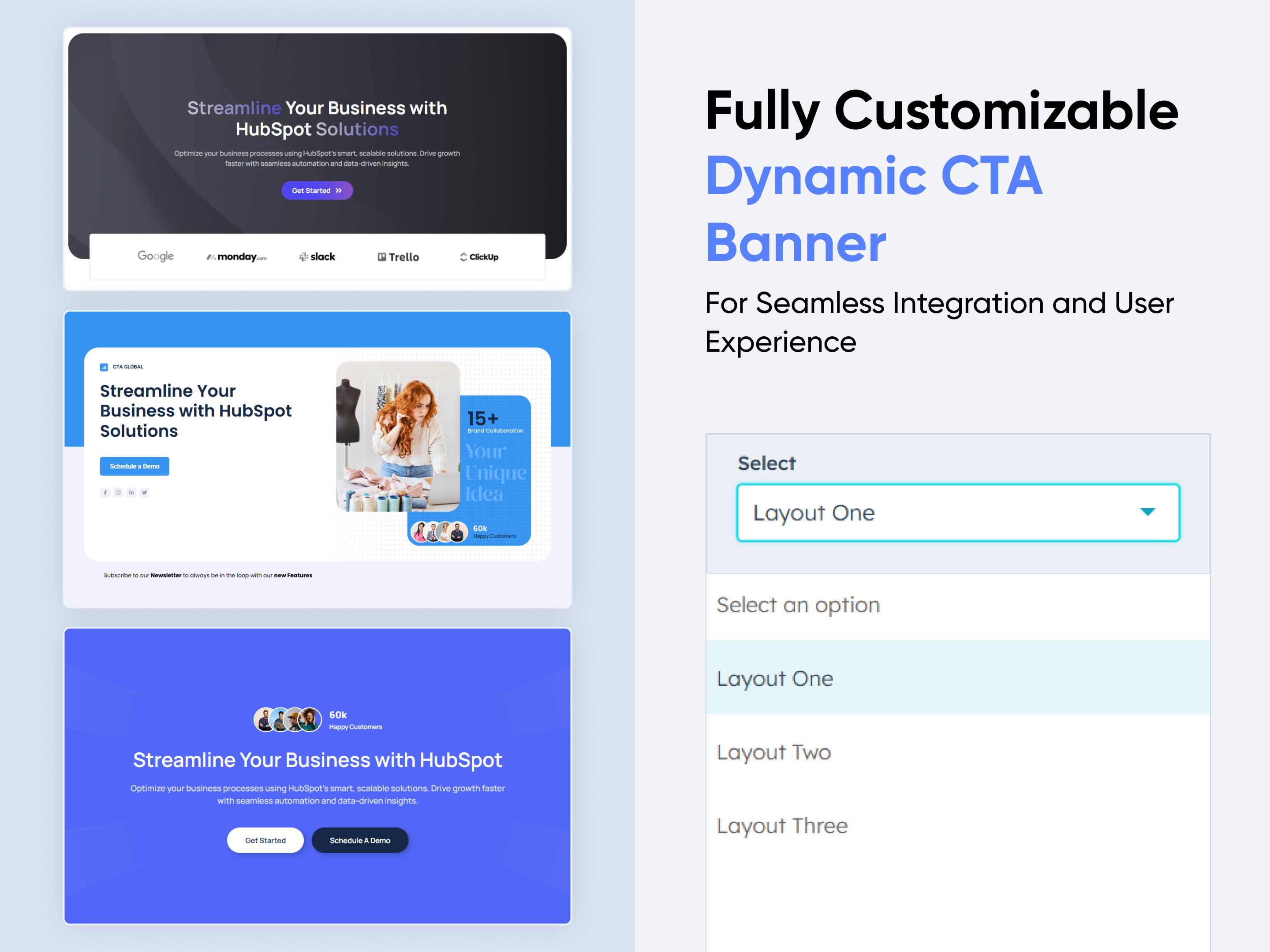
Multiple Layouts – Choose from 3 distinct hero banner styles.
-
Responsive Design – Optimized for all screen sizes, ensuring a flawless experience on desktop, tablet, and mobile.
-
Flexible Content Options – Easily update headings, descriptions, and CTAs directly within HubSpot.
-
Customizable Visuals – Add images, graphics, or mockups to match your brand identity and campaign goals.
-
Engaging Call-to-Actions – Drive conversions with customizable CTA buttons tailored to your business objectives.
-
Design Flexibility – Adjust spacing, alignment, and background colors for a unique, on-brand look.
-
User-Friendly Editing – No coding required—built for marketers to launch modern hero sections quickly.
-
Optimized Performance – Lightweight and SEO-friendly to ensure speed and visibility.
-
Versatile Use Cases – Perfect for homepages, landing pages, service showcases, or campaign launches.
How to Set Up the Use Dynamic CTA Banner in HubSpot :
In the main dashboard, go to the ‘Content’ tab and select either ‘Website’ or ‘Landing Pages,’ depending on where you want to add the section. This lets you choose the right location for managing or updating your content.
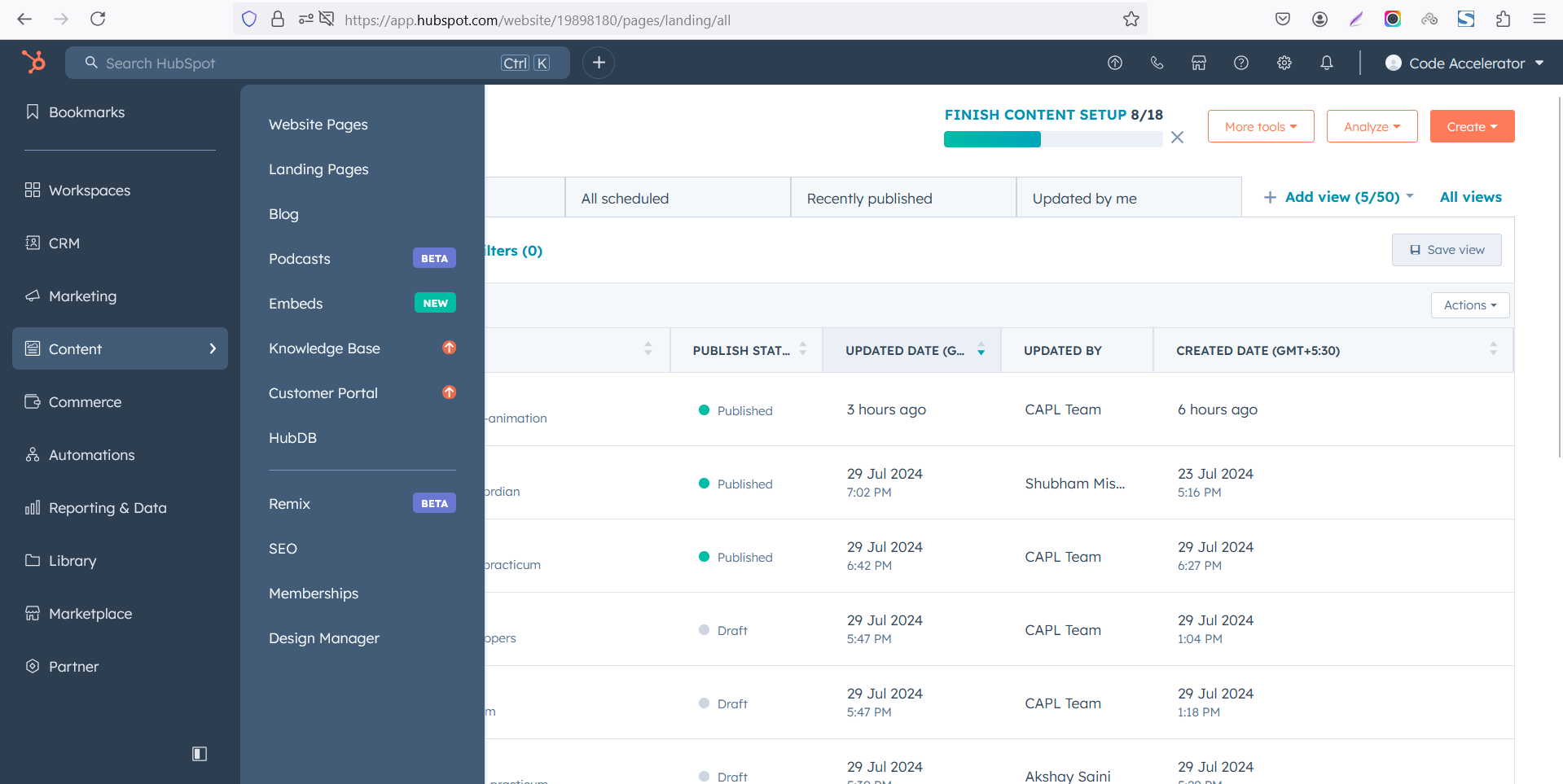 Select the page where you want to apply the module.
.png)
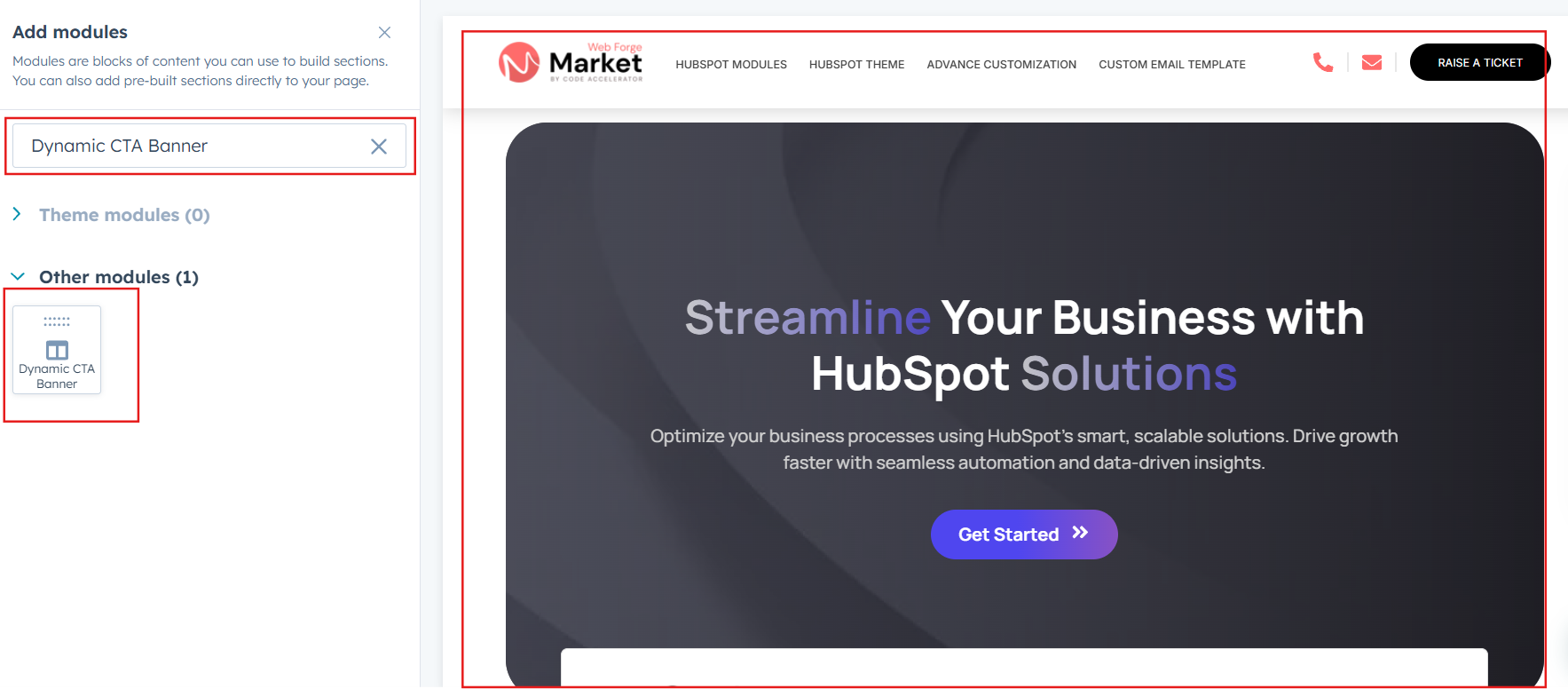
Search for "Dynamic CTA Banner" and drag and drop the module into the desired location on your page.
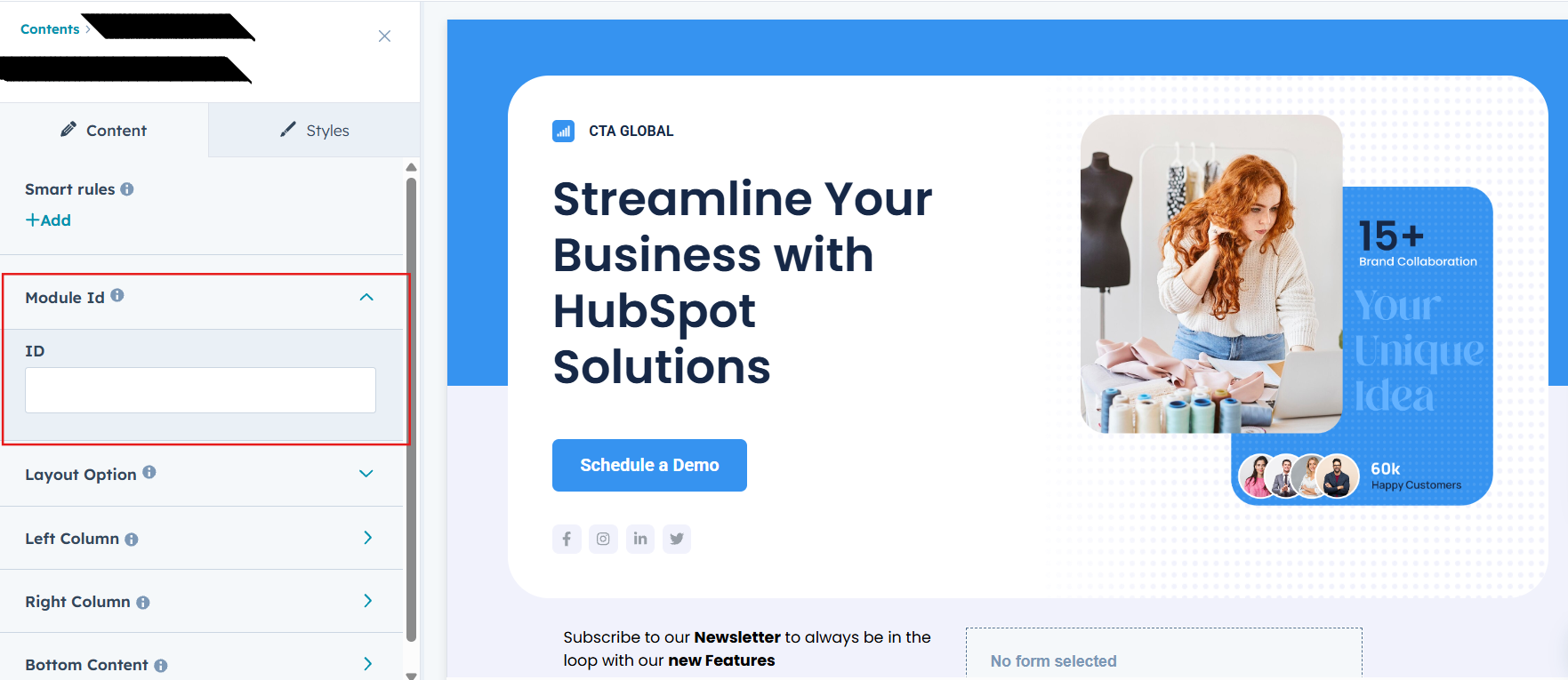
Module Defaults Options:
Layout ID :
Easily enhance navigation by adding an ID to the target section and using the same ID in an anchor link. This enables a smooth scrolling effect when users click a Call-to-Action (CTA) button, improving the overall user experience.
Layout Options :
Effortlessly capture attention and showcase your brand with the “Dynamic CTA Banner” module — perfect for homepages, landing pages, or campaign launches. Designed to make a powerful first impression, this hero section combines bold layouts, customizable content, and engaging calls-to-action that inspire visitors to take the next step. With responsive design and flexible styling, it ensures your hero banner looks sleek, professional, and high-converting across all devices.
Options:
-
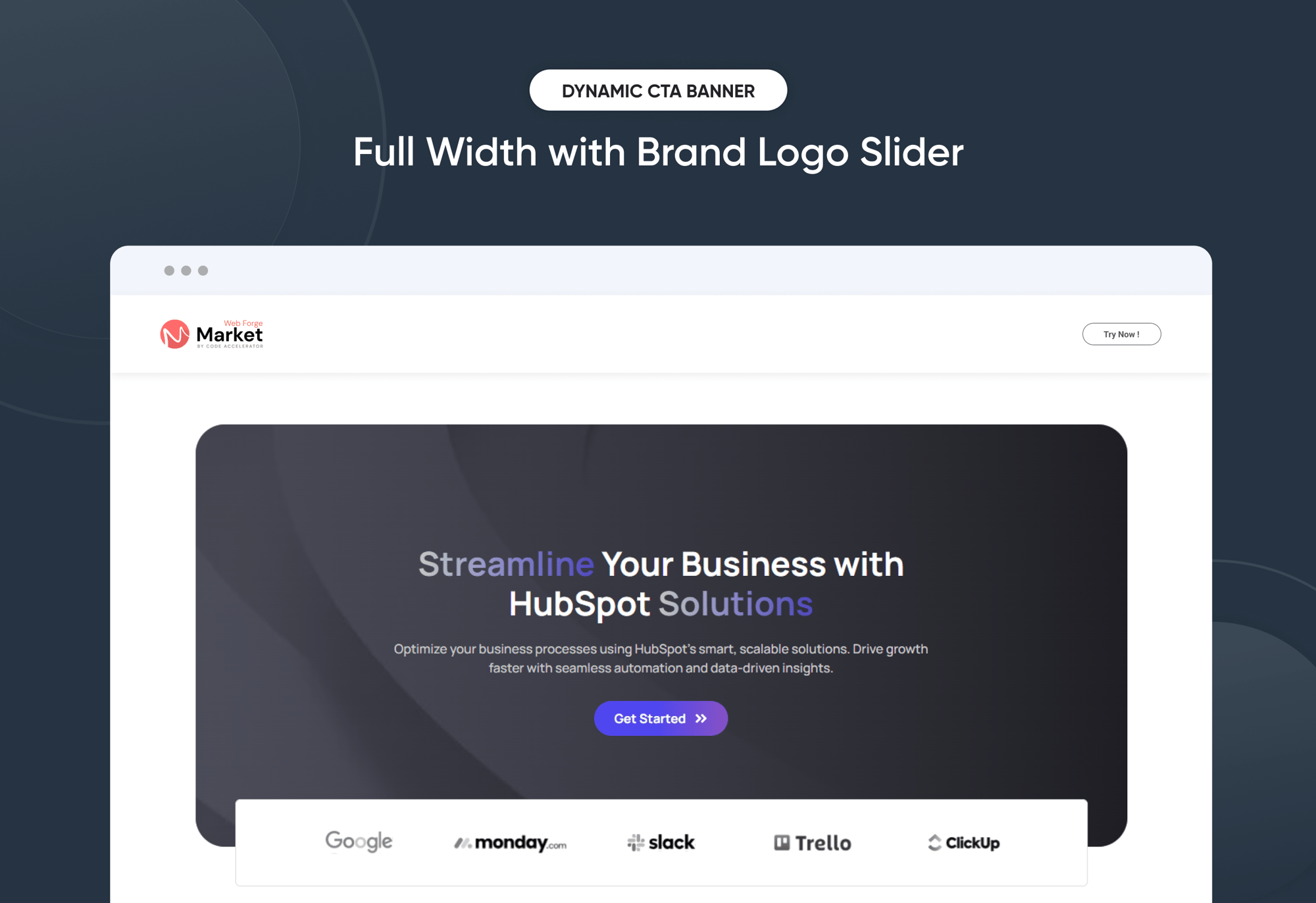
Layout 1 – A design featuring strong headlines, supporting visuals, conversion-ready CTAs and logo slider.
-
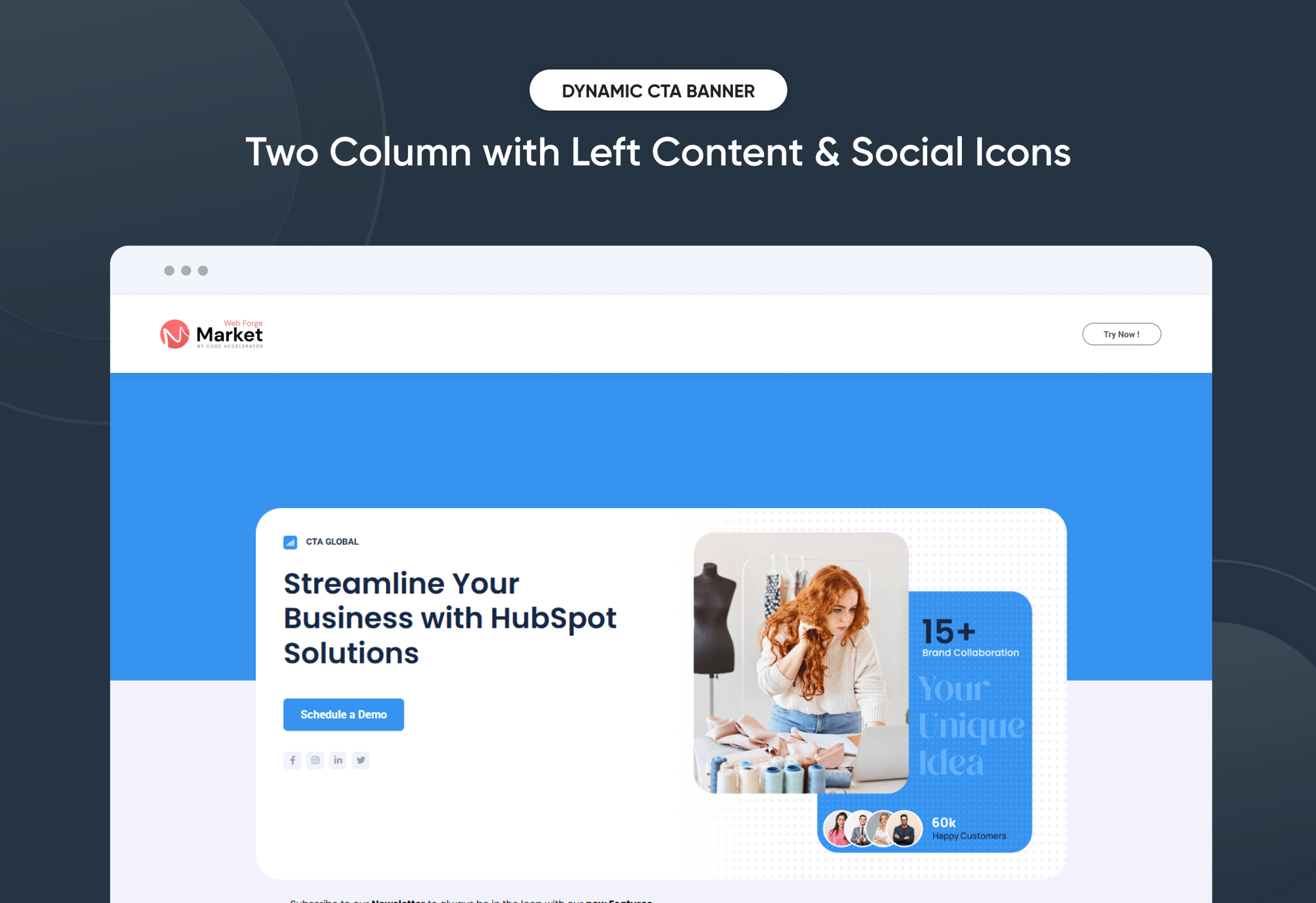
Layout 2 – A layout that highlights customer stories, social icon, and subscribe form.
-
Layout 3 – A layout customer success story, services, or modern CTA's.



-
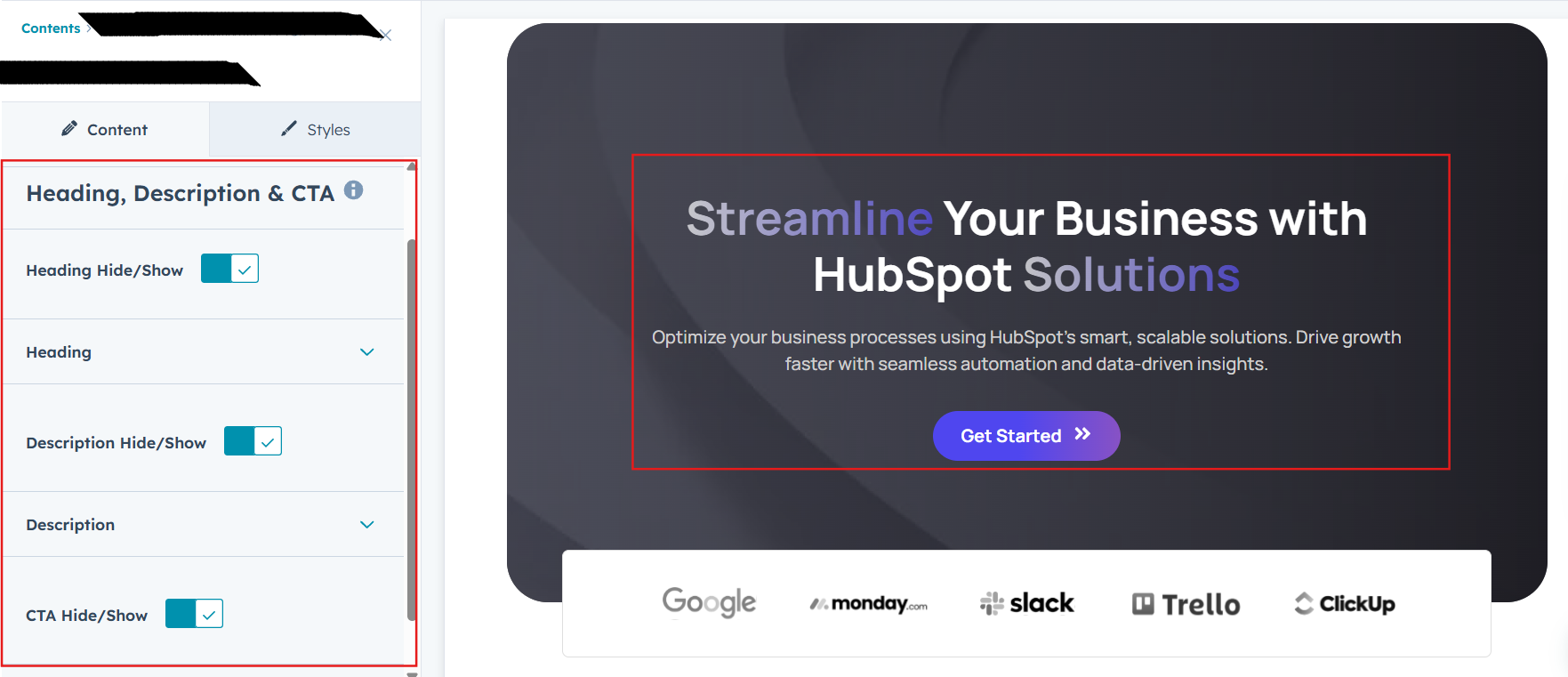
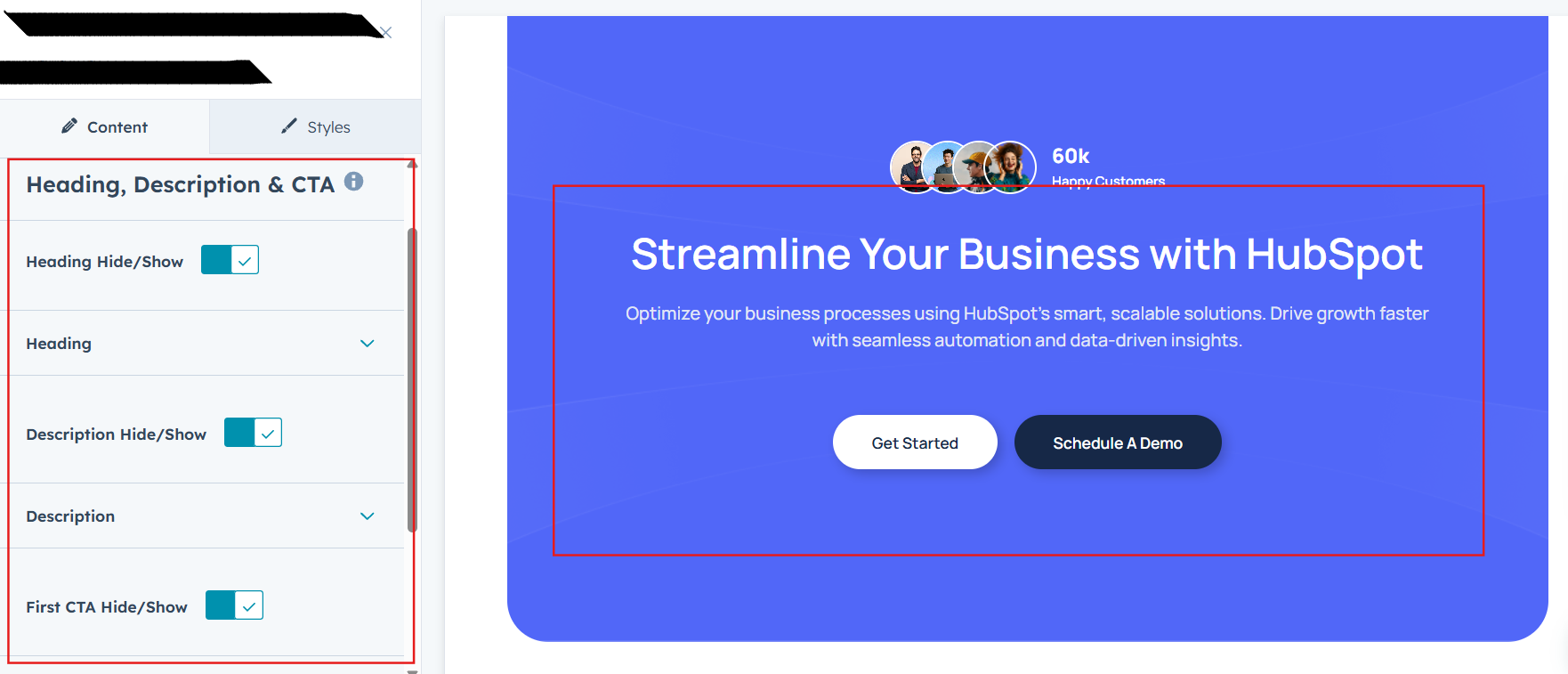
Heading Enable
Toggle the main heading on or off. Perfect when you want a clean hero layout without a large title. -
Enter Heading
Add and customize the main heading text. Use this space to deliver a strong, eye-catching message. -
Description Enable
Show or hide the supporting description under your heading. Ideal if you prefer a minimalist design. -
Enter Description
Add descriptive text below the heading. Great for explaining your value or offering in 1–2 concise lines. -
CTA Show/Hide
Easily enable or disable the call-to-action button. Useful if you want a hero section that’s informational only. -
CTA
Customize the CTA text, link, and style. A powerful way to drive visitors toward conversions.
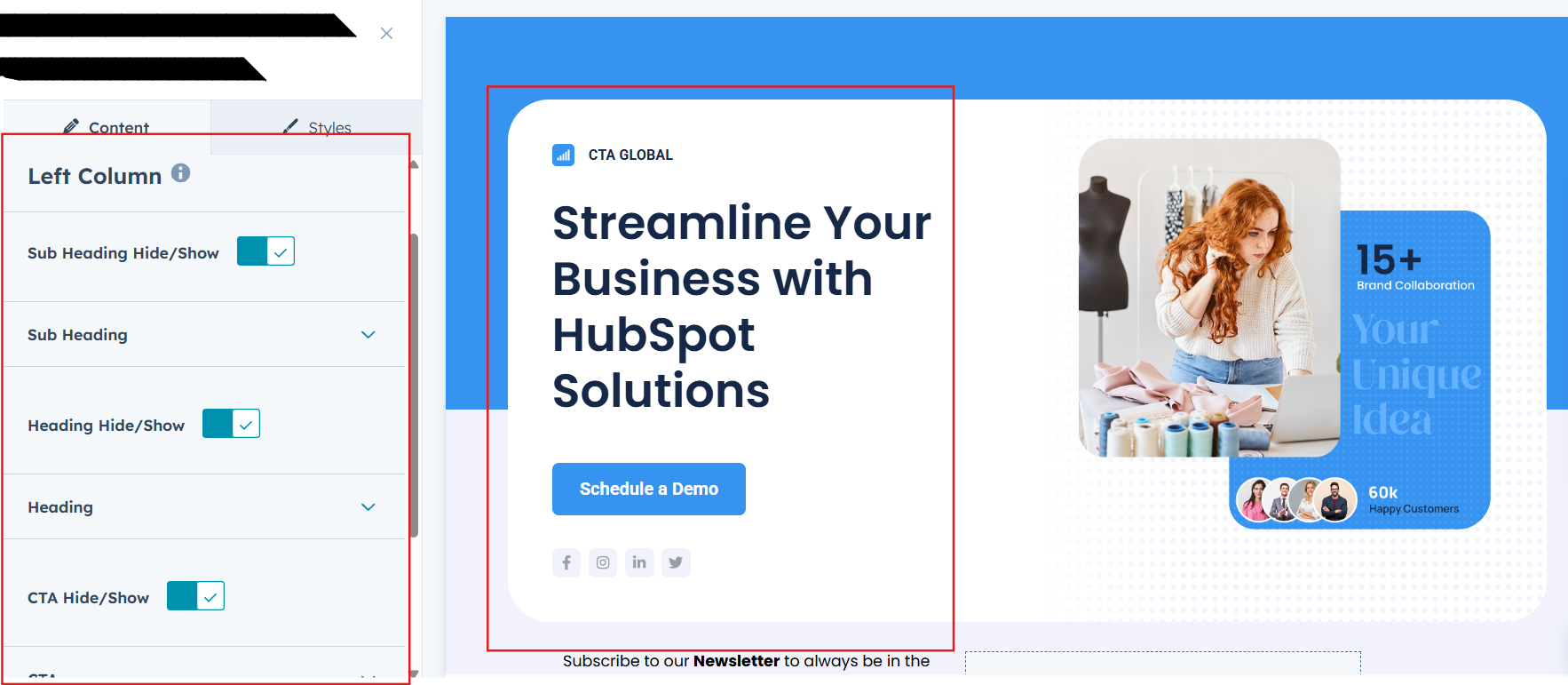
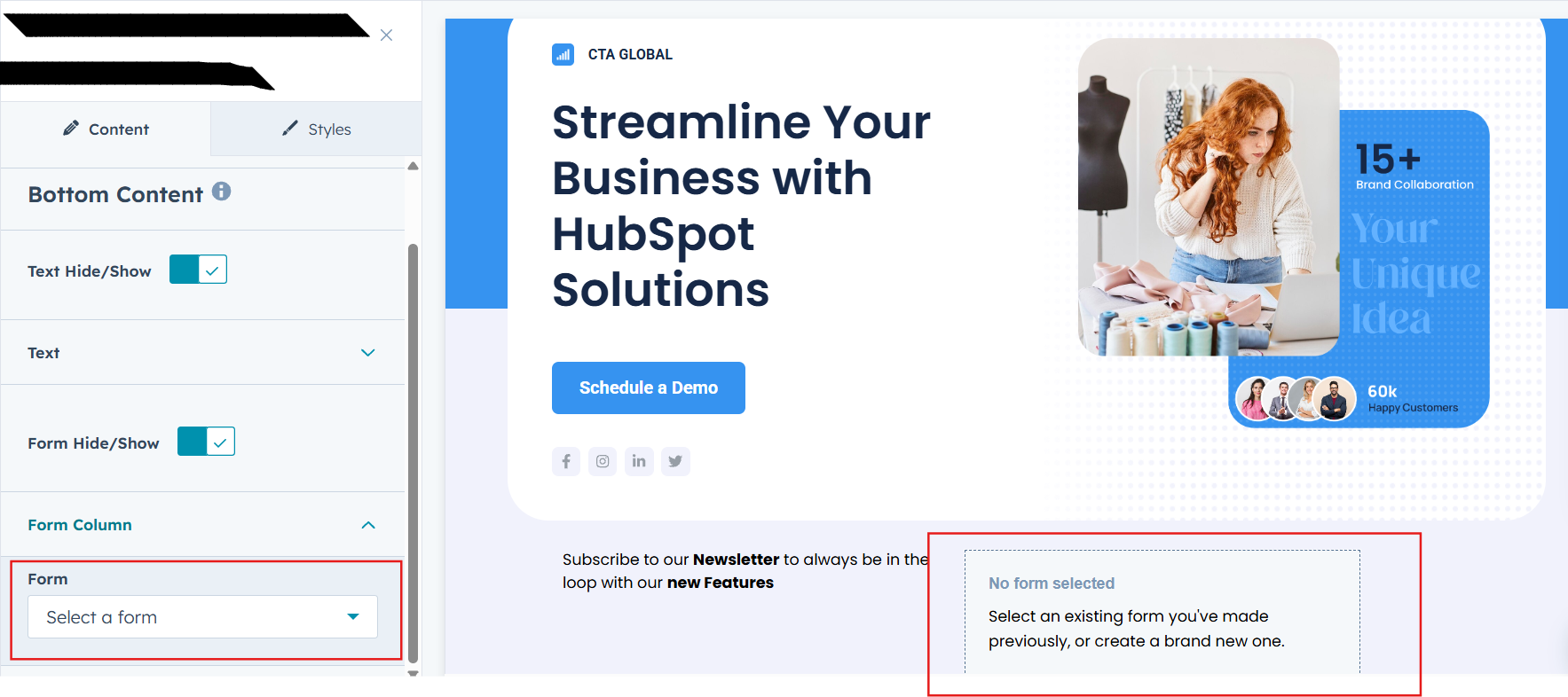
In Form filed select your subscribe form
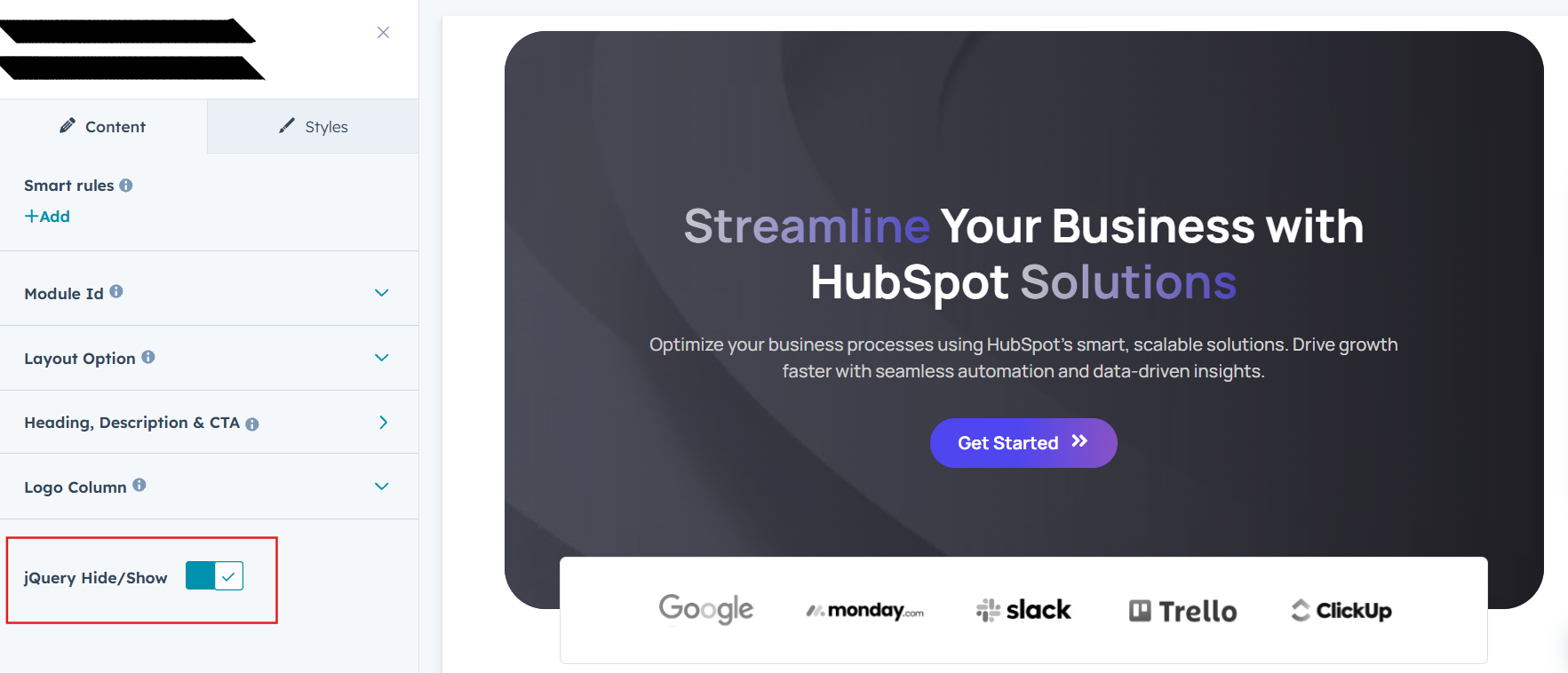
jQuery Add/Remove :
Users can add or remove jQuery JavaScript as needed, providing flexibility to enhance functionality or optimize performance based on their requirements.
Module Style Options:
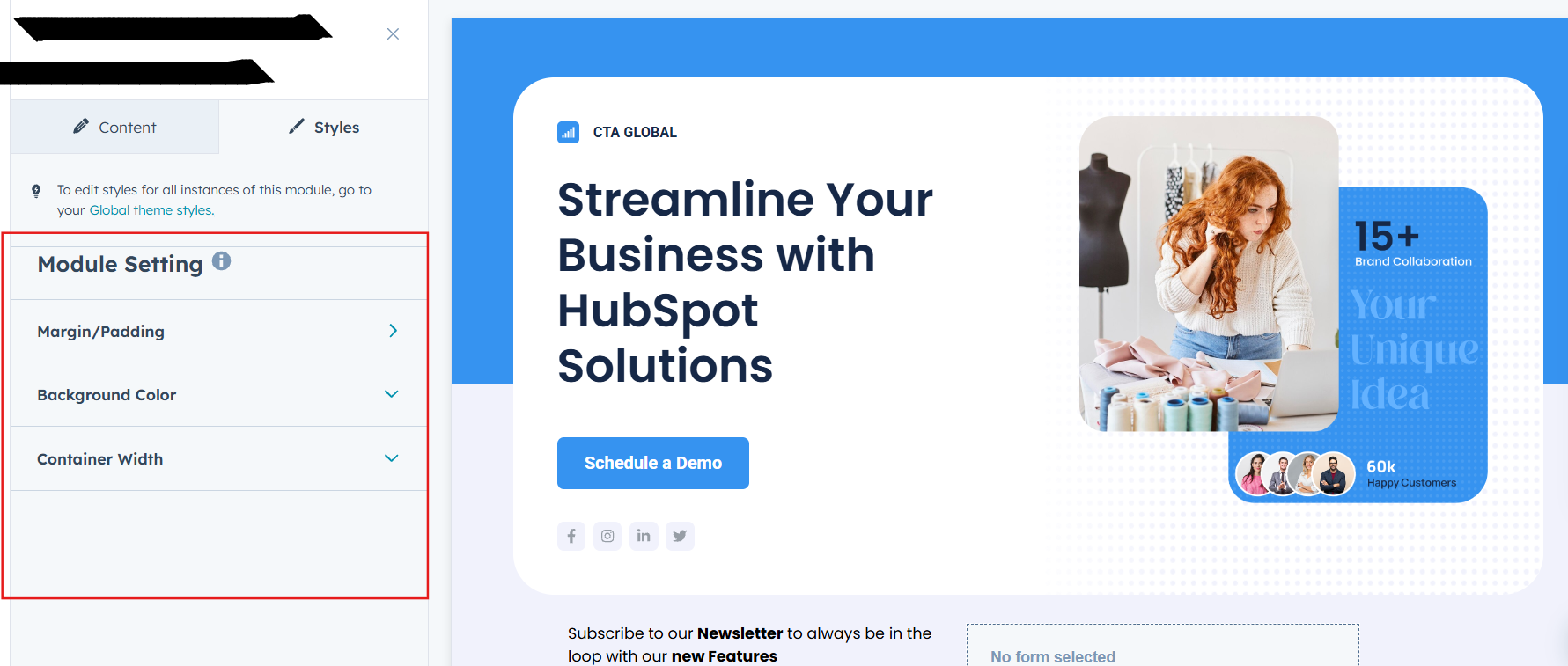
Module Setting :
Adjust the margin, padding, container width and background colors to achieve your desired look and feel for the module. This flexibility lets you fine-tune the layout and aesthetics, ensuring your design is both visually appealing and user-friendly.
Heading, Description and CTA Setting :
The Heading & Description Settings in Dynamic CTA Banner allow you to fully customize the look and feel of your text by adjusting desktop and mobile typography (font family, size, weight, line height, and color), managing spacing (margins and padding for precise layout control), and applying text transform options such as uppercase, lowercase, or capitalize, ensuring your headings and descriptions remain visually consistent, responsive, and aligned with your brand style across all devices.
- Desktop Typography
Customize font style, size, weight, and color for the CTA on desktop. Ensures your button text is bold, readable, and aligned with your brand style. - Mobile Typography
Individually set typography for mobile devices. Keeps the CTA optimized and user-friendly across all screen sizes. - Spacing
Adjust padding and margin around the CTA button. Helps maintain balanced layout and proper visual hierarchy. - Background
Choose and style the background color or gradient of the CTA. Makes the button stand out and match your brand’s look. - Border
Add or customize borders for the CTA button. Ideal for minimal designs or creating outlined button styles. - Border Radius
Control the corner roundness of the CTA. Switch between sharp edges, soft curves, or pill-shaped buttons. - Text Transform
Format your CTA text as uppercase, lowercase, or capitalized. Great for enforcing consistent design language. - Box Shadow Enable
Add or remove shadows around the CTA. Enhances depth and draws more attention to the button. - Alignment
Position the CTA left, center, or right within the hero section. Provides flexibility depending on layout style.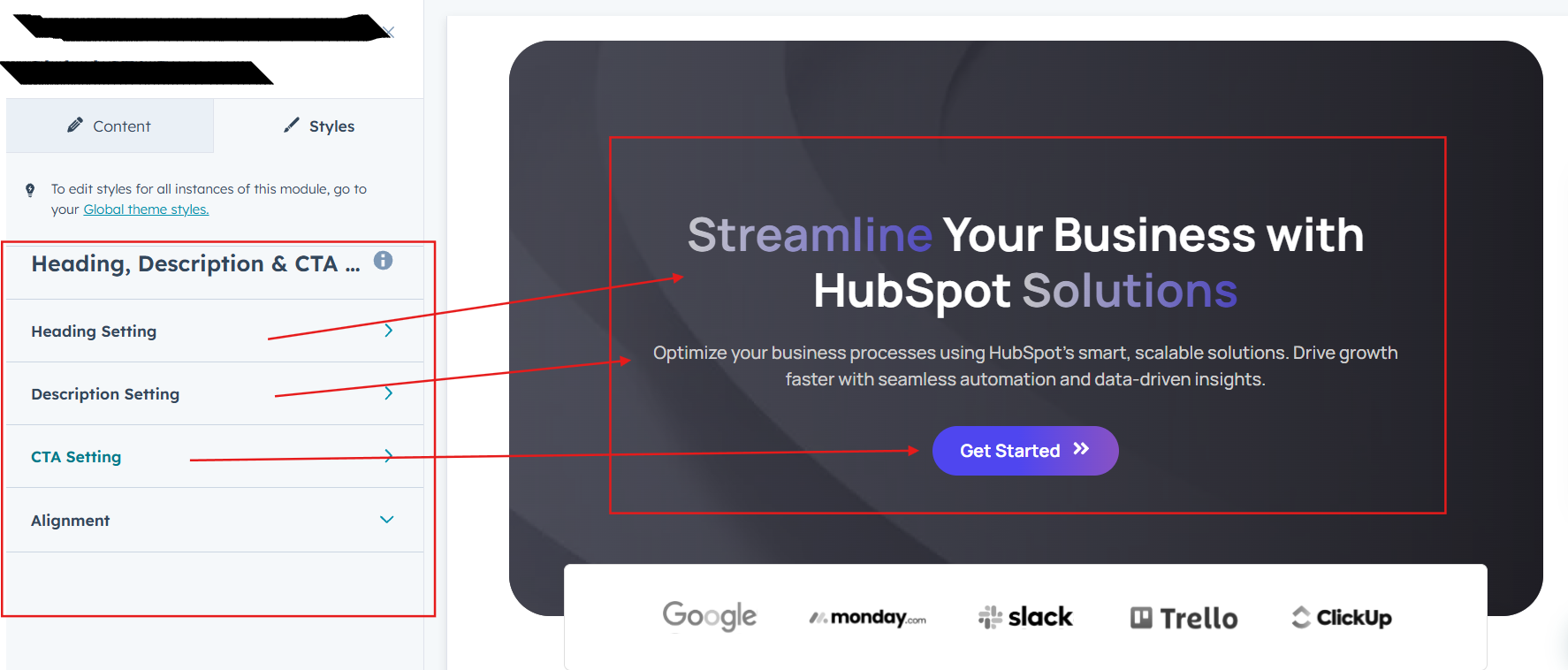
Logo Setting (Layout 1):
- Logo Height
Adjust the height of the image to fit your design. Helps maintain balance between visuals and text. - Border
Add or customize borders around the image. Useful for creating separation or emphasis. - Spacing
Control the margin and padding around the image. Ensures proper alignment and breathing space in the layout. - Border Radius
Round the corners of the image as needed. Perfect for creating smooth, modern, or card-style visuals.
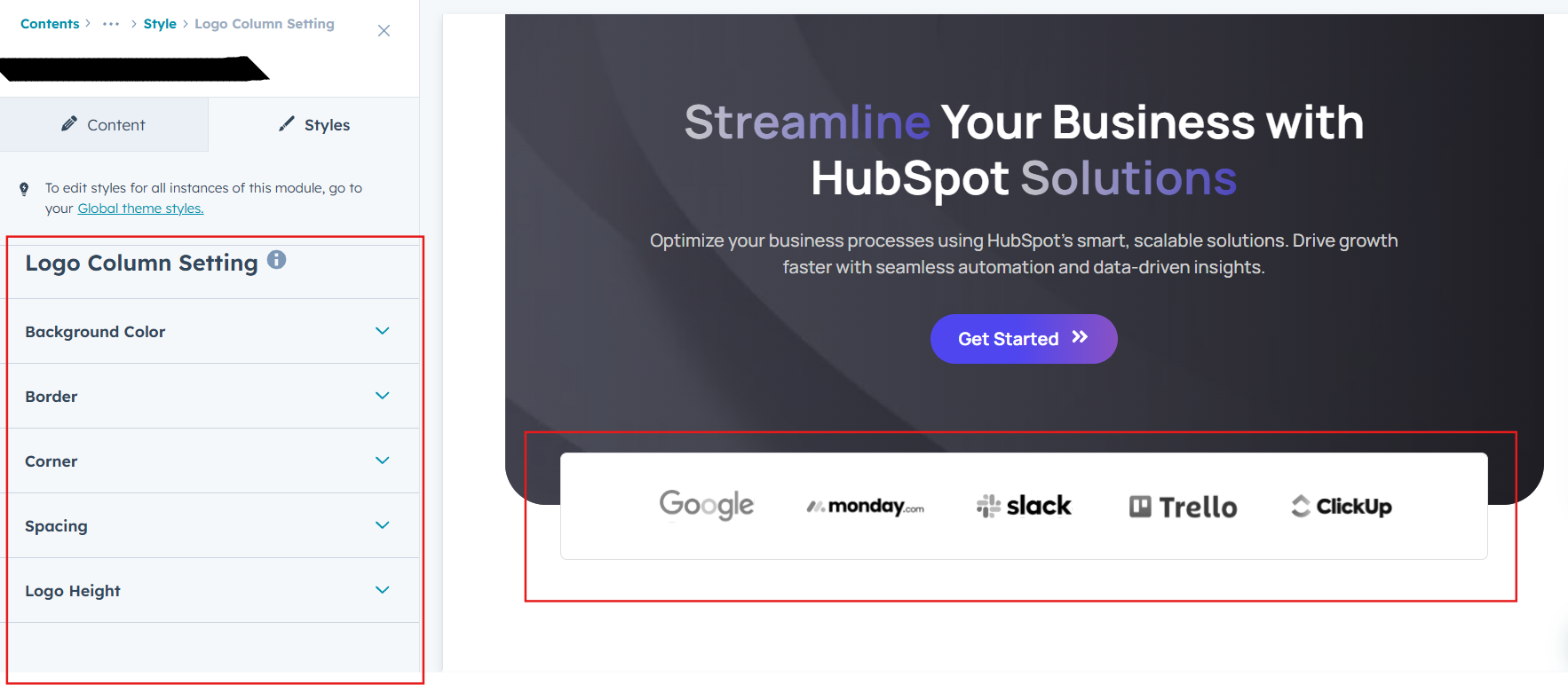
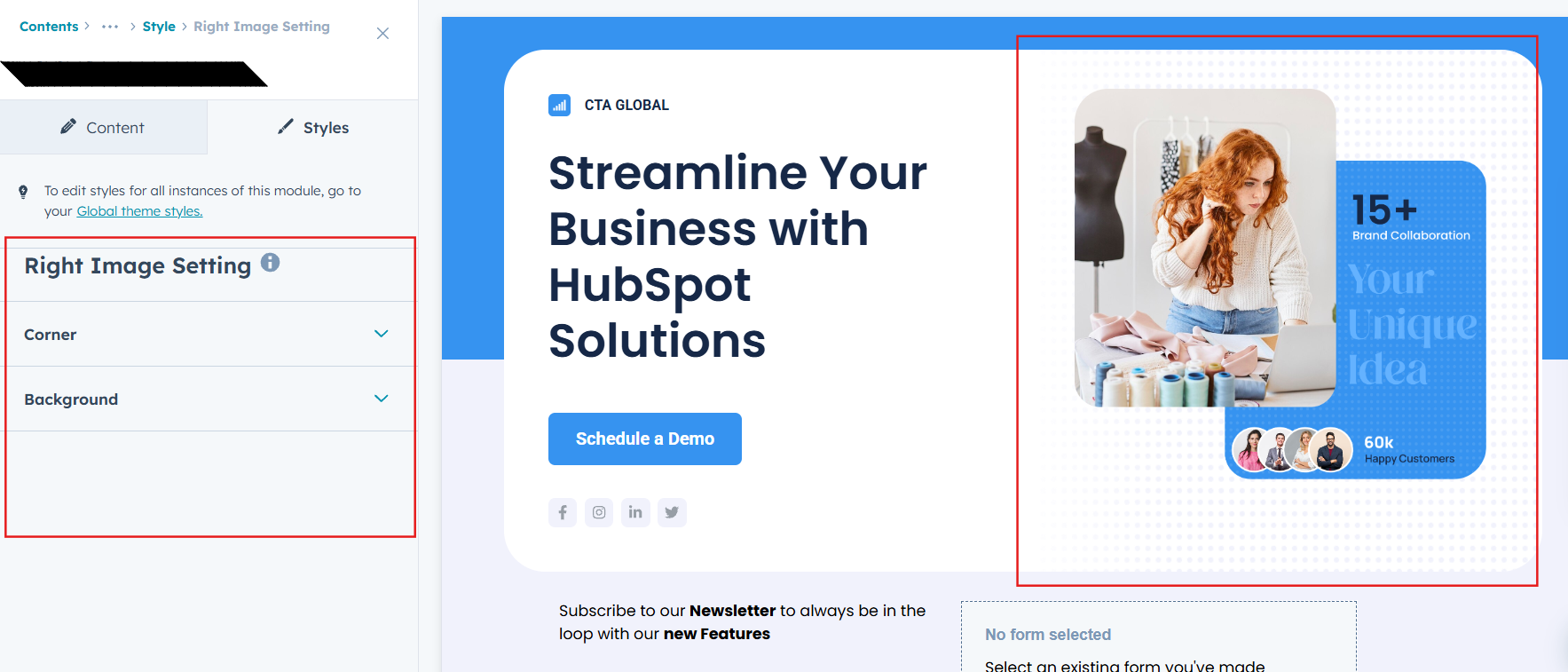
Image Setting :
Image Styling Settings allow you to easily control image corner and background to match your layout needs. And visual appearance to ensure images blend seamlessly with your brand design.
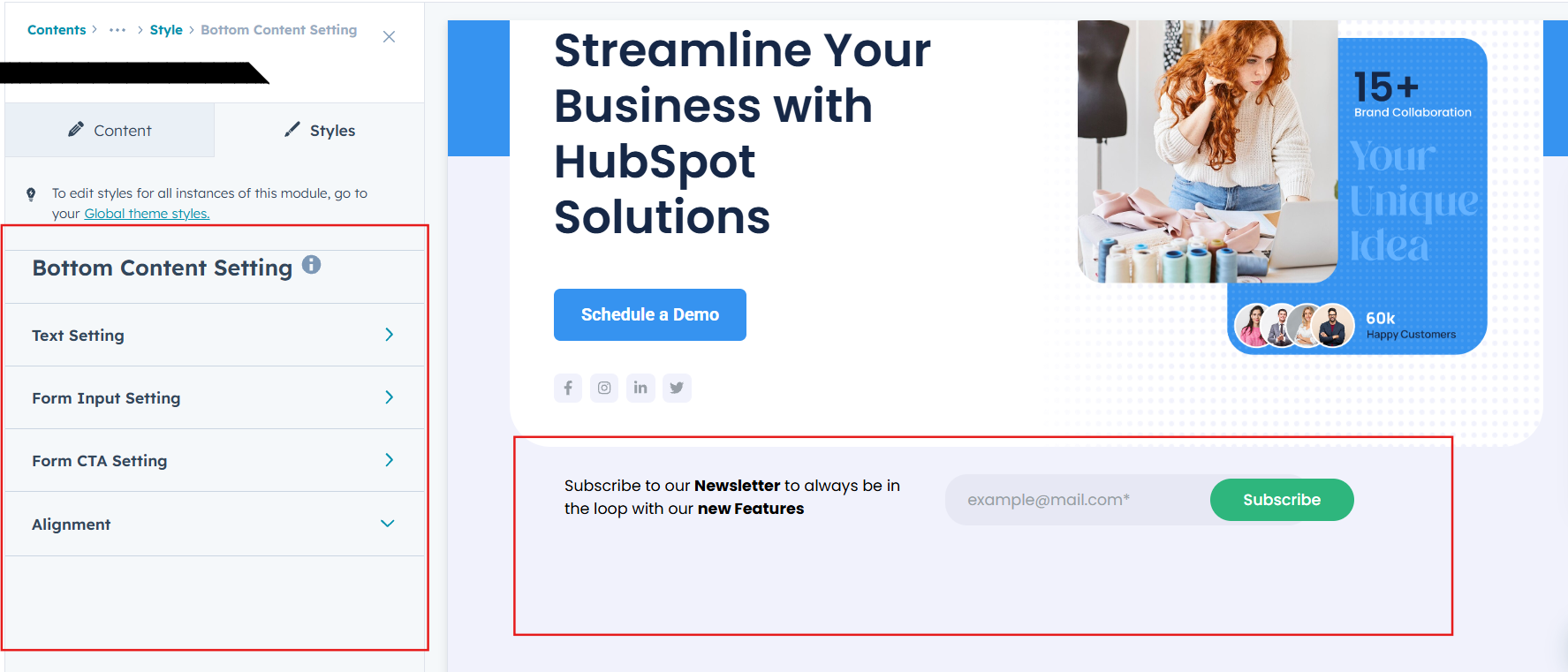
Bottom Content Setting :
- Desktop Typography
Customize font style, size, weight, and color for the CTA on desktop. Ensures your button text is bold, readable, and aligned with your brand style. - Mobile Typography
Individually set typography for mobile devices. Keeps the CTA optimized and user-friendly across all screen sizes. - Spacing
Adjust padding and margin around the CTA button. Helps maintain balanced layout and proper visual hierarchy. - Background
Choose and style the background color or gradient of the CTA. Makes the button stand out and match your brand’s look. - Border
Add or customize borders for the CTA button. Ideal for minimal designs or creating outlined button styles. - Border Radius
Control the corner roundness of the CTA. Switch between sharp edges, soft curves, or pill-shaped buttons. - Text Transform
Format your CTA text as uppercase, lowercase, or capitalized. Great for enforcing consistent design language. - Box Shadow Enable
Add or remove shadows around the CTA. Enhances depth and draws more attention to the button. - Alignment
Position the CTA left, center, or right within the hero section. Provides flexibility depending on layout style.
We hope you enjoy using our dynamic CTA banner to create a seamless experience for both your users and your marketing team. At Code Accelerator, we're committed to ensuring your HubSpot experience is exceptional. If you need a custom HubSpot module or require a tailored HubSpot CMS or CRM setup, please don’t hesitate to Contact Us.
Need Help? We’ve Got You Covered!
Our expert support team is here to guide you. Whether it’s troubleshooting, setup, or customization, we’ll help you get the most out of your modules with ease.